Visualising Conditional Access Policies with idPowerApp
Learn how to use idPowerApp to visualize Microsoft Entra ID Conditional Access policies. Simplify audits, improve communication, and troubleshoot faster.

Key Takeaways:
- idPowerApp transforms complex CA policies into easy-to-read PowerPoint slides.
- Supports both direct tenant access and JSON-based exports for environments with permission constraints.
- Enables better policy management, collaboration, and troubleshooting.
Managing Conditional Access (CA) policies in Microsoft Entra ID can quickly become overwhelming, especially when organisations implement multiple rules for multifactor authentication (MFA), device compliance, and sign-in frequency.
To simplify this complexity, Merill Fernando, Principal Product Manager for Microsoft Entra ID, introduced idPowerApp, a tool designed to make CA policies easier to understand and share.
“We were trying to troubleshoot some different Conditional Access issues about having to do with some sort of MFA rollout in their tenant,” says Fernando. “They had like about five or eight policies around MFA, and it was a terrible time trying to picture what the tenant conflict was for a policy, just for the MFA side of things.”
The challenge of Conditional Access
Conditional Access is a powerful security feature, but its interface can be cumbersome. Each policy requires multiple clicks to review settings such as:
- Included and excluded users
- Applications targeted
- Grant controls and enforcement options
Fernando explains the difficulty:
“When you go to the blade, just to open one Conditional Access to understand what a policy is doing, you might have to click about four or five times because it’s all blade-driven. By the time you click through the include, exclude of users and apps, it’s like four different clicks. And then you need to create a mental model of rights.”
This complexity compounds when organisations have multiple related policies. By the time administrators review the third policy, they often forget the details of the first.
A visual solution: idPowerApp
To address this, Fernando envisioned a visual representation of CA policies. Initially, the goal was a single-page summary of all MFA-related policies, but the growing number of CA options made that impractical. Instead, idPowerApp generates a PowerPoint slide for each policy, detailing:
- What’s turned on or off
- Included and excluded users
- Policy type (MFA, device compliance, sign-in frequency)
“With this power-up tool, when you run it, if you have 10 or 20 policies, it creates a PowerPoint slide for each policy and shows what’s turned on, what’s turned off, what includes, excludes. Is it an MFA one? Is it device compliance? Does it have sign-in frequency?” Fernando explains.
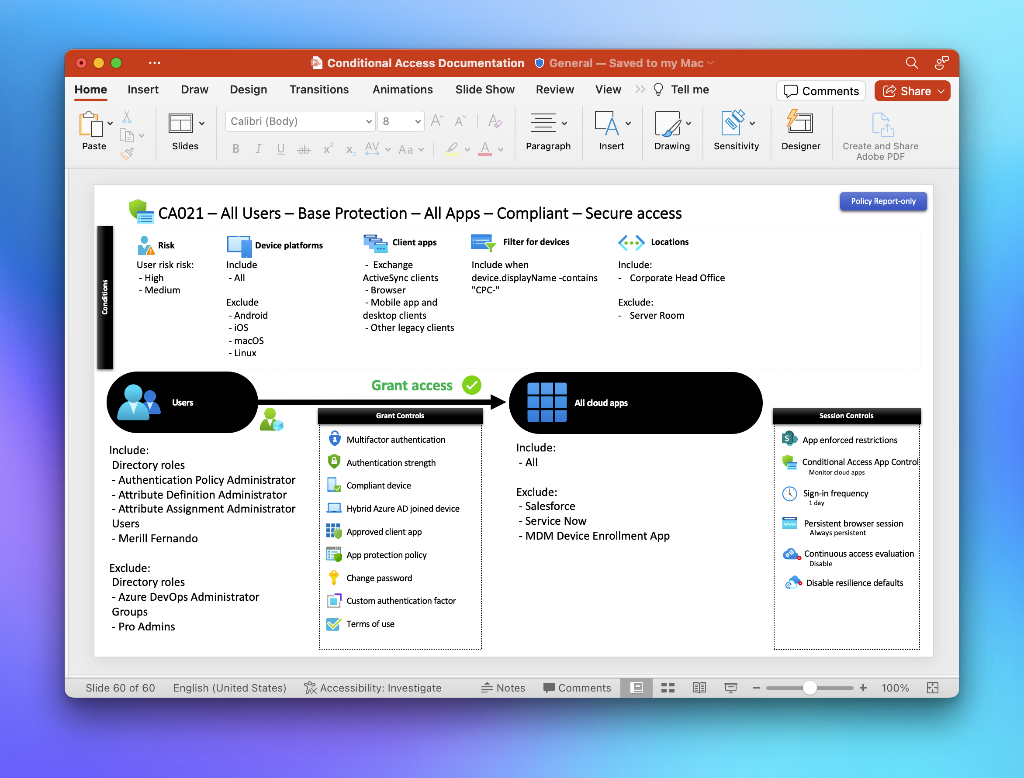
This visual approach makes it easier for security teams and stakeholders to brainstorm, audit, and optimise policies. You can even print the slides and use them in workshops.
How it works
idPowerApp is designed for flexibility. Administrators can:
- Run the tool directly in the tenant to generate slides.
- Export CA policies as JSON using PowerShell or Graph Explorer and feed them into the tool.
This second option is particularly useful when permissions are restricted. While the JSON method doesn’t include user names, it still provides a comprehensive overview of policy configurations.
“If you have permission issues, you can just quickly use a JSON and convert it into a visual view, which will give a lot of the info that you want,” says Fernando.
Why it matters
Conditional Access is at the heart of modern identity security. Visualising policies helps organisations:
- Reduce misconfigurations by making overlaps and gaps obvious.
- Improve collaboration between IT and security teams.
- Accelerate troubleshooting during MFA rollouts or compliance audits.
As Fernando puts it, “Conditional Access, at the end of the day, is users trying to get to some apps, and then you control with CA what the policies are. Whether it’s MFA, device compliance, or sign-in frequency. Showing that in a visual view is really helpful to quickly understand how a tenant is set up.”
Want to simplify your Conditional Access strategy? Start using idPowerApp today and turn policy chaos into clarity.

Russell Smith, the Editorial Director at Petri IT Knowledgebase, has over two decades of hands-on experience in IT, in both small business settings and government IT infrastructure projects. Russell started writing for Windows IT Pro Magazine in t...