Mastering PowerShell Get-ADPrincipalGroupMembership
Learn how to use the Get-ADPrincipalGroupMembership PowerShell cmdlet to efficiently retrieve user, computer, and service account group memberships.

This guide covers syntax, practical examples, common use cases, and troubleshooting tips to assist with your daily duties with AD management tasks.
🎬 Watch This Week in IT.
What does Get-ADPrincipalGroupMembership do?
The Get-ADPrincipalGroupMembership cmdlet gets the Active Directory (AD) groups that have a specified user, group, computer, or service account as a member. You will need to make sure a Global Catalog is online in your forest for this cmdlet to function correctly.
When IT Pros and AD admins often need to determine which security groups a user account belongs to, they can use similar cmdlets like ‘Get-ADUser’ or ‘Get-ADGroup’. But Get-ADPrincipalGroupMembership offers the perspective of the wonders of PowerShell efficiency – you don’t need the Active Directory Users and Computers management console – you can use the command line.
When you need to satisfy audits or compliance reporting, you can use this cmdlet and build a PowerShell script based on it to handle these requests with ease.
Get-ADPrincipalGroupMembership parameters and syntax
The -Identity parameter specifies the user, group, or computer object that you want to get group memberships for. You can specify them by globally unique identifier (GUID), distinguished name (DN), security identifier (SID), or SAM account name. I’ll go through some examples of syntax next.
- sAMAccountName: Legacy logon name, used for backward compatibility.
- GUID: Unique identifier for Active Directory objects, remains constant.
- SID: Security identifier for access control, unique within a domain.
Here are the fundamentals of the cmdlet and the core parameters you can utilize with Get-ADPrincipalGroupMembership:
| Parameter | Description |
| AuthType | Specifies the authentication method to use. |
| Credential | Specifies the user credentials, if necessary, that the command should use. |
| Identity | Specifies the AD principal object to query |
| Partition | Specifies the distinguished name of an AD partition |
| ResourceContextPartition | Specifies the DN of the partition of an AD or AD LDS instance |
| ResourceContextServer | Specifies that the cmdlet return a list of groups that the user or group is a member of in the specified domain. |
| Server | An SSL connection is required for the Basic authentication method. |
Get-ADPrincipalGroupMembership examples
Let’s start with identifying what groups the built-in administrator is a member of.
Get-ADPrincipalGroupMembership -Identity administrator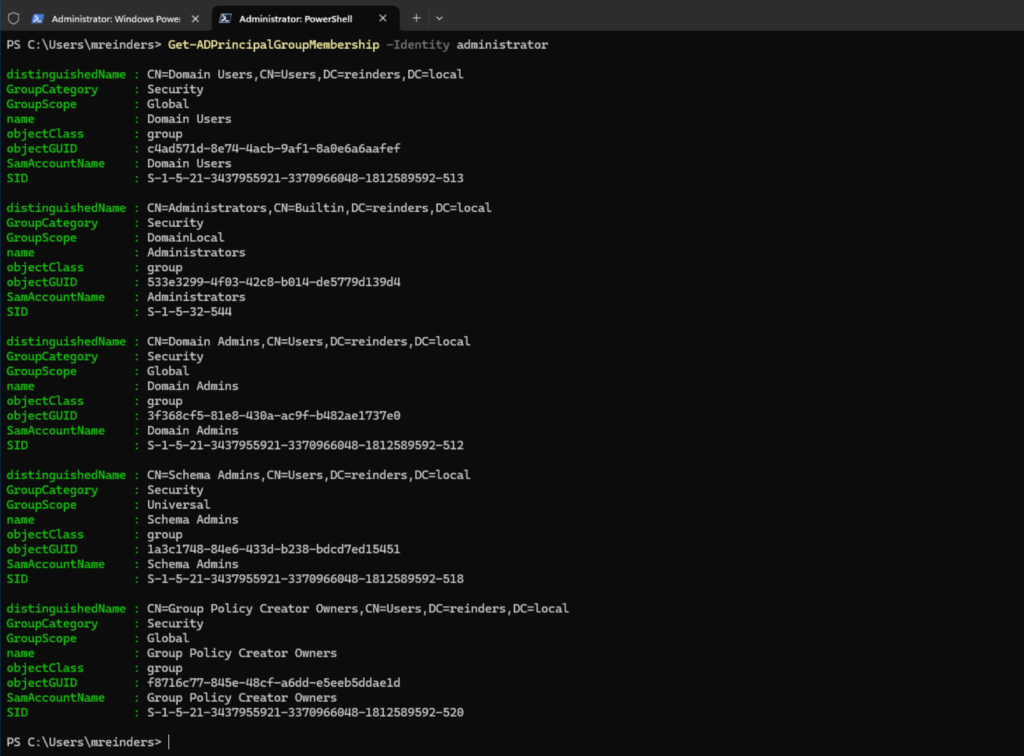
We can pipe this somewhat helpful info using the Format-Table (ft) parameter. A little easier to read the group names.
Get-ADPrincipalGroupMembership -Identity administrator | ft
That’s more readable. Let’s next look at the groups my ‘main’ account is in.
Get-ADPrincipalGroupMembership -Identity mreinders | ft
You’ll see common groups here like ‘domain users’. However, do you see an issue, of sorts? I do. Schema Admins? This is a very simple way to audit your memberships. There is absolutely NO reason ANY account should be in Schema Admins, until necessary. I will certainly remove that group from that account.
We can also access child or resource domains to be expedient as well. We’ll use this command to get the group memberships of the built-in administrator in my child domain – corp.reinders.local.
Get-ADPrincipalGroupMembership -Identity administrator -ResourceContextServer corp.reinders.local -ResourceContextPartition "DC=reinders,DC=local"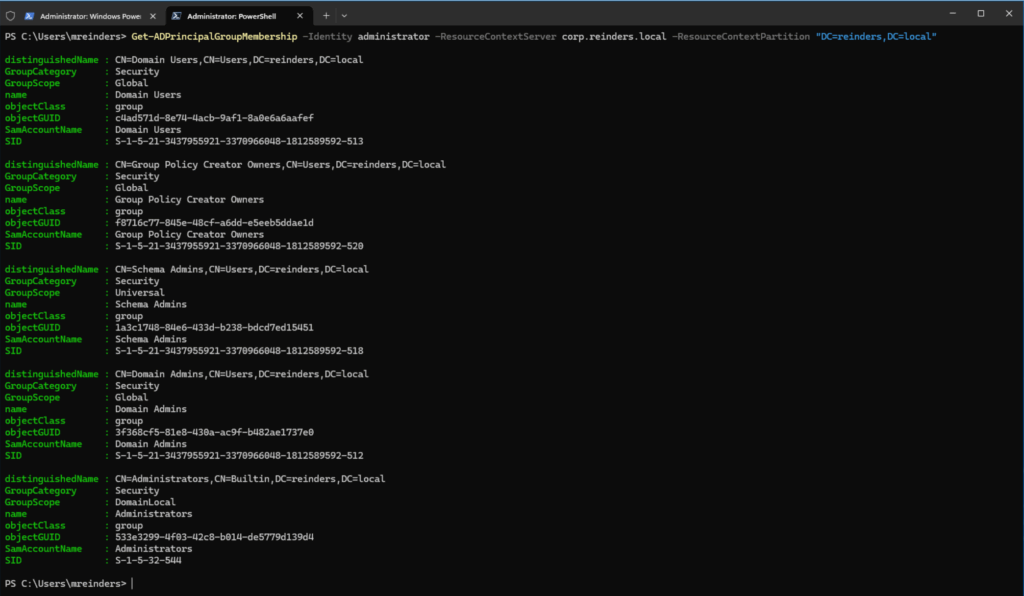
It is similar, but it is pulling data from the child/resource domain. So, you can imagine being able to write a script that would scour your entire forest, enumerate all the ‘admin’ users, and get their memberships in a nice, tidy CSV file using ‘Export-CSV’ for analysis.
Let’s do an example of getting the group memberships of a computer object. The syntax is very similar.
Get-ADPrincipalGroupMembership -Identity 'CN=W11-CLIENT02,OU=Domain Windows Computers,DC=reinders,DC=local'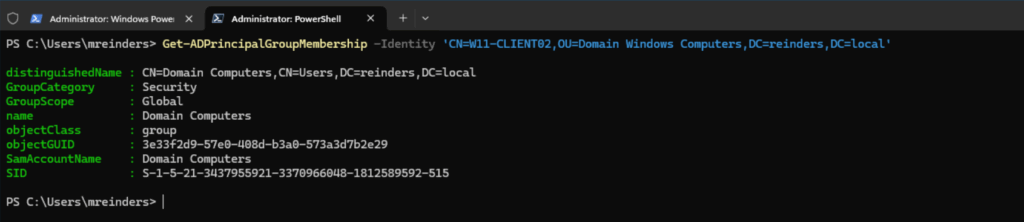
This is a simple example – the computer is in ‘Domain Computers.’ However, again, you can see the power here with troubleshooting computer objects not receiving correct Group Policy Objects, etc.
Note – you can also pipe that output with the ‘Select-Object’ parameter like this ‘| Select-Object Name’ to only display the Name of the group.
Filtering groups using Get-ADPrincipalGroupMembership
When encountering a user, group, or computer with many group memberships, you may want to filter them at the outset. You can use this command as an example.
Get-ADPrincipalGroupMembership -Identity administrator | Select Name | Where-Object {$_.Name -like 'G*'}
We can see there is a single group that starts with ‘G’ in the output. Wonderful.
Security and final words
One of the core facets of using Get-ADPrincipalGroupMembership is auditing and verifying that user, group, and computer accounts are in the least number of groups necessary. This is known as least privilege security, where rights assigned are just enough for users to do their jobs and groups and service accounts to perform their functions.
Although ‘Get-ADGroupMember’ is used more often, the ‘Get-ADPrincipalGroupMemmbership’ cmdlet is useful for identifying what users, computers, and group objects are in what security groups in your environment. Creating an automated task to fire off a PowerShell script every week and saving the output on a network file share, or SharePoint or Teams site, will go far in at least identifying potential security incidents or breaches.
Thank you for reading my post on this topic. Please feel free to leave a comment or question below.
Frequently Asked Questions
How to get AD user group membership?
To retrieve the group membership of an Active Directory (AD) user, use the Get-ADPrincipalGroupMembership cmdlet. This command returns all the groups that a specified user (or computer) is a direct member of.
Example:
Get-ADPrincipalGroupMembership -Identity jdoe
This will list all groups that the user jdoe belongs to, including security and distribution groups.
How to extract AD group members?
To extract members of a specific AD group, use the Get-ADGroupMember cmdlet.
Example:
Get-ADGroupMember -Identity "HR Team"
This command returns all direct members of the group named “HR Team”. To get detailed info like email addresses or department, pipe it into Get-ADUser or Select-Object.
How do I check which AD group I belong to?
If you want to check your own group memberships, open PowerShell and run:
$User = [System.Security.Principal.WindowsIdentity]::GetCurrent().Name
Get-ADPrincipalGroupMembership -Identity $User
This dynamically fetches the currently logged-in user and lists their group memberships.
How do I find the user group membership in PowerShell?
Use the Get-ADPrincipalGroupMembership cmdlet with the appropriate -Identity parameter (username or distinguished name).
Example:
Get-ADPrincipalGroupMembership -Identity "samaccountname"
For richer output, you can format the results:
Get-ADPrincipalGroupMembership "jdoe" | Select-Object Name, GroupCategory, GroupScope
This provides group name, category (Security or Distribution), and scope (Global, Universal, or DomainLocal).

Michael has been an IT Pro since 1998. He has worked predominantly in the Windows world including client and server operating systems, on-prem systems engineering (AD, DNS, etc.), and over the last ten years or so has embraced and immersed himself in...