How To Use the Group Policy Management Console in Windows Server and Windows 11
GPMC is a Microsoft Management Console (MMC) snap-in used by administrators to centrally create, manage, and deploy GPOs in Active Directory.

The Group Policy Management Console (GPMC) is an essential administrative tool that Windows admins can use to centrally configure and manage Group Policy Objects (GPOs).
🎬 Watch This Week in IT.
GPMC is a Microsoft Management Console (MMC) snap-in used by administrators to centrally create, manage, and deploy GPOs in Active Directory.
Accessing the Group Policy Management Console
There are several different options for accessing the Group Policy Management Console or the Group Policy Editor.
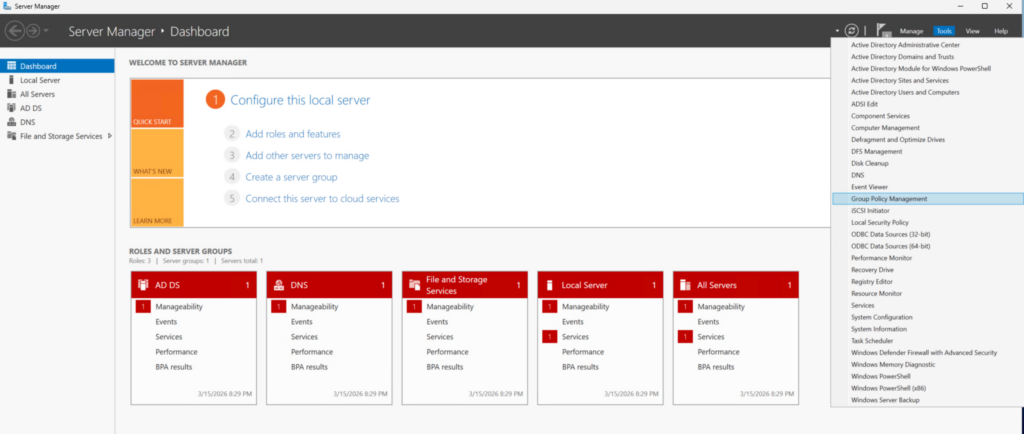
Using Server Manager
The easiest way to access the GPMC is to log onto Windows Server.
- Log onto Windows Server.
- Open Server Manager.
- Select the Group Policy Management option from the Tools menu.
Server Manager’s Tools menu also contains a Local Security Policy option.
Accessing Group Policy tools from the Command Line
Another option is to use the Start button on the Windows taskbar.
- Right click on the Start button.
- Select Run from the menu.
- And then enter the GPMC.msc command at the Windows Run prompt.
The GPMC.msc command can also be used from within PowerShell.
As previously noted, Microsoft operating systems also include a local security policy that is separate from the Active Directory level policy. To access a machine’s local security policy, you can do so by using the GPEdit command.
- Just enter GPEdit.msc at either the Windows Run promp
- Or you can enter it into PowerShell. This causes Windows to open the Group Policy Editor.

Using the Microsoft Management Console
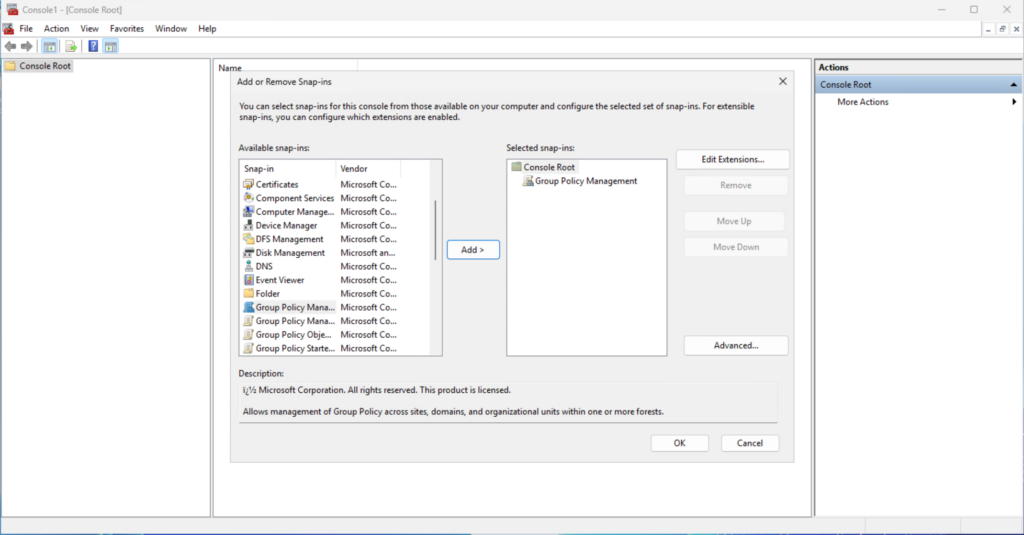
The Group Policy management tools leverage the Microsoft Management Console (MMC).
- enter the MMC command at the Windows Run prompt.
- Then choose the Add / Remove Snap-in command from the Microsoft Management Console’s File menu.
- From there, choose the Group Policy Manager option from the list of snap-ins
- And then click the Add button (or just double-click on the snap-in)
- Finally, click OK.
The Remote Server Management Tools
Although desktop operating systems, such as Windows 10 and Windows 11, do include a local security policy, workstations do not normally offer the ability to manage AD GPOs. Fortunately, it is possible to install GPMC as an optional feature.
Windows 11
In Windows 11:
- Open the Settings app (WIN+I).
- Then click on System, followed by Optional Features.
- When prompted, click the View Feature button. This will cause Windows to display the Add an Optional Feature dialog box.
- To install GPMC, the next thing that you will need to do is to type RSAT into the Find an Optional
- Since the goal is managing GPOs, you will need to select and install the RSAT: Group Policy Management Tools option.

Managing permissions and delegations
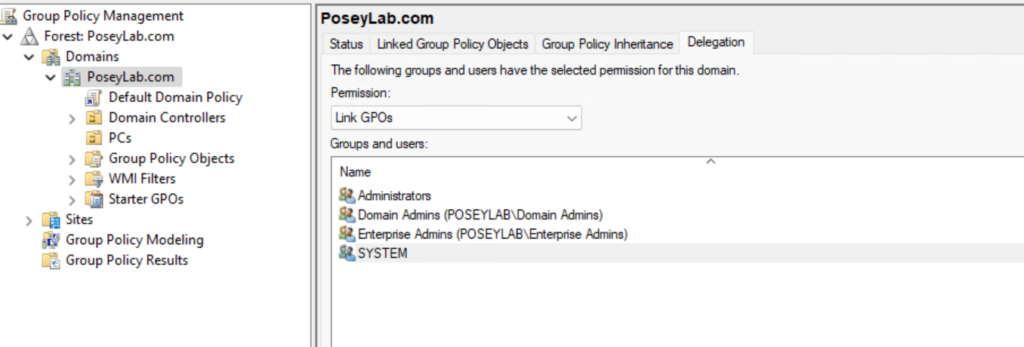
Microsoft gives admins the ability to control who can create a new GPO or delete or edit an existing GPO through the Delegation Wizard. This means that IT teams can delegate control without needing to make an administrator a full domain admin. Delegation can be configured at the domain level, the Organizational Unit (OU) level, or for individual existing GPOs.
To delegate control:
- Open the Group Policy Management Console
- Then expand your AD forest.
- From there, select the level within which you want to delegate control.
- Finally, select the Delegation tab and make the assignment.
Figure 5
Create a new GPO
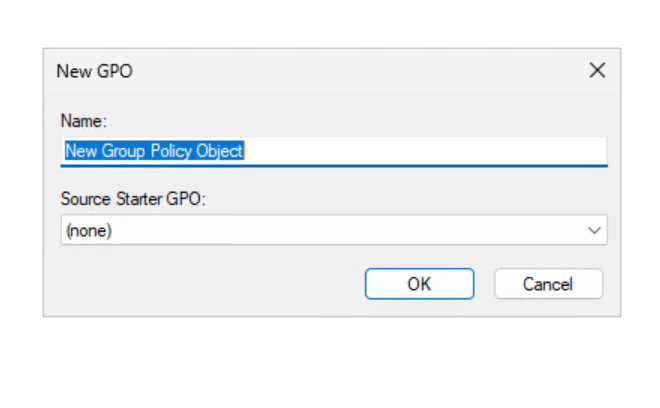
Group Policy is hierarchical in nature, and the effective policy can be made up of multiple GPOs. Not surprisingly, Microsoft allows you to create new GPOs at various levels of the hierarchy.
To create a new GPO:
- Open the Group Policy Management Console
- Expand your domainvand right click on the Group Policy Objects container.
- Select the New option from the shortcut menu and then enter a name for the new GPO that you are creating.

Before you will be able to use the newly created GPO, you will need to create a GPO link. The GPO link determines the level of the hierarchy where the GPO will apply. The link can apply the GPO at the Sites, Domains, or Organizational Units level of the hierarchy.
Link a GPO:
- Right click on the target site, OU or domain.
- Select the Link an Existing GPO command from the shortcut menu.
- When prompted, simply select the GPO that you want to Link.
What is Windows Group Policy?
The Windows operating system uses Group Policy as a means of centrally applying various settings to Windows computers. These settings can be related to the operating system’s basic configuration, security, or even the end user’s configuration.
In an Active Directory (AD) environment, GPOs are applied to domain-joined systems. It is worth noting however, that Windows Server and desktop Windows operating systems, such as Windows 10 and Windows 11, include a local security policy.
The local security policy can also be managed using GPMC and it is designed to keep the computer secure when it is not joined to AD.
What are Group Policy Objects used for?
GPOs allow administrators to enforce various policy settings related to security, compliance, and even preference. Perhaps the best known use of GPOs is that they can be used to enforce password policies and account lockout policies. However, such functionality is really just the tip of the iceberg.
GPOs can also be used to manage Windows Defender Firewall settings, software deployment, application management, Windows Update, desktop restrictions, Windows environment settings, network security, and even authentication rules.
Troubleshooting Group Policy Objects
Because multiple GPOs can come together to form the overall Group Policy, it is possible for conflicts to occur. For example, two GPOs might include contradictory settings. These types of problems can be avoided by using Group Policy modeling to simulate how the various policy settings will be applied before you actually deploy the GPOs.
Group Policy modeling is useful when testing a new GPO, particularly when you are concerned about inheritance conflicts. It can also be useful for verifying security filtering or Windows Management Instrumentation (WMI) filtering.
To use Group Policy modeling:
- Open the Group Policy Management Console
- Expand your forest and domain, and right click on the Group Policy Modeling container.
- And then select the Group Policy Modeling Wizard option.
- This wizard will prompt you to specify a user, a computer, and some other basic information.
- When you are done, it will show you a report telling you which GPOs were used in the winning policy results, security filtering results, and the impact of any WMI filter.
Group Policy modeling vs Resultant Set of Policy
Group Policy modeling is a simulation. It shows you what would happen in a particular situation. However, there is another tool called Resultant Set of Policy (RSOP) that does almost exactly the same thing. The difference is that RSOP is based in reality, not simulation. Its job is to show you what is actually happening and why.
RSOP works in almost exactly the same way as Group Policy modeling. Rather than right clicking on the Group Policy Modeling container and launching the Group Modeling Wizard however, you must instead right click on the Group Policy Results container and select the Group Policy Results Wizard option.
Frequently asked questions
How do I open the Group Policy Management Console?
You can open the Group Policy Management Console by typing gpmc.msc into the Run dialog, Command Prompt, or Start menu. The console opens if Group Policy Management or RSAT is installed on the system.
How to find a GPO in Group Policy Management?
In Group Policy Management, expand your domain and select Group Policy Objects to see all GPOs. You can also use the Search feature to locate a GPO by name.
How to view GPO in CMD?
You can view Group Policy Objects from the command line using PowerShell cmdlets such as Get-GPO or Get-GPResultantSetOfPolicy. These commands display applied or existing GPO information without opening the GUI.
How do I run Group Policy Management Console in Windows 11?
In Windows 11, install RSAT: Group Policy Management Tools from Optional Features, then run gpmc.msc. GPMC is only available on Pro, Enterprise, and Education editions.

As an internationally bestselling tech author and a former 22-time Microsoft MVP, Brien Posey has written or contributed to dozens of books and created a variety of full-length video training courses on all sorts of IT and space-related topics. He’...