How to Demote a Domain Controller
Performing an unplanned or poorly executed demotion can lead to serious consequences for your Active Directory infrastructure.

Demoting a domain controller (DC) is a critical task in Microsoft Active Directory management that requires careful planning and solid steps to maintain the integrity of your environment. You may need to retire an old physical server, consolidate resources, or troubleshoot replication issues. Understanding the demotion process ensures a smooth transition without disrupting your directory services environment.
🎬 Watch This Week in IT.
In this guide, we’ll walk through the ‘Whys,’ the steps, best practices, and common post-demotion steps to help IT professionals, both new and experienced, safely remove a domain controller while preserving the stability of your Active Directory infrastructure.
Pre domain controller demotion checklist: Preparing for a smooth transition
Before you initiate the demotion process, it’s essential to ensure your environment is prepared to handle the change without disruption. A pre-demotion checklist helps confirm that critical roles are transferred, replication is healthy, and backups are in place. Skipping these steps can quickly lead to painful headaches and your need to clear your schedule for the next few days!
By following a structured checklist, you minimize risk and guarantee a smooth transition for the process.
Verify Active Directory replication health
Before demoting a domain controller, confirm that Active Directory replication is functioning correctly across all DCs. Your best option is to use the command-line commands: repadmin /replsummary. As of June 2023, the Active Directory Replication Status Tool is no longer available for download, due to its very old age. However, you can review the archived article for reference.
Healthy replication ensures that changes made during demotion propagate properly, preventing orphaned objects or inconsistent directory data.
Transfer FSMO roles (if applicable)
If the domain controller holds any FSMO (Flexible Single Master Operations) roles, these must be transferred to another DC before demotion. Roles like Schema Master, Domain Naming Master, and PDC Emulator are critical for AD operations. Failing to move them can lead to authentication issues, schema updates failing, or domain-wide instability.
I’m getting ready to demote one of my DCs later in this article to demonstrate the process. I am running this from ‘WS25-DC05’ in my Active Directory (2025) Hyper-V lab environment.
netdom query fsmo
I’m safe. None of the roles is being used by my DC.
Update DNS records
Domain controllers also act as DNS servers. Before demotion, verify that DNS zones and records are replicated to other servers and that clients can resolve names without relying on the soon-to-be-removed DC. Update DHCP scopes or static configurations to point to alternate DNS servers to avoid name resolution failures.
This is often handled autonomously by Active Directory. I’m including it here for completeness.
Backup critical data
Always perform a full system state backup of one of your domain controllers before demoting it. It is not necessary to specify a specific DC or the one you’re about to demote. As long as the replication status is nominal, any DC will do.
A system-state backup includes the AD database, SYSVOL, and registry settings, providing a recovery point in case something goes wrong. A reliable backup can save hours of troubleshooting and prevent data loss during unexpected failures.
Inform users and stakeholders
Communication is key to avoiding surprises. Notify IT teams, application owners, and end-users if the demotion might impact authentication or DNS services. Scheduling the demotion during a maintenance window and providing clear timelines helps minimize disruption and ensures everyone is prepared for potential changes.
Demote domain controller: A step-by-step guide
Here I’ll show you the steps using Server Manager and PowerShell on how to demote a domain controller. I’ll also include the potential need to clean up stale and/or orphaned metadata in case the automated wizards fail for some reason.
Using Server Manager for DC demotion
I’m logged into one of my DCs, WS25-DC05.reinders.local. This is one of 5 DCs in my Active Directory lab running on Hyper-V. We’ll start in the Server Manager application available from the Start Menu.

- In the upper-right corner, I’ll click Manage, then Remove Roles and Features.
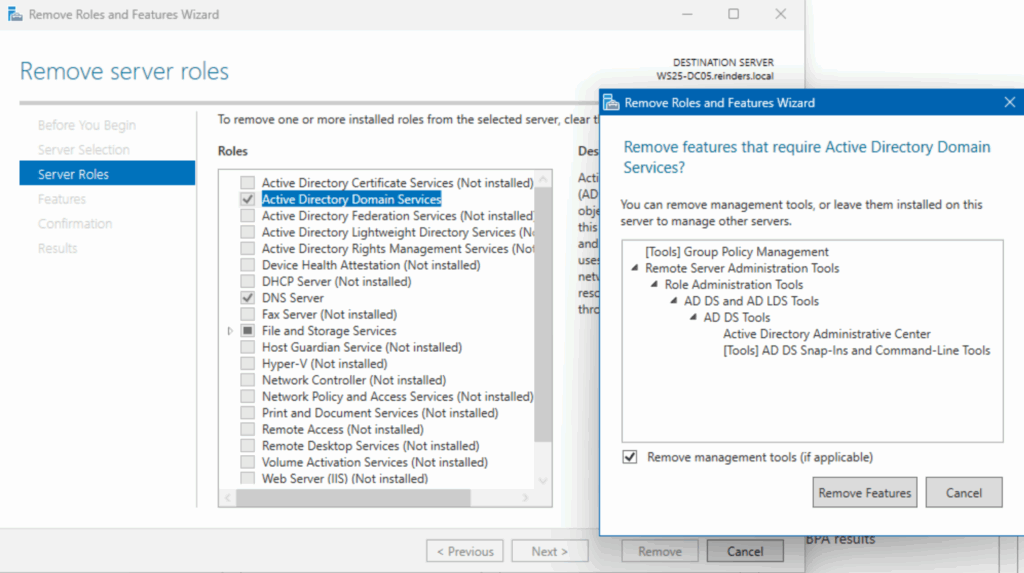
- In the new wizard, I’ll click Next two times to get to the ‘Remove server roles’ section.
- Click the checkbox next to ‘Active Directory Domain Services’ to deselect it, and a ‘Remove features…’ window will open. Click ‘Remove Features’.

- Uh oh. An error. No problem. Before the wizard can remove the role, the DC needs to be demoted. We’ll click the link ‘Demote this domain controller.’

- In the configuration wizard, make sure you’re either logged in as a Domain Administrator or you specify credentials for one by clicking the ‘Change…’ button. Then, click Next.
- The next screen will tell you that DNS and Global Catalog are roles currently installed. If you choose to proceed, they will be removed as part of the process. This is common, just being mentioned for completeness. Check the box ‘Proceed with removal’ and click Next.

- On the ‘New Administrator Password’ screen, you need to specify what the local Administrator’s account password will be. Enter it twice to confirm and click Next.
- We’re almost there. On the Review Options screen, confirm you’re ready to remove AD Domain Services from the server. The server will become a Member Server of the specified AD domain.
- Click Demote.

After a few minutes, all the necessary steps will be performed, and the server will automatically reboot.
- After logging in again, you can go back to Server Manager and perform the same step – click Manage in the upper-right corner and click Remove Roles and Features.
- Go through the same steps and click Remove at the end. The server will reboot one more time.

I then logged into WS16-DC2 and opened Active Directory Users and Computers. I selected Domain Controllers and saw that the process was a success!

The server is no longer a DC. In this case, there will be no need for any metadata cleanup as AD is already in the correct state. I’ll speak to what steps you may need to take if that process fails.
Using PowerShell for domain controller demotion
We can also perform these steps using PowerShell. And, as is often the case, you’ll probably be amazed at how much simpler this method is. Just a command or two takes care of all the above steps in one fell swoop.
Let’s try this:
Uninstall-ADDSDomainController `

    -DemoteOperationMasterRole:$false `

    -RemoveApplicationPartitions `

    -LocalAdministratorPassword (Read-Host -AsSecureString "Enter local admin password")`

    -Confirm:$true
Because the server does not hold any FSMO roles, I chose ‘$false’ under the ‘-Demote…’ option.
- When it prompted, I entered the new local Administrator account password, then selected ‘A’ to get her going.
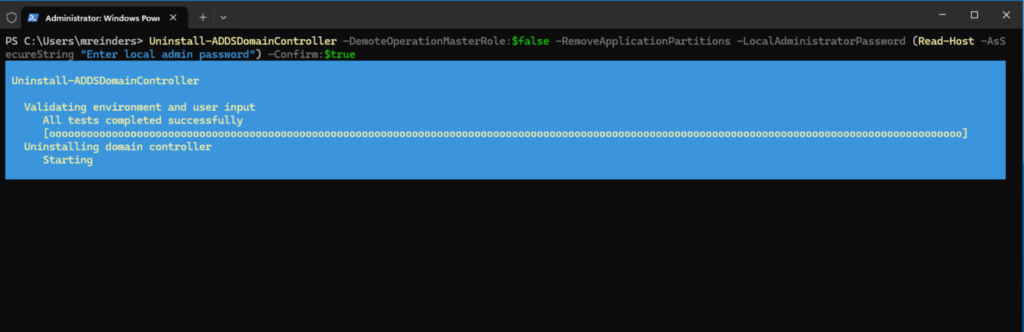
Progress ensued. As with the GUI method, the server rebooted after the process was complete. Done!
Handling metadata cleanup (if necessary)
If the dcpromo / demotion process does not complete successfully, you’ll very likely need to clean up some metadata from the orphaned DC in Active Directory. There are two major steps.
- First, on another DC, open Active Directory Users and Computers.
- Click the Domain Controllers container.
- Select the (orphaned) DC, right-click on it, and choose Delete.
- This will remove the associated metadata from AD. Note – this is MUCH simpler today; in earlier versions of Windows Server, there were many more steps involved!
- Second, open Active Directory Sites and Services.
- Expand the ‘site’ the server was in, and expand ‘Servers.’
- If you see your orphaned server object, right-click it and choose Delete. This will remove additional metadata necessary for cleanup.

Post-demotion tasks: Ensuring stability
Let’s finish out this article by mentioning a few post-demotion tasks you can perform to make sure all is hunky-dory.
Verify DNS updates
First, open the DNS applet on an existing DC and confirm there are no errant entries for your demoted DC. Specifically, there should be no Nameserver or ‘NS’ record for your old DC anymore.
Monitor Event Logs
Open up the Event Viewer application and check the System view. Confirm there are no Errors or Warnings related to AD, domain controllers, or DC replication.
Remove from monitoring tools
If you were monitoring any AD-related processes in your monitoring software, be sure to remove the server object from the environment. You can continue basic Windows Server monitoring if your server will continue as a Member Server (app server, web server, etc.). But, again, I would decommission – it’s always good to start new when adding a Role to Windows Server.
Physical decommissioning (if applicable)
If you’re working with a physical server that has passed its hardware lifecycle thresholds, you should decommission it. The corresponding steps vary due to your company’s compliance and other guidelines, but removing the asset from financials, donating the hardware, or having it recycled is most important.
Forced domain controller demotion: When a graceful demotion isn’t possible
In some cases, a domain controller simply cannot be demoted using the standard Server Manager or PowerShell methods. This typically indicates a deeper health issue—replication failures, DNS corruption, missing SYSVOL data, or communication problems with other domain controllers. A forced demotion is a last-resort option that removes Active Directory Domain Services from the server without contacting other DCs or replicating final changes.
Forced demotion should be performed only when a graceful demotion is impossible, and you must be prepared to perform manual metadata cleanup afterward.
When it’s time to pull the plug on a domain controller
Not every domain controller gets a peaceful retirement. Sometimes one fails so badly that the normal “Remove Roles and Features” path just isn’t going to happen. You’re in forced-demotion territory when:
- It’s gone silent — the DC can’t reach its partners, replication dies, and you get errors like 8453 or 1722.
- Its AD DS database is toast — corrupted NTDS.dit files, missing SYSVOL/NETLOGON, or AD DS refusing to start.
- It won’t demote cleanly — Server Manager stalls, PowerShell throws replication or schema errors, or DNS won’t uninstall.
- It came back from a bad restore — a snapshot rollback or failed recovery job leaves it too inconsistent to repair.
When your DC hits this point, manual deletion is often the only path forward.
How forced domain controller demotion works
A forced demotion:
- Does NOT replicate any final changes to other DCs
- Does NOT transfer FSMO roles even if the server holds them
- Does NOT clean up metadata
- Leaves stale DNS, Sites and Services, and NTDS Settings objects behind
This is normal. You’ll clean those up manually after the demotion.
Performing a forced domain controller demotion using PowerShell
PowerShell is the recommended method, as it provides better visibility and fewer GUI-related hangs.
Uninstall-ADDSDomainController `
  -ForceRemoval `
  -LocalAdministratorPassword (Read-Host -AsSecureString "Enter local admin password") `
  -DemoteOperationMasterRole:$true `
  -RemoveApplicationPartitions `
  -Confirm:$true
Parameter notes
- -ForceRemoval
Forces removal without attempting domain communication. - -DemoteOperationMasterRole:$true
Picks up any FSMO roles the DC was unable to transfer (and marks them as needing seizure by a healthy DC). - -RemoveApplicationPartitions
Removes any application directory partitions from the local server, such as DNS zones stored in AD.
What you’ll see:
- Prompt for the new local admin password
- Warnings about lost communication with the domain
- A reboot after completion

Forced domain controller demotion using Server Manager (legacy method)
If PowerShell isn’t available or fails, Server Manager can force a demotion.
- Open Server Manager → Manage → Remove Roles and Features
- Deselect Active Directory Domain Services
- When the wizard detects that the DC cannot communicate, click:
“Force the removal of this domain controller”

- Specify a new local Administrator password
- Confirm and reboot
Post-forced-demotion cleanup (critical step)
Because AD doesn’t clean anything up after a forced removal, you must do so manually.
Perform these actions on a healthy domain controller, not the server you just demoted.
1. Remove the DC from Active Directory Users and Computers
- Open Active Directory Users and Computers
- Go to Domain Controllers
- Right-click the orphaned DC → Delete
This removes its computer account and NTDS settings reference.
2. Clean up sites and services
- Open Active Directory Sites and Services
- Expand your site name → Servers
- Delete the server object
- Expand NTDS Settings and delete any lingering connections
This removes stale replication topology entries.
3. Clean up DNS records
Open DNS Manager and look for:
- Stale A records
- Old SRV records under
_msdcs - Incorrect NS records pointing to the removed server
Delete anything referencing the former DC.
4. Validate FSMO roles (if needed)
If the server held FSMO roles at the time of forced demotion, you must seize them.
Run:
netdom query fsmoIf any show as “unavailable,” seize them using:
ntdsutil roles connections connect to server <healthyDC> quit seize <role>5. Confirm AD health after cleanup
On a healthy DC:
dcdiag /v
repadmin /replsummary
repadmin /showrepl *
Get-ADDomainController -Filter *
Look for:
- No replication errors
- No references to the removed DC
- Clean replication topology
When not to use forced demotion
Avoid forced demotion if:
- Replication works, and only minor issues exist
- The DC holds critical FSMO roles
- SYSVOL is healthy, but DNS is misconfigured
- The DC can still communicate with peers
In most cases, repairing the issue first allows a graceful demotion, which is safer and requires less cleanup.
Understanding the why: Why demote a domain controller?
Common reasons for demoting a domain controller (DC) include decommissioning outdated hardware, reducing the number of DCs to conserve resources, or removing a server that’s causing replication or performance issues. In some cases, organizations migrate to newer operating systems or cloud-based solutions, making older domain controllers redundant. Understanding these scenarios helps IT professionals plan and avoid disruptions to users’ ability to log in to their computers, amongst other requirements of Active Directory.
Reasons you might need to demote
Demotion typically occurs when a domain controller is no longer required or is being replaced. This could be due to hardware upgrades, virtualization initiatives, or migration to newer versions of Windows Server. Organizations also demote DCs during site consolidations, when branch offices close, or when moving toward cloud-based identity solutions like Entra ID. In some cases, demotion is part of troubleshooting, removing a problematic DC that’s causing replication errors or DNS issues can restore stability to the environment.
Potential risks of an unplanned demotion
Performing an unplanned or poorly executed demotion can lead to serious consequences for your Active Directory infrastructure. If the DC holds critical roles such as FSMO (Flexible Single Master Operations), DNS, or Global Catalog, removing it without proper transfer of these roles can disrupt authentication and replication across the domain. This can very quickly bring your network, or at least your users’ ability to work, to a standstill.
Additionally, lingering metadata from an improperly demoted DC can cause orphaned objects, replication failures, and security vulnerabilities. These risks highlight why careful planning and cleanup are essential before initiating the procedure.
Final thoughts
Forced demotion is an emergency-only tool but when used correctly, it can prevent a misbehaving domain controller from causing long-term AD corruption. With a clear understanding of when to use it, the required cleanup steps, and validation afterward, you can safely recover your Active Directory environment even in difficult scenarios.
Frequently asked questions
What does it mean to “demote” a domain controller?
It means removing the domain controller role (and its associated services) from a server. The server will stop acting as a domain controller and it loses its copy of the Active Directory database and no longer handles authentication/authorization for the domain.
How do you demote a domain controller using Server Manager?
Open Server Manager → go to Manage › Remove Roles and Features → select the target server → uncheck “Active Directory Domain Services (AD DS)” → during the wizard choose “Demote this domain controller,” follow the prompts (credentials, confirm removal, optionally remove DNS delegation), then the server will reboot and become a regular member server.
Do you need to transfer any special roles before demoting a domain controller?
Yes. If the DC holds any of the special roles (called FSMO roles), you must ensure those roles are moved to another domain controller before demoting. Otherwise, you risk disrupting directory-wide functions.
What happens if you demote the last domain controller in a domain or forest?
If you demote the last DC in a domain, and it indeed is the final DC, then demoting it effectively removes the domain (or, if last in forest, removes the entire forest). That’s a major action and must be done with care.

Michael has been an IT Pro since 1998. He has worked predominantly in the Windows world including client and server operating systems, on-prem systems engineering (AD, DNS, etc.), and over the last ten years or so has embraced and immersed himself in...