Group Policy Security Filtering: Fine-Tune How GPOs Are Applied
By leveraging security filtering, organizations can ensure GPOs are applied only to the intended endpoints.

Group Policy security filtering is a helpful feature within Active Directory that allows administrators to fine-tune the application of Group Policy Objects (GPOs) to specific users, groups, and computers. In this article, we go through the fundamentals of Group Policy security filtering, explores its benefits, and provides practical examples and best practices for implementation.
🎬 Watch This Week in IT.
Common use cases for Group Policy security filtering
Imagine you have a GPO named “Finance Security Settings” that you only want to apply to the Finance department. You have a security group called FinanceTeam containing all finance users. By adding FinanceTeam to the security filtering section of the GPO and removing the Authenticated Users security group, you ensure that only members of the FinanceTeam group will have the GPO applied.
Here’s an example of combining security filtering and Role-Based Access Control:
- Scenario: Implement different policies based on user roles, such as standard users, administrators, and executives.
- Implementation: Create security groups like
Standard Users, ITAdministrators, andExecutives, and use security filtering to apply GPOs that correspond to the requirements of each role.
Using Group Policy security filtering
Group Policy security filtering allows administrators to precisely target GPOs to specific users, groups, and computers. By default, GPOs apply to all authenticated users in the linked container, (e.g., an Organizational Unit or domain). However, with Group Policy security filtering, you can restrict the application of GPOs to members of a security group.
How does Group Policy security filtering work?
Security filtering works by modifying the permissions on the GPO to grant or deny access to specific security principals (users, groups, or computers). Only those security principals with the “Read” and “Apply Group Policy” permissions will have the GPO applied to them.
Benefits of Group Policy security filtering
Here are the key benefits of using Group Policy security filtering:
- Granular control: Apply GPOs only to relevant users or computers, reducing unnecessary policy application. This eases troubleshooting later on.
- Efficient management: Simplify GPO management by targeting specific groups without creating numerous OUs. For example, filter a GPO that hides certain Start Menu features for users in the Finance department. If a user in a specific security group (named Finance) logs into a computer, some Start Menu features will be hidden.
Setting up Group Policy security filtering
Let’s go through some quick prerequisites, then I’ll demonstrate how to enable the feature.
Prerequisites
Only authorized users in the Domain Admins or Group Policy Creator Owners groups can edit Group Policy configuration. The instructions below can be performed on Windows Server or a device with the Remote Server Administration Tools installed.
Step-by-Step guide
Now that we have permissions and groups all set up, let’s follow through on how to set this up.
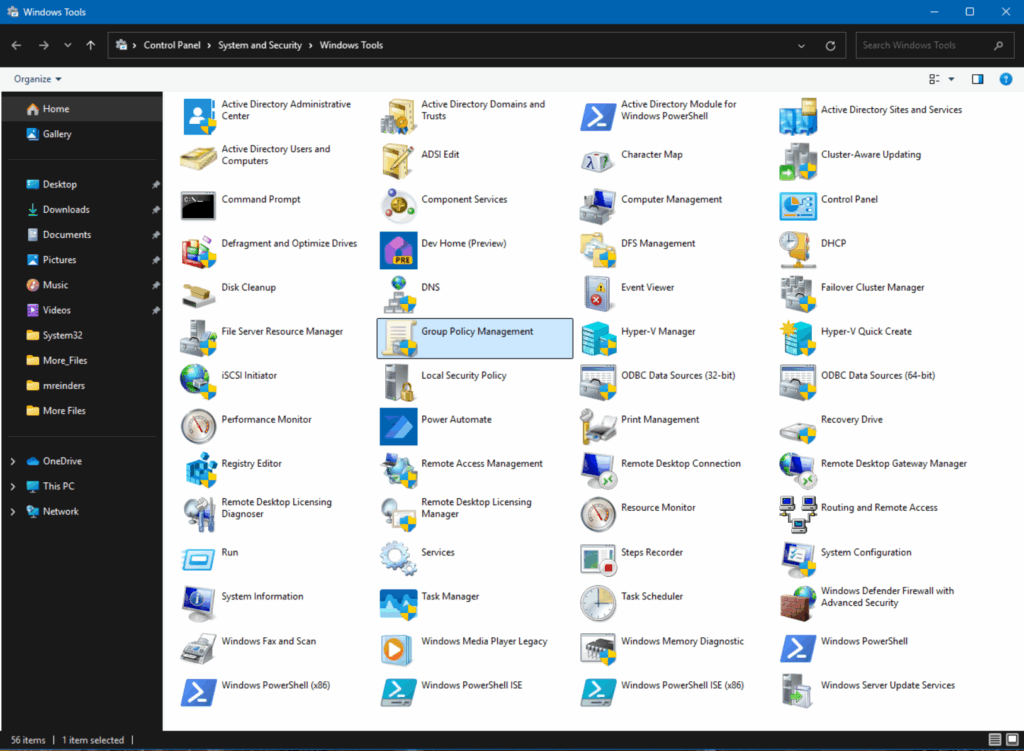
- First, open the Group Policy Management Console (GPMC) from the Start Menu.
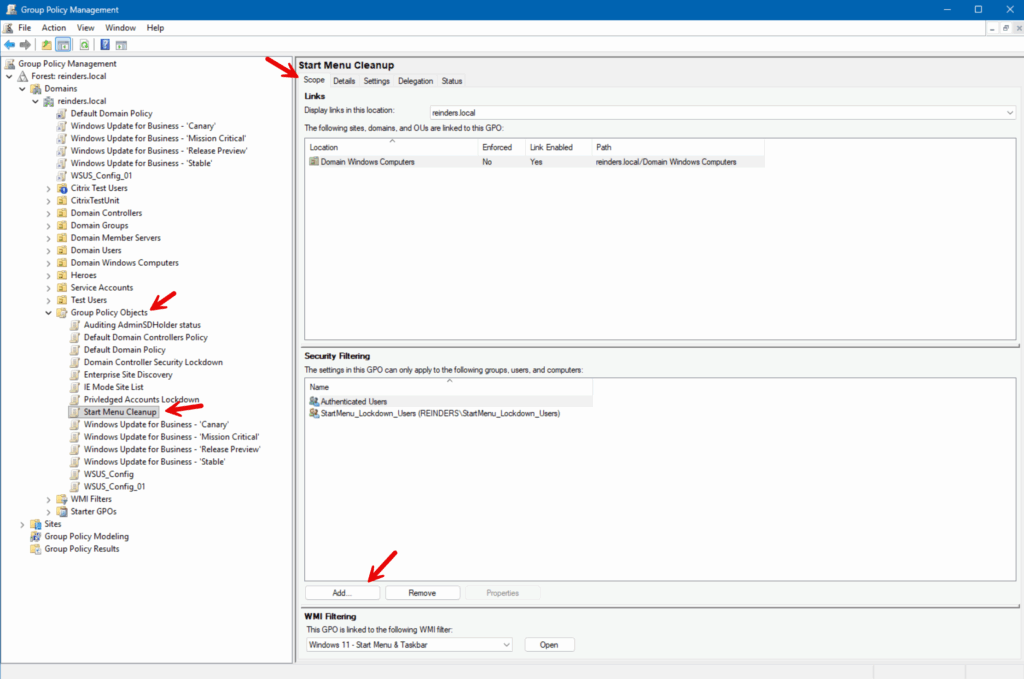
- Next, expand the ‘Group Policy Objects’ category and locate the GPO you want to filter. In this example, I’m using a GPO called ‘Start Menu Cleanup‘. Select the GPO.
- Make sure you’re on the ‘Scope‘ tab at the top. Under the Security Filtering section, click the ‘Add…‘ button.
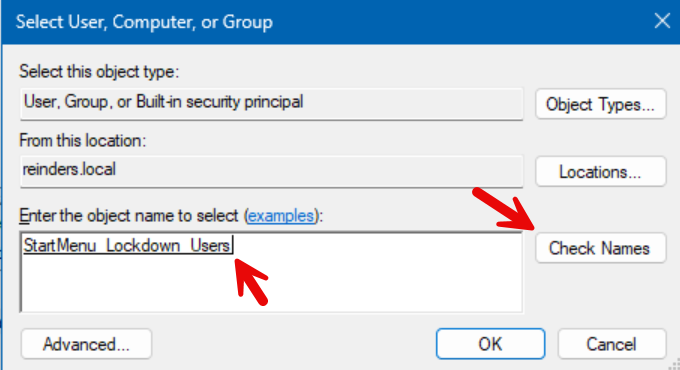
- In the ‘Select User, Computer, or Group‘ dialog, start typing in the group you would like to use for filtering and click Check Names. In this example, I’m using a group I previously created called StartMenu_Lockdown_Users.
- Verify the group in question is selected and click OK.
- Back in the main Group Policy Management Console window, switch to the Delegation tab at the top and verify that the group is assigned ‘Read (from Security Filtering)’ under Allow Permissions.
Now, only users in the ‘StartMenu_Lockdown_Users’ group will have the ‘Start Menu Cleanup’ GPO applied.
Group Policy security filtering best practices
Let me list some common best practices related to using Security Filtering with Group Policy.
| Best practice | Description |
| Use descriptive naming conventions | Name your GPOs and security groups clearly. Adhere to a naming convention to reflect their purpose. This makes it easier to manage and understand the scope of each GPO. |
| Minimize the number of security filters | Avoid excessive security filtering. While it’s powerful, too many filters can complicate management and troubleshooting. |
| Test GPOs in a pre-production environment | Before applying GPOs with security filtering to a production environment, test them in a pre-production environment to ensure they work as expected. |
Troubleshooting Group Policy security filtering
The most common scenarios you’ll run into when troubleshooting security filtering are these.
1. GPO not applying to target users or computers
- Check group membership: Verify that the users or computers are members of the security group specified in the security filtering section in GPMC.
- Permissions: Ensure the security group has the necessary “Read” and “Apply Group Policy” permissions on the GPO.
2. Group Policy inheritance and precedence Issues
- Order of GPOs: Check the link order of GPOs. Higher-order GPOs take precedence unless specifically overridden.
- Inheritance block: Verify if there is a block inheritance setting on the OU. This can prevent GPOs from applying.
3. Replication delays
- Replication status: Ensure that Active Directory replication is functioning correctly across domain controllers. Use tools like
repadminto check the replication status. - Force replication: You may need to force replication if changes are not propagating as expected. You can use the following repadmin command: repadmin /syncall /d /e
Overview of Group Policy
Group Policy is a useful Active Directory (AD) feature that provides centralized management and configuration of operating systems, applications, and user settings in a Windows environment. It enables administrators to define policies for users and computers, ensuring consistent settings and security across the organization. Group Policy Objects (GPOs) apply these settings to targeted users and computers based on their membership in specific Organizational Units (OUs), domains, or sites.
Thank you for reading my post on security filtering. Please leave a comment or a question below.
Frequently asked questions
What is security filtering in Group Policy?
Security filtering in Group Policy determines which users, groups, or computers a Group Policy Object (GPO) applies to. By default, when you link a GPO to an Organizational Unit (OU), it applies to all objects within that OU. Security filtering allows you to restrict the scope so that only members of specified security groups (users, groups, or computers) receive the GPO settings.
How do I change the security filtering in Group Policy?
To modify security filtering for a GPO:
- Open the Group Policy Management Console (GPMC).
- Select the GPO you want to configure.
- In the Scope tab, locate the Security Filtering section.
- Remove existing groups if necessary.
- Click Add, then choose the desired user, computer, or security group.
- Ensure that the group has Read and Apply Group Policy permissions.
This way, the GPO will only apply to the objects defined in the security filtering list.
What is the difference between GPO link and security filtering?
GPO links determine where the GPO is applied (site, domain, or Organizational Unit). For example: Linking a GPO to the HR OU ensures the policy is evaluated for all objects in that OU.
Security Filtering determines who within that scope actually receives the GPO. Here’s an example: Even if the GPO is linked to the HR OU, only users in the HR Managers security group will get the policy if filtering is applied.
What is a security group filter?
A security group filter is a security group used in the security filtering of a GPO.
Instead of applying the GPO to everyone in an OU, you create a security group (e.g., Finance Users) and configure the GPO to only apply to that group.

Michael has been an IT Pro since 1998. He has worked predominantly in the Windows world including client and server operating systems, on-prem systems engineering (AD, DNS, etc.), and over the last ten years or so has embraced and immersed himself in...