Use New-ADUser to Create New Active Directory Users with PowerShell
Create Active Directory users programatically using the PowerShell New-ADUser cmdlet.

New-ADUser creates users at scale, sets attributes, places them in the right Organizational Units (OUs), assigns passwords, and even adds them to groups, all programmatically. Let’s get into how to learn more about New-ADUser and elevate your AD management skills from good to great.
🎬 Watch This Week in IT.
Create a new Active Directory user with New-ADUser
Here’s the basic command for creating a new Active Directory user:
New-ADUser -Name “Richard Reinders”Now let’s have a look in more detail how the New-ADUser PowerShell cmdlet works.
Understanding PowerShell New-ADUser
At its core, New-ADUser is a cmdlet in the ActiveDirectory module for PowerShell. It allows you to create new user accounts in your AD domain directly from the command line or within scripts.
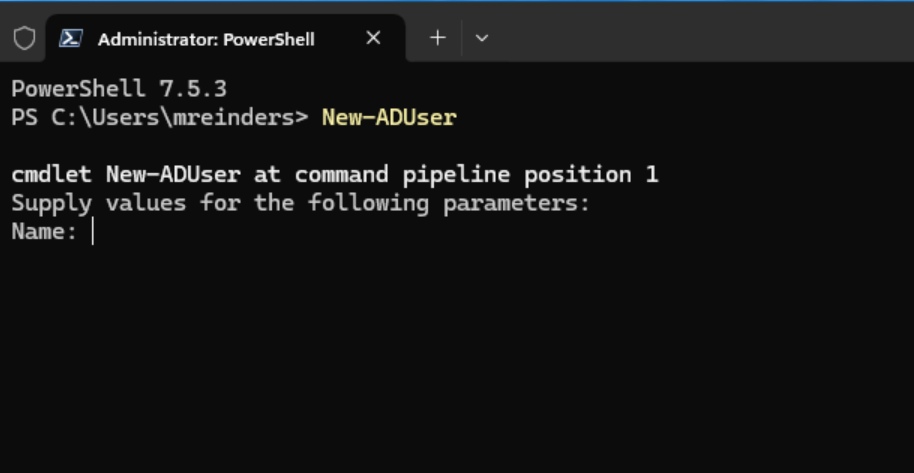
Think of it as the quicker version of clicking New > User in ADUC. Instead of filling out fields manually, you describe the user on the PowerShell command line.
Here’s what makes it powerful:
- You can create hundreds or thousands of users using a single script.
- It ensures consistency, since every account follows the same naming and attribute patterns.
- You can integrate it into onboarding workflows, HR systems, or custom IT automation pipelines.
Why PowerShell for AD user creation?
So why not just stick to the GUI (ADUC or Active Directory Administrative Center)? Because PowerShell is:
- Faster – One command can do what takes dozens of clicks.
- Repeatable – Save scripts and rerun them whenever needed.
- Customizable – Integrate logic for naming conventions, OUs, or group membership.
- Auditable – Scripts leave a record of exactly what was done.
In large organizations, compliance is always important. This repeatability and traceability can’t be overstated. PowerShell also allows you to connect AD management to other systems (like HR or ticketing tools), which is nearly impossible with just ADUC.
The basics of New-ADUser
Let me show you the basics and syntax of the New-ADUser cmdlet in PowerShell. I’ll utilize my Active Directory lab and start on one of my Windows 11 client virtual machines.
New-ADUser -Name "Eugene Reinders" -SamAccountName "ereinders" -UserPrincipalName "[email protected]" -AccountPassword (Read-Host -AsSecureString "Enter Password") -Enabled $true
Nice and simple, no errors. This is just a taste of what this command can do. Don’t worry, I’ll explain how the command works and dig deeper in just a little bit. But first…
Before you begin: Prerequisites and preparation
The only prerequisite is that you have the Active Directory module installed and imported. On a member server, you can install it by running this command.
Add-WindowsFeature RSAT-AD-PowerShellIf you’re on a Windows 10/11 client machine, try this.
Install-WindowsFeature RSAT:ActiveDirectoryThen you can import the cmdlets with this.
Import-Module ActiveDirectoryAll set!
Connecting to Active Directory
If you’re running PowerShell directly on a domain-joined system with appropriate credentials, you’re already connected.
But if you’re managing remotely or need to connect under different credentials:
$cred = Get-Credential
Connect-ADServiceAccount -Credential $cred
Permissions: What you need to know
You’ll need sufficient permissions in AD to create user objects in the target OU. Typically, this means being a member of Account Operators, Domain Admins, or having delegated permissions to create users in a specific OU.
If your command fails with “Access Denied”, double-check:
- You’re creating users in an OU where you have rights.
- You’re running PowerShell as an elevated (admin) session.
- You’ll see ‘Administrator: PowerShell’ or something similar on the tab in PowerShell or Windows Terminal.
Planning your user attributes
Before writing any command, plan what attributes your organization requires for new accounts:
- Identity attributes: Name, SamAccountName, UPN, DisplayName.
- Organizational attributes: Department, Title, Company, Manager.
- Contact info: Email, Phone, Office, Address.
- Security-related: Password, Enabled state, Group memberships, OU.
It helps to plan out a template of sorts – essentially, the standard set of attributes every new user should have.
Creating a single user using PowerShell New-ADUser
Let’s start with the simplest example.
The simplest New-ADUser command
Run this command to create a new user named “Richard Reinders” in the default Users container in AD and starts disabled.
New-ADUser -Name “Richard Reinders”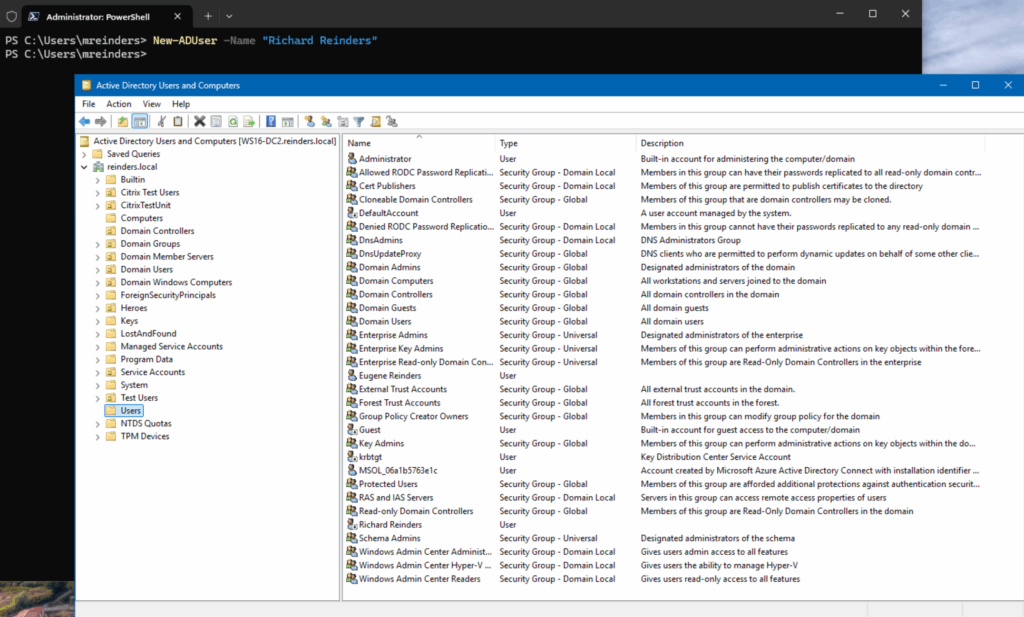
You’ll rarely ever need or use this example, but it’s good to start with the basics.
Adding essential attributes (Name, Department, Title)
Let’s expand this into something more useful:
New-ADUser -Name “Thomas Reinders” -GivenName “Thomas” -Surname “Reinders” -DisplayName “Thomas Reinders” -SamAccountName “treinders” -UserPrincipalName “[email protected]” -Title “Finance Manager” -Department “Finance” -EmailAddress “[email protected]” -Enabled $true -AccountPassword (ConvertTo-SecureString "Autumn2025!" -AsPlainText -Force)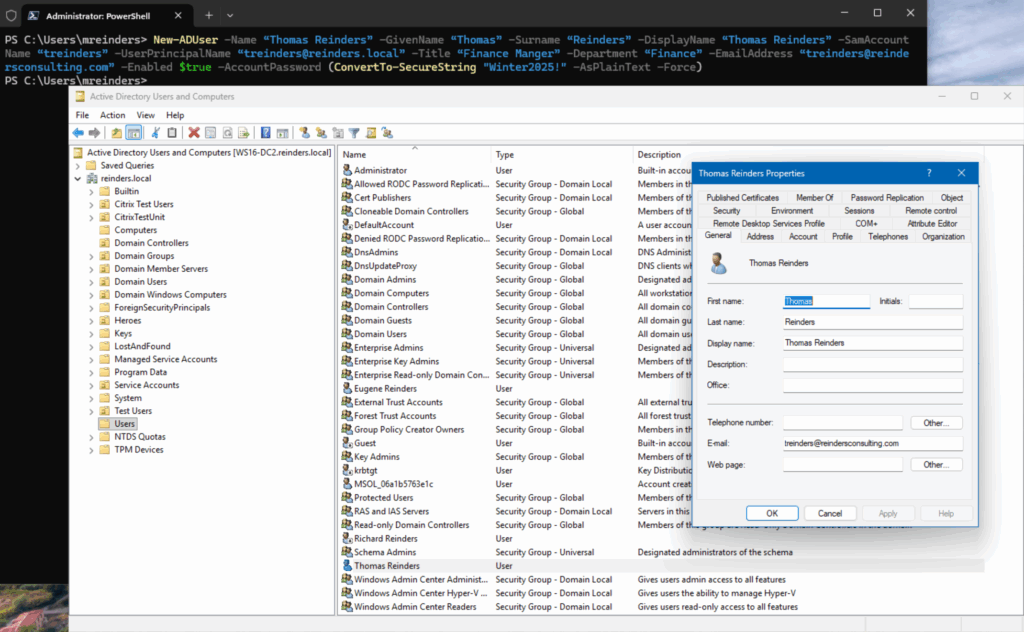
Here, we’re offering a fuller identity from the outset. The account is created, valid, and ready for login. The password is set and meets requirements (as it would have given an error). However, not very secure. That is next.
Setting an initial password and account options
Always set the attribute to have the user change their password at their next login when creating an account. We can do that thusly:
Set-ADUser -Identity treinders -ChangePasswordAtLogon $trueAll set. You can also use the same ‘-ChangePasswordAtLogon’ switch when creating the account with New-ADUser.
Advanced user creation with New-ADUser
Once you’ve mastered the basics, you can add sophistication to your scripts.
Specifying the Organizational Unit (OU)
By default, users are created in the Users container. You can specify an OU path. You can find OU paths by right-clicking an OU in ADUC → Properties → Attribute Editor → Copy the value of distinguishedName.
New-ADUser -Name “Victor Reinders” -Path “OU=Domain Users,DC=reinders,DC=local”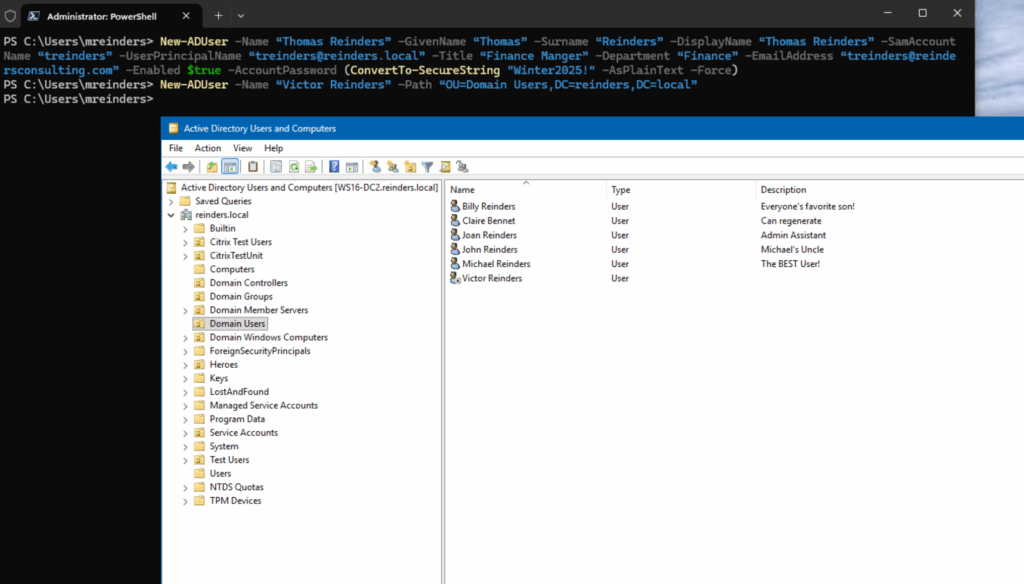
Adding AD users to groups
Here is how we can add users to groups in AD using Add-ADGroupMember.
Add-ADGroupMember -Identity “Financial_Access” -Members treinders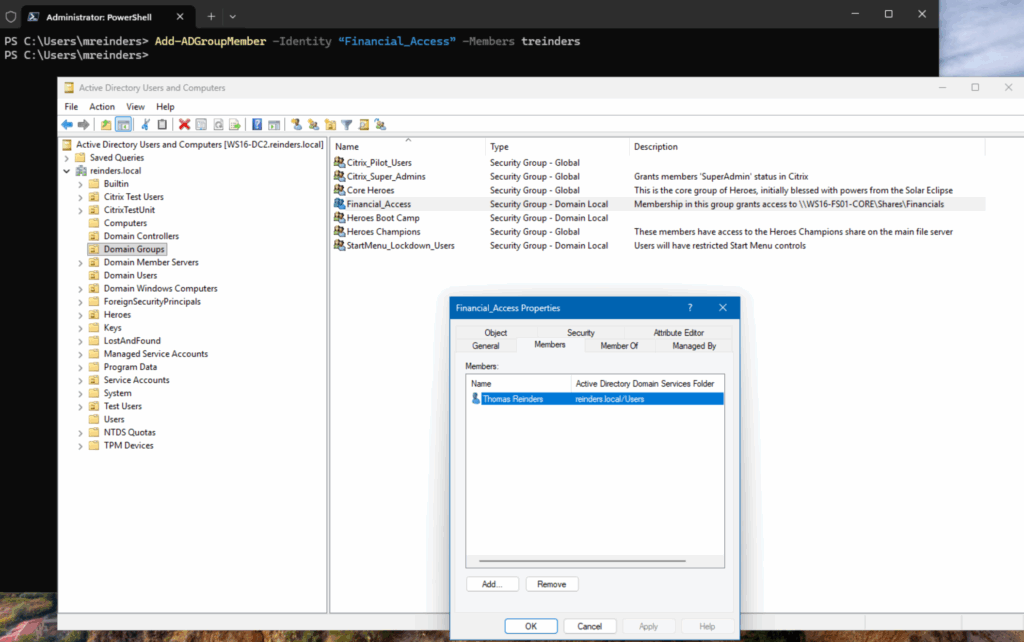
Thomas Reinders is now in the Financial_Access security group.
Setting User Account Control (UAC) flags
UAC flags control settings like whether the account is disabled, requires a password, or is locked out.
For instance, to set a password not required (common for service accounts).
New-ADUser -Name "svcBackup" -SamAccountName "svcBackup" -PasswordNotRequired $true -Enabled $trueNice and simple.
Populating AD attributes
Active Directory supports dozens of optional attributes. Here’s an expanded example.
New-ADUser -Name "Stan Reinders" -SamAccountName "sreinders" -UserPrincipalName "[email protected]" -Title "IT Support Specialist" -Department "IT" -OfficePhone "555-123-4567" -StreetAddress "998 Main St" -City "Milwaukee" -State "WI" -PostalCode "53202" -Company "Reinders Consulting" -Enabled $true -AccountPassword (ConvertTo-SecureString "P@ssword2025!" -AsPlainText -Force)Again, thinking about scripting and automation, you can make these as ‘large’ as you want…they’re just goign to run in a script. You can create scripts that create a hundred users, in different OUs, with different departments, managers, etc. The script would literally take seconds to run, and you’re done and ready for testing. Let’s touch on this next.
Batch creating users: Scaling your efforts
To carry on from what I was stating above, we’re now ready to start using CSV files to batch-create more than one user at a time.
Preparing your data source (CSV Files)
Let’s start with a simple CSV file – users.csv

Looping through your CSV with Import-Csv
Now, we’ll use a script to import the contents of the file and iterate through each user (row) into the New-ADUser command.
$users = Import-Csv "C:\users\mreinders\downloads\users.csv"

foreach ($user in $users) {

$password = (ConvertTo-SecureString $user.Password -AsPlainText -Force)

New-ADUser `

-Name "$($user.FirstName) $($user.LastName)" `

-GivenName $user.FirstName `

-Surname $user.LastName `

-SamAccountName $user.SamAccountName `

-UserPrincipalName "$($user.SamAccountName)@reinders.local" `

-Department $user.Department `

-Title $user.Title `

-AccountPassword $password `

-Enabled $true `

-ChangePasswordAtLogon $true

}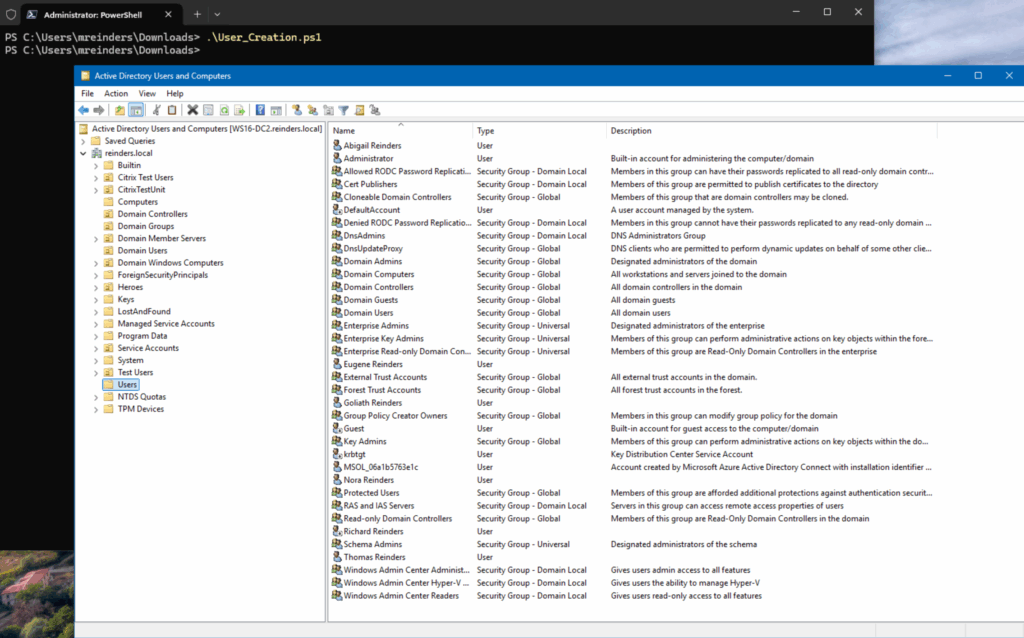
Our 3 users are there!
Crafting the batch creation script
For production environments, you can enhance it:
- Add error handling (
try/catch). - Write logs to a file.
- Validate if the user already exists.
- Email a summary report.
Here’s a sample you can use to craft to your environment.
try {

if (Get-ADUser -Filter "SamAccountName -eq '$($user.SamAccountName)'") {

Write-Host "User $($user.SamAccountName) already exists. Skipping."

} else {

New-ADUser ... # user creation code

Write-Host "Created user: $($user.SamAccountName)"

}

} catch {

Write-Error "Failed to create user: $($user.SamAccountName) - $_"

}
Handling common scenarios and troubleshooting
Let’s share some common issues you’re likely to run into when using New-ADUser.
Dealing with duplicate usernames
When users share names, use a naming pattern that ensures uniqueness.
$Sam = ($user.FirstName.Substring(0,1) + $user.LastName)

$count = 1

while (Get-ADUser -Filter "SamAccountName -eq '$Sam'") {

$Sam = ($user.FirstName.Substring(0,1) + $user.LastName + $count)

$count++

}
This logic automatically increments usernames like treinders1, treinders2, etc.
Setting password policies
If your domain enforces password complexity (and you better be doing so!), ensure the passwords in your CSV or scripts meet the requirements. Otherwise, the command fails silently with “The password does not meet complexity requirements”.
You can pre-validate password complexity using regex or enforce length and character rules.
Common error messages and how to fix them
Here are some common error messages when using New-ADUser to save you some searching in the future…
| Error | Cause | Fix |
|---|---|---|
| “Access Denied” | Insufficient permissions | Run as domain admin or delegate rights |
| “The password does not meet complexity requirements” | Weak password | Use complex strings with numbers and symbols |
| “Cannot find path specified” | Incorrect OU DN | Verify the distinguishedName path |
| “User already exists” | Duplicate SAM or UPN | Add a uniqueness check before creation |
Best practices for AD user management with PowerShell
Now, let’s gather some industry and community best practices and standards when working with User Management with PowerShell.
Using secure passwords
Avoid embedding plaintext passwords directly in scripts. Instead:
- Prompt for passwords securely:
$Password = Read-Host "Fall2025!" -AsSecureString - Or store encrypted credentials safely using
Export-Clixml.
Implementing error handling
Wrap creation commands in try/catch blocks. Capture errors with $ErrorActionPreference = 'Stop' to handle gracefully and log issues.
Commenting your scripts
Clear documentation makes scripts maintainable. Add meaningful comments explaining the purpose of each section.
# Create new AD user from CSV input
# Script version 2.1 - Updated October 2025
Testing in a non-production environment
Always test in a lab or sandbox AD first. Use a lab! They really are invaluable. Once validated, move to production with caution. You can add a -WhatIf parameter to simulate the command safely:
New-ADUser -Name "Test User" -WhatIfThis shows what would happen—without making changes.
Thank you for reading my post on using New-ADUser to create users in Active Directory. If you have any questions, please leave a comment/question below.
Frequently asked questions
What is a new-ADUser?
New-ADUser is a PowerShell cmdlet in the Active Directory module used to create new user accounts in an Active Directory (AD) environment.
It allows administrators to define all the properties of a user—such as name, logon name, password, organizational unit (OU), and more—at the time of creation.
This cmdlet is part of the ActiveDirectory module, which is included in Windows Server with the Active Directory Domain Services (AD DS) role or can be installed on Windows 10/11 with RSAT tools.
New-ADUser -Name "John Doe" -GivenName "John" -Surname "Doe" -SamAccountName "jdoe" -UserPrincipalName "[email protected]" -Path "OU=Users,DC=domain,DC=com"How to create a new AD user?
To create a new Active Directory user, you can use PowerShell with the New-ADUser cmdlet.
Here’s a simple step-by-step example:
- Open PowerShell with administrative privileges.
- Import the AD module (if not already loaded):
Import-Module ActiveDirectory- Run the
New-ADUsercommand:
New-ADUser -Name "Jane Smith" -GivenName "Jane" -Surname "Smith" -SamAccountName "jsmith" -UserPrincipalName "[email protected]" -Path "OU=Sales,DC=yourdomain,DC=com" -AccountPassword (Read-Host -AsSecureString "Enter Password") -Enabled $true- Confirm creation: You can verify the user was created with:
Get-ADUser -Identity jsmithWhat does Get-ADUser do?
Get-ADUser is another PowerShell cmdlet used to retrieve information about Active Directory user accounts.
It can return specific user attributes, filter users, or list all users in an OU.
Examples:
- Get details of a specific user:
Get-ADUser -Identity jsmith -Properties *- List all users in a specific OU:
Get-ADUser -Filter * -SearchBase "OU=Sales,DC=yourdomain,DC=com"- Find disabled users:
Get-ADUser -Filter {Enabled -eq $false}
Michael has been an IT Pro since 1998. He has worked predominantly in the Windows world including client and server operating systems, on-prem systems engineering (AD, DNS, etc.), and over the last ten years or so has embraced and immersed himself in...