- Blog
- PowerShell
- Post
Command Prompt vs PowerShell: Which One Should You Use?
PowerShell brings a world of powerful management capabilities to streamline your IT operations but is the Command Prompt sometimes all it takes?

This article provides a comprehensive comparison of the Command Prompt vs PowerShell, guiding you through the distinct features and ideal use cases for each tool, helping you make an informed decision for your specific needs.
Command Prompt remains useful for quick, legacy tasks, but PowerShell stands as the superior, more versatile, and future-proof tool for modern system administration and automation. Embrace PowerShell to unlock a world of powerful management capabilities and streamline your IT operations.
Command Prompt vs PowerShell – At a glance
The differences between Command Prompt and PowerShell at a glance:
| Category | Command Prompt | PowerShell |
|---|---|---|
| How They Handle Commands and Data | Text-based: Commands and outputs are plain text strings. Parsing required: Must use string parsing tools (e.g., findstr, redirection) to extract data.Limited data manipulation: Only basic string and file operations possible. | Object-oriented: Commands return structured objects with properties and methods. Structured data: Enables easy filtering, sorting, and property selection (e.g., `Get-Process |
| Scripting Capabilities | Batch scripting (.bat/.cmd): Executes simple command sequences line-by-line. Limited logic: Supports IF, FOR loops, but lacks advanced constructs and error handling.External utilities: Often relies on separate programs (e.g., findstr, more) for complex tasks. | Full scripting language (.ps1): Modern, feature-rich scripting. Advanced constructs: Includes variables, arrays, hash tables, functions, modules, classes, and try-catch-finally error handling.Self-contained: Can perform complex operations natively via .NET Framework and built-in cmdlets. Integrated Scripting Environment (ISE): Dedicated GUI for developing, testing, and debugging scripts. |
| User Interface & Experience | Basic interface: Simple black-and-white text console. Limited features: No tab completion or inline help. Quick for familiar tasks: Efficient for users experienced with DOS commands. | Enhanced console: Tab completion for cmdlets, parameters, and arguments reduces errors. Extensive help system: Built-in Get-Help command with examples and documentation.Integrated Scripting Environment (ISE): GUI with syntax highlighting, debugging, and object explorer. Cross-platform support: PowerShell Core runs consistently across Windows, macOS, and Linux. |
The fundamentals: What exactly are the Command Prompt and PowerShell?
Before exploring their differences in more detail, let’s establish a clear understanding of each tool.
Command Prompt: The classic command-line interface (CLI)
Command Prompt (CMD) is the original command-line interpreter for Windows. It dates back to the MS-DOS (many decades…like, the 80s) era and provides a text-based interface for executing commands.
- Syntax: Relies heavily on DOS commands (e.g.,
dir,cd,copy,ping). - Output: Primarily handles text strings. When you execute a command, CMD returns plain text output, which can then be parsed using string manipulation.
- Scripting: Supports batch scripting (.bat or .cmd files), which are sequential lists of commands executed one after another. Batch scripts are relatively simple and lack advanced programming constructs.
- Purpose: Primarily designed for basic system operations, file management, and legacy application execution.
PowerShell: The modern shell and scripting language
PowerShell is a more advanced, object-oriented command-line shell and scripting language developed by Microsoft. Introduced alongside Windows Server 2003, PowerShell was designed and written from the ground up to overcome the limitations of the Command Prompt and provide a powerful, unified environment for system administration.
- Syntax: Utilizes cmdlets (command-lets), which are highly structured PowerShell commands following a Verb-Noun naming convention (e.g.,
Get-Process,Set-Service). It also supports aliases for common CMD commands for easier transition/migration. - Output: The most significant difference: PowerShell processes and outputs objects, not just text strings. An object is a structured piece of data with properties and methods, making it incredibly powerful for filtering, sorting, and further manipulating data directly within the shell.
- Scripting: A PowerShell script is available as a scripting language (.ps1 files), offering advanced programming features like variables, loops (for-each), conditional statements, functions, error handling, and modules.
- Purpose: Built for advanced system configuration, automation, and management of Windows systems and applications, including integration with Azure and other cloud services.
Core differences: A side-by-side breakdown
To truly grasp the distinction, let’s break down the core differences between Command Prompt and PowerShell across several key areas.
How do Command Prompt and PowerShell handle commands and data?
This is perhaps the most fundamental difference.
- Command Prompt:
- Text-based: Every command input and output is treated as a simple string of text.
- Parsing required: If you need to extract specific information from the output, you often have to rely on string parsing commands like
findstror redirection, which can be cumbersome. - Limited data manipulation: Direct manipulation of data within the shell is very basic.
- PowerShell:
- Object-oriented: Every command returns objects (e.g., a process object, a service object, a file object). These objects have properties and methods (actions that can be performed on them).
- Structured data: This means you can easily filter, sort, select specific properties, and pipe objects from one cmdlet to another with precision.
For example, this command directly manipulates process objects:
Get-Process | Where-Object {$_.CPU -gt 100} | Select-Object Name, Id, CPU- Rich data manipulation: Offers powerful cmdlets for data manipulation, including
Where-Object(filtering),Sort-Object(sorting),Select-Object(selecting properties),Group-Object(grouping), andConvertFrom-Json/ConvertTo-Jsonfor structured data.
What about scripting capabilities?
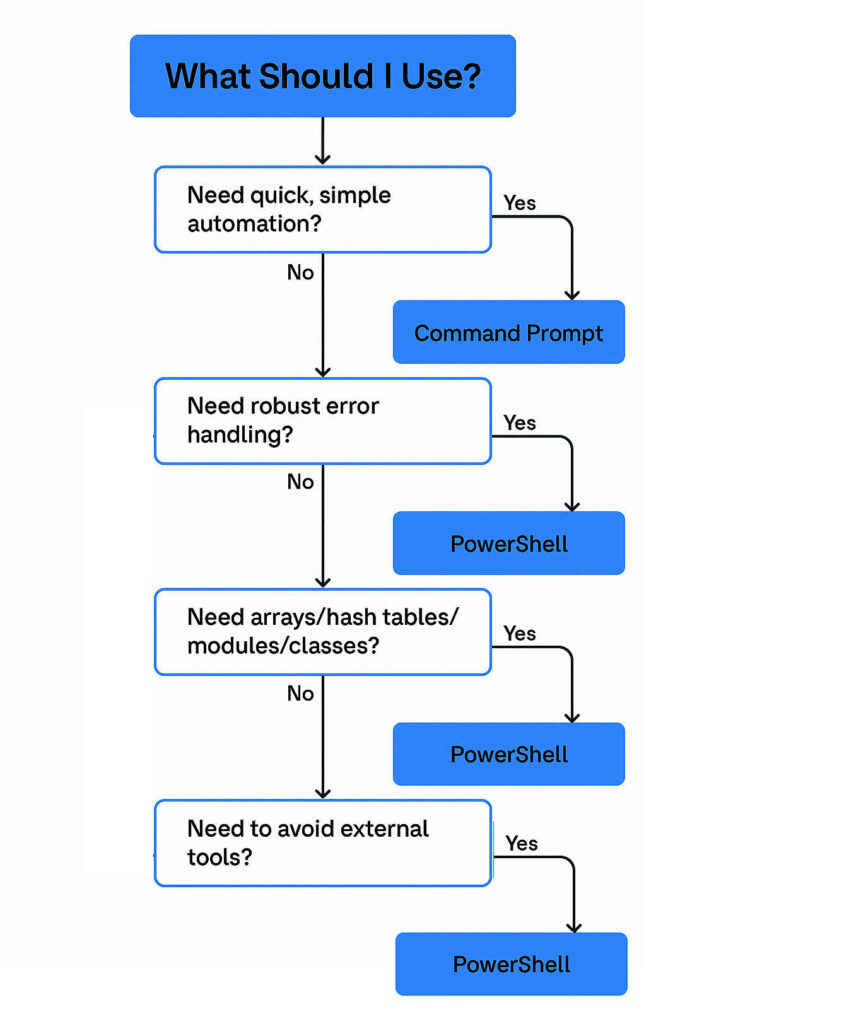
The scripting capabilities are another major differentiator:
- Command Prompt:
- Batch scripting (.bat/.cmd): A sequence of commands executed line by line.
- Limited logic: Primarily supports simple flow control (e.g.,
IF,FORloops) but lacks robust error handling, complex data structures, and modularity. - External utilities: Often requires invoking external utilities (e.g.,
findstr,more) for even moderately complex tasks, making scripts less self-contained.
- PowerShell:
- Full scripting language (.ps1): A robust, modern scripting language.
- Advanced programming constructs: Supports variables, arrays, hash tables, functions, modules, classes, and advanced error handling (
try-catch-finally). - Self-contained: Scripts can perform complex operations without relying heavily on external executables, leveraging the rich set of built-in cmdlets and the .NET Framework.
- Integrated Scripting Environment (ISE): Includes a dedicated development environment for writing, testing, and debugging scripts.
User interface and user experience
While both are command-line interfaces, there are subtle differences in their usability.
| 🖥️ UI Design | 🔤 Autocomplete | 📘 Help System | 🧩 IDE Support | 🌐 Cross-Platform | |
|---|---|---|---|---|---|
| Command Prompt | ⬛ Minimal | ❌ | ❌ | ❌ | ❌ |
| PowerShell | 💠 Modern | ✅ | ✅ | ✅ | ✅ |
Using Windows Terminal with CMD and PowerShell
Hands down, the most efficient way to use CMD and PowerShell is through the Windows Terminal application. You can download it from the Microsoft Store or use your favorite app manager (winget) to download and install it.

Above you see the Command Prompt on the left. Pretty basic, pretty ugly, not too helpful in terms of knowing what each line item is. But, when you use PowerShell…
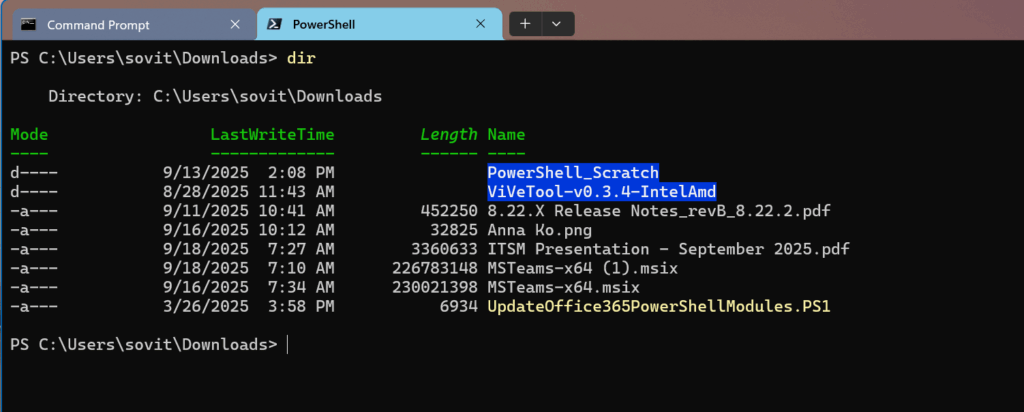
Everything becomes clear. Color-coding throughout, a cleaner look. It always helps when a new product/tool is built from the ground up.
Integration and extensibility
How well do these tools integrate with the broader Windows ecosystem and other technologies?
- Command Prompt:
- Limited integration: Primarily interacts with the operating system at a basic level, invoking executables and managing files.
- No direct framework access: Cannot directly access the .NET Framework or Windows Management Instrumentation (WMI).
- PowerShell:
- Deep integration with .NET: Has full access to the .NET Framework, allowing it to leverage a vast library of classes and methods for virtually any task.
- WMI and CIM: Excellent integration with WMI (Windows Management Instrumentation) and CIM (Common Information Model), enabling deep system introspection and control.
- COM Objects: Can interact with COM (Component Object Model) objects.
- Extensible through Modules: Functionality can be extended through modules, which are collections of cmdlets, functions, and other elements. Many Microsoft products (Exchange, SQL Server, Azure, Active Directory) provide PowerShell modules for management.
Security considerations
While both tools are powerful, their security underpinnings differ.
- Command Prompt:
- Legacy security model: Primarily bound by file system permissions and user rights for executed programs.
- Less granular control: Difficult to apply fine-grained execution policies.
- PowerShell:
- Execution Policies: Implements execution policies to control which scripts can run and under what conditions (e.g., signed scripts only, remote scripts blocked). This provides an additional layer of security.
- Logging and Auditing: Offers extensive logging and auditing capabilities for script execution, making it easier to track and monitor administrative actions.
When to use Command Prompt: Your go-to for basic tasks
Despite PowerShell’s ‘power’, Command Prompt still has its place, especially for quick, straightforward tasks that have been historically handled by its commands.
Simple file operations
For basic file and directory management, CMD is often quicker to open and execute.
| Command (CMD) | Purpose |
|---|---|
dir | Lists directory contents |
cd | Changes the current directory |
mkdir | Creates a new directory |
copy | Copies one or more files |
del | Deletes specified files |
ren | Renames files or directories |
Network diagnostics
Many fundamental network troubleshooting commands are still perfectly effective in CMD.

Many fundamental network troubleshooting commands are still perfectly effective in CMD:
ping: Test network connectivity to a host.ipconfig: Display network configuration details (IP address, subnet mask, gateway).tracert: Trace the route to a network destination.netstat: Display active network connections and listening ports.
System information retrieval
For quick checks of system parameters, CMD commands are often sufficient.
systeminfo: Display detailed system configuration information.tasklist: List running processes.shutdown: Shut down or restart the computer.
When to choose PowerShell: The ‘advanced’ platform
When your tasks move beyond basic file operations or network pings, PowerShell becomes an indispensable tool. Its object-oriented nature and scripting capabilities unlock a new level of control and automation. Plus, being able to click the up arrow to go through your history of commands – Amazing!
System configuration and management
PowerShell excels at deep system configuration and management across various Windows components.
| ⚙️ Category | 💬 What You Can Do with PowerShell | 🧩 Example Cmdlets |
|---|---|---|
| Service Management | Start, stop, restart, and configure Windows services | Get-Service, Set-Service |
| Process Management | Monitor, stop, and manage running processes | Get-Process, Stop-Process |
| User & Group Management | Create or modify local and Active Directory accounts | New-LocalUser, Add-ADGroupMember |
| Event Log Analysis | Filter and analyze system event logs for issues | Get-WinEvent |
Automating repetitive tasks
This is where PowerShell truly shines. Its scripting language allows you to automate complex, multi-step processes.
- Scheduled Tasks: Create, modify, and manage scheduled tasks (
Register-ScheduledTask). - Software Deployment: Automate the installation and configuration of software.
- Report Generation: Generate detailed reports on system status, resource usage, or inventory.
- Bulk Operations: Perform actions on hundreds or thousands of files, users, or services based on specific criteria.
Advanced data manipulation
Leverage PowerShell’s object pipeline for powerful data handling.
- Filtering and Sorting: Easily filter large datasets. For example:
Get-ChildItem -Path C:\Logs -Filter "*.log" | Where-Object Length -gt 1MB- Exporting Data: Export command output to various formats like CSV, XML, or JSON (
Export-Csv,ConvertTo-Json). - Custom Object Creation: Create custom objects to structure data for reports or further processing.
Interacting with APIs and web services
PowerShell’s deep integration capabilities make it ideal for modern IT environments that rely on web services.
- REST API Calls: Interact with RESTful web services using
Invoke-RestMethodto manage cloud resources (Azure, AWS), third-party applications, or custom web APIs. - Module Integration: Manage cloud services (Azure, AWS), virtualization platforms (Hyper-V, VMware), and enterprise applications (Exchange, SharePoint, SQL Server) directly through their respective PowerShell modules.
The evolution: Why PowerShell is often preferred
PowerShell isn’t just an alternative; it represents a significant evolution in Windows administration. Its design principles are perfectly aligned with the demands of modern IT.
PowerShell Core: Cross-platform capabilities
With PowerShell Core (now simply PowerShell), Microsoft extended its reach beyond Windows.
- Cross-platform: Runs on Linux, macOS, and Windows, providing a consistent automation experience across different operating systems. This is critical in hybrid cloud and multi-platform environments.
- Open-source: PowerShell Core is open-source, fostering community contributions and broader adoption.
- Containers: Ideal for managing and automating tasks within Docker containers.
The future of Windows administration
Microsoft has clearly positioned PowerShell as the primary management and automation tool for Windows.
- Newer Features: Many new Windows features and server roles are manageable primarily, or exclusively, through PowerShell.
- Cloud Management: It’s the go-to tool for managing Microsoft’s cloud services, Azure, and Microsoft 365, offering extensive cmdlets and modules.
- Desired State Configuration (DSC): PowerShell includes Desired State Configuration (DSC), a management platform that enables you to manage your IT infrastructure by deploying and enforcing configuration settings.
Can the Command Prompt and PowerShell coexist? Integrating both tools in your workflow
Absolutely! While PowerShell is more powerful, there’s no need to abandon Command Prompt entirely. They can and often do coexist in an administrator’s toolkit.
Leveraging the strengths of each
- Quick Checks: Use CMD for simple, immediate tasks like
pingoripconfigwhen you need a fast, unambiguous text output. - Complex Automation and Management: Turn to PowerShell for anything involving scripting, object manipulation, system configuration, cloud interaction, or advanced data analysis.
Many experienced administrators keep a Command Prompt window open for quick command execution and a PowerShell window (or ISE) for more intricate scripting and administration.
Transitioning from CMD to PowerShell
If you’re accustomed to Command Prompt, transitioning to PowerShell is a valuable skill.
1️⃣ Start Small → Try simple command conversions (dir → Get-ChildItem).
2️⃣ Use Aliases → Familiar syntax still works; run Get-Alias to explore.
3️⃣ Learn the Pipeline → Master | to connect cmdlets and process data efficiently.
4️⃣ Explore Help → Get-Help and Get-Help -Examples show syntax and use cases.
5️⃣ Leverage the ISE → Practice in the Integrated Scripting Environment for autocomplete and debugging.
6️⃣ Practice, Practice, Practice → Real comfort comes from repetition.
Making your decision: Which tool is right for your needs?
The “right” tool depends entirely on your specific context, skill set, and objectives.
Assess your skill level and requirements
- Beginner User / Basic Tasks: If you primarily perform simple file operations, network checks, or run existing batch scripts, Command Prompt might suffice initially. It has a lower barrier to entry for these specific tasks.
- Advanced User / Administrator / Developer: If you need to automate tasks, manage system settings deeply, interact with various services (local or cloud), analyze structured data, or develop complex scripts, PowerShell is the undeniable choice.
Consider your long-term goals
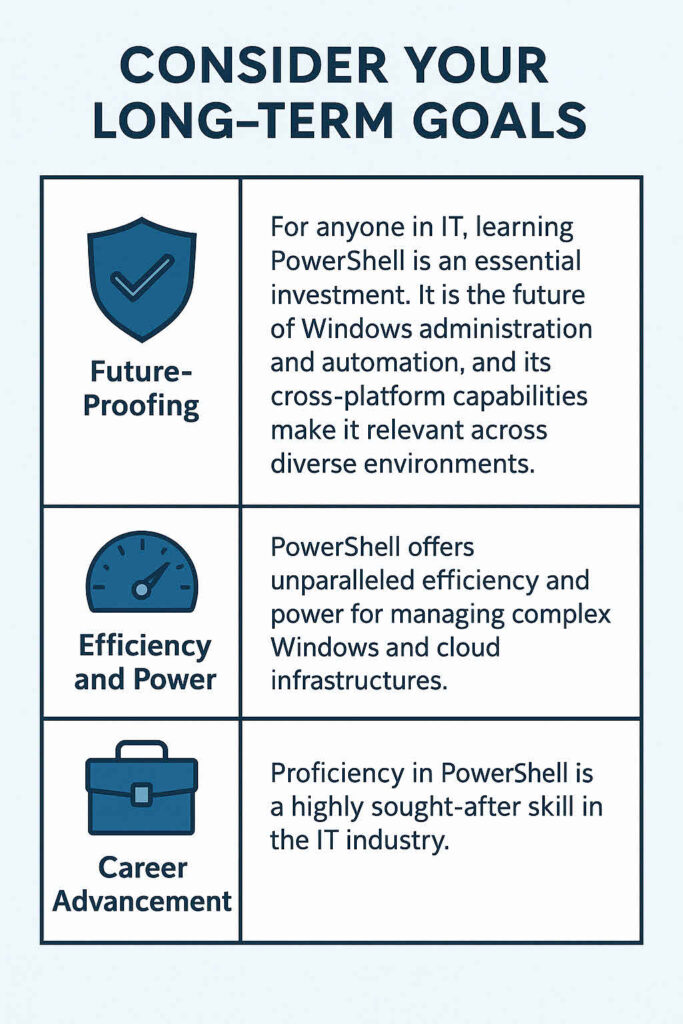
- Future-Proofing: For anyone in IT, learning PowerShell is an essential investment. It is the future of Windows administration and automation, and its cross-platform capabilities make it relevant across diverse environments.
- Efficiency and Power: PowerShell offers unparalleled efficiency and power for managing complex Windows and cloud infrastructures.
- Career Advancement: Proficiency in PowerShell is a highly sought-after skill in the IT industry.
Frequently asked questions
Is it better to use CMD or PowerShell?
In most cases, PowerShell is better than CMD because it’s far more powerful and versatile.
- CMD (Command Prompt) is an older shell used mainly for running basic batch scripts and system commands.
- PowerShell, on the other hand, is a task automation and configuration management framework that includes a command-line shell and a scripting language built on .NET.
PowerShell supports:
- Complex scripting with variables, loops, and functions
- Access to the Windows Management Instrumentation (WMI) and COM objects
- Running scripts that manage Windows systems, Azure, and other services
- Piping of rich .NET objects, not just text
Is Windows PowerShell a Command Prompt?
No, Windows PowerShell is not the same as Command Prompt, though both are command-line interfaces.
- Command Prompt (cmd.exe) runs batch scripts and legacy DOS commands.
- PowerShell (powershell.exe) runs PowerShell cmdlets, scripts, and can also execute most CMD commands.
PowerShell is essentially a modern, enhanced command-line shell that can do everything CMD can, plus much more, like object manipulation, scripting, and system automation.
What’s better than CMD?
PowerShell is better than CMD for nearly all administrative or automation tasks.
Other modern alternatives that might be “better” depending on context include:
- Windows Terminal – a modern host that can run CMD, PowerShell, and WSL (Linux shell) all in one place.
- WSL (Windows Subsystem for Linux) – allows you to use Linux shells like Bash on Windows.
- PowerShell 7 (Core) – the cross-platform version of PowerShell that works on Windows, macOS, and Linux.
So, while CMD still works, it’s considered outdated compared to these tools.
Can I run PowerShell from CMD?
Yes. You can launch PowerShell directly from CMD.
Just type:
powershellAnd press ENTER.

Michael has been an IT Pro since 1998. He has worked predominantly in the Windows world including client and server operating systems, on-prem systems engineering (AD, DNS, etc.), and over the last ten years or so has embraced and immersed himself in...