- Blog
- PowerShell
- Post
How to Run PowerShell Scripts: A Complete Guide
Understanding script execution, functions, and remoting gives you the foundation to build powerful automation workflows.

This guide covers how to run PowerShell scripts: everything from basic script execution to remote operations, parameter passing, and troubleshooting.
PowerShell is useful for automating administrative tasks, but before you can run PowerShell scripts, you need to understand the mechanisms that control script execution. The core concepts stay constant whether you are running a basic script locally from the command line or coordinating complicated tasks on many remote servers.
Run PowerShell scripts: the basic methods
From a PowerShell console session
Open PowerShell, navigate to your script’s folder, and run it:
.\MyScript.ps1Use full paths when executing from other directories:
C:\Users\Admin\Scripts\MyScript.ps1Tip: navigate first using cd to shorten paths when testing multiple scripts.
From File Explorer
Right-click the .ps1 file and select Run with PowerShell. Windows temporarily applies a Bypass policy, runs your script, and closes the window. This works for simple scripts without output. For anything interactive, use the console or Visual Studio Code.
From Visual Studio Code
Open the script, press F5 to run the entire file, or F8 to execute selected lines. Output appears in the integrated terminal.
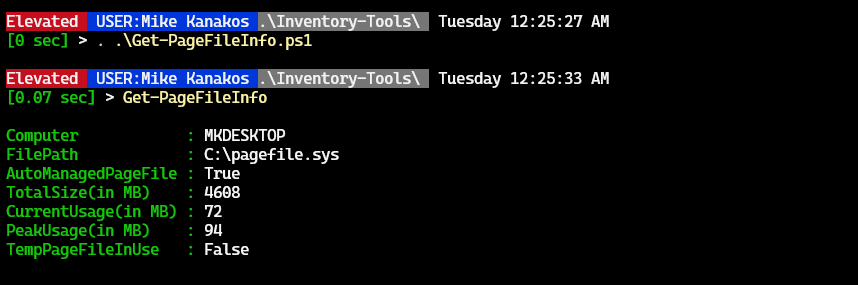
To run from Command Prompt:
PowerShell -File C:\Users\Admin\Scripts\MyScript.ps1Understanding PowerShell execution policies
What are execution policies?
When you first try to run a PowerShell script on a Windows client computer, you might encounter the error “running scripts is disabled on this system.” That message comes from PowerShell’s execution policy. Execution policies are not strict security boundaries—they are more like guardrails to help prevent accidental script execution. Windows client systems set the default policy to Restricted, blocking all script execution and allowing only individual commands in the console.
The different policy settings
PowerShell offers six execution policy settings that balance security and convenience differently.
| Execution policy | Default platform | Description | Security level |
|---|---|---|---|
| Restricted | Windows 10/11 | Blocks all scripts; only interactive commands run in console. | Highest |
| RemoteSigned | Windows Server | Allows local scripts; requires digital signature for downloaded scripts. | High |
| AllSigned | None (manual) | Requires all scripts—local or downloaded—to be signed by a trusted publisher. | High |
| Unrestricted | Cross-platform | Runs all scripts but warns for untrusted sources. | Medium |
| Bypass | Cross-platform | No restrictions or warnings; scripts run freely. | Low |
| Undefined | N/A | No policy is set; defaults apply. | N/A |
On Linux, macOS, and Windows Subsystem for Linux, the default policy is Unrestricted and cannot be changed.
For most environments, RemoteSigned provides the right balance between flexibility and protection. To learn more, run Get-Help about_Execution_Policies in PowerShell or read Microsoft’s execution policy documentation.
Checking and changing your execution policy
To view your current policy:
Get-ExecutionPolicyTo list policies at all scopes:
Get-ExecutionPolicy -List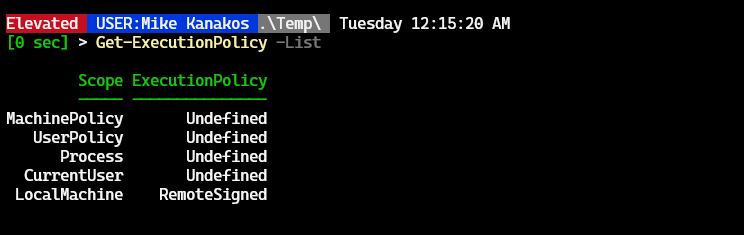
To change it:
Set-ExecutionPolicy -ExecutionPolicy RemoteSignedIf you lack admin rights, set it for your user only:
Set-ExecutionPolicy -ExecutionPolicy RemoteSigned -Scope CurrentUserRestart PowerShell for the change to take effect.
Passing parameters to scripts
How parameters work
Parameters make scripts flexible and reusable:
.\BackupScript.ps1 -BackupPath "D:\\Backups" -KeepDays 30Each name (for example, -BackupPath) corresponds to a parameter defined in the script.
Common execution options
You can adjust how PowerShell itself runs:
| Option | Description | Example |
|---|---|---|
| -NoExit | Keeps PowerShell open after script finishes. | PowerShell -NoExit -File script.ps1 |
| -NoProfile | Runs without loading your profile. | PowerShell -NoProfile -File script.ps1 |
| -ExecutionPolicy Bypass | Temporarily ignores policy restrictions. | PowerShell -ExecutionPolicy Bypass -File script.ps1 |
Dot sourcing
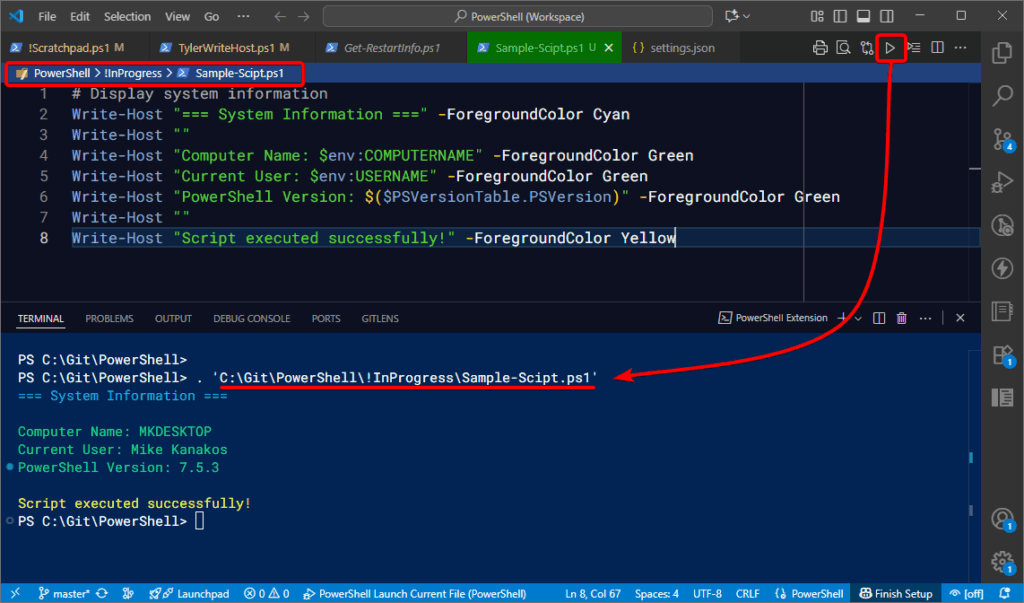
To retain variables and functions after a script finishes, dot-source it:
. .\MyFunctions.ps1This loads its contents into your current session.
Functions vs. scripts: understanding the difference
Scripts are complete .ps1 files that run and exit. Functions are reusable code blocks you load once and call repeatedly. Loading frequently used functions into your PowerShell profile makes them available every session.
To load functions automatically, add this line to your profile:
. C:\Scripts\MyFunctionLibrary.ps1Learn more with Get-Help about_Profiles or the PowerShell profiles documentation.
Running scripts on remote computers
PowerShell remoting
Remoting lets you run code across many computers simultaneously using either WinRM or SSH.
- WinRM (ports 5985 HTTP, 5986 HTTPS):
Enable it withEnable-PSRemoting -Force. - SSH (port 22):
Works across Windows, Linux, and macOS when SSH servers are configured.
Enter-PSSession vs. Invoke-Command
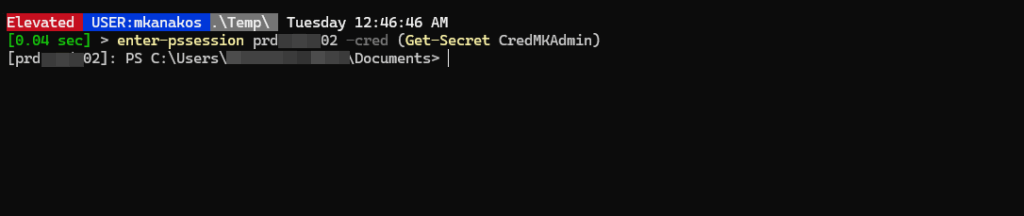
Use Enter-PSSession for interactive remote control of a single computer:
Enter-PSSession -ComputerName Server01Exit with Exit-PSSession.
Use Invoke-Command to execute scripts or commands on multiple systems:
$servers = "Server01","Server02","Server03"
Invoke-Command -ComputerName $servers -FilePath C:\Scripts\ConfigureServer.ps1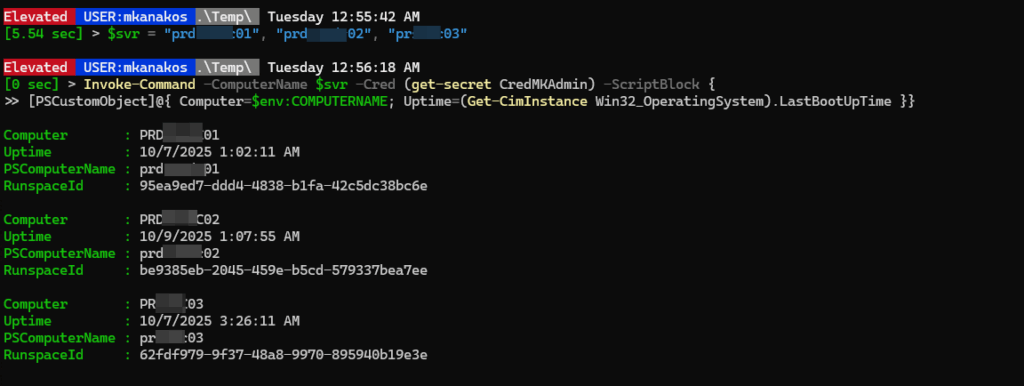
Common errors and how to fix them
| Error message | Cause | Fix |
|---|---|---|
| Running scripts is disabled | Execution policy set to Restricted | Set-ExecutionPolicy RemoteSigned |
| Script path not found | Incorrect path or missing .\ prefix | Verify with Test-Path and use full path |
| Access denied | Permissions or policy restriction | Run PowerShell as Administrator; check with Get-Acl |
Conclusion
PowerShell allows administrators to automate and scale tasks efficiently across many systems. Understanding script execution, functions, and remoting gives you the foundation to build powerful automation workflows.
Frequently asked questions
How do I run a PowerShell script?
Open PowerShell, go to the script’s folder, and run .\ScriptName.ps1. In Command Prompt, use powershell.exe -File "C:\Path\To\Script.ps1".
Why does the error “Running scripts is disabled on this system” appear?
The default Restricted execution policy blocks scripts. Change it with:
Set-ExecutionPolicy RemoteSigned -Scope CurrentUserHow do I run a PowerShell script as administrator?
Right-click PowerShell and choose Run as administrator, or use:
Start-Process PowerShell -Verb RunAs -ArgumentList "-File C:\Scripts\MyScript.ps1"Can I run a PowerShell script from File Explorer?
Yes. Right-click the .ps1 file and select Run with PowerShell. To see output, add Read-Host at the end or run from console.
How do I pass parameters to a PowerShell script?
Define them in a param block:
param([string]$Name,[int]$Age)
Write-Host "Hello, $Name!"
Run it like .\MyScript.ps1 -Name "Alice" -Age 30.

Mike Kanakos is a 5-time Microsoft MVP (PowerShell) and Manager of the Enterprise Identity and Access Services team at Invisalign, where he leads an engineering team that specializes in enterprise identity and access management and automation. Mik...