- Blog
- PowerShell
- Post
PowerShell Switch: A Complete Guide to Mastering Conditional Logic
Key Takeaways:
- The PowerShell switch statement simplifies multi-condition logic and improves script readability.
- Switch supports wildcard, regex, case-sensitive, and exact matching for flexible pattern evaluation.
- Variables, arrays, and hashtables enhance dynamic switch logic and real-world applicability.
- Following best practices ensures clear, efficient, and maintainable switch-based logic.
A practical breakdown of how to use the PowerShell switch statement with patterns, variables, arrays, hashtables, and real-world examples.
What is the PowerShell switch statement?
Ever wondered how to handle multiple conditions in your scripts without long chains of if and elseif statements?
If you are familiar with if and elseif statements in PowerShell, you will find that switch statements are similar but simpler in structure. The PowerShell switch statement is especially useful for checking multiple conditions, values, or object properties. Switch statements are easier to read, require far less repetitive typing, and achieve the same outcome as if or elseif chains.
How the PowerShell switch statement works
Why does the PowerShell switch statement simplify multi-condition logic?
If statements compare one condition at a time. Although elseif lists can replicate switch logic, the switch statement evaluates conditions more efficiently. When a condition matches, its action block runs. Compared to multiple if blocks, switch statements offer cleaner and more readable code.
Elseif statement comparison
Here’s a typical elseif statement:
$date = $(Get-Date).DayOfWeek

if ($date -eq 'Sunday') {
    Write-Output "Today is $date."
} elseif ($date -eq 'Monday') {
    Write-Output "Today is $date."
} elseif ($date -eq 'Tuesday') {
    Write-Output "Today is $date."
} elseif ($date -eq 'Wednesday') {
    Write-Output "Today is $date. HUMP DAY!"
} elseif ($date -eq 'Thursday') {
    Write-Output "Today is $date."
} elseif ($date -eq 'Friday') {
    Write-Output "Today is $date."
} else {
    Write-Output "Today is $date."
} 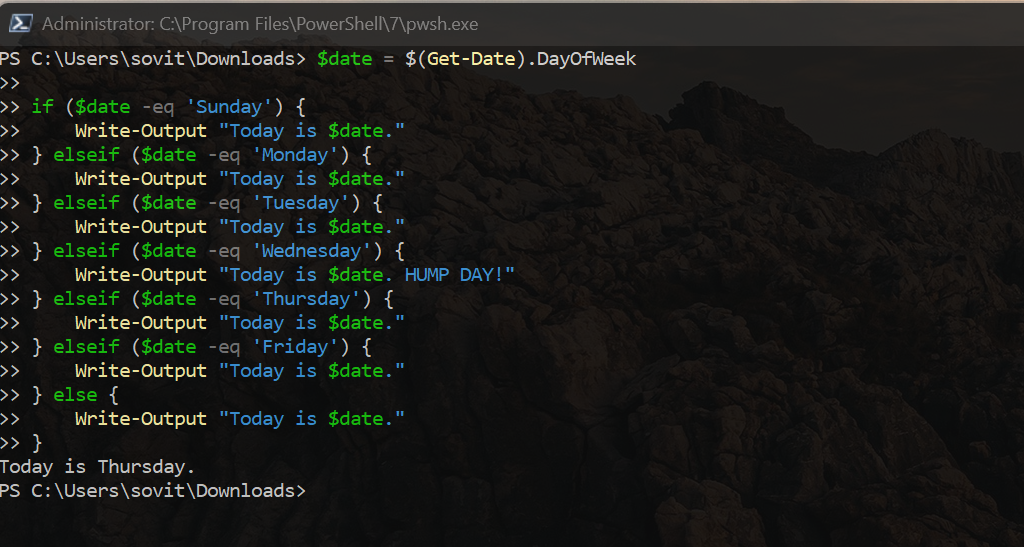
This script loops through each comparison and executes only one matching condition.
Switch statement script block
Here is the equivalent switch statement:
$date = $(Get-Date).DayOfWeek

switch ($date) {
    Sunday     { Write-Output 'Today is Sunday.' }
    Monday     { Write-Output 'Today is Monday.' }
    Tuesday    { Write-Output 'Today is Tuesday.' }
    Wednesday  { Write-Output 'Today is Wednesday. HUMP DAY!' }
    Thursday   { Write-Output 'Today is Thursday.' }
    Friday     { Write-Output 'Today is Friday.' }
    Saturday   { Write-Output 'Today is Saturday.' }
}
This approach provides the same functionality and is easier to maintain.
| Feature | PowerShell Switch | If / ElseIf Chain |
|---|---|---|
| Best for | Handling multiple conditions with clean, compact logic | Simple or one-off conditional checks |
| Readability | High — easy to scan, structured case blocks | Lower — becomes harder to read as conditions increase |
| Pattern support | Yes — supports Wildcard, Regex, Exact, CaseSensitive | No — must manually write -like, regex, or expressions |
| Performance | Efficient with many comparisons | Less efficient due to repeated evaluations |
| Ideal use cases | Argument parsing, classification, file type handling | Binary choices, simple numeric evaluations |
Syntax and construct of the PowerShell switch statement
What exactly happens inside a switch block?
In PowerShell, a case statement inside a switch structure is an individual condition evaluated against an expression. When a match occurs, its associated code block runs.
Concept of a switch case
A switch case defines a matching condition and an action. A switch statement evaluates an expression, compares it against each case, and runs the first matching block. A default block runs when no other case matches.
Structure of a switch case
switch ($input) {
    "value1" {
        # Action for value1
    }
    "value2" {
        # Action for value2
    }
    default {
        # Fallback action
    }
}
Switch statements check cases in order, stop at the first match, and fall back to default when needed.
Example with expressions
$value = 50

switch ($value) {
    { $_ -lt 25 } {
        Write-Output "Less than 25."
    }
    { $_ -ge 25 -and $_ -lt 75 } {
        Write-Output "Between 25 and 75."
    }
    default {
        Write-Output "75 or greater."
    }
} 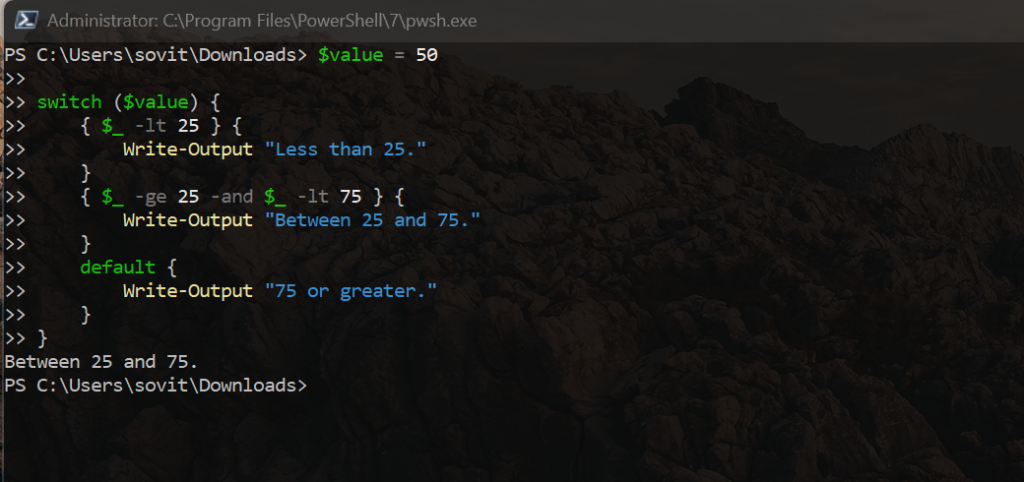
Expressions provide a flexible way to create dynamic switch conditions.
Using variables in PowerShell switch statements
How can variables make your switch logic more dynamic?
Variables allow your cases to evaluate changing values or thresholds.
Using variables in cases
$threshold = 100
$value = 75

switch ($value) {
    { $_ -lt $threshold } {
        Write-Output "The value is below the threshold."
    }
    { $_ -ge $threshold } {
        Write-Output "The value meets or exceeds the threshold."
    }
} 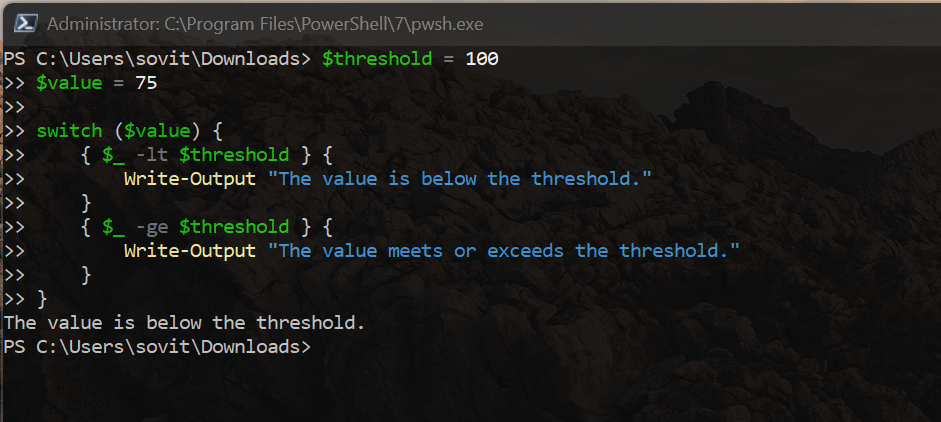
Variable-based logic supports dynamic comparisons and reusable conditions.
Using arrays in PowerShell switch statements
Did you know switch can evaluate entire arrays automatically?
When you pass an array to switch, PowerShell evaluates each element against all cases.
Using arrays in a switch statement
$numbers = 1..5

switch ($numbers) {
    1 { Write-Output "One" }
    2 { Write-Output "Two" }
    3 { Write-Output "Three" }
    default { Write-Output "Other number" }
}
Each item in the array is processed individually.
Example with strings
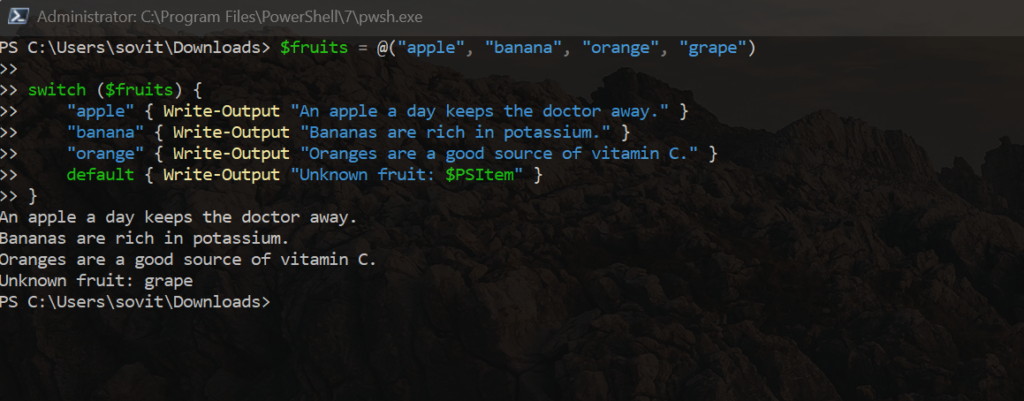
$fruits = @("apple", "banana", "orange", "grape")

switch ($fruits) {
    "apple" { Write-Output "An apple a day keeps the doctor away." }
    "banana" { Write-Output "Bananas are rich in potassium." }
    "orange" { Write-Output "Oranges are a good source of vitamin C." }
    default { Write-Output "Unknown fruit: $PSItem" }
} 
Example with complex conditions
$words = @("PowerShell", "switch", "case", "array", "script")

switch ($words) {
    "*shell" { Write-Output "Contains 'shell': $PSItem" }
    { $_.Length > 5 } { Write-Output "Long word: $PSItem" }
    default { Write-Output "Other word: $PSItem" }
}
Using hashtables in PowerShell switch statements
How can switch and hashtables work together to model structured logic?
Hashtables provide a structured mapping of keys and values you can use within switch logic.
Using hashtables as a data source
$colors = @{
    "red" = "Stop"
    "yellow" = "Caution"
    "green" = "Go"
}

$color = "yellow"

switch ($color) {
    "red" { Write-Output $colors["red"] }
    "yellow" { Write-Output $colors["yellow"] }
    "green" { Write-Output $colors["green"] }
    default { Write-Output "Unknown color" }
}
Using hashtables for complex conditions
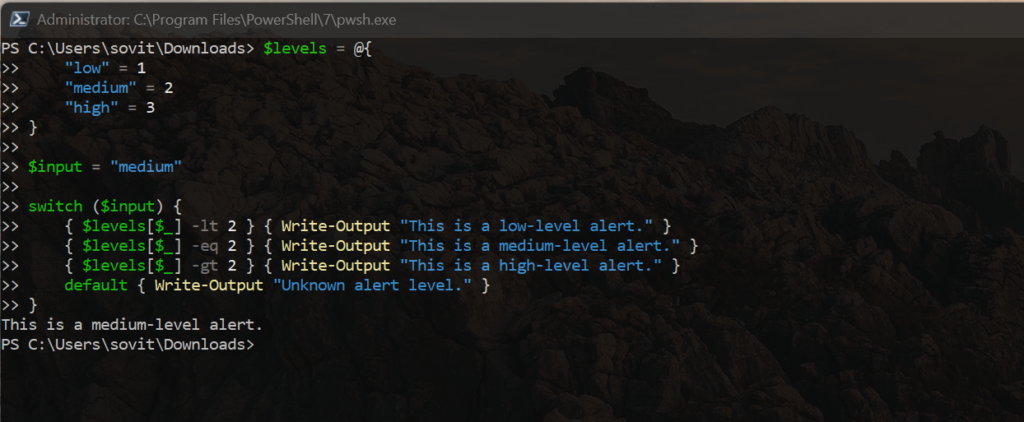
$levels = @{
    "low" = 1
    "medium" = 2
    "high" = 3
}

$input = "medium"

switch ($input) {
    { $levels[$_] -lt 2 } { Write-Output "This is a low-level alert." }
    { $levels[$_] -eq 2 } { Write-Output "This is a medium-level alert." }
    { $levels[$_] -gt 2 } { Write-Output "This is a high-level alert." }
    default { Write-Output "Unknown alert level." }
}
Break statement
When should you stop evaluating additional cases?
The break keyword exits a switch statement immediately after a match.
When to use a break keyword
$fruit = "orange"

switch ($fruit) {
    "apple" { Write-Output "It's an apple." }
    "orange" {
        Write-Output "It's an orange."
        break
    }
    "banana" { Write-Output "It's a banana." }
    default { Write-Output "Unknown fruit." }
}
Use break when you need early termination or want to avoid overlapping matches.
Default clause
How do you handle unexpected values gracefully?
The default clause provides a fallback when no case matches.
Structure of a default block
$input = "unknown"

switch ($input) {
    "apple" { Write-Output "This is an apple." }
    "banana" { Write-Output "This is a banana." }
    default { Write-Output "Unknown fruit." }
}
Default conditions help with error handling and logging.
Match clause using PowerShell switch parameters
Why does PowerShell offer multiple switch matching modes?
PowerShell switch supports parameters that change how cases are evaluated.
The -Wildcard parameter
Wildcard matching works like the -like operator.
$filename = "report2024.docx"

switch -Wildcard ($filename) {
    "*.docx" { Write-Output "This is a Word document." }
    "*.xlsx" { Write-Output "This is an Excel spreadsheet." }
    "report*.docx" { Write-Output "This is a Word report." }
    default { Write-Output "Unknown file type." }
}
Multiple wildcard patterns
$input = "abc123"

switch -Wildcard ($input) {
    "abc*" { Write-Output "Starts with 'abc'." }
    "*123" { Write-Output "Ends with '123'." }
    "?bc1??" { Write-Output "Pattern matched." }
    default { Write-Output "No match." }
}
The -CaseSensitive parameter
$input = "Apple"

switch -CaseSensitive ($input) {
    "Apple" { Write-Output "This is a capitalized Apple." }
    "apple" { Write-Output "This is a lowercase apple." }
    default { Write-Output "This does not match any case." }
}
The -RegEx parameter
$input = "[email protected]"

switch -RegEx ($input) {
    "^[a-z]+[0-9]*@[a-z]+\.[a-z]+$" { Write-Output "This is a valid email address." }
    "^[a-z]+[0-9]*$" { Write-Output "This is a username." }
    default { Write-Output "Input does not match any pattern." }
}
The -Exact parameter
$fruit = "Apple"

switch -Exact ($fruit) {
    "Apple" { Write-Output "This is a capitalized Apple." }
    "apple" { Write-Output "This is a lowercase apple." }
    default { Write-Output "Unknown fruit." }
}
The -File parameter and $PSItem
$logFile = "log.txt"

switch -File $logFile {
    { $PSItem -like "*Error*" } { Write-Output "Found an error: $PSItem" }
    { $PSItem -like "*Warning*" } { Write-Output "Found a warning: $PSItem" }
    { $PSItem -like "*Info*" } { Write-Output "Found an informational message: $PSItem" }
    default { Write-Output "Unrecognized log entry: $PSItem" }
}
Real-world examples of using the PowerShell switch statement
Where can you apply switch effectively in scripts?
Command-line argument parsing
param (
    [string] $mode,
    [int] $count
)

switch ($mode) {
    "start" { Write-Output "Starting process with count $count." }
    "stop" { Write-Output "Stopping process." }
    "status" { Write-Output "Checking status." }
    default { Write-Output "Unknown mode." }
}
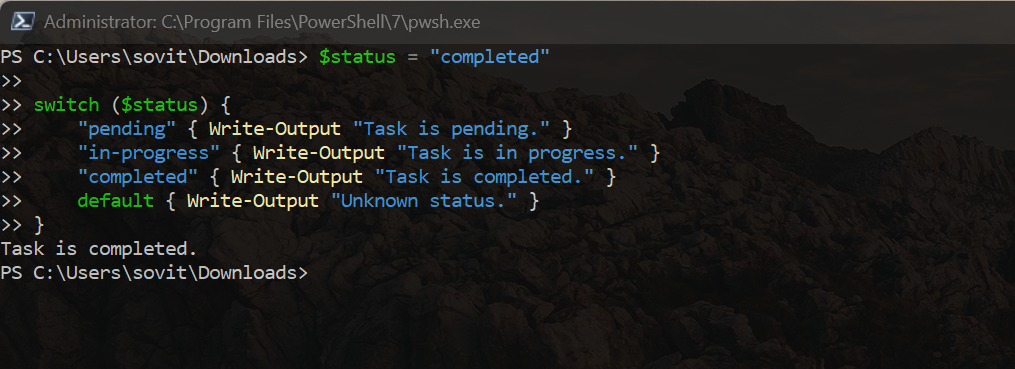
Task automation
$status = "completed"

switch ($status) {
    "pending" { Write-Output "Task is pending." }
    "in-progress" { Write-Output "Task is in progress." }
    "completed" { Write-Output "Task is completed." }
    default { Write-Output "Unknown status." }
}
File handling
$fileExtension = ".txt"

switch ($fileExtension) {
    ".txt" { Write-Output "Processing text file." }
    ".csv" { Write-Output "Processing CSV file." }
    ".xml" { Write-Output "Processing XML file." }
    default { Write-Output "Unknown file extension." }
}
User input processing
$userChoice = "yes"

switch ($userChoice) {
    "yes" { Write-Output "User chose yes." }
    "no" { Write-Output "User chose no." }
    "maybe" { Write-Output "User is undecided." }
    default { Write-Output "Unknown response." }
}
Environment-specific configuration
$environment = "production"

switch ($environment) {
    "development" { Write-Output "Configuring for development." }
    "staging" { Write-Output "Configuring for staging." }
    "production" { Write-Output "Configuring for production." }
    default { Write-Output "Unknown environment." }
}
Best practices and tips for using the PowerShell switch statement
How can you create cleaner, more maintainable switch constructs?
| Best Practice | Why It Matters |
|---|---|
| Use clear cases | Makes the logic easier to follow and maintain |
| Include a default clause | Ensures unexpected values are handled safely |
| Avoid redundant cases | Prevents confusing overlaps and unintended matches |
| Use break for early exit | Improves efficiency and avoids unnecessary checks |
| Use wildcards/expressions | Enables flexible and powerful comparisons |
| Use consistent formatting | Improves readability for future maintainers |
| Group similar cases | Reduces code duplication and simplifies logic |
Conclusion
The PowerShell switch statement is a flexible and efficient tool that improves readability and reduces condition complexity. With options such as -Wildcard, -RegEx, -Exact, and -CaseSensitive, switch statements adapt to nearly any scenario. Following best practices ensures clean and maintainable scripts.
For further learning:
- Microsoft’s official switch documentation
- Deep dive into the switch statement
Keep building your PowerShell skills!
Frequently asked questions
What is a PowerShell switch statement used for?
A PowerShell switch statement evaluates a value against multiple conditions, running the matching case block. It simplifies scripts by reducing long if/elseif chains.
Is PowerShell switch faster than if statements?
Switch statements are often faster and more readable when evaluating many conditions because they are optimized for multi-branch comparisons.
Can PowerShell switch use wildcard or regex matching?
Yes. PowerShell switch supports -Wildcard, -RegEx, -CaseSensitive, and -Exact parameters, allowing flexible matching patterns beyond simple equality.
Does PowerShell switch support arrays?
Yes. When you pass an array to switch, PowerShell evaluates each item individually, making it ideal for bulk comparisons or categorization tasks.

Husband to a wonderful woman that he doesn't deserve, and the father of two adorable children. Bill is a career Systems Administrator / Cyber Security Engineer focused on infrastructure, security, and automation. Bill was an author for The PowerSh...