How to Change Active Directory User Passwords
Password management continues to be critically important for IT Pros.

In this article, I’ll show you how to change passwords for Active Directory users.
Passwords are still the primary method of authenticating users in most Active Directory (AD) environments. Although modern identity solutions increasingly rely on multifactor authentication (MFA) and even passwordless technologies, legacy usernames and passwords remain the precarious method in enterprise workflows.
🎬 Watch This Week in IT.
Changing user passwords with Active Directory Users and Computers (ADUC)
When you need to reset user passwords, there are several methodsyou can use to change the Active Directory password for a user (account). Let’s start with the tried and true Active Directory Users and Computers (ADUC) tool.

- Open ADUC from the Windows Tools menu on a Windows 11 client computer.
- I will go to one of my ‘users’ OUs (Domain Users), right-click on ‘John Reinders’ and click ‘Reset Password…’.
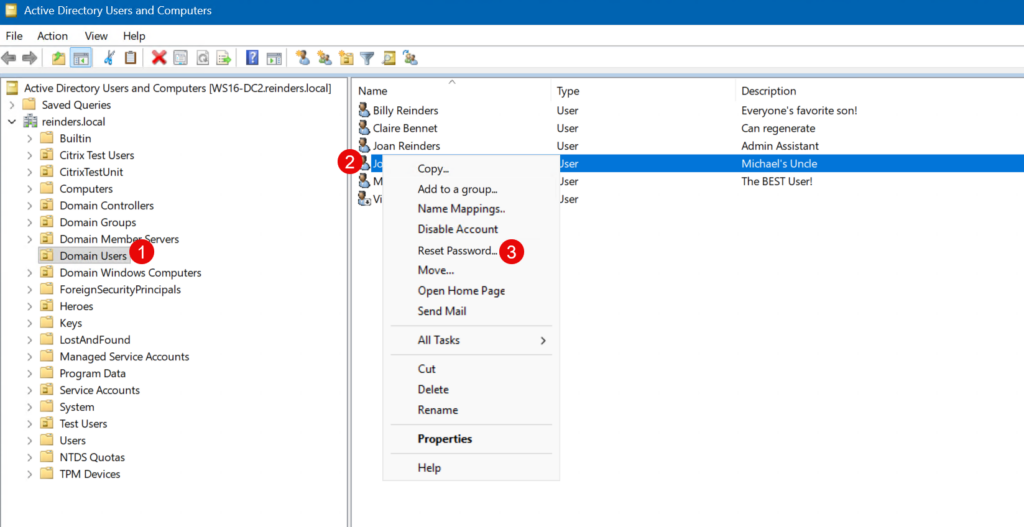
- I can enter a new password twice in these fields. I will keep the ‘User must change password at next logon’ checked (default) to keep security in play.
- After the user logs in with this new, but temporary password, they will be required to change it before being granted access to the computer they’re using.
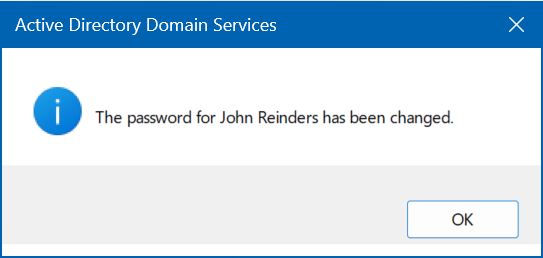
Voila.
As a side note, you’ll notice admins don’t need to know the old password for users. This is by design. Whenever a user goes to change their AD password from their computers, they will need to know their old password.
Using the Active Directory Administrative Center to change passwords
The newer tool Microsoft released around the Windows Server 2012 timeframe is called the Active Directory Administrative Center (ADAC).
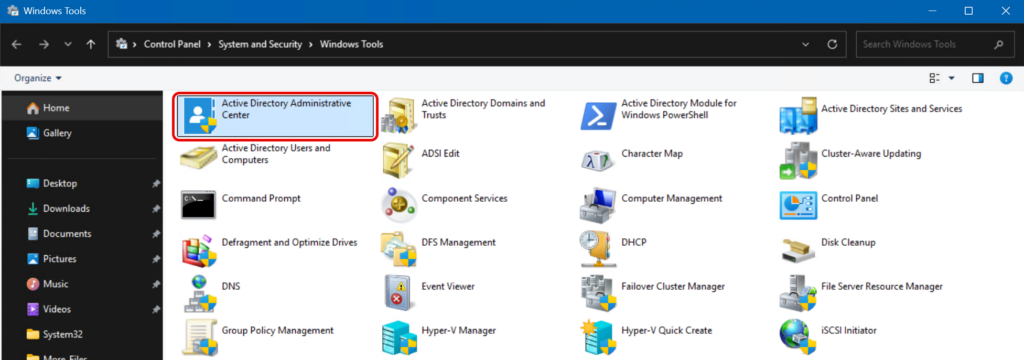
This program is entirely based on PowerShell. Every action you take in this tool runs a PowerShell command or cmdlet behind the scenes.
On the main homepage or Overview screen, you can see the prominent ‘RESET PASSWORD’ section.
- Open ADAC from the Windows Tools menu on a Windows 11 client computer.
- I’ll go ahead and enter the information to reset Claire Bennet’s password right on the main page!
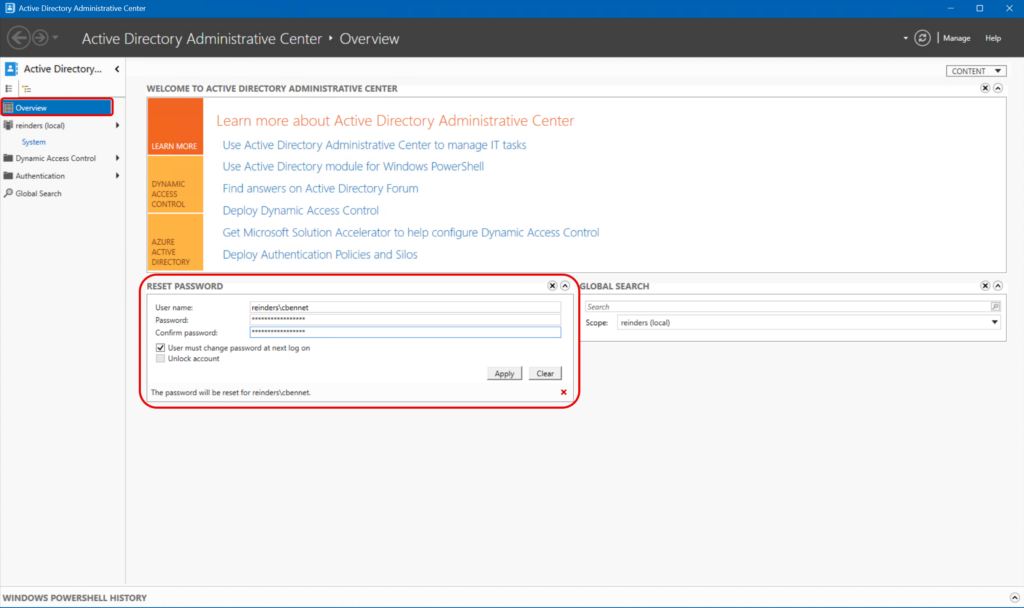
The page reported that the password was reset successfully and that the user account password option “User must change password at next logon” has been changed (to ‘yes’). Excellent.
Changing Active Directory user passwords with PowerShell
And here we are, mentioning PowerShell. This is arguably the ‘fastest/easiest’ method to use, as you don’t have to rely on any GUI interfaces to make this work. It can also be done quickly once you get familiar with the common cmdlets to reset a password.
In case you ran into a company-wide security incident, you could have a very simple PowerShell script at the ready that will literally reset every user account in your directory in seconds.
- Let’s start by launching the ‘Active Directory Module for Windows PowerShell’ from Windows Tools.

We will start with the most basic syntax for using the Set-ADAccountPassword cmdlet.
Set-ADAccountPassword -Identity “breinders” -NewPassword (ConvertTo-SecureString “TemporaryPassword3#” -AsPlainText -force)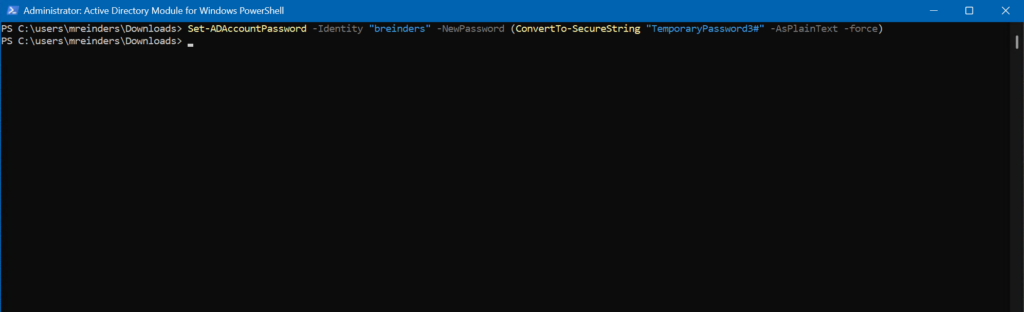
- For the ‘-Identity’ switch, you can enter their display name, login (UPN), sAMAccountName, etc. I then enter the new temp password in plain text and skip any confirm requests. All done.
- Next, we can change the flag on the account to require them to change their password on their next logon with ‘Set-ADUser’.
Set-ADUser -Identity “breinders” -ChangePasswordAtLogon $true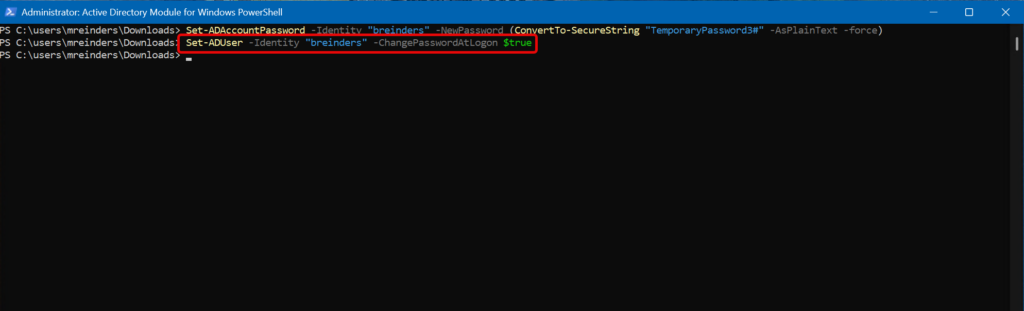
Done.
I won’t go into great detail on using automation, but I can show an example of a PowerShell script. This script will import a CSV file of usernames or displaynames and then reset their passwords to the text fields included in the CSV file. A very easy proactive task you can work on at any time.
Import-Csv users.csv | ForEach-Object {

Set-ADAccountPassword -Identity $_.SamAccountName -NewPassword (ConvertTo-SecureString $_.Password -AsPlainText -Force)
}
Importance of changing AD passwords
In Active Directory, passwords serve several important functions:
- Authentication to domain resources
The password allows users to authenticate against domain controllers, enabling them to access shared resources, line‑of‑business applications, and workstation logins. - Security boundary enforcement
Passwords help protect sensitive data by limiting access to authorized users. An account with a weak or compromised password can quickly become a vector for malicious activity. - Support for compliance and auditing
Many industries require regular password changes or resets as part of security and compliance protocols aligned with frameworks such as NIST, CIS, or ISO.
Changing passwords, either at a user’s request or due to a security incident, is not simply a routine help desk task. It is an operation that should not be pencil-whipped through or done thoughtlessly. Your organizational security posture is always being tested whether you realize it or not.
Security
Taking standard security models into account, password resets are often triggered by one of the following events:
- A user forgets their password
- A password has expired
- An account is flagged for suspicious behavior or account activity
- A security audit requires a mandatory reset
- An employee is transitioning roles or leaving the organization
Making sure you keep security at the forefront of your mind when responding to these events is critical. The most vital high-level security infrastructure solutions are as follows:
| Password complexity | Make sure you require complex passwords. Set a minimum length of 16 characters or more. |
| Policy enforcement | Following up on password complexity, be sure to use Group Policy Management to create one or more password fine-grained policies to enforce these attributes for every user. You can and should use different policies for your potential use of more than one Active Directory domain. It is always helpful to apply a more stringent policy for any admin accounts, even in AD. |
| Privilege considerations | Only certain roles should be given the ability to reset passwords: Domain Admins Account Operators Delegated administrators with the “Reset password” right on specific OUs (Organizational Units) |
| Auditing | Password reset events can be logged and audited. Event Viewer logs under Security, and Directory Service help track who reset which password and when—an essential capability for compliance and accountability. |
Prerequisites for changing passwords
Before attempting to change or reset an AD password, ensure the following prerequisites are met:
Proper administrative permissions
You must be using an account with an appropriate permission level mentioned above.
Access to administrative tools
Depending on the method you plan to use, you may need:
- RSAT (Remote Server Administration Tools) installed on Windows 10/11
- Active Directory Users and Computers (ADUC)
- Active Directory Administrative Center (ADAC)
- PowerShell with the ActiveDirectory module
Network Connectivity
Password changes require connectivity to a domain controller. If working remotely, ensure VPN or DirectAccess/Always On VPN connectivity is established.
Security best practices
When changing or resetting passwords, you should always adhere to established security best practices. Here are some common examples.
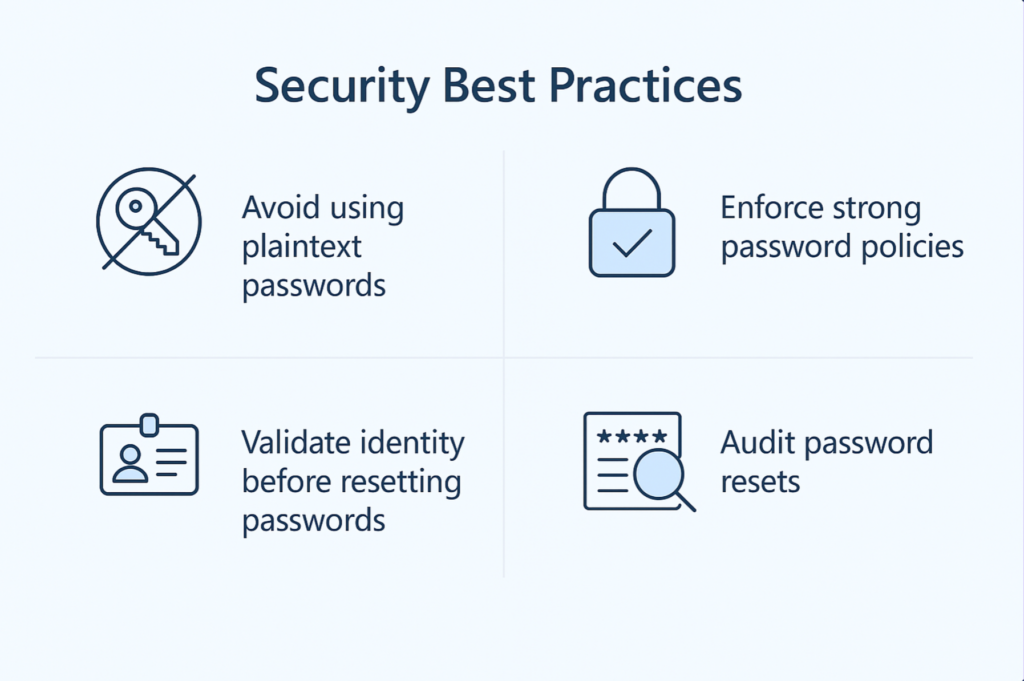
Avoid using plaintext passwords
Never store or transmit plaintext passwords in:
- Emails
- Tickets
- Chat messages
- Unencrypted scripts
Use secure strings or credential objects wherever possible. I only included some examples here in this post for demonstration purposes. If you would ever use plain text, make sure you digitally sign and encrypt your PowerShell scripts.
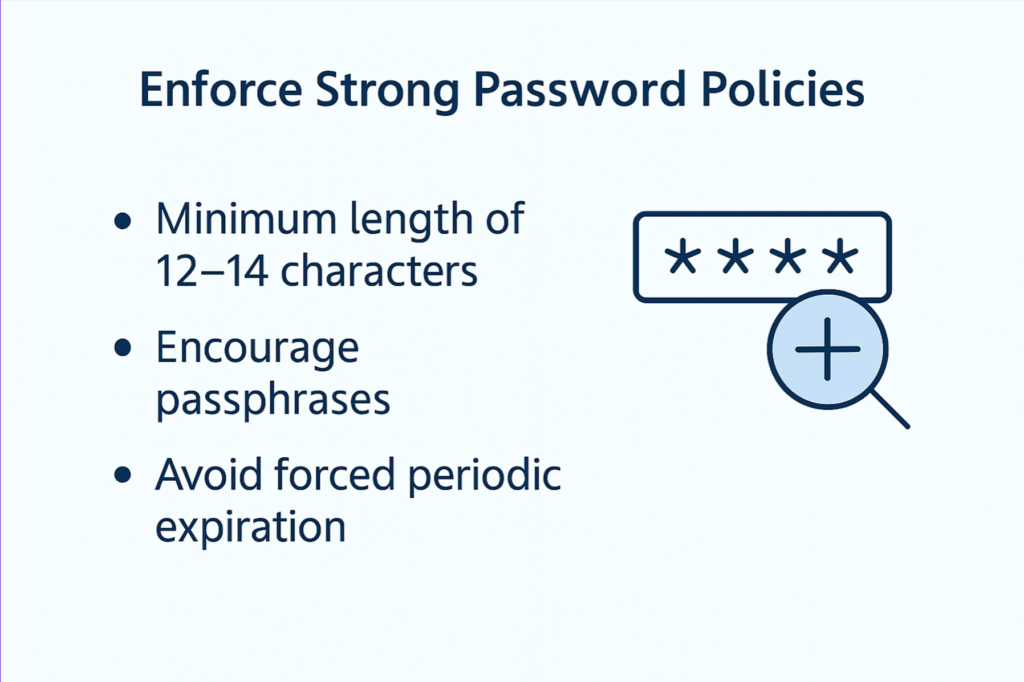
Enforce strong password policies
Validate Identity Before Resetting Passwords
If interacting with a real user:
- Require verification via MFA, ID check, or callback (video!)
- Never reset passwords without confirming the user’s identity
Audit password resets
Ensure auditing is enabled on domain controllers. Regularly review these event IDs or utilize an AD monitoring solution. Cayosoft Guardian is a fine example of a free solution to get you started.
Frequently asked questions
How do I change a user’s password in Active Directory?
You can change a user’s password using Active Directory Users and Computers (ADUC) by right‑clicking the user account and selecting Reset Password. This method requires appropriate permissions, such as Domain Admin or delegated reset rights.
How do I reset an Active Directory user password using PowerShell?
Administrators can reset an AD user’s password with the Set-ADAccountPassword cmdlet in PowerShell. This command allows you to reset the password directly and optionally force the user to change it at the next logon.
Can a user change their own password in Active Directory?
Yes, domain users can change their own passwords if they know their current password, typically through the Windows Security (Ctrl+Alt+Del) screen or during login when prompted. This action does not require administrative privileges.
What permissions are required to change or reset an AD user password?
By default, only members of Domain Admins or Account Operators can reset other users’ passwords. However, password reset permissions can be delegated to specific users or groups for selected Organizational Units (OUs).

Michael has been an IT Pro since 1998. He has worked predominantly in the Windows world including client and server operating systems, on-prem systems engineering (AD, DNS, etc.), and over the last ten years or so has embraced and immersed himself in...