Microsoft Entra Connect vs. Microsoft Entra Cloud Sync
Choosing the right Microsoft identity synchronization solution.

This article examines the distinctions between Microsoft Entra Connect vs. Microsoft Entra Cloud Sync, two separate solutions designed to synchronize on-premises Active Directory (AD) with Microsoft Entra ID (formerly Azure AD).
🎬 Watch This Week in IT.
What is Microsoft Entra Connect?
Microsoft Entra Connect (formerly Azure AD Connect) is a synchronization tool that copies identities, like user accounts, from on-premises AD to an Entra ID tenant. Every 30 minutes (by default), it gathers all changes made in AD, reconciles them, and exports them to Entra ID.
The main benefit of this is seamless sign-on (SSO) and happiness for your users. Instead of tracking two sets of credentials, they can use the same credentials in both environments and sign in just once.

All the processing occurs in an engine installed on a server that is joined to the AD domain. Depending on the size of the domain, a lightweight local database or a full SQL Server database can be used to house the configuration. I’ll go into more of the features later on in this article.
What is Microsoft Entra Cloud Sync?
Microsoft Entra Cloud Sync is the next evolution of this synchronization technology. It is a lightweight service and can be used as an alternative to Microsoft Entra Connect. Instead of relying on a heavy on-premises sync engine, Cloud Sync uses only an agent installed on one or more AD domain member servers. This agent only sends the ‘raw data’ from AD to the Entra sync engine service.
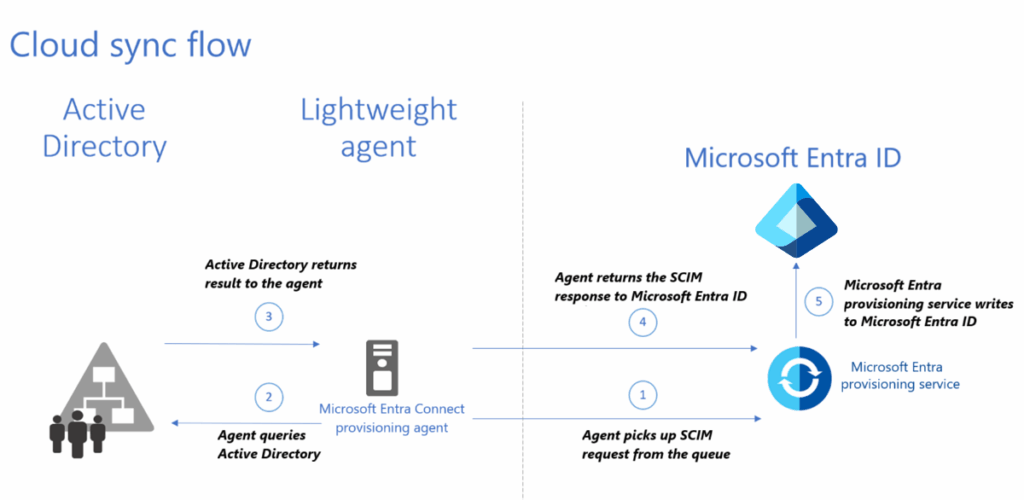
It is designed to simplify deployment and reduce overall maintenance of this important hybrid identity infrastructure. At a high level, Microsoft Entra Cloud Sync puts all the heavy lifting and sync engine in the cloud, vs Microsoft Entra Connect doing it in your on-premises environment.
Similarities and differences: Microsoft Entra Connect vs. Microsoft Entra Cloud Sync
There are a number of similarities and differences between these two products.
| Feature / Aspect | Microsoft Entra Connect Sync | Microsoft Entra Cloud Sync |
|---|---|---|
| Deployment model | Requires a full on-premises server with SQL database and synchronization engine. | Uses lightweight agents installed on domain-joined servers with no database requirement. |
| Management | Configured and managed locally via the Synchronization Service Manager and Entra admin center. | Fully managed from the Microsoft Entra admin center; minimal local configuration. |
| Authentication methods | Supports Password Hash Synchronization (PHS), Pass-Through Authentication (PTA), and Federation (ADFS or third-party). | Supports only Password Hash Synchronization (PHS); no PTA or Federation support. |
| Writeback features | Supports password writeback, group writeback, and device writeback (for hybrid scenarios). | Currently limited writeback support (no device or group writeback). |
| Environment complexity | Suitable for complex, multi-forest environments and hybrid workloads (e.g., Exchange Hybrid). | Ideal for simpler environments, but supports multi-forest sync with less complexity. |
| High availability | Requires staging server or backup configuration for failover. | Multiple agents can be deployed easily for redundancy and load balancing. |
| Updates and maintenance | Requires a staging server or backup configuration for failover. | Agents are automatically updated by Microsoft; minimal maintenance. |
| Scalability | Requires manual patching and updates of the synchronization server and SQL components. | Scales easily by adding more lightweight agents as needed. |
| Monitoring | Entra Connect Health provides sync status, alerts, and performance insights. | Integrated with Entra Connect Health for simplified monitoring of agent health and sync status. |
| Best fit | Organizations with complex hybrid requirements, advanced features, or legacy workloads. | Organizations seeking a lightweight, cloud-first approach with minimal infrastructure needs. |
Local vs cloud
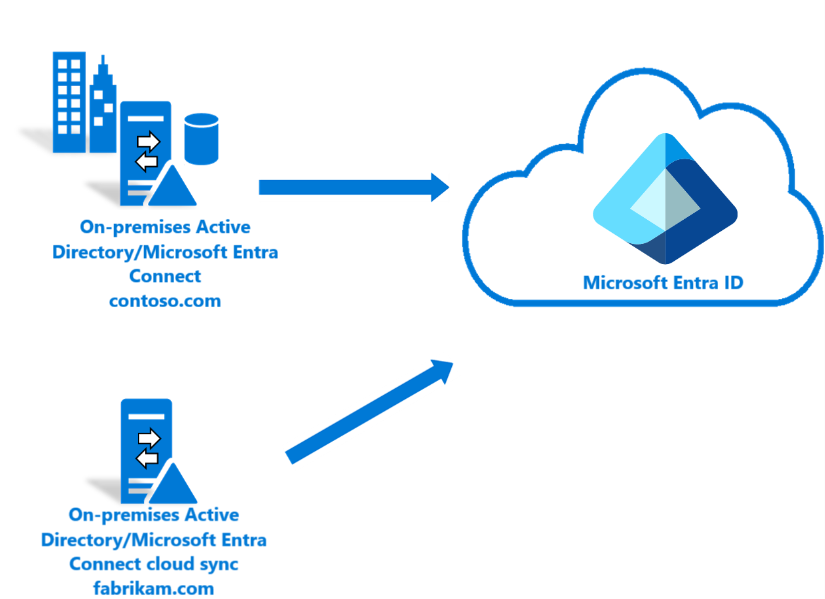
Let me offer some more detail on the fundamental differences between Entra Connect and Cloud Sync.
Although the overall setup configuration is similar between the two solutions, there is substantially less to initially set up with Cloud Sync. However, if you read between the lines, that means more restrictions are in place with Cloud Sync. Let’s touch on that next.
Configurations
Microsoft needs to think about its own scalability needs when offering Cloud Sync to thousands of customers, so there are restrictions and limits to what is supported.
Here are some more details and examples.
| Limitation | Consequences |
| No writeback functionality | No password, device, or group writeback exists in Cloud Sync—unlike Connect Sync. This prevents users from resetting passwords in the cloud and having those changes sync back to on-premises AD |
| Tenant size limit | Tenants with more than 150,000 total objects (users + groups) are unsupported. |
| Group size limit | Groups with more than 50,000 members aren’t supported. |
| Nested group counting | Each direct nested group is counted as one member; reconciliation of manually updated groups between cloud and on-prem is not supported. |
| No Exchange Hybrid integration | Cloud Sync does not support Exchange hybrid or Skype for Business hybrid configurations. This limitation prevents synchronization of mailbox attributes required for hybrid scenarios. |
| No staging server support | Cloud Sync lacks an equivalent of Connect Sync’s staging server for failover. |
| Agent installation limitations | Cannot be installed on Windows Server Core. Only one agent is active per configuration; you can install multiple agents for HA, but only one is active at a time. Agents auto-update and cannot be disabled; configuration changes like full sync require manual restart from the website portal. |
Synchronization
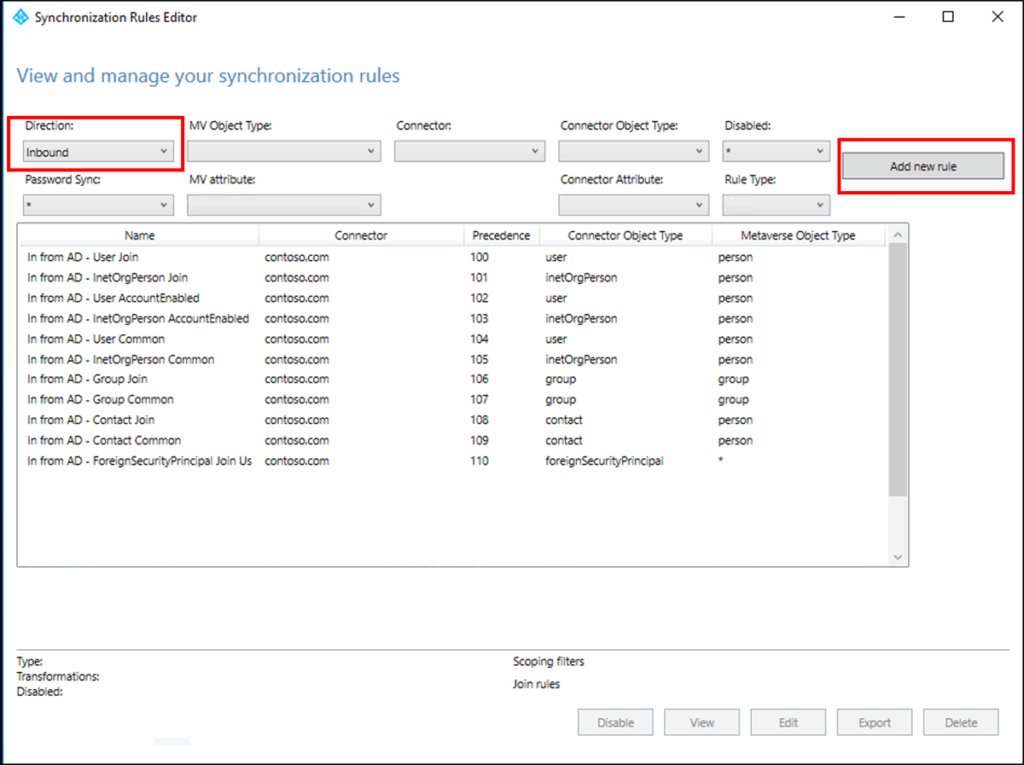
Both Microsoft Entra Connect Sync and Microsoft Entra Cloud Sync serve the same purpose—synchronizing on-premises AD objects to Microsoft Entra ID. But their synchronization methods, components, and operational models are different.
Here’s another table that helps illustrate this point.
Synchronization differences – Microsoft Entra Connect and Microsoft Entra Cloud Sync
| Aspect | Microsoft Entra Connect | Microsoft Entra Cloud Sync |
|---|---|---|
| Sync Frequency | Default: 30-minute cycles (configurable). | Password changes sync in near real-time; other attributes ~2 min. |
| Data Processing | Transformation logic applied in a cloud service. | It may be slower due to local processing and database handling. |
| Object Staging | Uses local database for staging objects and pending changes. | No local staging database; syncs directly to cloud. |
| Initial Sync Duration | May be slower due to local processing and database handling. | Faster, as processing is lightweight and cloud-driven. |
| Error Handling | Errors logged locally; troubleshooting via server and Entra Connect Health. | Errors surfaced directly in Entra admin center; no local logs. |
| Scalability | Requires additional servers for large environments. | Scales by adding more lightweight agents, simpler deployment. |
Recommendations and gotchas
When deciding between Microsoft Entra Connect and Cloud Sync, there are technical things to consider, the environment size to consider, and how much manpower you can put behind this critical identity infrastructure. In summary:
- Choose Entra Connect if you require advanced features such as device writeback, password writeback, Exchange hybrid support, larger identity counts, or custom attribute synchronization.
- Choose Cloud Sync if you want to ‘Set-It-And-Forget-It’. In general, once you have a Cloud Sync configuration in place, it’s a well-oiled machine. But it will take some effort to get there.
- Coexistence is possible. Organizations can run both temporarily while migrating from Entra Connect to Cloud Sync or to meet different synchronization needs across environments.
Thank you for reading my blog post on comparing Microsoft Entra Connect and Cloud Sync. Please leave a comment or question below for follow-up!
Frequently asked questions
What is the difference between Microsoft Entra Connect and Microsoft Entra Cloud Sync?
- Microsoft Entra Connect (formerly Azure AD Connect) is installed on a server and offers features like password hash sync, pass-through authentication (PTA), federation with ADFS, password and device writeback, nested-group filtering, hybrid Exchange integration, custom sync rules, and full control over sync behavior.
- Microsoft Entra Cloud Sync (formerly Azure AD Connect Cloud Sync) is a lightweight, cloud-managed synchronization solution. It uses lightweight provisioning agents installed on-premises, with configuration managed in the cloud. It supports multiple disconnected AD forests and high availability through agent deployment.
Is Microsoft Entra Connect an Azure cloud service?
No. Microsoft Entra Connect is not an Azure cloud service. It is installed and runs on-premises, on a Windows Server within your environment (domain-joined), and uses local infrastructure, such as SQL Server or a local database, to perform synchronization with Microsoft Entra ID.
What is the difference between Azure AD Sync and Azure AD Connect?
- Azure AD Sync (DirSync / Azure AD Sync) refers to legacy synchronization tools dating back to DirSync. Microsoft Entra Connect (the modern successor) replaces these older tools.
- Azure AD Connect (Entra Connect) is the current, comprehensive on-premises sync tool. It supersedes older tools and provides robust features like password hash sync, federation, writeback, multi-forest support, advanced filtering, and more.
What is Microsoft Entra Connect?
Microsoft Entra Connect is Microsoft’s fully featured on-premises directory synchronization solution that bridges your on-premises Active Directory with Microsoft Entra ID. It enables:
- Single identity for both local and cloud resources (SSO)
- Multiple authentication options (Password Hash Sync, Pass‑Through, AD FS)
- Writeback capabilities for passwords, devices, groups
- Support for complex hybrid scenarios like Exchange, Group Writeback, custom sync rules, and multi-forest environments

Michael has been an IT Pro since 1998. He has worked predominantly in the Windows world including client and server operating systems, on-prem systems engineering (AD, DNS, etc.), and over the last ten years or so has embraced and immersed himself in...