Best Practices for Designing an Active Directory OU Structure
Designing an AD OU structure is part art, part science. You need to balance clarity with flexibility.

Designing a sound Organizational Unit (OU) structure in Active Directory is crucial for an efficient and secure IT environment. A well-planned OU hierarchy makes it easier to find objects, assign administrative permissions, and apply Group Policy Objects (GPOs) consistently.
🎬 Watch This Week in IT.
But there’s no one-size-fits-all design. Following best practices from Microsoft and experienced Active Directory admins will help you create a logical, flexible structure that can scale with your organization. In this article, we’ll explore key principles for organizational unit design and how to apply them in a practical way.
Plan with GPOs and delegation in mind
Before creating any OUs, plan ahead. Think about how you’ll delegate administrative control and what policies need to apply where. Microsoft guidance emphasizes simplicity and adaptability.
In practice, this means sketching out a basic layout that aligns with your needs, not strictly mirroring your company’s org chart. For example, if you know you’ll have separate Group Policies for servers vs. workstations, plan top-level OUs to distinguish those.
If your helpdesk should manage only user accounts (but not sensitive admin accounts), plan an OU for regular users separate from administrative users. There’s no perfect OU structure. What matters is understanding your design’s impact on GPOs and management. So, list your major policy groups and admin roles first; then design OUs to fit those.
Keep the structure simple and logical
When it comes to OU hierarchies, less is more. Each OU should have a clear purpose. It’s usually a bad sign if you have dozens of deeply nested OUs with only a few objects in each. Overly complex trees tend to be neglected (and a pain to navigate).
Instead, favor a flat or moderately layered structure that’s easy to understand at a glance. For instance, creating an OU for every small department might be overkill if some have only 3 users. It could be better to group similar departments under one OU for simplicity.
Nesting is useful to control inheritance (like blocking or narrowing GPO scope), but don’t go overboard with 10-level-deep hierarchies. Aim for clarity. If you find an OU has few objects or no distinct policies, consider merging it with others or eliminating it.
One common practice is to create a single top-level OU (e.g. named after your company or “Managed”) and build your hierarchy under that. This keeps all custom OUs separate from the default containers like “Users” and “Computers.”
Don’t use the default containers for new objects. Default containers exist for legacy reasons and GPOs can’t be linked to them. Instead, create OUs for your user and computer accounts and move them there. This way, you can apply policies and delegate rights properly.
Choose an OU model (or mix of models)
OU structures generally follow a few models or a hybrid of them:
Geographic model
Top-level OUs by location (country > state > city, etc.). Under each location, you might have sub-OUs for Users, Computers, Servers, etc. The geographic model makes it easy to apply location-specific GPOs (e.g. all PCs in the London office get a certain drive mapping) and delegate admin rights to regional IT staff.
However, pure geo hierarchy can get tricky if you also need to set policies by department across all locations (e.g. an “Accounting” policy for accountants in every office).
Department (business unit) model
Top-level by department (Sales, Finance, IT, etc.), each containing that dept’s users and computers, aligning with management by business role. It simplifies delegating admin tasks to, say, a department IT lead and applying department-wide policies (all Sales PCs get the same GPO). But it’s less ideal for location-specific settings. Applying a policy to “all computers in London” is hard if they’re split by department OUs.
Object type model
Top-level split by object type or role. E.g. separate OUs for Users, Workstations, Servers, Groups, etc. The object type model is popular because it inherently separates different policy needs. For example, all user accounts are under one branch (possibly with sub-OUs for departments or locations to refine user GPOs), and all computer accounts under another (with sub-OUs for servers vs. client machines, etc.).
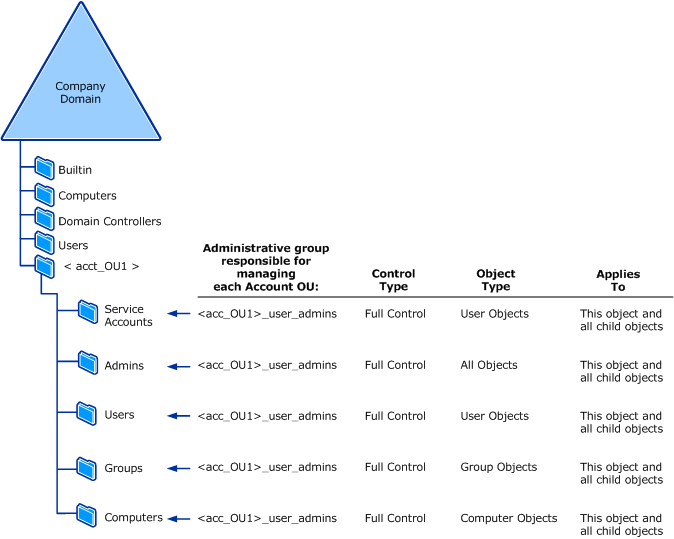
The object type model makes broad policies easy (one GPO at the top of “Workstations” for baseline settings on all PCs) and avoids mixing users and computers in one OU.
Mixing OU structure models
Microsoft often recommends at least separating users and computers into dedicated OUs for GPO management. The downside is it may require creative delegation if, say, regional admins should manage both users and computers in their office, you’d need to grant rights in two branches.
Also, if users roam or change roles, you rely on group membership for things like department, since the OU is purely by type.
In practice, most environments use a hybrid approach. For example, you might start with separate top-level OUs for Users, Computers, and Servers (object-type model), then nest some location or department OUs underneath as needed.
Or you might go with top-level Geography, and under each location have sub-OUs for Users and Computers (combining geo + type). The “right” answer depends on your administrative needs: think about which factor (location, department, object type, etc.) is most important for grouping for management purposes.
It’s often about covering 90% of use cases with the OU design; the remaining edge cases can be handled with group memberships, security filtering, or WMI filters on GPOs rather than contorting the OU structure to fit every scenario.
Separate by object type and role
An object (user or computer) can only be in one OU at a time. So don’t try to make OUs do the job of tagging multi-dimensional data like “is in Sales dept and in London office” because that’s what groups are for.
Use OUs for what they’re best at: grouping objects that require the same policies or admin oversight. Users and Computers are typically separated because they have different GPOs (you wouldn’t apply a workstation security policy to a user account or vice versa).
Many admins also create separate OUs for Servers distinct from client PCs, since servers need tighter policies and are managed by a smaller team.
It’s also wise to isolate special accounts. Service accounts (non-human accounts used by applications or scheduled tasks) could live in their own OU where you can apply stricter password policies or monitor them closely.
Similarly, administrative user accounts (like IT admins etc.) should be in a dedicated OU. This ties in with Microsoft’s tiered administration model: you might have an “Admins” OU, with sub-OUs for Tier 0, Tier 1, Tier 2 admins (different privilege levels for domain controllers, servers, and workstations). By separating these, you can enforce that, for example, helpdesk staff accounts don’t reside in the same OU as domain admins, preventing broad permissions from being delegated over high-privilege accounts.
Putting different account types in different OUs gives you the flexibility to secure them separately. E.g. you might allow helpdesk to reset passwords for regular users, but not for admin accounts in another OU.
Delegate administration via OUs
One of the biggest benefits of a well-thought-out OU design is simplified delegation of control. You can grant limited rights at an OU level to let others manage that segment of AD without making them full Domain Admins.
When planning, ask: Who will manage the objects in this OU? If your organization has regional IT personnel, a location-based OU structure could let you delegate, say, the Lisbon OU to the Lisbon IT team so they can create users or join computers for that office.
If you have a helpdesk that handles user onboarding globally, maybe a single “Users” OU (with sub-OUs per department) is delegated to them for password resets and user account changes. The key is to align OU boundaries with administrative boundaries. For example, by splitting regular user accounts and privileged accounts into separate OUs, you can safely give junior admins rights over the regular accounts OU without touching the admins OU.
Always use security groups in combination with delegation. For example, put your helpdesk staff in a group and assign that group the delegated rights so it’s easier to manage who has permissions.
Use OUs to target Group Policies
Group Policy is another driving force in OU design. OUs form the scope for GPO linking. A classic approach is to apply broad policies at a higher-level OU and more specific ones to nested OUs.
For instance, link your company-wide baseline policies at the top (domain or a top OU), then link stricter or extra policies at the “Servers” OU or a “Workstations\Laptop” sub-OU. Because of inheritance, those child OUs get both the parent and child GPOs (unless inheritance is blocked).
Plan the OU layout to minimize use of Group Policy filtering orblocking
Plan the OU layout to minimize use of filtering orblocking. It will make GPO management much cleaner. If you foresee a certain subset of computers needing a unique policy (e.g. developers’ PCs require different settings), consider giving them a dedicated OU rather than constantly filtering GPOs by group membership.
Group computers by similar use case. For instance, workstations with similar roles or in the same office often need the same policies, so putting them together under one OU makes GPOs easier. Likewise, if certain users (say in HR) need a special set of login policies, having an HR sub-OU under “Users” can let you apply that easily.
But don’t create OUs for every single GPO
On the flip side, don’t create OUs for every single GPO. Try to combine where possible. If two departments can live with the same policy, they might not need separate OUs at all. Remember, GPOs can also be scoped by security groups if absolutely necessary, so OU isn’t the only mechanism. But using OUs is straightforward and transparent for admins, whereas heavy reliance on filtering can become confusing over time.
Loopback processing
GPO loopback processing can help when user policies need to vary by computer. For example, in a Remote Desktop Servers OU, you might enable loopback so that any user logging into those servers gets a special locked-down policy. This avoids having to split the user into multiple OUs just for one use-case. The need for loopback might influence having a separate OU for Terminal Servers or special kiosks, etc.
Enforce tiered administration with separate OUs
Microsoft recommends using a tiered administration model to protect high-value assets. In fact, Microsoft’s Digital Defense Report 2022 noted that 98% of organizations compromised by cyberattacks had no tiered admin model in place for AD. The tiered model defines three levels of assets and admins, and your OU design can help enforce this separation:
- Tier 0 – the most critical assets: domain controllers and identity infrastructure. Accounts in Tier 0 (e.g. Domain Admins) should only be used to manage Tier 0 systems.
- Tier 1 – servers and applications. Tier 1 admin accounts (e.g. server admins) manage Tier 1 systems and only log on to servers (never workstations).
- Tier 2 – end-user workstations and devices. Tier 2 admins (e.g. helpdesk or desktop support) manage only those and can log on interactively to client machines, but have no business logging into servers or DCs.
Regular staff user accounts are outside this tiered admin structure (they’re just normal users in user OUs), whereas the tiered admin accounts are privileged and tightly controlled.
Using OUs for tiering also means you can create buffer zones by delegating administration of high-risk endpoints and high-value assets separately. OUs aligned to Tier 0/1/2 provide clear security boundaries. They let you apply granular GPOs and delegate rights in a way that an admin of a lower tier cannot affect higher tiers, dramatically increasing the effort for an attacker to escalate privileges across your domain.
Document and maintain the OU design
Once you implement your OU structure, document it. It’s an often overlooked step, but adding descriptions on each OU with its purpose is extremely helpful for current and future admins. For example, if you create an OU called “Service Accounts – Non-Interactive,” put in the description something like “Contains service accounts for applications; no interactive logins. GPOs here relax password expiry.” This ensures everyone understands what belongs where.
Additionally, keep a simple document or diagram of your OU hierarchy and any special delegation configured. Microsoft recommends recording details like OU names, purpose, who created them, and when as it can prevent accidental deletions or misuse later.
Your OU structure isn’t “set and forget.” Schedule periodic reviews (say annually) to ensure it still meets your needs. Over time, companies reorganize, new apps come in, old ones are decommissioned. Adjust the OU design if, for instance, a new branch office opened (you might add a new location OU) or if you adopted a new cloud service that syncs with AD (you might need an OU for those accounts).
Conclusion – Balance clarity with flexibility
Designing an AD OU structure is part art, part science. You need to balance clarity with flexibility. Start with broad strokes: separate by the most fundamental categories (like object types or major org divisions) that make sense for your IT administration. Keep the hierarchy as flat as possible while still meeting your policy and delegation requirements.
Use groups to handle overlaps that OUs can’t cover (like users who belong to multiple categories). Above all, document your choices and keep the structure tidy over time. A well-designed OU layout “clean and clear beats complex”, it reduces mistakes, eases troubleshooting, and scales with your business.
As long as your OU design is logical and aligned with how you manage your environment, you’ll find Active Directory much easier to work with on a daily basis. And if down the road something isn’t working, you can adjust, it’s better to have a slightly imperfect but consistent design than a convoluted one chasing every edge case.
Plan carefully, follow these best practices, and your AD OU structure will serve you well for years to come.

Russell Smith, the Editorial Director at Petri IT Knowledgebase, has over two decades of hands-on experience in IT, in both small business settings and government IT infrastructure projects. Russell started writing for Windows IT Pro Magazine in t...


