Active Directory Explorer: Find Hidden AD Changes Faster
Sysinternals AD Explorer reveals the directory data, permissions, and changes that ADUC hides, helping administrators diagnose problems faster.

Microsoft Sysinternals Active Directory Explorer is a tool for quickly inspecting Active Directory attributes, tracing unexpected directory changes, reviewing permissions, and comparing the directory at two points in time.
Without a baseline comparison, you can’t easily determine what changed.
🎬 Watch This Week in IT.
What is Active Directory Explorer?
Active Directory Explorer is an investigation and comparison tool, not the default console for routine directory changes. It gives administrators a faster, lower-friction view of the directory itself, including:
- objects
- attributes
- schema definitions
- security descriptors
- and changes over time
So, the practical rule is simple: use Active Directory Users and Computers (ADUC) for guided day-to-day administration, and use Active Directory (AD) Explorer when the question is what is really stored in the directory, and what changed?
Use AD Explorer when ADUC hides the detail you need
ADUC is optimized for common, guided tasks. AD Explorer is designed for cases in which raw visibility, reusable search, offline analysis, or state comparison will shorten the path to an answer. Here are four use cases for AD Explorer:
| Use case | When and what it answers | Limits and alternatives |
| Inspect hidden directory data | Use when ADUC does not explain behavior or you must verify attributes, values, classes, or schema before scripting. | Values may depend on constructed attributes, replication, or application logic. Use ADUC for routine changes and logs for application behavior. |
| Search across objects | Search many containers by base, class, and condition; save proven searches for recurring checks. | Broad searches add noise and load. Start narrow; use ADUC for known objects and PowerShell for repeatable reporting or bulk work. |
| Compare directory state | Capture snapshots before and after significant changes, then compare objects, attributes, and permissions. | Snapshots are read-only, and not backups; they do not show who changed what or when. Use auditing for attribution and backups for recovery. |
| Investigate before remediation | Inspect security, inheritance, access entries, schema, and suspected attributes before making a correction. | Live edits have few guardrails. Use ADUC for routine fixes and reviewed PowerShell for controlled, repeatable remediation. |
Mastering the AD Explorer interface: A quick setup guide
First, download and extract AD Explorer, then run ADExplorer.exe. Accept the license agreement on first launch.
Connect safely to a target domain
In the connection dialog, specify a domain controller or domain name and provide credentials only if the current Windows credentials are not appropriate. This is a live investigative connection: browse and search with a dedicated read-only account where possible, and elevate your account privileges only for a specific, approved correction.
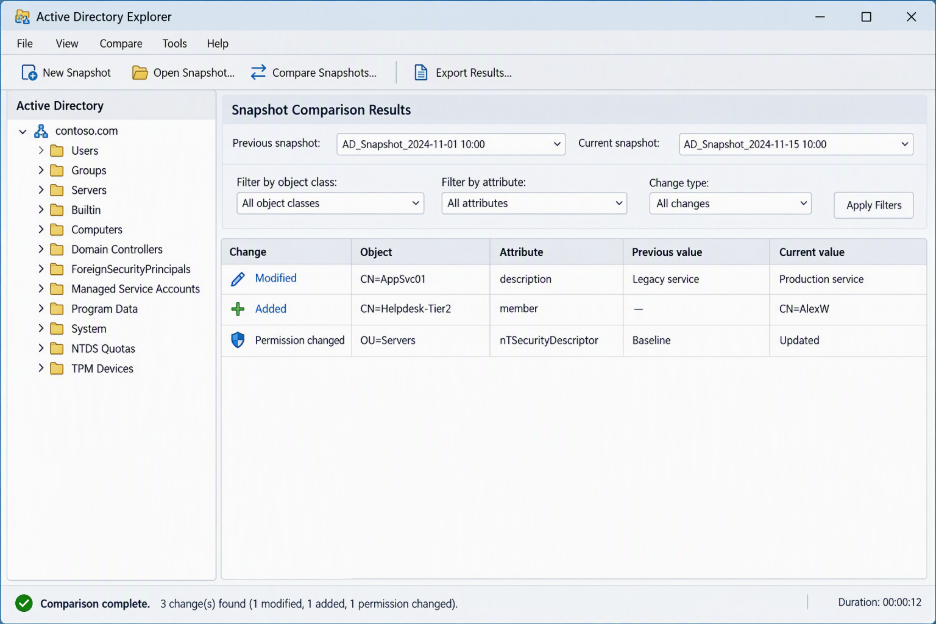
Figure 1. Connecting Active Directory Explorer to a target domain controller with appropriate credentials. – (Image Credit: Michael Reinders/Petri.com)
Create and compare snapshots safely
- Connect to the live directory and choose File > Create Snapshot.
- Add a descriptive comment, save the file in a protected location, and set a throttle appropriate for the environment. Use names that sort chronologically, such as AD-Baseline-2026-10-09.snp.
- To compare states, open the earlier snapshot through File > Connect, select the snapshot option, and then choose Compare > Compare Snapshot.
- Select the later file, limit the comparison to relevant classes or attributes, and filter volatile values so the result stays actionable.
- Double-click a difference to navigate to the affected object and use the separate security comparison when delegated permissions are the concern.
Unattended captures with AD Explorer
AD Explorer supports unattended captures through its -snapshot command-line option, which accepts a connection string and an output snapshot filename. Create a Windows Task Scheduler task that runs ADExplorer.exe on a daily, weekly, or change-window schedule, using an account with read access to the directory and write access to the protected snapshot folder.
Use a script or date-based variable in the task action to give each file a unique, sortable name, and configure the task to run whether or not an administrator is signed in. Test the command interactively first, then monitor the task history and periodically open a snapshot to confirm that the capture is complete.
Scheduled captures provide consistent point-in-time baselines without relying on an administrator to remember to create them manually. They are especially useful for narrowing an incident to a known time window.
For example, if an application stops authenticating on Wednesday, comparing Tuesday’s and Wednesday’s snapshots can answer the specific question: Which user, service account, group membership, SPN, or permission values changed before the failure?
The comparison can quickly identify the affected objects and attributes, helping the administrator focus remediation on the relevant change instead of searching the entire directory. Snapshots remain investigative copies rather than backups or audit logs, so protect the files, apply retention limits, verify scheduled runs, and use directory auditing when attribution is required.
Figure 2. Filtering snapshot comparison results in isolating relevant directory changes. – (Image Credit: Michael Reinders/Petri.com)
Frequently asked questions
Do I need domain administrator privileges to run AD Explorer?
No. AD Explorer uses the permissions of the connected account. Read access is sufficient for browsing and most investigations, while edits require the corresponding delegated rights. Use the least-privileged account that can complete the task; Domain Admin membership should not be the default.
How does AD Explorer differ from standard Active Directory Users and Computers (ADUC)?
ADUC provides guided workflows for common administration. AD Explorer exposes attributes inline, supports sophisticated reusable searches, browses schema data, and creates offline snapshots that can be compared. Choose ADUC for routine object management and AD Explorer for deep inspection, discovery, and change analysis.
Can I edit properties directly within an offline snapshot?
No. A snapshot is an offline, read-only representation for browsing, searching, and comparison. To change a value, reconnect to the live directory with appropriate rights and apply the change through a suitable administrative tool.
Is installation required, or can I run AD Explorer portably?
No traditional installation is required. Extract the standalone download, run ADExplorer.exe, or install the broader Sysinternals Suite if you want centralized updates and additional utilities. In controlled environments, follow your organization’s software approval and code-signing policies.

Michael has been an IT Pro since 1998. He has worked predominantly in the Windows world including client and server operating systems, on-prem systems engineering (AD, DNS, etc.), and over the last ten years or so has embraced and immersed himself in...