How to Choose a Domain or Workgroup
Discover the key differences between domain and workgroup setups. Learn essential definitions, advantages, and how to choose the right one for your network

In this article, I look at how to choose between a Windows Active Directory (AD) domain or workgroup. A Windows workgroup distributes identity and administration across individual computers, while an Active Directory domain centralizes them. That means the real choice is not how the PCs are grouped, but whether your organization can safely continue managing accounts, policies, access, and device offboarding, one device at a time.
🎬 Watch This Week in IT.
I recommend a workgroup only for a very small, stable, low-risk environment with limited sharing. If you need repeatable configuration, centralized authentication, delegated administration, consistent security controls, or predictable offboarding, a domain is normally the stronger foundation.
Domain or workgroup? A Windows workgroup distributes administration; an AD domain centralizes it
A workgroup is a peer-to-peer arrangement. Each computer maintains its own local accounts, passwords, permissions, and security settings. The workgroup name helps users and administrators organize nearby computers, but it does not create a shared security boundary or central database. Access to a remote computer still depends on credentials and permissions recognized by that computer.
A Windows domain, by contrast, uses Active Directory Domain Services (AD DS) to store and organize accounts, computers, groups, and other network objects. Domain controllers authenticate domain identities and make directory information available to authorized systems and users. Multiple domain controllers can replicate directory data to improve availability and reliability.
The distinction matters because it affects almost every daily administration task: onboarding users, changing passwords, applying configuration standards, granting file access, auditing activity, recovering from failures, and removing access when an employee leaves.
In a workgroup, each computer is administered independently. There is no authoritative server that controls all participating devices. If a user needs access to three computers, an administrator may need to create or maintain that user’s local account on all three systems.
This simplicity is useful in a lab, home office, temporary deployment, or small business with only a few devices. It also avoids the infrastructure and operational overhead of domain controllers. However, administrative effort grows quickly as the number of devices, users, and shared resources increases.
A domain provides a centralized identity and management boundary. User and computer accounts reside in AD DS, and domain-joined systems establish trust with domain controllers. Administrators can organize objects into organizational units, delegate responsibilities, and apply Group Policy settings to users or computers.
When I manage a domain-joined network, I can change a user’s group memberships once, disable an account centrally, or deploy a policy to many computers, with relative ease. That does not eliminate local administration, but it substantially reduces device-by-device configuration.
Domain or workgroup? The key difference is who must repeat the work
| Area | Workgroup | Windows domain |
| Identity | Local accounts on each computer | Centralized domain accounts |
| Administration | Per-device management | Central and delegated management |
| Policy | Local policy and manual configuration | Group Policy and centralized controls |
| Scale | Best for small, simple environments | Designed for larger or regulated environments |
| Availability dependency | No directory dependency | Requires reachable domain services for many operations |
| Infrastructure | Minimal | Domain controllers, Domain Name System (DNS), backup, monitoring, and administration |
The comparison is straightforward on paper, but the operational difference becomes clearer when you follow where an account, password change, and access decision are actually enforced.
Architecture determines where identity and access decisions are enforced
A workgroup does not have a true central directory. A shared folder hosted on one computer uses that computer’s local security database. A printer shared from another computer uses the second computer’s settings. Matching usernames and passwords can make access appear seamless, but the identities remain separate.
A domain uses a directory and authentication services shared across the environment. AD DS integrates authentication and access control, while the Domain Name System (DNS) helps clients locate domain controllers and services. Group Policy provides centralized configuration for operating systems, applications, and user settings.
| Component | Workgroup responsibility | Domain responsibility |
| User account | Created locally on each device | Created once in the directory |
| Password change | Repeated where matching local accounts exist | Applied to the domain identity |
| Device configuration | Local settings or separate tooling | Group Policy or centralized management |
| Shared resource access | Local users and groups | Domain users and groups |
| Audit and offboarding | Reviewed on each device | Coordinated through central identity |
| Resilience | Each peer stands alone | Multiple domain controllers can provide redundancy |
Choose a workgroup only while duplicated administration remains tolerable
A workgroup’s primary advantage is low complexity. There is no domain infrastructure to deploy, patch, monitor, back up, or recover. For a handful of systems with stable users and limited sharing, that may be enough.
The disadvantages are operational inconsistency and duplicated effort. Local accounts can drift, passwords may not match, and security settings can differ between computers. Offboarding can become a checklist of individual devices rather than a single controlled action. Evidence collection for audits is also more difficult when settings and logs are distributed.
A domain adds infrastructure and demands disciplined administration. Domain controllers, DNS, replication, time synchronization, privileged access, backups, and recovery procedures all require attention. In return, the organization gains a common identity plane and a mechanism for consistent policy enforcement.
I would not deploy a domain merely because your company owns several PCs. I would deploy one when the cost of decentralized administration exceeds the cost of maintaining centralized identity services—or when security, compliance, application, or access requirements make centralized control necessary.
That trade-off is easiest to justify when the benefits are tied to concrete administrative outcomes—and when the infrastructure obligations are treated as part of the decision rather than an afterthought.
DNS and recovery are the operational cost of centralization
Centralized management
Domain controllers support centralized authentication and directory access. I use organizational units (OUs) and groups to structure management around departments, locations, device types, or administrative boundaries. Group Policy Objects can then apply approved configurations at the site, domain, or OU level.
Security enhancements
A domain can enforce consistent password, lockout, auditing, firewall, and security-baseline settings. It also enables administrators to disable an identity centrally and use security groups rather than repeatedly assigning permissions to individual users.
Centralization is not automatically secure. Poorly protected domain administrator accounts, weak recovery practices, or an overprivileged service account can create broad risk. The benefit comes from combining centralized controls with least privilege, tiered administration, monitoring, tested backups, and documented recovery procedures.
Resource sharing
Domain groups simplify access to file servers, printers, applications, and other resources. Instead of granting permissions to individual users, IT can grant access to a role-based group and manage membership centrally.
| Requirement | Workgroup fit | Domain fit |
| Three to five PCs with basic sharing | Strong | Usually excessive |
| Frequent onboarding and offboarding | Weak | Strong |
| Standardized security configuration | Limited | Strong |
| Business application requiring AD DS | Poor | Required or strongly preferred |
| Remote sites with unreliable connectivity | Possible, with local administration | Possible, but requires careful site and connectivity design |
| Formal auditing or delegated administration | Limited | Strong |
Once I have decided that centralized identity is worth the infrastructure cost, the next risk is treating the domain join as a one-click client operation rather than an identity, DNS, and policy change.
Before joining Windows 11, decide where the computer account belongs
Windows 11 can participate in a workgroup by default. Traditional on-premises domain joining requires an edition that supports the capability, such as Windows 11 Pro, Enterprise, or Education; Windows 11 Home does not support joining an AD DS domain.
Before I join a Windows client to a domain, I confirm the final computer name, supported Windows edition, network connectivity, AD-aware DNS configuration, accurate time, and credentials with sufficient local and domain permissions. I check DNS first because domain clients use it to locate domain controllers and related services.
In larger environments, I prefer to pre-stage the computer account in the intended organizational unit. This avoids leaving newly joined devices in a default container (Computers) and allows policy and delegated permissions to take effect in a predictable location.
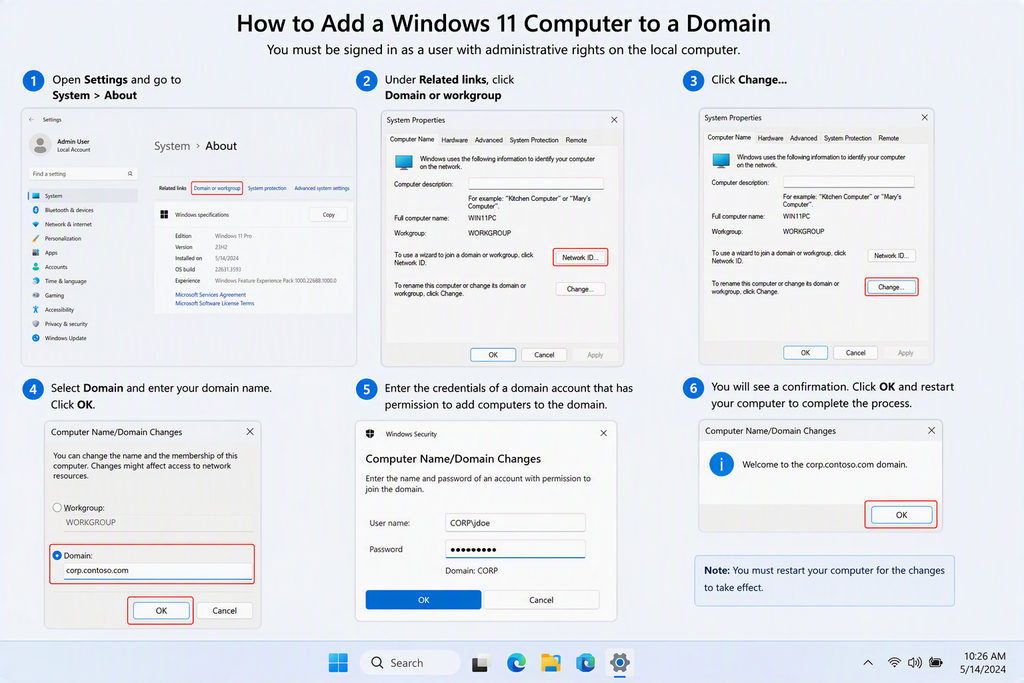
Add Windows 11 to a domain
A domain must already exist and have domain controllers and DNS. On the client, an administrator joins the computer by specifying the AD DNS domain name and authorized credentials, then restarts the system. PowerShell can also add a computer to a domain and optionally specify the target organizational unit.
After restart, verify secure-channel health, domain sign-in, DNS registration, Group Policy processing, time synchronization, and placement of the computer account.
Setting up a workgroup on Windows 11
To use a workgroup, assign a workgroup name via computer name settings or PowerShell. Restart the computer after changing membership. Then configure network discovery, file and printer sharing, host firewalls, share permissions, New Technology File System (NTFS) permissions, and local credentials as required.
Merely assigning the same workgroup name does not grant access. It provides logical grouping; each host still protects its own resources.
After the configuration choice is made, I verify both where the computer belongs and which identity the current session is actually using before I troubleshoot access or policy.
Start domain troubleshooting with client DNS and account placement
On Windows 10 or Windows 11, I start in Settings, select System, and then select About. The related domain or workgroup information opens the computer-name settings. I also use command-line tools when I need to inspect membership or separate it from the current sign-in context.
| Symptom | Likely cause | Recommended check |
| Domain cannot be found | Client is using incorrect DNS | Verify the client points to AD-aware DNS servers |
| Domain join is denied | Insufficient rights or protected computer account | Confirm local admin rights and delegated domain permissions |
| Trust relationship failure | Computer password mismatch or reused object problem | Validate the computer account and repair or rejoin as appropriate |
| Group Policy does not apply | DNS, connectivity, OU placement, or filtering issue | Check domain-controller reachability and policy scope |
| Workgroup share prompts repeatedly | Local credentials do not match or permissions are incomplete | Review local accounts, share permissions, and NTFS permissions |
| Kerberos authentication fails | Time difference or DNS problem | Verify time synchronization and domain name resolution |
I use systeminfo, whoami, PowerShell queries for the computer system, and domain diagnostic tools to separate computer membership from the current user’s sign-in context. I interpret the output carefully because those states are related, but they are not always identical.
Define the trigger for moving beyond a workgroup
For domain joins, use a standard naming convention, place devices in the correct organizational unit, restrict who can join or reuse computer accounts, and document required network paths. Validate backups and recovery for domain controllers before expanding dependency on the domain.
For workgroups, standardize local administrator handling, avoid shared administrator passwords, document which computer hosts each resource, and keep permissions simple. A password manager and endpoint-management product can reduce some workgroup overhead, but they do not turn local accounts into domain identities.
I also recommend defining a transition point in advance. For example, a small organization might remain in a workgroup until it adopts an AD-dependent application, adds a second location, introduces compliance requirements, or reaches an agreed device or user threshold. Planning that trigger prevents the environment from drifting into an unmanageable middle state.
An AD domain is the stronger foundation when requirements are expected to grow
The domain-or-workgroup decision is ultimately a management and risk decision. Workgroups offer lightweight peer-to-peer administration for small, uncomplicated networks. Domains provide centralized identity, consistent policy, scalable resource access, and delegated administration, but they require reliable infrastructure and mature operational practices.
For most established business environments, a domain is the stronger foundation when users, devices, permissions, and security requirements are expected to grow. For a small and stable network with limited sharing, a workgroup can remain a practical choice. The right answer is the model whose ongoing administration, security controls, and failure modes match the organization’s actual needs.
Frequently asked questions
What is the difference between a domain and a workgroup?
A workgroup is a peer-to-peer network where each computer manages its own user accounts, security settings, and resources. A domain provides centralized authentication and administration, typically using Active Directory and domain controllers to manage users and computers across the network.
Should I use a domain or workgroup?
Use a workgroup for a small network where centralized administration isn’t required. A domain is generally the better choice for business environments that need centralized user management, security policies, and access control across many computers.
What is the main advantage of a domain over a workgroup?
The main advantage of a domain is centralized management. Administrators can manage user authentication, security policies, and computer configurations across the network instead of configuring each PC individually
Is a workgroup more secure than a domain?
Generally, no. A domain provides stronger centralized security controls because administrators can enforce policies and manage user access consistently across multiple computers, while workgroup security is configured separately on each device.
How do I know if my computer is on a domain or workgroup?
In Windows, you can check whether a PC belongs to a domain or workgroup by viewing its system or account information. A domain-joined PC will display the domain it belongs to, while a workgroup PC will show its workgroup name.

Michael has been an IT Pro since 1998. He has worked predominantly in the Windows world including client and server operating systems, on-prem systems engineering (AD, DNS, etc.), and over the last ten years or so has embraced and immersed himself in...