Microsoft Purview Audit vs. eDiscovery: Which Tool Should IT Administrators Use?
Choose the wrong Purview tool and you'll either run a lengthy content search when you needed an activity log, or hand HR a timeline with no message text. Audit tells you who did what and when, eDiscovery finds and preserves the content involved, and most Microsoft 365 investigations need both.

Microsoft Purview provides several tools for investigating activity and content across Microsoft 365. The two most useful and applicable to this article are Microsoft Purview Audit and Microsoft Purview eDiscovery. Although you can use both tools in these types of support scenarios, it’s not always a case of Microsoft Purview audit vs. eDiscovery.
Over the past 15 years, I’ve handled dozens of support tickets like this one: An inappropriate message was posted in Microsoft Teams and subsequently deleted. Human Resources wants to know who deleted it, when it was deleted, and what the original message said. Where should you start?
A useful way for Microsoft 365 administrators to remember the difference is:
- Microsoft Purview Audit tells you what happened.
- Purview eDiscovery helps you find the content involved.
In many investigations, you’ll eventually need both. Let’s examine what each tool provides and walk through some scenarios where an IT administrator might use them.
Purview Audit vs. eDiscovery: the key difference
The easiest way to select a tool is to start with the question you’re trying to answer.
| Investigation question | Start with |
| Who deleted a Teams message? | Purview Audit |
| When was a Teams message deleted? | Purview Audit |
| What did the conversation contain? | eDiscovery |
| Who changed mailbox permissions? | Purview Audit |
| Find emails discussing a project | eDiscovery |
| Who downloaded a SharePoint document? | Purview Audit |
| Locate documents relevant to an investigation | eDiscovery |
| Who removed someone from a Team? | Purview Audit |
| Find Teams conversations between users | eDiscovery |
| Preserve content relevant to an investigation | eDiscovery |
Notice that the choice isn’t really Audit vs. eDiscovery. The tools complement each other. Audit provides evidence about activity, while eDiscovery provides capabilities for identifying and managing relevant content.
A real investigation may start with Audit to establish an event and timeline, then move to eDiscovery to identify or preserve the content associated with those events.
What is Microsoft Purview Audit?
Microsoft Purview Audit provides access to audit data generated by activities across Microsoft 365. This makes Audit particularly effective when an investigation begins with a question such as:
- Who deleted this Teams message?
- Who changed this mailbox permission?
- When did this user download the file?
- Who removed this user from the Team?
Think of Purview Audit primarily as an activity log, not a content search engine.
A simple Microsoft Purview investigation workflow
When an investigation request arrives, start with the question rather than the product name.
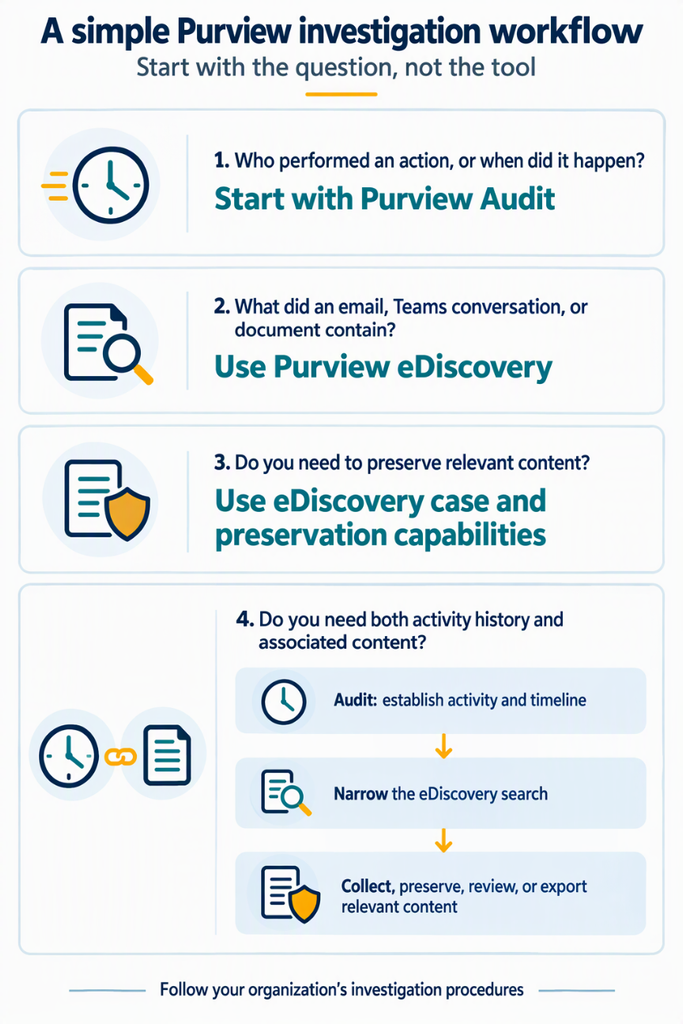
The big advantage of this approach is scope. Instead of spending a good deal of time running a broad search across multiple Microsoft 365 workloads, first determine exactly what question you’re trying to answer.
What is Microsoft Purview eDiscovery?
Electronic discovery, commonly called eDiscovery, focuses on electronically stored information that might be relevant to an investigation or legal matter.
Microsoft Purview eDiscovery can search content stored across Microsoft 365 services including Exchange Online, Microsoft Teams, SharePoint, OneDrive, Microsoft 365 Groups, and Viva Engage.
For an IT administrator, typical requests might include:
- Find emails containing particular keywords.
- Locate messages exchanged by specific users.
- Find Microsoft Teams conversations concerning a particular subject.
- Locate files associated with an investigation.
- Preserve potentially relevant Microsoft 365 content.
- Export information for further investigation or review.
Example: investigating a deleted Microsoft Teams message
Consider our original scenario. A manager reports that an inappropriate message appeared in a Teams conversation. The message is subsequently deleted, and HR asks you to determine what happened.
Step 1: Investigate the activity with Purview Audit
Start in the Microsoft Purview portal.
- Open the Audit solution.
- Create an audit search and narrow the results as much as possible.
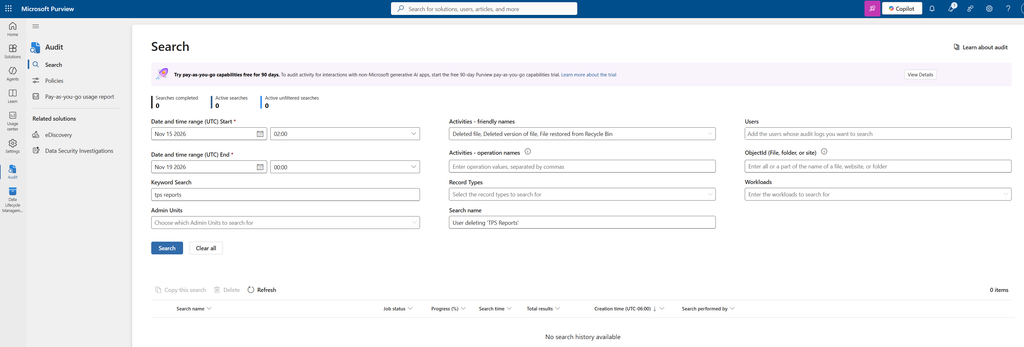
Useful criteria can include:
- Date and time range
- Relevant user
- Microsoft Teams activities
- Specific activity or operation
Reducing the scope is particularly helpful in a large Microsoft 365 tenant, where the unified audit log can contain an enormous number of events. You now have evidence of what happened.
But suppose HR’s next question is:
“What did the message actually say?”
That’s a different investigation, and will require the eDiscovery solution.
Step 2: Find the relevant content with eDiscovery
Now we need to find the content of the message.
- Open the eDiscovery solution in the Microsoft Purview portal.
- Create or open a case for the investigation.
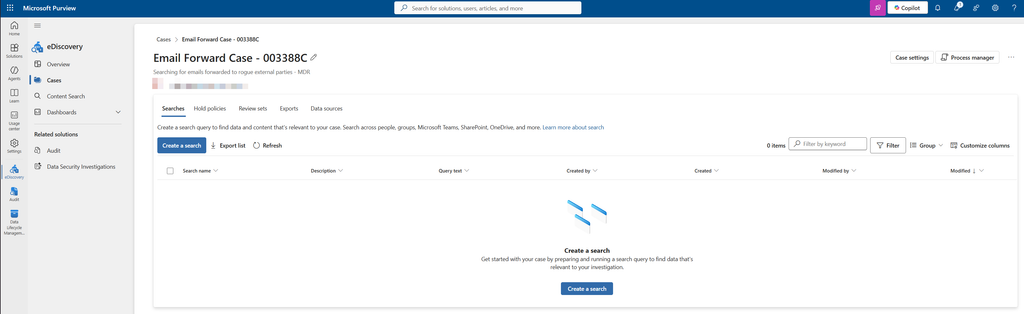
Using a case has several advantages. Investigation resources can be maintained together, access can be restricted to appropriate investigators, and searches and other eDiscovery actions remain associated with the matter.
- Create a search and narrow its scope using information you established during the audit investigation.
For example, you might know:
- The users involved
- An approximate date and time
- Keywords or phrases
- The Microsoft 365 locations containing potentially relevant information
This illustrates why starting with Audit can be valuable. Rather than conducting an extremely broad eDiscovery search, the audit trail can help establish a timeline and identify users and events that allow you to construct a more targeted search.
It’s often the case that investigations in Microsoft 365 require both tools, such as:
| Scenario | Use Audit to establish | Use eDiscovery to find or preserve |
| Suspected data exfiltration | File access, download, sharing, and user activity | Relevant files, messages, and surrounding communications |
| Suspicious mailbox activity | Permission changes and supported mailbox operations | Relevant email content and attachments |
| SharePoint investigation | Who accessed, downloaded, changed, or deleted an item | The documents and related communications relevant to the case |
Start with the question, not the tool
Microsoft Purview Audit and eDiscovery sometimes appear to overlap because both can be used during Microsoft 365 investigations. In practice, they solve different parts of the problem.
The simplest distinction is:
Audit = activity
eDiscovery = content
Audit + eDiscovery = investigation
If someone asks who deleted a file, don’t begin by launching a massive eDiscovery search. Start with Audit and identify the key details first. If the request is to locate email discussing a particular subject, don’t expect the unified audit log to provide the contents of everyone’s messages. Start with eDiscovery.
And when the investigation requires both an activity timeline and the underlying Microsoft 365 content, use the tools together.
Starting with the question rather than the tool makes investigations easier to scope, reduces unnecessary searching, and helps administrators collect the right evidence without granting broader access than the investigation requires.
Frequently asked questions
What is eDiscovery used for in Purview?
Purview eDiscovery is used to identify, preserve, collect, and export electronic content that may be relevant to an investigation or legal matter. It can search Exchange Online, Teams, SharePoint, OneDrive, Microsoft 365 Groups, and Viva Engage.
What is Microsoft Purview Audit?
Microsoft Purview Audit records user and admin activity across Microsoft 365 in the unified audit log. Administrators search it to find out who did what and when, which supports security, compliance, and legal investigations.
What replaced Microsoft Purview?
Nothing has replaced it. Purview is Microsoft’s current compliance and data governance brand, bringing together the former Azure Purview and Microsoft 365 compliance tools. What did change is that the classic eDiscovery experiences were retired on August 31, 2025 in favor of the new eDiscovery experience in the Purview portal.
What are the limitations of Microsoft Purview?
Capabilities depend on licensing. For example, Audit (Standard) keeps records for 180 days, and features such as longer retention and eDiscovery (Premium) analytics need higher-tier licenses. Audit also logs activity rather than message content, so you still need eDiscovery to see what was said.

Michael has been an IT Pro since 1998. He has worked predominantly in the Windows world including client and server operating systems, on-prem systems engineering (AD, DNS, etc.), and over the last ten years or so has embraced and immersed himself in...