What Is Office Metadata and How to Remove It from Microsoft Office Documents
Learn what Office metadata is, what information Word, Excel, and PowerPoint files store, and how to view, edit, and remove metadata before sharing documents externally.

Office metadata should be treated as operational risk, not trivia. In Microsoft Word, Excel, and PowerPoint files, metadata is the information stored with the file that describes the document rather than appearing as normal content. It can include the author, company, creation date, last modified by value, revision count, keywords, comments, custom properties, template names, and file-management details inherited from Microsoft 365 or older document workflows.
If a file is leaving the organization, assume its metadata can matter. Metadata is useful inside the business because it supports search, ownership, collaboration, records management, and automation. But when that internal context is shared with a customer, vendor, regulator, auditor, opposing party, or public portal, you could be exposing sensitive company information.
A document can look finished on the page and still disclose who drafted it, how many revision cycles it went through, what internal template generated it, which SharePoint fields were attached to it, or what comments and hidden content were left behind. The practical question is not whether metadata exists; it is whether the recipient should be allowed to see it.
What is Office metadata?
Definition: Office metadata is information stored inside Word, Excel, and PowerPoint files that describes the document, such as the author, creation date, revision history, company name, and custom properties.
Office metadata is data about an Office file, and I want readers to separate it from the visible content they normally edit, such as text in a Word document, formulas in an Excel workbook, or slides in a PowerPoint presentation.
The content is what I expect the reader to see. Metadata is the supporting information that helps Office, Windows, SharePoint, OneDrive, Microsoft 365, and other systems understand and manage the file. For example, your document may show one visible title on the first page, but it may also have a separate title property stored in the file properties. Those two values can be different, which is why you should always check both.
Common examples of Office metadata include:
- Author
- Company
- Last modified by
- Revision count
- Creation date
- Last saved date
- Subject and keywords
- Template name
- Custom document properties
- SharePoint or Microsoft 365 library metadata
Why Office metadata can become a disclosure risk
For individual users, metadata is easy to overlook because it usually stays behind the scenes. For IT admins, records managers, legal teams, and security teams, I treat it as important because it can expose details that were never intended for recipients.
Inside the organization, metadata can be genuinely helpful. It helps people find files, understand ownership, and manage document lifecycles. In Microsoft 365 environments, SharePoint and OneDrive metadata can support retention, records management, sensitivity labeling, and search. The same metadata becomes a risk when a file leaves the organization without inspection.
Legal and compliance teams care about metadata because comments, tracked changes, document versions, reviewer names, and timestamps may reveal internal decision-making. Security teams care because metadata can disclose usernames, company names, template paths, internal project names, and document management details. You should pause here and ask: would I be comfortable if an outside recipient saw that context?
Here is a simple example I use often: a vendor-facing Word document appears finalized, but it still contains the name of the internal reviewer who last saved it, comments from an earlier draft, or a company property inherited from a template. None of that information may be visible on the page, but it can still travel with the file.
The Office metadata types admins should check
Microsoft Office files can contain several kinds of metadata. I find it helpful to break them into categories so admins can decide what should be preserved for internal governance and what should be removed before external sharing.
| Metadata Type | Description | Examples | Why It Matters |
|---|---|---|---|
| Standard document properties | Common descriptive fields used across Office files. Users can often view or edit these from File > Info > Properties. | Title, Subject, Author, Company, Category, Keywords, Comments | Useful for identifying and organizing documents, but may reveal information about the document’s purpose, creator, or organization. |
| Automatically generated properties | Properties created or updated by Office as users work with a file. | Creation Date, Last Modified Date, Last Modified By, Revision Number, Total Editing Time, Template Name, File Statistics | Helpful for collaboration and file management, but can expose document history and editing activity. |
| Custom properties | User-defined or application-defined fields added to a document. Often used for business processes and document management. | Business Unit, Client, Matter Number, Region, Project Name, Document Owner, Workflow Status | Can support automation and classification, but may expose internal organizational or client information when files are shared externally. |
| SharePoint and Microsoft 365 metadata | Metadata associated with files stored in SharePoint, Teams, or OneDrive for Business. In some cases, document library metadata and Office document properties can sync. | Library Columns, Content Types, Retention Labels, Sensitivity Labels, Managed Metadata | Supports governance, compliance, and document management, but organizations should understand what metadata may accompany files distributed outside the organization. |
How to view Office metadata in Word, Excel, and PowerPoint
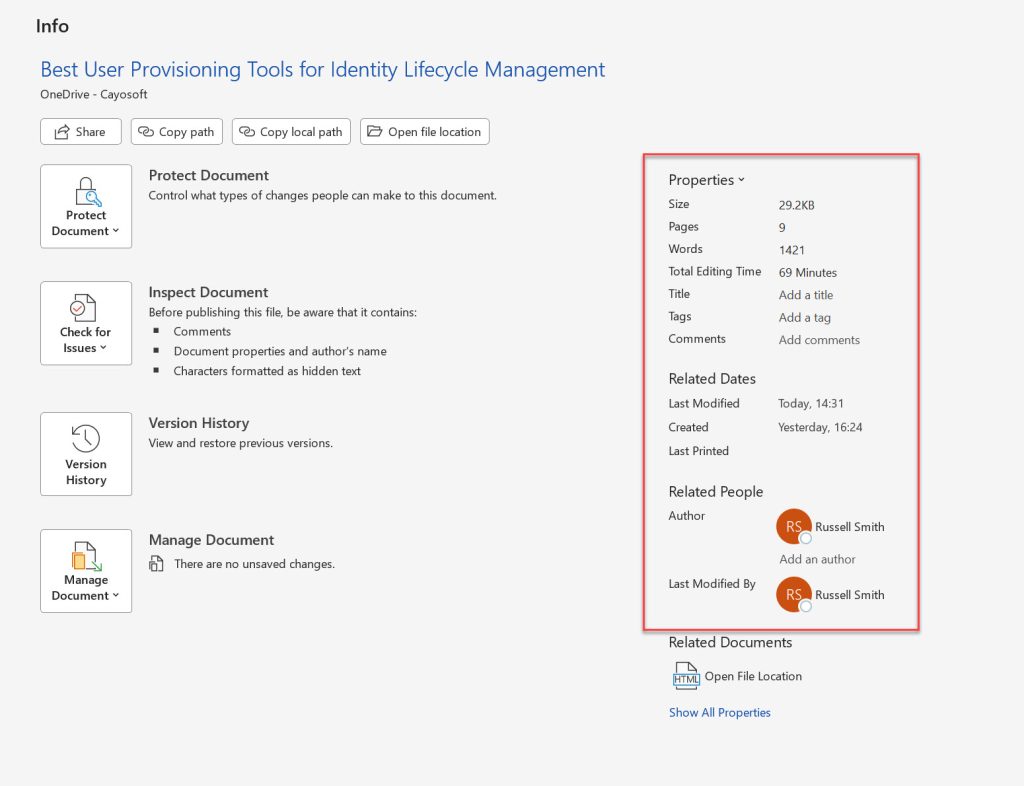
Let me walk through the basic way to view metadata in Word, Excel, and PowerPoint. The exact layout may vary slightly by Office version, but the common path is the same.
View metadata in Word
- Open the Word document.
- Select File.
- Select Info.
- Review the Properties area on the right side of the screen.
- Select Show All Properties if you need to see additional fields.
View metadata in Excel
- Open the Excel workbook.
- Select File.
- Select Info.
- Review the Properties area.
- Expand the properties list if more details are available.
View metadata in PowerPoint
- Open the PowerPoint presentation.
- Select File.
- Select Info.
- Review the Properties area.
- Check for author, company, title, tags, related dates, and other descriptive values.
This view is useful for basic document properties, but I do not want readers to stop there. It does not show every kind of hidden information. Comments, tracked changes, hidden text, off-slide content, hidden sheets, embedded objects, custom XML data, and other file-specific details may require Document Inspector (see below).
How to remove Office metadata before external sharing
My safest recommendation is to inspect a copy of the file before external distribution. Document Inspector can remove hidden data and personal information, but some removals cannot be undone. Keeping the original internal copy lets the organization preserve collaboration history while sharing a clean external version.
- Open the Office file in Word, Excel, or PowerPoint.
- Select File.
- Select Info.
- Select Check for Issues.
- Select Inspect Document.
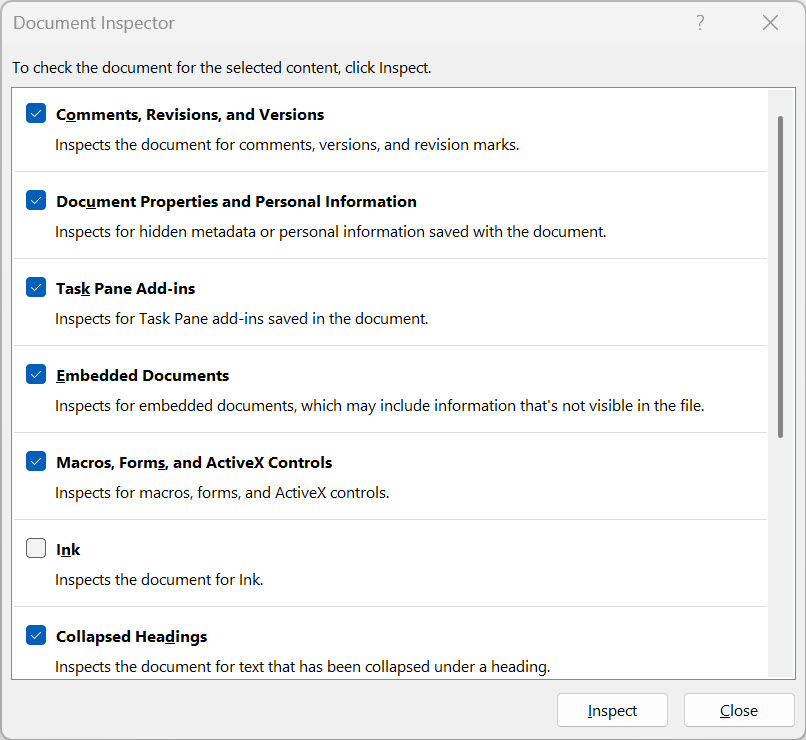
- If prompted, save the file before inspection.
- Choose the categories of hidden data you want to inspect.
- Select Inspect.
- Review the results carefully.
- Select Remove All next to any metadata or hidden content that should not be shared.
- Reinspect the document to confirm the unwanted information was removed.
- Save the cleaned copy with a clear external-sharing name.
Document Inspector can check for different items depending on the Office app. In Word, I commonly look for comments, revisions, versions, annotations, document properties, personal information, headers, footers, watermarks, hidden text, and custom XML data. Excel and PowerPoint include additional app-specific items such as hidden worksheets, hidden rows and columns, invisible content, presentation notes, and off-slide content.
Best practices for reducing Office metadata risk
The best metadata programs are built around release risk, not checklist completion. Prioritize controls by the situations where disclosure would do the most damage: files sent outside the organization, documents tied to legal or regulatory matters, workbooks containing operational or customer data, and templates that create many downstream files. The goal is to make the safe path the normal path before a file leaves internal control.
Start with the files that leave the organization
Start where the organization actually loses control of the file: customer deliverables, vendor questionnaires, proposals, contracts, audit responses, regulatory submissions, litigation productions, board materials, and files uploaded to external portals. These are the moments where metadata review should be mandatory, not optional. A common failure mode is a polished vendor-facing document that still shows the internal drafter, the last reviewer, or revision details that reveal negotiation strategy or internal deliberation.
Inspect a copy, then reinspect the clean version
Document Inspector should be used as an operational safeguard, not as a symbolic step. Work from a copy, inspect the file, remove the categories that should not travel externally, and reinspect before release. I would not rely on a user saying, “I deleted the comments.” Visible cleanup is not the same as hidden-data cleanup. Real-world misses include tracked changes that were hidden from view, PowerPoint speaker notes left in a client deck, Excel hidden sheets containing assumptions, and Word custom properties inherited from a prior matter or customer.
Review templates before they replicate metadata risk
Templates deserve more attention than one-off files because one bad template can contaminate hundreds of documents. I would review proposal, contract, policy, spreadsheet, and presentation templates on a defined cadence and after major organizational changes. Practical failures include legacy company names appearing in new documents, former employee names persisting as authors, matter numbers or client names embedded in custom properties, and boilerplate files carrying comments from an old review cycle.
Keep internal governance metadata out of external copies
SharePoint and Microsoft 365 metadata can be valuable for internal records management, but that does not mean every field belongs in an external copy. I would decide which library columns, content types, labels, and custom properties are required for internal control and which should be excluded from distributed files. A frequent mistake is assuming that because metadata supports retention or search internally, it is harmless externally. Fields such as business unit, client code, project name, region, review status, or matter number can expose more operational context than intended.
Train users to spot metadata risk, not just click through menus
Training should teach users how to think about release risk. The right question is: “What could this file reveal if opened by someone outside the intended audience?” Users should understand the difference between visible edits and hidden data, and they should know when to escalate instead of guessing. I would give special attention to files created from reused documents, documents exchanged during negotiations, workbooks with hidden or filtered data, slide decks assembled from prior client materials, and anything converted to PDF under time pressure.
Use labels and data leakage prevention (DLP) as guardrails, not metadata cleanup
Sensitivity labels, DLP policies, retention labels, and external-sharing controls are important guardrails, but they do not replace human release judgment. I would use them to reduce obvious mistakes, route higher-risk files for review, and reinforce consistent handling. The operational risk is overconfidence: a labeled file can still contain old comments, hidden worksheets, off-slide content, or document properties that do not belong outside the organization. Controls should support the review process, not create the illusion that review is unnecessary.
Build metadata review into external file release
Office metadata is useful inside the organization, but it becomes a business risk when internal context is released with an external file. I would not frame metadata cleanup as an administrative polish step. It is a release-control activity, similar to confirming the recipient, checking the audience, and making sure the file no longer contains material that only made sense during drafting.
My recommendation is to build a habit around the highest-risk moments: inspect a copy before external sharing, remove hidden information that the recipient does not need, verify the clean version, and keep the original internal version for governance and collaboration history. The organizations that handle this well do not rely on users memorizing every metadata type. They create an experience-driven process that helps people recognize real failure modes, apply judgment under time pressure, and treat metadata review as part of responsible document release.
Frequently asked questions
What metadata is stored in Office files?
Office files can store author names, company names, title, subject, keywords, creation date, last modified date, last modified by value, revision count, comments, tracked changes, custom properties, template names, and application-specific hidden content. When I review a file, I assume more may be stored than what I can see on the page.
Can recipients see Office metadata?
Yes. Recipients may be able to view document properties and hidden information if the file is shared without inspection. The amount of visible metadata depends on the file type, Office app, recipient tools, and whether hidden data was removed before sharing.
Does saving as PDF remove metadata?
Not always. Saving or exporting to PDF may remove some Office-specific editing data, but PDFs can still contain their own metadata, comments, author information, tags, bookmarks, or hidden content. Inspect the source Office file before export and review the PDF before sharing it externally.
How do I remove author information from Word documents?
Open the document, go to File > Info > Check for Issues > Inspect Document, inspect the file, and remove document properties and personal information. For external sharing, perform this on a copy so the original internal version keeps its history.

Michael has been an IT Pro since 1998. He has worked predominantly in the Windows world including client and server operating systems, on-prem systems engineering (AD, DNS, etc.), and over the last ten years or so has embraced and immersed himself in...