Critical Windows Troubleshooting Tools: Stop Wasting Time on the Wrong Fixes
A practical guide to choosing the right Windows diagnostic tool before you start running repair commands.
This guide focuses on when admins should use Windows troubleshooting tools like Event Viewer, Reliability Monitor, System File Checker, SFC/DISM, Windows Update logs, and core network commands.
Most Windows troubleshooting failures happen because administrators start with repair commands instead of evidence. Running SFC, DISM, or a Windows Update reset before identifying the failing subsystem wastes time, destroys diagnostic data, and often leaves the root cause unresolved.
Windows includes more diagnostic utilities than most administrators will ever use. The challenge is not remembering every switch for every tool; it is choosing the first tool that gives you useful evidence. When a workstation fails to install an update, a server service stops unexpectedly, or users suddenly cannot reach the fileserver, the fastest path to resolution starts with matching the symptom to the right diagnostic source.
Windows troubleshooting tools: Start with a repeatable troubleshooting process
Most troubleshooting sessions fail before the first command is run. An administrator sees an error, tries a familiar repair command, reboots, and then discovers the original issue is still present. A better approach is to slow down long enough to establish a baseline.
- Confirm or reproduce the issue. Is it issue chronic, or was it a one-time failure/fluke?
- Capture the exact symptom. Record the error message, time, affected user, device name, and recent change.
- Gather evidence from the system most likely involved.
- Apply one change at a time, starting with the least invasive option.
- Verify the outcome and record what changed.
For example, if Windows Update fails with a generic error, do not immediately reset every update component. First, check whether the failure happened during scan, download, staging, installation, or reboot. That distinction determines whether you should look at Windows Update logs, servicing logs, disk health, policy configuration, or network access.
The three tools most admins should use first
Let’s look at the three most helpful troubleshooting tools: Event Viewer, SFC, and DISM.
Most Windows failures leave evidence in the Event Viewer first
Event Viewer is usually the first stop when the symptom has a timestamp: an application crash, an unexpected reboot, a service failure, a driver problem, or a failed installation.
Start with Windows Logs and check the Application, System, and Setup logs. Filter for Critical, Error, and Warning events around the time the issue occurred. Then look for the event source, event ID, faulting module, service name, driver name, or update package referenced in the details.
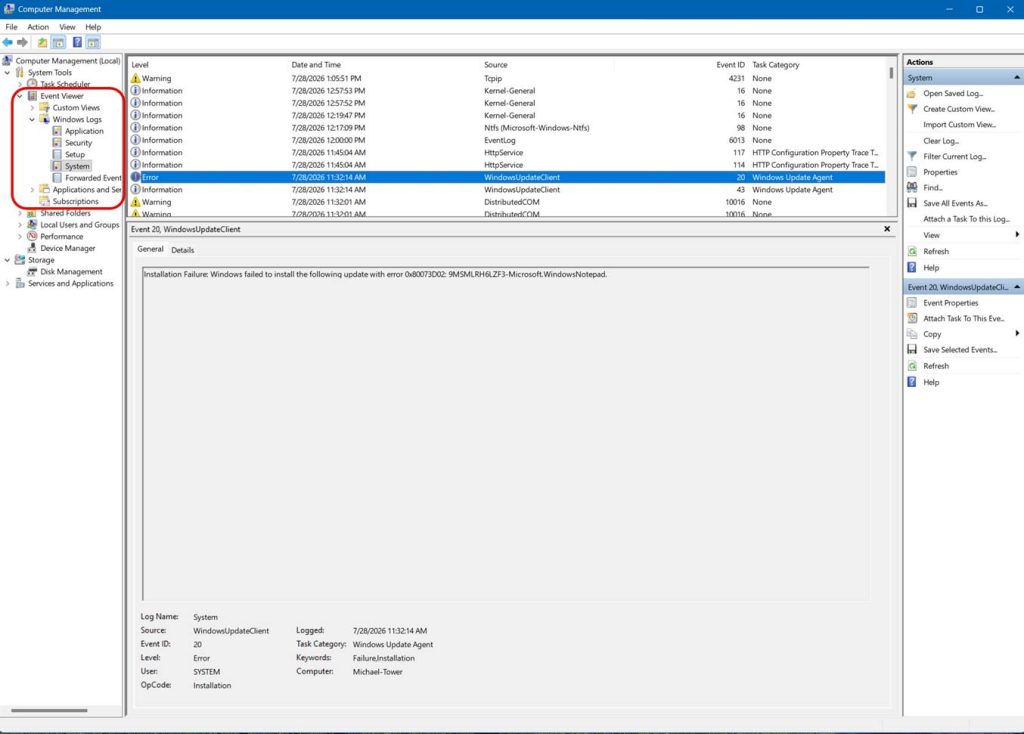
To separate the signal from the noise, begin with the time the problem was reported and examine what changed or failed at that moment. Ignore isolated warnings and focus on events that are both time-correlated and repeatable. Ask yourself: Does this occur every time the issue happens? A single warning from yesterday is usually noise. An error that appears every time a specific application is opened is a signal. The most valuable troubleshooting clues are the ones that consistently reproduce alongside the problem.
Don’t run DISM until SFC tells you the problem is bigger
System File Checker is a targeted repair tool for protected Windows system files. Use it when Windows features behave unexpectedly, a built-in component will not start, or Event Viewer points to missing or corrupted operating system files. Run it from an elevated command prompt or terminal:
sfc /scannow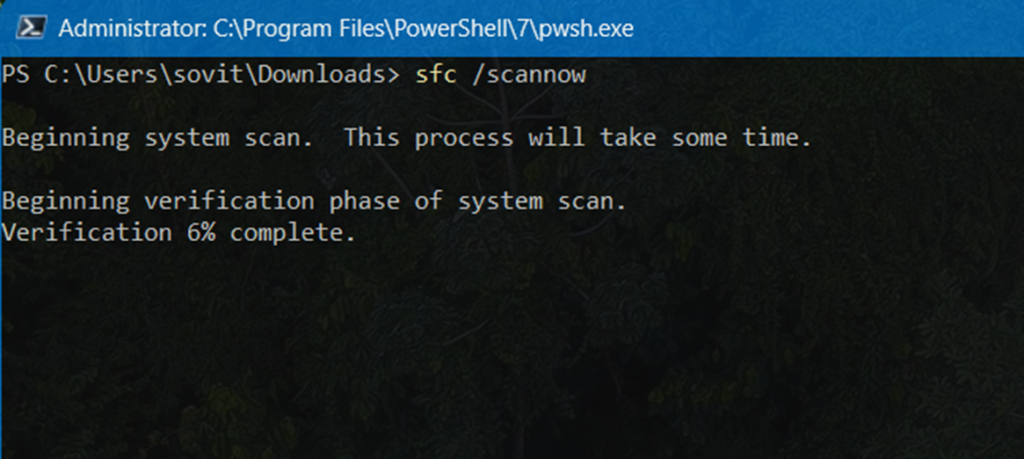
SFC is useful because it can verify and replace protected files without reinstalling Windows (a BIG time saver). Its limitation is that it depends on the local component store as the repair source. If that store is damaged, SFC may report that it found corruption but could not repair all files. When that happens, move to DISM rather than repeating SFC indefinitely.
Repeated SFC failures usually point to servicing corruption
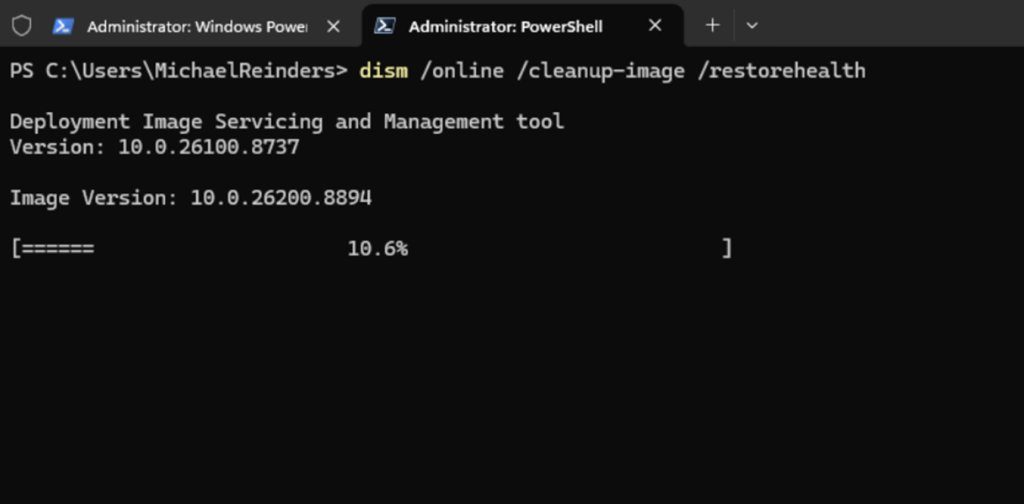
Deployment Image Servicing and Management (DISM) operates at the Windows image and component-store level. Use DISM when SFC cannot complete repairs, when Windows Update or feature installation repeatedly fails, or when servicing health is the likely issue. The most common online repair command is:
DISM /Online /Cleanup-Image /RestoreHealthIn many enterprise environments, DISM may need a known-good repair source, especially when endpoints cannot download repair content from Windows Update. That source might be installation media, a mounted image, or a managed content location. After DISM completes successfully, run SFC again so protected files can be repaired from a healthy component store.
Investigating Windows Update failures
Windows Update troubleshooting should start by identifying the phase that failed.
A scan failure suggests policy, network, proxy, or update-source issues.
A download failure points toward connectivity, content availability, or cache problems.
An installation failure often points to the servicing stack, component store, disk space, pending reboot state, or a conflicting driver.
On modern Windows versions, Windows Update uses Event Tracing for Windows (ETW) data rather than continuously writing a simple text log. Use PowerShell to generate a readable log when you need deeper client-side detail:
Get-WindowsUpdateLogAlso, check Event Viewer under Windows Update client operational logs and the Setup log for update installation events. If the same knowledge base package fails repeatedly, confirm whether the update is applicable, whether a superseding update exists, and whether the device is receiving updates from Windows Update, Microsoft Update, Windows Server Update Services (WSUS), or a management platform such as Intune or Configuration Manager.
A full Windows Update reset should be a later step, not the first step. Resetting services and clearing caches can fix stuck clients, but it can also destroy useful evidence. Capture the error code, logs, and update history before blowing away all pertinent logs.
Most “network outages” are actually DNS or configuration problems
Network symptoms require a different starting point because users often describe the problem as “the network is down” when the actual failure is DNS, routing, authentication, firewall policy, or a single application endpoint. Start with the local TCP/IP configuration before testing remote services.
New administrators often assume that “ping failed” means “the network is down.” In enterprise environments, that assumption is frequently wrong. Many systems are configured to ignore ping requests while still providing their intended services. A firewall may block ICMP, a security policy may disable responses, or a cloud-hosted service may never answer ping at all.
The real question is not whether a device answers ping, but whether the required service is reachable. Always test what the user is actually trying to use. A failed ping can be noise; a failed application connection is usually the signal.
Match the symptom to the first tool
The best troubleshooting tool is the one that answers the next question. Use the symptoms as the routing mechanism:
| Symptom | Start with | Why |
| Application crashes or closes unexpectedly | Event Viewer, then Reliability Monitor | Identifies faulting modules, application errors, and recent change patterns. |
| Windows Update repeatedly fails | Windows Update logs, Setup log, DISM | Separates scan, download, install, and servicing failures. |
| Windows features are missing or unstable | SFC, then DISM if SFC cannot repair | Repairs protected system files and the component store behind them. |
| Users cannot reach network resources | ipconfig, ping, nslookup, tracert | Validates local configuration, reachability, DNS, and routing in order. |
| Performance suddenly degrades | Task Manager, Resource Monitor, Event Viewer | Correlates resource pressure with services, drivers, and errors. |
Reliability Monitor deserves a special mention because it provides a timeline view of application failures, Windows failures, driver installs, and update events. It is not as detailed as Event Viewer, but it is excellent for spotting what changed immediately before a recurring issue began.
Build your own troubleshooting toolkit
For IT pros, the most valuable Windows troubleshooting skill is not memorizing commands. It is knowing which evidence source should be trusted for a given class of failure. Event Viewer tells you what Windows recorded. Reliability Monitor shows when failures began.
A practical admin toolkit should include a short checklist you can run during incidents:
- Record the exact symptoms, timestamp, device, user, and recent change.
- Check the most relevant logs before applying broad repairs.
- Run repair commands from an elevated terminal and capture the result.
- Change one variable at a time so you know what fixed the issue.
- Verify from the user perspective, not just from the admin console.
That discipline prevents two common mistakes: running disruptive repair steps too early and declaring success before the real workflow has been tested. If a user cannot open a network share, successful ping output is not the finish line. The finish line is the user opening the share, accessing the expected files, and confirming the issue does not return.
The next time a Windows system is broken, start with the symptom rather than the command. Ask what evidence would prove or disprove the most likely cause, then choose the tool that provides that evidence fastest. That is what turns a collection of utilities into a troubleshooting toolkit.

Michael has been an IT Pro since 1998. He has worked predominantly in the Windows world including client and server operating systems, on-prem systems engineering (AD, DNS, etc.), and over the last ten years or so has embraced and immersed himself in...