How To Create an Entra ID (Azure AD) Tenant: Step-by-Step Guide
When and how to create a Microsoft Entra ID tenant.

Learn why you may want to create a new or additional Microsoft Entra ID (Azure Active Directory) tenant. What questions do you need to answer before creating one? Do you go down the ‘Microsoft Entra ID’ route or ‘Azure AD B2C’? What are the implications of each? Read my article to get answers to all of your questions.
What is an Entra ID tenant and why do I need one (or more)?
An Entra ID tenant is a cloud-based directory service from Microsoft. It is a dedicated instance that an organization or an application developer uses to house and manage their users, identities, apps, and various security services. Many organizations can operate easily with a single tenant. However, there are multi-tenant scenarios – I’ll describe some reasons below.
Each tenant comes with a unique tenant ID – which is used to authenticate the subscription’s users, services, devices, and applications. (You can locate your tenant ID in the Microsoft Entra admin center…)
If you already have a tenant, why would you want to create additional tenants? Here are the most prevalent reasons.
- Mergers and Acquisitions (M&A) – Instead of bringing in everyone from an acquired company, you can work to migrate them into a new tenant, saving time and hassle. This allows you more time to carefully plan how to eventually segment various companies into their tenants.
- Conglomerates – Companies with multiple subsidiaries may need to operate independently, for security, compliance, or legal reasons.
- Staging or Test Tenants – Organizations that need multiple tenants for testing or development may want completely separate environments to keep their projects robust.
How to create an Entra ID Tenant
A nice quickstart or step-by-step guide wouldn’t be complete if I didn’t include the steps to create a new Entra ID tenant, right? Let me give you a high-level overview. Use the following steps to get started.
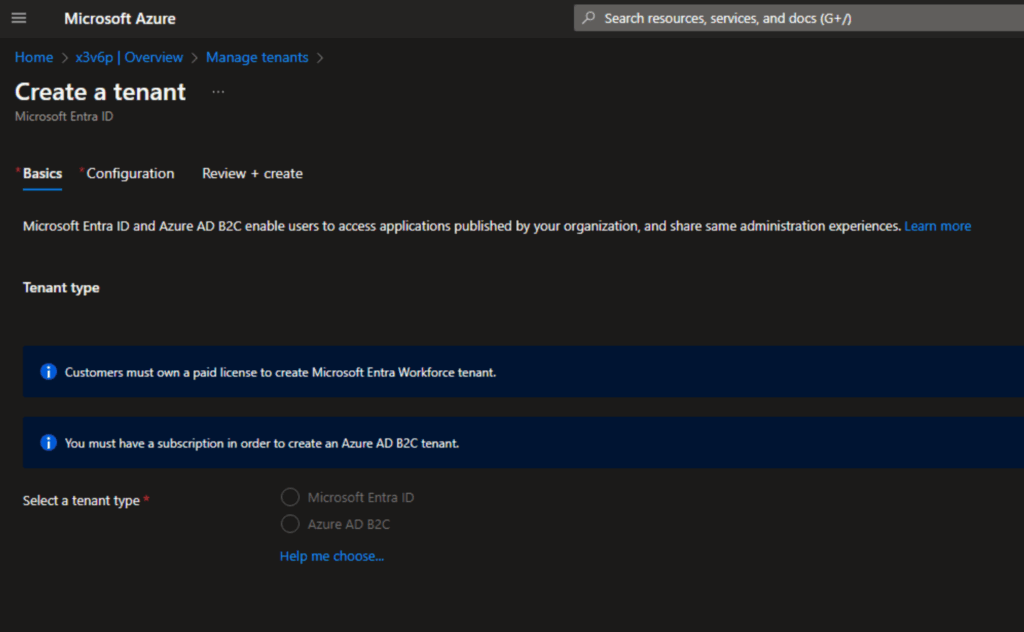
- First, browse the Azure Portal website – https://portal.azure.com/
- Make sure you’re in Microsoft Entra ID. You should be able to click it as one of the main icons at the top of the page.
- From the ‘Overview‘ screen, click the ‘Manage tenants‘ button on the top toolbar.
- On the Basics tab, click the ‘+ Create‘ button on the top toolbar.
- Here you can choose either ‘Microsoft Entra ID‘ or ‘Azure AD B2C‘. Choose Microsoft Entra ID and click Next.
- On the Configuration tab, enter an ‘Organization name‘, an ‘Initial Domain Name‘, and the geographic location.
- The Organization Name is simply a friendly description of your organization name.
- The Domain Name will be the initial domain name or prefix before the obligatory .onmicrosoft.com. You will probably want to come to this with a good number of ideas and permutations as MANY of these have already been chosen by other Microsoft customers.
- For the ‘Location‘, choose where you want your tenant to reside. The important point about the ‘Location‘ is that this needs to be thought out carefully. After you choose the geographic datacenter location of the tenant, you can NOT change it after the fact. Choose a location or leave ‘United States’ in the Country or region box.
- After you have the fields validated, click the ‘Create‘ button and you’re done.
Another quick note – when you create a new Microsoft Entra ID tenant, you become the first user of that tenant. This account is assigned the Global Administrator role. Be sure to validate this account and secure its password.
Choosing the best route when creating one
Above, I walked you through a specific scenario of tenant creation with Microsoft Entra ID. What I haven’t pointed out yet is that there are some different paths you can take, including the starting portal. I’d like to give you some explanation as to your choices, why it makes more sense to start in a specific portal, and why it makes sense to choose a specific top-level choice based on your intentions for the future. The type of users you’re managing, the type of tenant, and information security requirements are all criteria for how to proceed.
There are a few prerequisites or requirements you should be aware of before proceeding and planning. First, you will need an Azure account to start. Don’t worry if you’re only testing or managing development resources – you can easily create a free account to begin your testing. Also, if you’re not using an account with Global Administrator rights, you will at least need an account with the Tenant Creator role.
Choosing Microsoft Entra ID
When you start this process from the ‘traditional’ Azure Portal, your first choice will be choosing between Microsoft Entra ID or Azure AD B2C. You will want to choose the first, Microsoft Entra ID, if you intend to perform these functions:
- Manage access to your users and SaaS applications
- Scale up to millions of internal and external users
- Use the directory with Office 365, Aure, and other related Microsoft services and apps
- Configure Conditional Access policies to secure your users and applications, data, etc.
- Publish multitenant applications.
- This does allow you to incorporate ‘Azure AD B2C’ at a later time.
In case it’s not clear, this is the choice for managing all the aspects of user management – first name, last name, password, and other user settings.
Choosing Azure AD B2C
However, for that first decision, you will want to choose Azure AD B2C if you need to:
- Scale up to hundreds of millions of users
- Provide highly customizable sign-in and other identity management experiences for your customers, vendors, and partners as they access your external-facing applications.
- Remember – you will be unable to add ‘Microsoft Entra ID’ features/scope down the road with this option. Plan accordingly.
Special Note: Azure AD B2C cannot secure access to Office 365, Azure subscriptions, or other Microsoft services!
Can I add Azure AD B2C at a later time?
Yes, you certainly can. The vast majority of organizations will have existing tenants in Microsoft Entra ID (especially if you are utilizing Microsoft 365). Using ‘Azure AD B2C’ is as easy as accessing the administration controls in the Azure Portal.
Supporting Microsoft Work or School accounts, or personal accounts
If you are looking to build an environment for work or school accounts, or even personal Microsoft accounts (MSA), you can use an existing Microsoft Entra tenant or build a new one, especially for development purposes.
Many developers will already have a tenant through subscriptions or services they’ve previously purchased or trialed. To find out:
- Log in to the Microsoft Entra admin center as a Tenant Creator or Global Administrator.
- Check the upper-right corner and click your account info.
- You can confirm how many tenants you have access to verify if you can switch between them.
If you don’t have an existing tenant for your specific development purposes, go ahead and create a new one.
What’s the difference between an Azure subscription and an Entra ID tenant?
In summary, an Azure subscription contains your virtual resources in the cloud and the corresponding management interfaces. An Entra ID tenant is about identity and access management for your users, applications, and devices.
Here’s a table to help you understand the differences and how they are potentially related.
| Entra ID Tenant | Azure Subscription | |
|---|---|---|
| Definition | A dedicated and trusted instance of Entra ID that includes your users, groups, and applications. | Associated with an Azure Offer (free trial for example), contains your payment information, scale limits, and any administrative boundaries, and is the container for your Azure resources. |
| Association | Associated with a single identity (person, company, or organization) and can own one or several subscriptions. | Linked to a payment setup – each subscription will result in a separate bill. |
| Resources | Each of these tenants will have their unique users, groups, and applications separate from your other tenants. | In every subscription, you can add virtual resources (VM, storage, network, etc.). |
| Purpose | Identity and Access Management (IAM) | Resource usage and management. |
| Relationship with each other | Entra ID can have a 1:M relationship, but a Subscription can only trust one Entra ID tenant. | Subscriptions rely on this relationship with Entra ID to authenticate and authorize users, groups, applications, etc. |
Conclusion
Although there are some rather important decisions you need to make when creating a new or additional Entra ID tenant including from which portal to start, the process is relatively quick and painless. You don’t need a lot of technical expertise to go through the steps.
However, I don’t want to discount the research and planning you need to go through before completing the process. There are a few gotchas or future additions that are blocked or unavailable based on what specific steps you take. Planning is key.
I welcome any comments or questions in the form below. Thank you for reading!
Frequently asked questions
How do I create a new Azure AD tenant?
To create a new Azure Active Directory (Azure AD) tenant:
- Sign in to the Azure portal with your existing account.
- In the left-hand navigation, select Azure Active Directory.
- Click Manage tenants → + Create.
- Choose Azure Active Directory as the tenant type.
- Enter details such as the organization name, initial domain name, and country/region.
- Review the settings and select Create.
After a few moments, your new Azure AD tenant will be provisioned and available for use.
What is an AD tenant in Azure?
An Azure AD tenant is a dedicated and trusted instance of Azure Active Directory (Entra ID) that Microsoft automatically creates when your organization signs up for a Microsoft cloud service such as Azure, Microsoft 365, or Dynamics 365.
- It serves as the container for user accounts, groups, applications, and policies.
- Each tenant is isolated and represents a distinct organization’s identity environment.
- Think of it as the root directory for identity and access management in the cloud.
Can non-admin users create tenants?
No, non-admin users cannot create tenants.
- Only users with the Global Administrator or equivalent elevated role in an existing tenant can create a new Azure AD tenant.
- Microsoft enforces this restriction to ensure that only trusted and authorized individuals can establish new organizational identity boundaries.
What is the difference between Azure AD and an Azure tenant?
The terms are related but distinct:
- Azure AD (Entra ID):
- Microsoft’s cloud-based identity and access management (IAM) service.
- Manages authentication (sign-ins, single sign-on, MFA) and authorization (role-based access control, conditional access).
- Can support multiple tenants if required.
- Azure Tenant:
- Represents a single instance of Azure AD tied to an organization.
- Created automatically when an organization signs up for Microsoft cloud services.
- Provides the boundary for identities, subscriptions, licenses, and policies.
Azure AD is the service, while an Azure tenant is your organization’s instance of that service.

Michael has been an IT Pro since 1998. He has worked predominantly in the Windows world including client and server operating systems, on-prem systems engineering (AD, DNS, etc.), and over the last ten years or so has embraced and immersed himself in...