WinDirStat: Quickly Find and Remove Large Files on Windows
How to visualize disk usage, identify storage hogs, and clean up Windows systems more efficiently

If your Windows PCs or servers are running low on storage and you cannot tell what is actually consuming the space, WinDirStat is one of the easiest tools to use. It scans a drive or folder and shows the results as a directory list, file type breakdown, and visual treemap, making it easier to spot oversized files, duplicate content, and other storage hogs so you can clean up your system more intelligently.
What is WinDirStat?
- What is WinDirStat? A free, open source disk usage analyzer and cleanup helper for Windows.
- Is WinDirStat free? Yes. It is an open source utility available at no cost.
- What does it work on? Windows 8 and later, including Windows 10, Windows 11, and supported versions of Windows Server.
- Is it safe to use? Yes, if you download it from official sources and review files carefully before deleting anything.
- What is it best for? Finding large files, duplicate files, and folders that are consuming more disk space than expected.
WinDirStat works with Windows 8 and higher, including newer Windows releases such as Windows 10 and 11. Windows Server is also supported, beginning with Windows Server 2012. WinDirStat does not work with non-Windows operating systems, but several open source alternatives are available for systems running MacOS or Linux.
Downloading WinDirStat
The easiest way to get WinDirStat is from the official download page, which now offers several installation options. Most users can choose the Microsoft Store version if they want simpler installation and updates, while IT pros and power users may prefer the MSI installer for a more traditional deployment experience.
The official site also points to the latest installers and portable packages hosted on GitHub, including x64, x86, and ARM64 builds. If you manage Windows systems from the command line, you can also install WinDirStat with winget, Chocolatey, or Scoop.
As with any utility, it is best to stick to official sources such as the WinDirStat website, Microsoft Store, or the project’s GitHub releases rather than downloading installers from third-party sites. If you are deploying the tool more broadly or want extra assurance, you can also verify the published file hashes before installation.
WinDirStat currently supports 12 languages including Czech, Dutch, Estonian, Finnish, German, English, Spanish, French, Hungarian, Italian, Polish, and Russian.
Installing WinDirStat
How WinDirStat installs depends on the package you choose. If you install it from the Microsoft Store, setup and updates are handled for you. If you use the MSI installer, the process is straightforward: launch the package, accept the license terms, choose the install location if you want to change it, and complete the wizard.
For most users, the default options are fine. You can add a desktop shortcut or context menu entry if those fit your workflow, but neither is required to start using the tool.
Be sure to choose the package that matches your system architecture. The x64 build will be the right choice for most modern PCs, but x86 and ARM64 versions are also available if needed.
Figure 1 shows the MSI installer options, including the choice to create a desktop shortcut and add a classic shell context menu entry. These are convenience settings rather than essential configuration steps.
You can optionally create a desktop shortcut and a classic shell context menu entry.
When prompted, click the Install button to move forward with the installation process. When the installation completes, click Finish.
Running WinDirStat
When you run WinDirStat, you will be asked if you would like to run the tool with elevated privileges, as shown in Figure 2. Using elevated privileges improves performance and provides you with a more comprehensive view of the file system.

You will be asked whether you want to run WinDirStat with elevated permissions.
At this point, you will be taken to a screen, similar to the one shown in Figure 3, asking you what you want to scan. By default, WinDirStat will scan all of your local drives, including network drives that have been mapped to a local drive letter. Depending on your use case however, you may be better off only scanning the C: drive. Incidentally, there is also an option to scan an individual folder rather than scanning an entire disk.
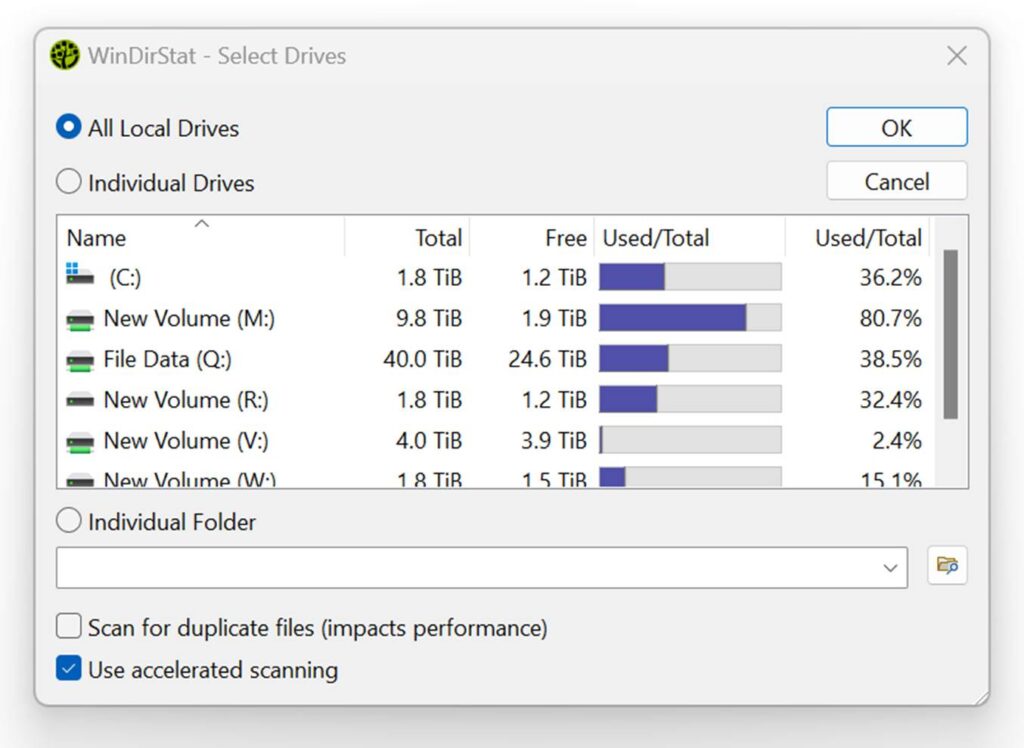
As you can see in the figure above, the dialog box also gives you the option of scanning for duplicate files. While doing so can be useful if you are trying to reclaim disk space, scanning for duplicate files can be time consuming. You can minimize the amount of time required to scan your hard drive by selecting the option to use accelerated scanning.
The WinDirStat interface
When the disk usage analyzer finally finishes scanning your system, you will be taken to a screen that is similar to the one shown in Figure 4.
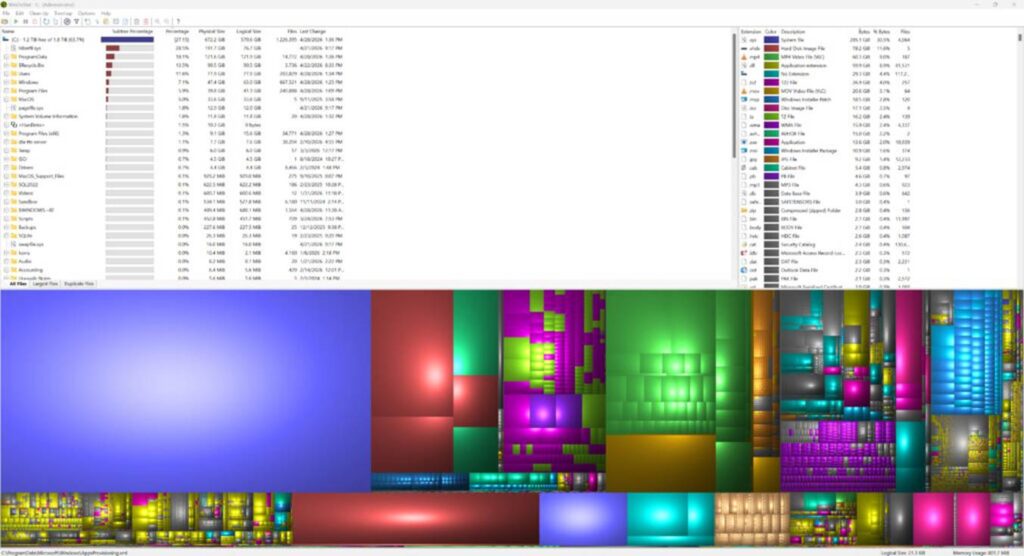
As you can see in the figure, the interface is divided into three main sections. In the upper left portion of the screen, you will see a directory list, which displays a directory tree for your selected hard drive. The tree view can be expanded in order to display information pertaining to subfolders.
For each folder shown in the directory list, WinDirStat displays the subtree percentage, the percentage, the physical size, the logical size, the number of files contained within the folder, and the date and time when the folder was last changed.
Just to the right of this section, there is a listing of file types. This section contains a file extension list and for each extension there is a color that has been assigned, a description of the file extension, and then details pertaining to the number of bytes, the percentage of bytes, and the number of files.
Finally, the lower portion of the interface consists of a colorful, visual representation of the files contained within the hard drive. The colors used in this chard correspond to the color codes shown within the extension list. The chart is designed to help you to visualize your system’s disk usage.
In addition to the directory tree, extension list, and treemap, newer versions of WinDirStat also include dedicated views such as All Files, Largest Files, Duplicate Files, Search Results, and File Watcher. These views make it easier to switch from a high-level storage overview to targeted tasks such as isolating the biggest files, filtering results, checking for duplicate content, or monitoring file activity over time.
Locating large files
One of the main reasons why the visual representation exists is that the chart makes it easy to locate large files. If you look back at the previous figure, you will notice that the chart is made up of rectangles – some large, some small. Each rectangle represents a file on your hard disk, with larger rectangles representing larger files. You can hover over a rectangle to see the corresponding filename and path. This makes it incredibly easy to locate large files.
Another way to investigate storage use is to switch to the All Files or Largest Files views. These views replace the treemap with sortable file lists, making it easier to identify the biggest files on your system, review their locations, and see when they were last changed.
Locating duplicate files
The Duplicate Files view helps you look for files that appear to be duplicated so you can investigate whether they are worth removing. If you need to narrow things down further, the Search Results view can help you filter what WinDirStat has found so you can focus on specific file names, paths, or patterns.
WinDirStat also includes a File Watcher view for monitoring file activity, which can be useful if you are trying to understand which folders are changing, which processes are generating files, or why storage consumption keeps growing over time.
Cleaning up your disk
Once you have analyzed the various disk usage statistics, you can use WinDirStat to clean up your hard disk by choosing various options from the Clean Up menu. This menu provides, among other things, options to delete files (this causes files to be permanently deleted), delete files to the recycle bin, and to empty the recycle bin.
There are also options on this menu that you can use to access command line environments, such as Windows PowerShell or the Windows Command Prompt. These command line environments can be useful if you want to automate the cleanup process.
Best cleanup workflow
- Start by scanning the drive or folder that is most likely to be causing the problem.
- Sort the results by size so the biggest storage consumers rise to the top.
- Focus first on large non-system folders such as Downloads, old installer locations, media libraries, and virtual machine storage.
- Inspect large files before deleting them so you do not remove something that is still in use.
- Use the Recycle Bin where possible instead of permanent deletion, especially during your first pass.
- Run another scan afterward to confirm that the cleanup had the effect you expected.
WinDirStat vs. alternatives
WinDirStat remains a solid choice if you want a free, open source tool that makes disk usage easy to understand through its treemap and file type views. That said, some alternatives such as WizTree and TreeSize are often preferred by power users who want faster scans or a more polished interface. If your main goal is to quickly see what is consuming space and make informed cleanup decisions, WinDirStat is still a practical option.
Frequently asked questions
Is WinDirStat safe to use?
Yes, WinDirStat is generally safe to use if you download it from official sources such as the WinDirStat website, GitHub releases, or the Microsoft Store. The bigger risk is deleting the wrong files, so it is important to review anything carefully before removing it.
Is WinDirStat free?
Yes. WinDirStat is a free, open source disk usage analyzer for Windows, which is one of the main reasons it remains popular with power users and IT pros.
Does WinDirStat work on Windows 10 and Windows 11?
Yes. WinDirStat works on Windows 10 and Windows 11, and it also supports newer Windows Server versions, making it useful in both personal and administrative environments.
How does WinDirStat work?
WinDirStat scans a selected drive or folder and shows the results as a directory tree, file type list, and visual treemap. This makes it easier to see which files and folders are taking up the most space and decide what to clean up.

As an internationally bestselling tech author and a former 22-time Microsoft MVP, Brien Posey has written or contributed to dozens of books and created a variety of full-length video training courses on all sorts of IT and space-related topics. He’...