Error Code 43: Your GPU Isn’t Working? Try These Fixes
This guide walks through every fix, from checking for the latest drivers to advanced solutions to get your GPU back in action.

If your graphics card suddenly stops working and Microsoft Windows displays error code 43, do not panic.
What is device manager error code 43?
Error code 43 is a generic hardware error in Windows 10 and Windows 11. It means the operating system detected that your GPU (or another device) reported a problem, and Windows stopped it to prevent further issues.
The error does not necessarily mean your graphics card is physically damaged; it means Windows cannot communicate correctly with the GPU driver or hardware.
You will usually find this error in the Device Manager under “Display adapters.” When you open your GPU’s properties, the message “Windows has stopped this device” confirms it is a code 43 issue.
Error 43 can affect both integrated and dedicated GPUs from NVIDIA, AMD, or Intel. It likely means your Windows installation cannot communicate properly with your GPU. This may prevent games from launching, disable GPU acceleration in creative software, or cause your display to default to basic rendering with poor resolution and no hardware performance.
Why does error 43 happen?
Error code 43 does not stem from one cause, it can result from corrupted drivers, power instability, or hardware miscommunication. The issue can arise from software problems, hardware faults, or outdated components.
| Category | Description |
|---|---|
| Driver corruption or incompatibility | A bad update, failed installation, or mismatch between Windows and your GPU driver can trigger the error. |
| Loose or damaged connections | An improperly seated GPU or loose power cable can prevent Windows from detecting the card correctly. |
| Power delivery problems | If your power supply cannot deliver enough wattage or has a failing cable, the GPU may report errors. |
| Overheating or hardware failure | Thermal damage, failing VRAM, or physical defects can cause instability. |
| BIOS or firmware issues | An outdated BIOS or motherboard firmware may not fully support modern GPU drivers. |
| Windows conflicts | Background updates, registry corruption, or conflicting services can disrupt hardware communication. |
Understanding where the problem originates helps determine whether to start with software fixes or hardware diagnostics.
Before you start: basic troubleshooting steps
Before reinstalling drivers or flashing firmware, start with these simple checks. Many error 43 cases are resolved here.
1. Restart your computer
A restart can clear temporary conflicts between Windows and your GPU driver. When the system reboots, Windows reinitializes hardware and reloads drivers, often enough to fix temporary issues.
2. Reseat your graphics card
If you use a desktop PC, power it down, unplug it, and open the case. Remove your graphics card and reseat it firmly in the PCIe slot until it clicks into place. Also, check that your power connectors (6-pin, 8-pin, or both) are fully plugged into the GPU.
Tip: Dust buildup or small vibrations over time can cause poor contact between the GPU and motherboard.
3. Check for loose cables
Ensure your display cables (HDMI, DisplayPort, or DVI) are secure on both ends. If you use a laptop, connect to an external monitor to verify whether the issue is internal (GPU) or external (display).
The go-to fixes for error code 43
Most error 43 reports come from software or driver conflicts. These are the most effective first-line solutions.
1. Update or reinstall your graphics drivers
Outdated or corrupted drivers are the most common cause of error code 43.
Here is how to reinstall your GPU drivers:
- Open Device Manager and right-click your GPU, then select Uninstall device.
- Check “Delete the driver software for this device.”
- Reboot your PC.
- Download the latest drivers from your GPU manufacturer’s website:
- Install the new driver package manually.
2. Roll back your graphics driver
Sometimes, a recent driver update breaks compatibility, especially after Windows updates.
- Open Device Manager.
- Right-click your GPU and select Properties.
- Go to the Driver tab and click Roll Back Driver.

Reboot afterward and check if error 43 disappears.
3. Update your Windows operating system
Windows updates often include driver compatibility fixes and kernel updates that affect how hardware interacts with the OS. Open Start > Settings > Windows Update and click Check for Updates. After any installation, restart your computer and check the GPU again.
More advanced solutions if error 43 persists
If none of the previous fixes worked, the issue might be deeper, possibly firmware-level or hardware-related.
1. Update your BIOS or UEFI
Outdated BIOS firmware can cause modern GPUs to miscommunicate with the motherboard. Visit your motherboard manufacturer’s website, look up your exact model, and follow the official BIOS update instructions.
Caution: Do not interrupt a BIOS update. Power loss during flashing can make your system unbootable.
Once updated, reboot and check if the GPU initializes correctly in Device Manager.
2. Check for hardware conflicts
Rarely, other PCIe devices (sound cards, capture cards) can interfere with your GPU. Try booting with only the GPU installed. Alternatively, open System Information (msinfo32), expand Hardware Resources, and check Conflicts/Sharing for overlapping components.
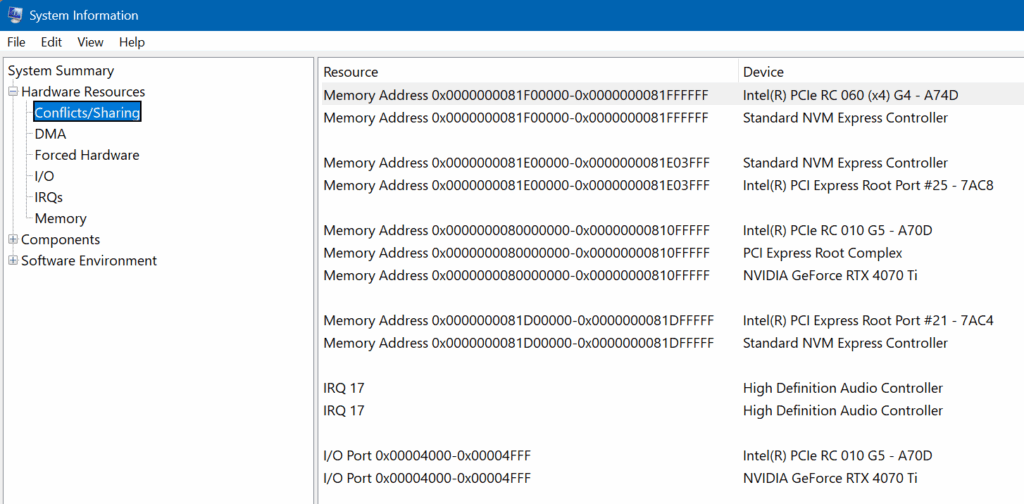
If conflicts arise, move the GPU to a different PCIe slot or temporarily disable unnecessary devices.
3. Test your GPU in another PC (or another GPU in yours)
This step isolates the problem:
- If your GPU works in another computer, the issue is likely your motherboard, power supply, or Windows installation.
- If it fails again, the GPU itself may be damaged.
Alternatively, test a known working GPU in your PC. If that one runs fine, your original GPU is likely the issue.
4. Reinstall Windows (as a last resort)
If all else fails, corrupted system files or registry entries could be the cause. Perform a clean installation of Windows to eliminate these problems. Before proceeding, back up important files or ensure OneDrive is syncing your Documents, Desktop, and Pictures folders. Then use the Windows Media Creation Tool to create a bootable USB drive and reinstall the OS from scratch.
Once Windows is reinstalled, install your GPU drivers and test the card before adding other software. If error 43 persists even on a clean system, the issue is almost certainly hardware-related.
When to consider professional help or a new GPU
If you have tried every fix and error code 43 continues, professional diagnostics are worth considering. A technician can:
- Test GPU voltage and thermals under load
- Verify motherboard slot and PSU output
- Reflow solder joints (in rare cases)
If your GPU is several years old or part of a generation known for high failure rates, replacement is often more cost-effective.
Persistent error 43 can indicate early hardware degradation, such as VRAM instability or pending component failure. Common signs include flickering or artifacts during gameplay, random driver crashes, or fan failures.
If upgrading, confirm your power supply wattage, case clearance, and PCIe compatibility before purchasing a new GPU.
A quick recap on tackling error code 43
Error code 43 may look serious, but it is often solvable with a systematic approach.
- Start simple: restart, reseat, and reconnect.
- Move to software fixes: reinstall or roll back drivers, and update Windows.
- Then try advanced options: BIOS updates, hardware conflict checks, or component testing.
| Level | Action | Purpose |
|---|---|---|
| 🟢 Basic | Restart, reseat GPU, check cables | Fixes temporary or connection-based issues |
| 🟡 Intermediate | Reinstall or roll back drivers, update Windows | Resolves software or driver corruption |
| 🔵 Advanced | BIOS update, hardware test, reinstall Windows | Addresses firmware or hardware-level faults |
Thank you for reading this guide on resolving Windows error code 43 for GPUs in Device Manager.
Frequently asked questions
What does error code 43 mean in Windows?
Error code 43 means Windows has stopped a device because it reported a problem. It typically occurs when the operating system cannot communicate correctly with the device driver or hardware.
Which devices commonly show error code 43?
Although it is most common with graphics cards, error code 43 can also affect USB drives, Bluetooth adapters, and network cards.
How do I fix error code 43 for USB devices?
Disconnect the USB device, restart your PC, and try a different port. If that does not work, uninstall the device from Device Manager and let Windows reinstall it automatically. Updating USB drivers or performing a power reset may also help.
Can error code 43 mean hardware failure?
Yes, it can. While many cases are software-related, persistent error 43 may indicate a physical hardware issue such as VRAM failure, overheating, or a defective connection.
When should I replace the device rather than fix drivers?
If you have reinstalled drivers, updated Windows and BIOS, and tested the hardware on another system with the same error, replacement is likely the best option.

Michael has been an IT Pro since 1998. He has worked predominantly in the Windows world including client and server operating systems, on-prem systems engineering (AD, DNS, etc.), and over the last ten years or so has embraced and immersed himself in...