What Is Microsoft Copilot Chat?
Copilot Chat offers diverse functionality within the Microsoft 365 ecosystem and benefits users in a number of different ways.

Copilot Chat is a feature of Microsoft 365 Copilot that allows users to interact with Microsoft Copilot using a conversational style interface. In doing so, users type (or speak) their queries into a chat box. Copilot then uses an underlying Large Language Model based on GPT-5 to parse and then respond to the user’s input.
Why is Microsoft Copilot Chat useful?
Copilot Chat offers diverse functionality within the Microsoft 365 ecosystem and benefits users in a number of different ways.
Microsoft Copilot Chat provides Office application assistance
Microsoft has integrated Copilot into its various Microsoft 365 apps, such as Word, Excel, PowerPoint, Outlook, OneNote, and Microsoft Teams. In each application, Microsoft Copilot acts as an AI assistant, helping end users to work more efficiently.
| Office application | Example Copilot uses |
| Word | Copilot could be used to draft a document or to help the user with proofreading. |
| Excel | Reformat data, such as breaking addresses down into separate columns for name, street address, city, state, and zip code |
| PowerPoint | A user can use Copilot to automatically build a presentation based on a document |
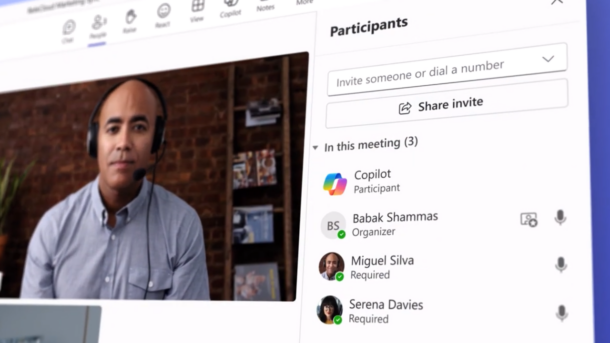
| Teams | Copilot can help to summarize a meeting or to create follow up items. |
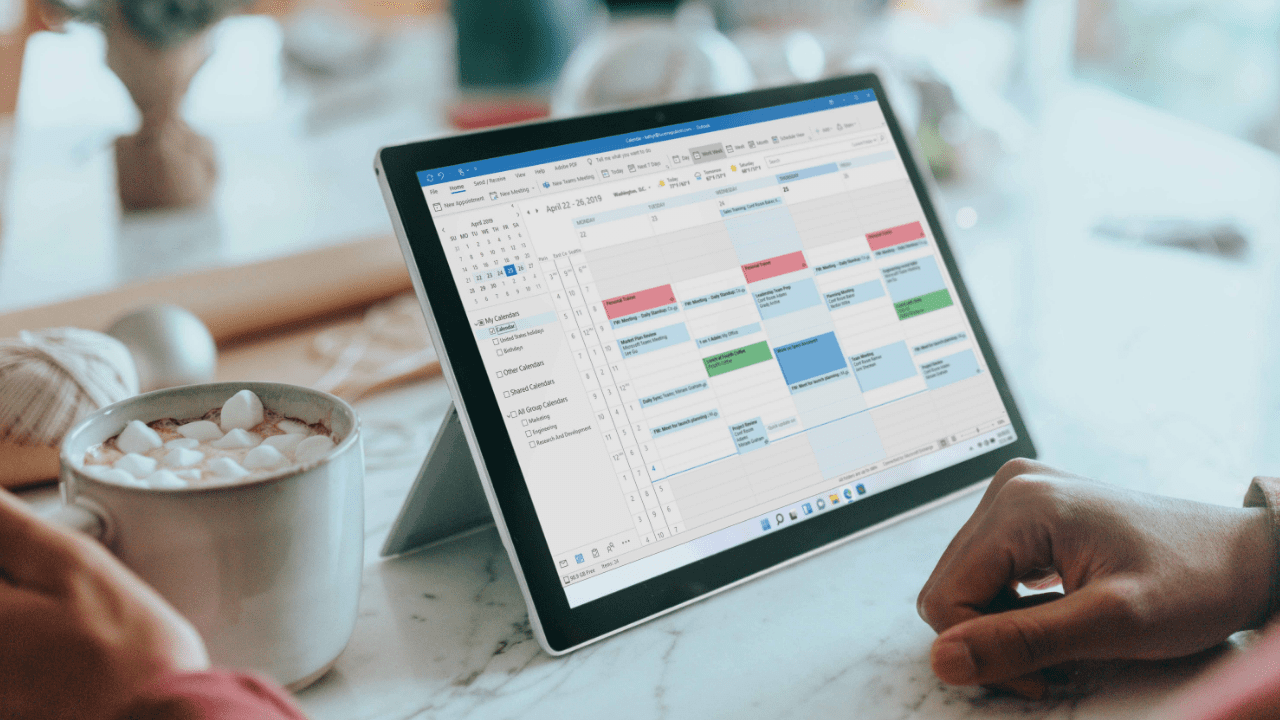
| Outlook | Copilot can help a user to strike the right tone in an email message before sending it. |
Microsoft Copilot does a great job of helping users to deal with information overload. Users might, for instance, ask Copilot to generate a summary of a lengthy document, thereby making it so that the user does not have to read the document in its entirety. Copilot works equally well for analyzing Excel spreadsheets.
AI as a research assistant
Copilot chat can be useful when it comes to doing research. Microsoft 365 Copilot typically has access to the same data as the user who is using it. As such, a user who is trying to do research can ask Copilot relevant questions and it will answer the user based on both public data and the organization’s data. As an example, the results might reference files that are stored within a SharePoint library or perhaps notes from a Microsoft Teams meeting.
The data that is used when formulating a response to a user’s prompt varies based on various factors, such as the user’s licenses and the mode that is being used.
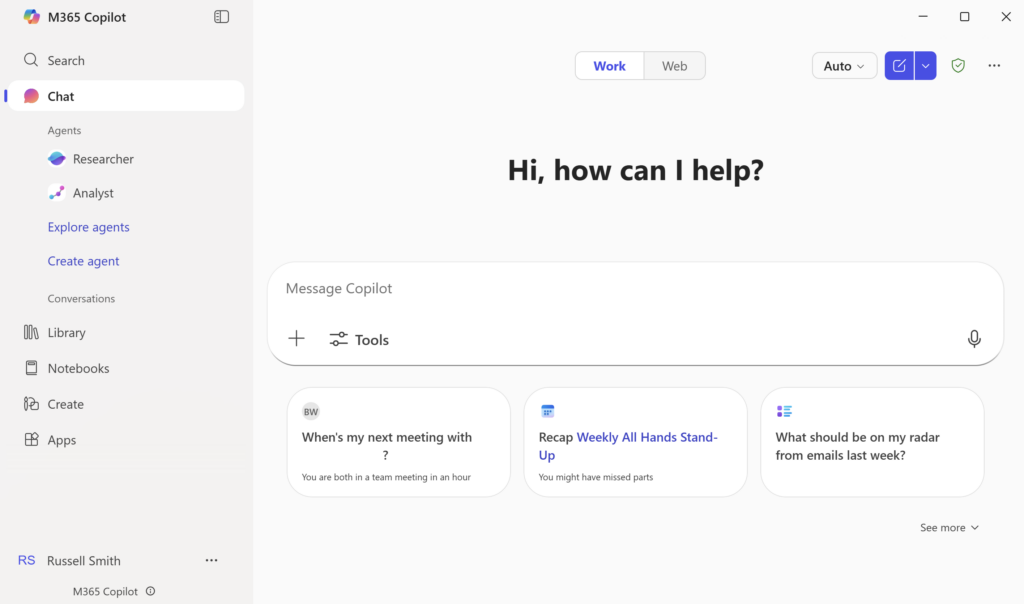
When a user is working in Web mode, the user opens Copilot Chat in Microsoft Edge or in one of the other supported tools and enters a query. The AI chat responds by examining public, Web based data.
In Work Mode, Copilot uses the organization’s data when formulating its response. This may include things like Outlook emails, SharePoint documents, or Microsoft Teams chats. The user also has the ability to attach a file directly to their query, and have Copilot use the file upload as the basis for its response.
This can be extremely useful for a user who wants to create a summary of a document’s key points or who perhaps wants to create an AI-generated FAQ section to go along with a document. Copilot can even use its knowledge of the document to help a user to brainstorm ideas.
In order to use work mode, an organization will need to have a Microsoft 365 subscription. Additionally, users will also require a Microsoft 365 Copilot license.
Task automation
Microsoft Copilot can also be useful for automating tasks. By using or creating agents, organizations can automate various tasks, As an example, an agent may be able to generate a report or trigger an automated workflow. Organizations that want to build their own custom copilots can do so by using Microsoft Copilot Studio.
Simplified compliance
One of the most important benefits to using Copilot Chat is that because it is a part of the Microsoft 365 ecosystem, Chat adheres to the same permissions and offers the same enterprise data protection and Microsoft security as Microsoft 365 itself. This is extremely important for protecting an organization’s data.
If a user were to try to use another AI chat tool then the chat experience could compromise the organization’s data. For instance, file uploads to the third party AI chat tool could cause the AI to ingest the organization’s private data. That data may then be used to further train the AI and could be exposed to users outside of the organization as a result.
The Copilot Chat mobile experience
Copilot Chat is not designed to be used on PCs exclusively. In fact, Microsoft has created a dedicated Copilot app so that mobile users can have the Copilot experience while on the go. The Copilot Mobile app is available on both iOS and Android.
The Microsoft 365 Copilot mobile app is not the only tool for allowing users to receive the Copilot experience on their mobile devices. Copilot Chat is being integrated into the Microsoft 365 mobile apps, meaning that mobile users can use Copilot in apps such as Word, Excel, and PowerPoint.
While the Copilot mobile app might not be quite as full featured as the desktop version, it is great for helping users to perform various tasks while they are away from their computer.
Mobile users often find that the mobile version of Copilot Chat is useful for helping them to catch up quickly. A user might for instance, ask Copilot to read and summarize their Outlook emails.
The mobile version of Copilot is also great for answering questions. Users can ask Copilot general knowledge questions and the Microsoft AI will respond with answers taken from the Internet. Additionally, a properly licensed user can ask questions about specific files or messages, and receive an answer right on their device.
The mobile version can also potentially be helpful for drafting content or brainstorming ideas. Although a mobile device might not be the best platform for authoring a lengthy document, Copilot can be helpful if inspiration strikes while a user is on the go.
Copilot Chat can also help users to review content on their mobile device. A user may for instance, use their iOS or Android device to send a Word document or even a PDF file to Copilot for analysis. Copilot can then answer questions about the file or even provide the user with a file summary.
New capabilities coming to Copilot Chat
More recently, Microsoft has begun to roll out text to speech capabilities for Copilot, which will allow users to verbally converse with Copilot as though it were a person rather than an AI powered assistant. such capabilities should prove to be extremely useful to users who primarily interact with Copilot through the Copilot app. Such users will be able to perform various tasks using nothing more than their voice. Rather than relying on an on-screen keyboard, users will be able to simply tell Copilot what they want to do, with Copilot responding verbally to such prompts.

As an internationally bestselling tech author and a former 22-time Microsoft MVP, Brien Posey has written or contributed to dozens of books and created a variety of full-length video training courses on all sorts of IT and space-related topics. He’...