Microsoft Copilot MCP: Unlocking the Power of the Model Context Protocol
Microsoft Copilot MCP extends Copilot Studio beyond its training data by connecting it to external sources like APIs, databases, and file systems.
One of the problems that is commonly associated with AI models, such as those used by Microsoft Copilot, is that they are often limited by their training data. The Model Context Protocol (MCP) is designed to help Copilot to go beyond this limit by acting as a connector to content that is not found within the training data. This may include databases, APIs, file systems, or other data.
Microsoft Copilot MCP – How it works
The most important thing to understand about MCP is that it is designed to be an open protocol that Large Language Model (LLM) applications can use to connect to external data sources or services. Large Language Models are used in a wide variety of generative AI applications.
If an organization wishes to link a generative AI application to its data, then it no longer has to build custom connectors. Instead, MCP can serve as bridge between applications and external data sources. Any Large Language Model based application can leverage this tool. To put it another way, MCP provides a standard way for Large Language Models and AI agents to access external resources. Typically, this process involves leveraging SDKs and some simple Python coding.
MCP with Microsoft Copilot Studio
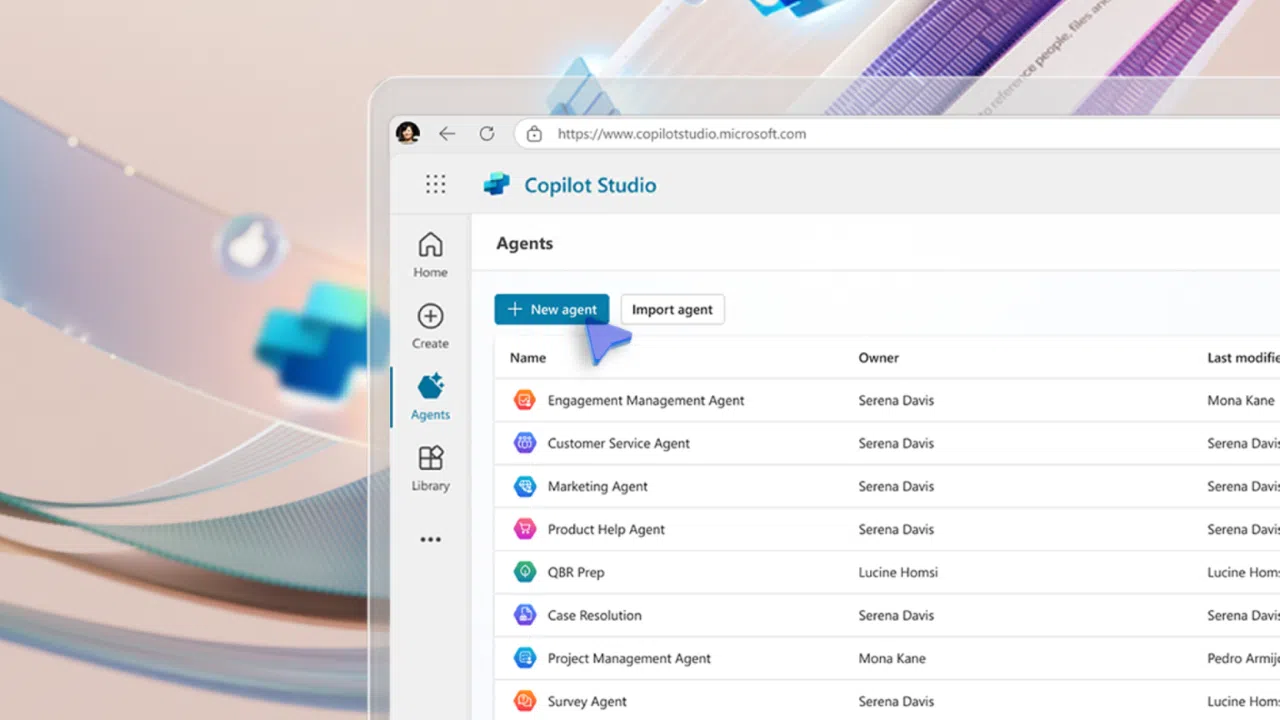
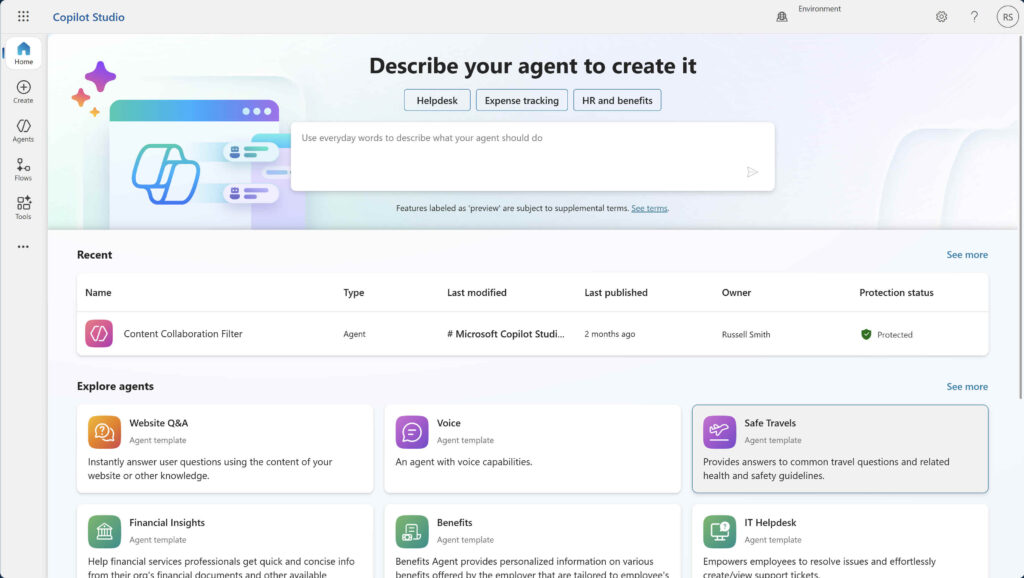
Although MCP is an open protocol that can be used with various Large Language Models, it was created with Microsoft Copilot in mind. Not surprisingly, MCP works especially well with Microsoft Copilot Studio. For those who might not be familiar, Copilot Studio is a low code / pro code tool that organizations can use to develop their own custom Copilots.
MCP server
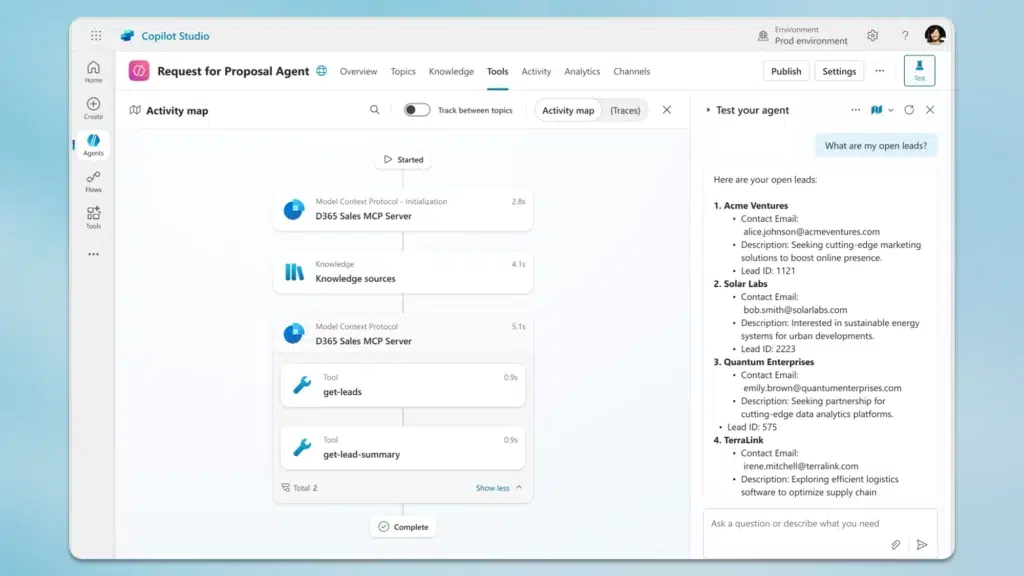
The MCP server is one of the key components used to make MCP work. An MCP Server’s job is to provide capabilities to a Large Language Model. Its capabilities fall into three basic categories including tools, resources, and prompts.
Tools
Tools are essentially automated workflows that can be executed in real-time. Any task that you can automate can potentially be turned into a tool. For instance, a tool might use orchestration to search for flights, send an email message, create a calendar entry, perform a database query, or create a purchase order.
Resources
Resources are just that, usually data that the Large Language Model needs access to. A resource might consist of structured data, unstructured data (files and folders), or both. MCP servers provide passive access to resources, i.e. read-only access. Resources can be used to retrieve documents, access knowledge bases, read calendars, and more.
Prompts
A prompt is an instruction that provides guidance to an LLM. As an example, if you type a query into ChatGPT, what you are really doing is creating a prompt. The difference is that MCP makes use of pre-built prompts, which are sometimes called prompt templates. Templates contain LLM prompts that can be used repeatedly.
The runtime workflow
When an end user interacts with Copilot, the underlying AI agent uses the MCP server to fufill the user’s request. Suppose for instance that the user is looking to hire new staff members. The user might enter a query such as, “help me to find a new Marketing Manager”. Upon receiving the prompt, the AI model may determine that it needs to use one of the available tools and then sends a tool invocation request to the MCP server.
The MCP server then runs an orchestrated process that queries LinkedIn as a part of a talent search automation routine. The server then returns schema validated results that the AI agent can use to formulate a response for the end user.
Where Microsoft Copilot Studio fits in
When you connect Microsoft Copilot Studio to an MCP server, Copilot Studio takes on the role of an MCP host. At that point, Copilot Studio is responsible for maintaining a connection to the server and for discovering the server’s capabilities. Copilot Studio makes the MCP server’s functionality available to Copilots.
Interestingly, when you connect Copilot Studio to an MCP server, Studio will automatically query the MCP server and download metadata. The metadata contains tool definitions, resource schemas, prompt templates, and version and capability descriptions.
The version information included within the metadata is important, because like other Microsoft products, Copilot Studio is designed to make sure that everything is kept up to date. By referencing the version information, Copilot Studio makes sure that Copilots always have the latest versions of tools, resources, and prompts and that older, obsolete versions are removed.
It is worth noting that this automated version control is specific to Microsoft environments. If you were to use MCP with a non-Microsoft product, then version control would need to be handled manually.
MCP simplifies Copilot development
One of the most important benefits associated with MCP is that business logic resides within the MCP server rather than inside of the Copilot. This can greatly simplify change management, especially for organizations that have large collections of Copilots.
If for example, an organization applies a hotfix to an MCP server, the agents would pick up on it instantly. Likewise, if you create a new backend API, you can expose the API once through the MCP server and all Copilots will have access to it. If you create a new tool or modify an existing tool, Copilot will use the new version immediately.
The development process
Microsoft has done its best to make the development process as straightforward as possible. The prerequisites include an MCP client and a service endpoint. Developers often use Visual Studio Code for the development process. One of the advantages to using Visual Studio Code is that it integrates with GitHub Copilot, which can use AI generated outputs to assist with writing the code.
Connecting an agent to a MCP server
Microsoft provides two different options for connecting an agent to an MCP server.
The first method (which is generally preferred), involves using the MCP Onboarding Wizard. The second option is to create a custom connector using PowerApps (part of the Power Platform).
Connection Options:
- MCP Onboarding Wizard – Preferred, guided setup.
- Custom Connector via PowerApps – Manual configuration.
Regardless of whether an organization chooses to use the wizard or a custom connector, the organization must implement an authentication mechanism that will allow the agent to access the MCP server and its contents. There are two ways of handling the authentication process.
The first option is to use API key authentication. In doing so, the server uses an API key in place of credentials. The second option is to base the authentication process on OAuth 2.0. While you can manually configure the OAuth 2.0 settings, the client is also able to use a discovery endpoint to find and then register itself with the endpoint provider.
Authentication Methods:
- API Key – Simple key-based access.
- OAuth 2.0 – Secure token-based access with discovery endpoint.
FAQs
What is the Model Context Protocol (MCP)?
MCP is an open protocol designed for LLM-based applications like Microsoft Copilot. It helps Copilot access external data sources such as APIs, databases, and file systems without custom connectors.
How does Microsoft Copilot MCP work?
When Copilot needs external data, it uses the MCP server to invoke tools and workflows. The server returns validated results, enabling Copilot to provide accurate, context-rich responses.
Do I need Copilot Studio to use MCP?
MCP works with any LLM application, but Copilot Studio is optimized for it. Copilot Studio automatically discovers MCP server capabilities and makes them available to your custom copilots.
How hard is it to get started with Microsoft Copilot MCP?
Setup is straightforward: you need an MCP client and endpoint. Most developers use Visual Studio Code and can connect via the Onboarding Wizard or build custom connectors with PowerApps.

As an internationally bestselling tech author and a former 22-time Microsoft MVP, Brien Posey has written or contributed to dozens of books and created a variety of full-length video training courses on all sorts of IT and space-related topics. He’...