How to Triage Emails in Outlook Using Copilot
Learn how to triage emails in Outlook using Microsoft 365 Copilot to quickly understand what matters, decide what action to take, and move on.
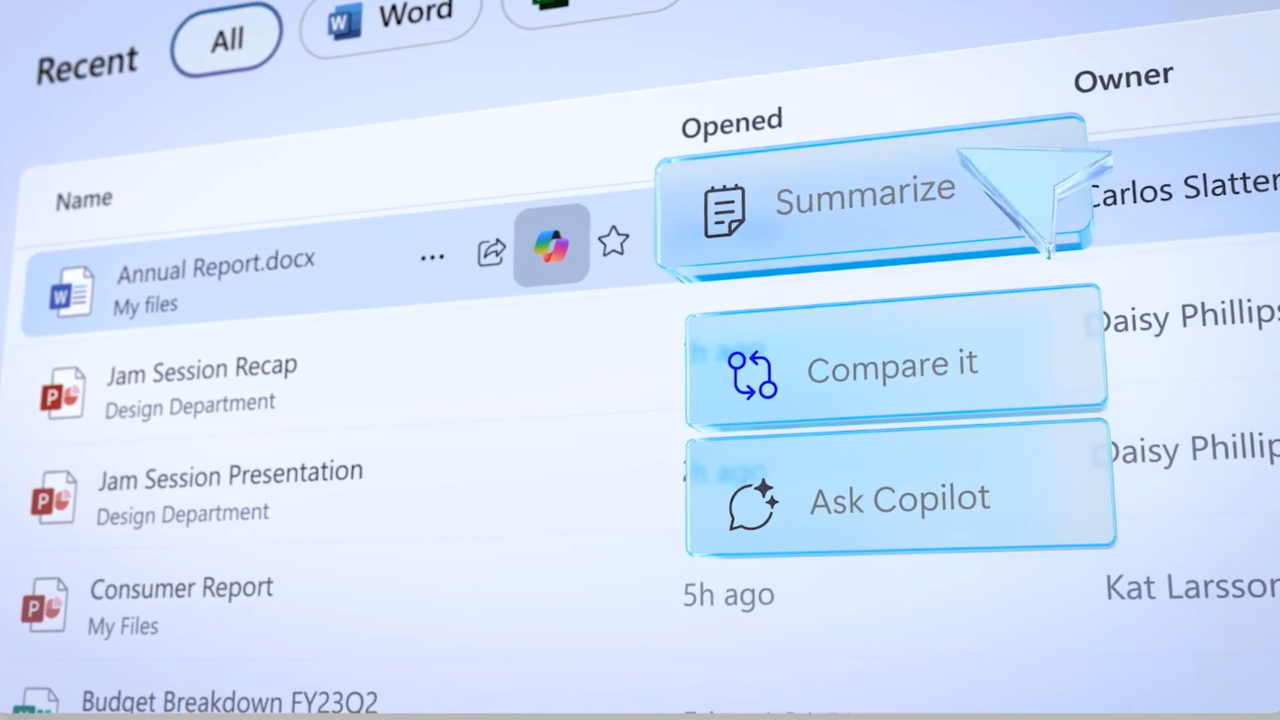
Learning how to triage emails in Outlook effectively is becoming a core productivity skill. Inbox volume continues to rise, and traditional tools such as folders, rules, and flags only go so far. Microsoft 365 Copilot in Outlook introduces AI‑assisted triage that helps you quickly understand what matters, decide what action to take, and move on.
This article explains how Copilot helps you triage emails in Outlook, from summarizing conversations to drafting responses and identifying follow‑up actions.
Why email triage matters more than ever
Email triage is about decision‑making, not inbox zero. Each message needs a fast judgment call: ignore, read, respond, delegate, or defer. Without help, that process is time‑consuming, especially when emails are long, poorly written, or part of sprawling reply chains.
Copilot addresses this by analyzing message content and context directly inside Outlook. Instead of reading everything line by line, you can rely on Copilot to surface the information you need to make quicker decisions.
What Copilot can do in Outlook
| Skill area | What Copilot does in Outlook |
|---|---|
| Email writing | Drafts, rewrites, tone coaching |
| Email reading | Summarizes threads, extracts actions |
| Inbox triage | Highlights priorities and follow‑ups |
| Calendar | Summarizes meetings, assists scheduling |
| Context | Reasons across inbox + calendar + meetings |
Asking Copilot about your inbox
Copilot supports high‑level inbox triage through natural‑language queries. You can ask questions about your email without opening individual messages, such as summarizing unread emails or identifying messages related to a specific project.
This approach is particularly effective for daily or weekly inbox reviews, where the goal is to understand what has changed rather than process every email individually.
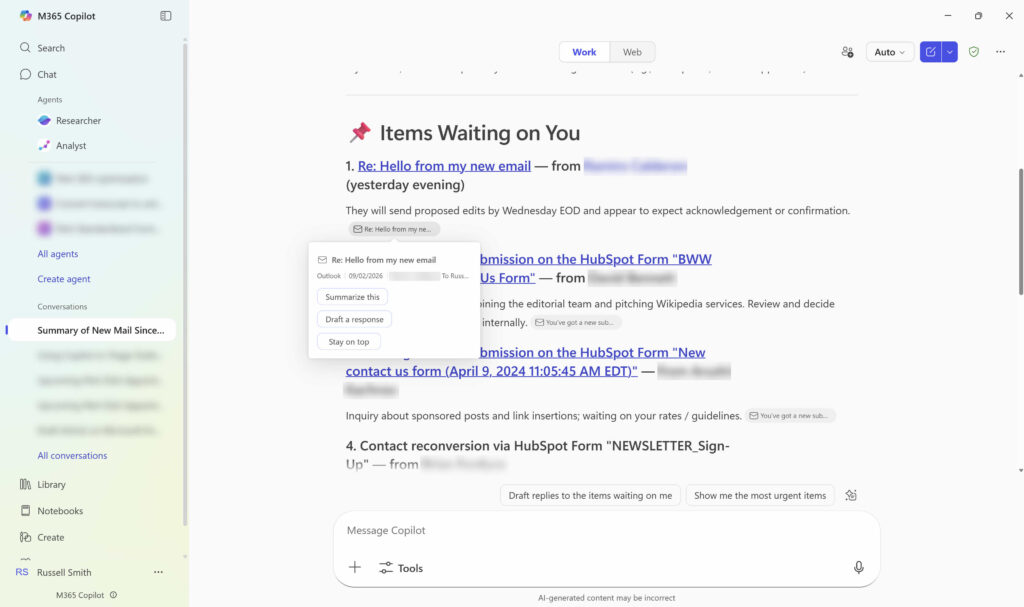
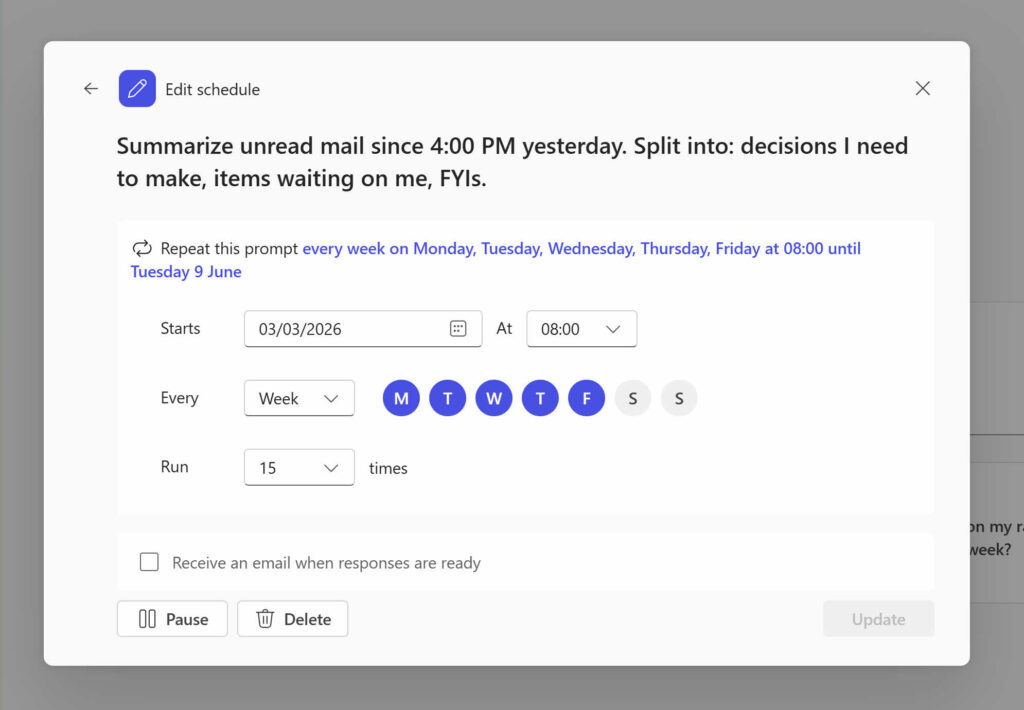
Here is the simple prompt I used in Microsoft 356 Copilot chat to triage my emails in Outlook:
Summarize unread mail since 4:00 PM yesterday. Split into: decisions I need to make, items waiting on me, FYIs.I then scheduled the prompt to run every day at 9am so that I can get straight to dealing with my email when I start work.
Where Copilot appears in Outlook
In the example above, I used the Microsoft 365 Copilot chat on the Office.com hompage. You can also use the Microsoft 365 Copilot app that’s available for Windows.
Copilot is also embedded directly into the Outlook experience rather than living in a separate tool. When you open an email, Copilot becomes available in the reading pane and through the Copilot side panel. It also appears when composing or replying to messages.
| Skill | What it can do | Where you see it in Outlook |
|---|---|---|
| Email drafting and rewriting | Drafts full emails from prompts, rewrites existing drafts, adjusts tone and length, and provides “coaching” feedback before sending. | Compose window (Draft with Copilot, Coaching by Copilot) in new Outlook (Windows), Outlook on the web, and new Outlook for Mac. |
| Email and thread summarization | Summarizes long email threads, extracts key points and action items, and helps users catch up on unread or complex conversations. | Reading pane / message header (Summarize) and Copilot panel in new Outlook and Outlook on the web. |
| Inbox triage and prioritization | Highlights important emails, surfaces likely follow‑ups, and helps users identify what needs attention across the inbox. | Copilot panel in Outlook, reasoning across the inbox rather than a single message. |
| Calendar and meeting assistance | Summarizes meetings, explains what meetings are about using invites and related emails, and helps pre‑populate scheduling details. | Calendar view and meeting items in new Outlook and Outlook on the web. |
| Cross‑context reasoning (email + calendar) | Reasons across the entire inbox, calendar, meetings, and related enterprise context instead of working on a single item in isolation. | Copilot Chat in Outlook (side panel / app surface) with expanded scope across Outlook data. |
This tight integration is what makes Copilot useful for real‑world email triage. You don’t need to switch views or copy content elsewhere to get help.
Summarizing emails and conversations
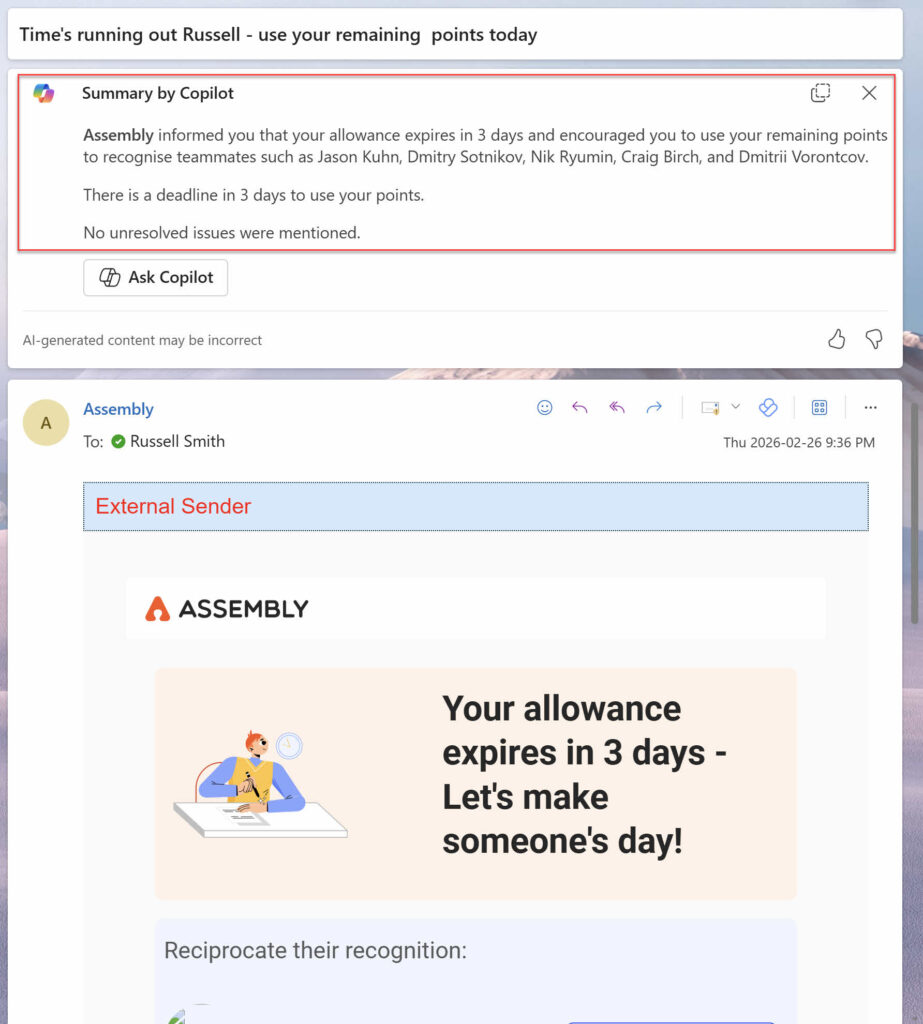
If you want to dig deeper into a particular email thread, you can make a thorough assessment of the conversation in Outlook is by using Copilot to summarize content. This is particularly useful for long threads where multiple people have replied over several days.
Copilot can generate a concise overview of the conversation, highlighting the main topic, key points, and recent developments. Instead of scrolling through every reply, you can scan the summary and decide whether the email requires your attention or can be safely ignored.
For users returning from vacation or catching up after meetings, this feature alone can save significant time.

Understanding what action is required
Beyond summarization, Copilot helps clarify intent. Many emails contain implied requests or buried action items that are easy to miss. Copilot can analyze the message and identify what, if anything, is being asked of you.
This is especially helpful when you are CC’d on emails or when responsibilities are unclear. By understanding whether you are expected to respond, approve, or simply stay informed, you can triage emails in Outlook with more confidence.
Drafting and improving responses
Once you’ve decided an email needs a reply, Copilot can assist with drafting it. Using the context of the original message and the conversation history, Copilot can generate a response that you can edit and send.
You can also ask Copilot to adjust tone, shorten a draft, or rewrite it for clarity. This makes responding to routine emails faster while still keeping you in control of the final message.

For email triage, this matters because it reduces the friction between deciding to respond and actually doing it.

Turning emails into next steps
Effective triage means moving work forward, not just replying. Copilot helps by identifying follow‑up actions within emails and suggesting next steps. This might include acknowledging a request, proposing a meeting, or outlining deliverables in a response.
While Outlook already supports flags and reminders, Copilot adds intelligence by understanding the content of the email rather than relying solely on manual tagging.
Best practices for using Copilot to triage emails in Outlook
Copilot works best when you treat it as a triage assistant rather than an autopilot. Use summaries to decide whether to engage, rely on Copilot to clarify intent, and review drafted replies before sending. Combined with Outlook’s existing tools, Copilot helps reduce cognitive load without removing human judgment.
Conclusion
Microsoft Copilot changes how professionals triage emails in Outlook by shifting the focus from reading to decision‑making. With built‑in summaries, action detection, and assisted replies, Copilot helps you process your inbox faster and with less effort.
As email volumes continue to grow, Copilot provides a practical way to stay responsive without letting your inbox control your day.

Russell Smith, the Editorial Director at Petri IT Knowledgebase, has over two decades of hands-on experience in IT, in both small business settings and government IT infrastructure projects. Russell started writing for Windows IT Pro Magazine in t...