Mastering Group Policy Preferences: Configuration and Best Practices
Explore the fundamentals of Group Policy Preferences, including their advantages over traditional Group Policy

This article explores the fundamentals of Group Policy Preferences, including their advantages over traditional Group Policy, common use cases, and step-by-step configuration guidance. It also addresses the ever-important security angle – we’ll provide additional guidance to ensure a safe and compliant deployment.
🎬 Watch This Week in IT.
What are Group Policy Preferences?
Group Policy Preferences (GPP) are a powerful tool for IT Pros managing devices in Microsoft Windows environments. They were introduced in Windows Server 2008 to offer better customizations and functionality not previously possible with Group Policy.
Group Policy Preferences (GPP) allow administrators to configure and deploy application settings and basic Windows settings that were previously unavailable using traditional Group Policy. Think of them as an extension of the most sought-after configuration settings for IT Pros to lay down a consistent device design related to Windows, without needing to deal with Registry settings.
Using the Group Policy Management Console (GPMC), you can edit the included preferences and develop a common end-user experience for all domain-joined Windows computers. You can make these changes on a domain controller (DC), or, more securely, a workstation (Windows 10/11) with the remote management features installed. I’ll show you soon.
Prerequisites and core components
The only prerequisites are either a workstation with the remote management feature—Group Policy Management—installed or a domain controller. Again, it is safest to use a workstation. You should rarely, if ever, log directly into a DC. In earlier operating systems, this was referred to as RSAT (Remote Server Administration Tools).
The core components are simple – Group Policy, which includes various configuration settings, client-side extensions, and XML-based configuration and template files.
Client-side extensions are components on Windows devices that process the settings coming from a domain controller (DC). They handle implementing the preference settings configured in GPOs.
For instance, the Drives.xml file handles mapping network drives. Environment.xml handles setting user and system environment variables. These extensions are typically stored in the C:\Windows\System32\GroupPolicy\Client\Extensions folder.
Here’s a table of the client-side extensions in Windows.
| Client Side Extension | Description |
| Group Policy Environment | Create, modify, or delete environment variables. |
| Group Policy Local Users and Groups | Create, modify, or delete local users and groups. |
| Group Policy Device Settings | Enable or disable hardware devices or classes of devices. |
| Group Policy Network Options | Create, modify, or delete virtual private networking (VPN) or dial-up networking (DUN) connections. |
| Group Policy Drive Maps | Create, modify, or delete mapped drives, and configure the visibility of all drives. |
| Group Policy Folders | Create, modify, or delete folders. |
| Group Policy Network Shares | Create, modify, or delete network shares |
| Group Policy Files | Copy, modify the attributes of, replace, or delete files. |
| Group Policy Data Sources | Create, modify, or delete Open Database Connectivity (ODBC) data source names. |
| Group Policy INI Files | Add, replace, or delete sections or properties in configuration settings (.ini) or setup information (.inf) files. |
| Group Policy Folder Options | Create, modify, or delete folders. |
| Group Policy Schedule Tasks | Create, modify, or delete scheduled or immediate tasks. |
| Group Policy Registry | Copy registry settings and apply them to other computers. Create, replace, or delete registry settings. |
| Group Policy Printers | Create, modify, or delete TCP/IP, shared, and local printer connections. |
| Group Policy Shortcuts | Create, modify, or delete shortcuts. |
| Group Policy Internet Settings | Modify user-configurable Internet settings |
| Group Policy Start Menu Settings | Modify Start menu options.(Not applicable for Windows 8 and Windows Server 2012) |
| Group Policy Regional Options | Modify regional options. |
| Group Policy Power Options | Modify power options and create, modify, or delete power schemes. |
| Group Policy Applications | Configure settings for applications. |
How to configure Group Policy Preferences
With the design and basics out of the way, let’s dig in and show you where you can make these changes. We’ll start in the Group Policy Management Console (GPMC). This tool is also referred to as the Group Policy Management Editor.
Using the Group Policy Management Console
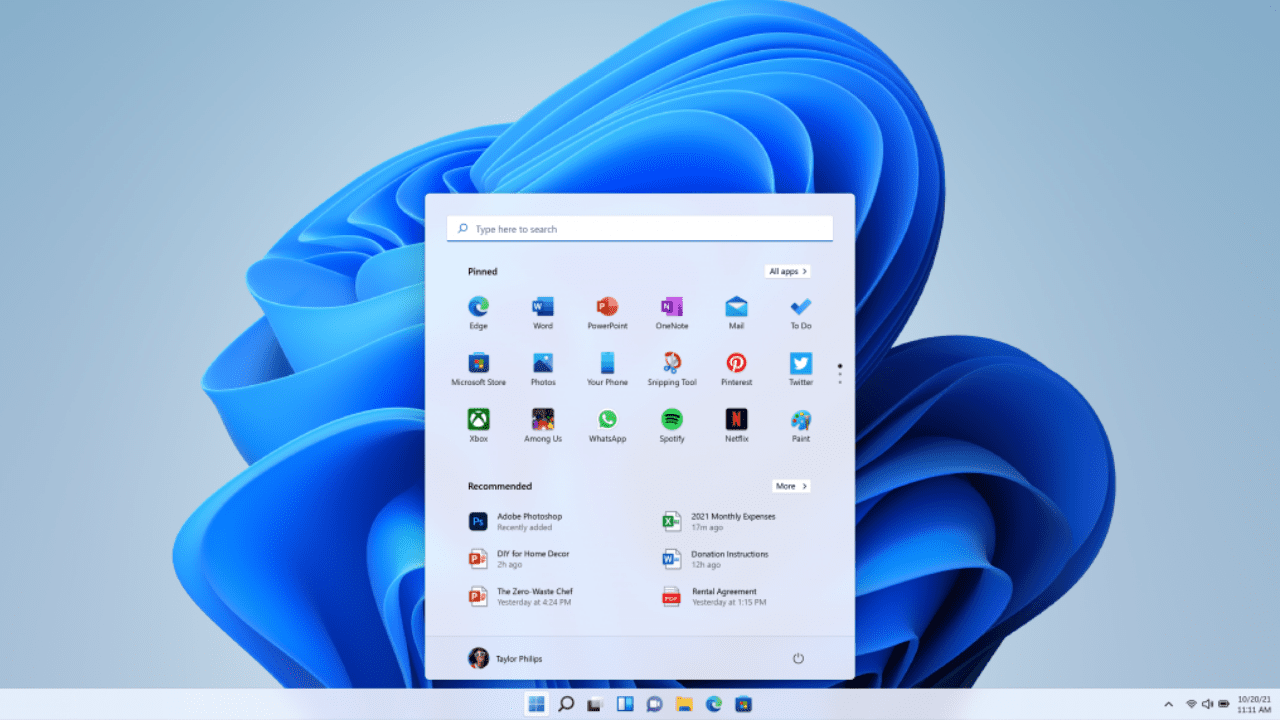
You can launch this from a Taskbar shortcut, the Start Menu (if you’ve pinned the app), or in the Windows Tools menu. Let me show you the latter.
- Click the Start button and type in ‘tools.’

- You should see the ‘Windows Tools’ system tool. Click on it.
- Next, double click to open the ‘Group Policy Management’ item.

From here, let’s open one of my existing GPOs and take a look.
- Go to ‘Group Policy Objects’
- Right-click on the ‘Start Menu Cleanup’ GPO and click Edit…

Under Computer Configuration and User Configuration, you’ll see the ‘Policies’ trees, which house all the traditional Group Policy settings. The ‘Preferences’ tree under each is the crux of this article. This is where we’ll find all the preferences to adjust.

You can see the various menus and settings.
- I clicked on Network Shares in the left pane, then right-clicked on empty space in the right pane.
- Creating a new ‘Network Share’ here will provide a quick and easy way to map a drive for all users without needing a Logon Script.
How about a quick way to get a common Shortcut to a company HR manual on all of your users’ Desktops? You can use the New Shortcut for that purpose.

What about getting a virtual private network (VPN) connection out to your user base? Use the Network Options menu item.

Common use cases and best practices
Let me go into greater detail here and demonstrate some methods to lay down a common set of settings for your users. Remember – every organization has its own needs, security and compliance rules, and IT Pros (and CIOs) desire for control of these settings. Your mileage may vary.
Where to begin with Group Policy Preferences
I’ve already shown you some common settings under the ‘Windows Settings’ tree. Let’s dive into the ‘Control Panel Settings’ tree and start with ‘Local Users and Groups.’

- I right-clicked on empty space and chose New Group…
- I then chose ‘Create’ from the Action: dropdown and entered a new Group Name
- And then added ‘REINDERS\breinders’ (Billy Reinders) to the group.
This will create a local group on all domain-joined Windows computers and add Billy Reinders’s account to it. This will offer the ability for Billy Reinders (based on what Active Directory permissions the account has) to remotely access devices for security purposes. Nice and easy.
- We can select Power Options on the left
- Then right-click on empty space and choose New -> Power Plan (At least Windows 7).

We can Update the built-in Balanced power plan, make it the active power plan (overriding a user’s preference for another plan), and modify any of the settings below. Maybe you want devices to Sleep after 15 minutes for a specific set of Windows computers for compliance reasons. Simple.
Could you imagine having to log into every one of your 57 Windows devices to add a Scheduled Task? Well, you don’t have to.
- Simply click on the Scheduled Task item on the left
- Then right-click on empty space and choose ‘Scheduled Task (At least Windows 7).

You can name your new task, give it a Description, choose what user will run the task, decide if it only runs when a user is logged on or not, and hide it, for example. You can then proceed to click on each of the tabs on the top to make additional changes. Within an hour or so, you’ll have a new Scheduled Task deployed to all your devices. Efficiency and power.
Best practices for deployment
To avoid the pitfalls of deploying these preferences without structure or design, you can incorporate some of my advice on best practices for deploying these in your environment.
Remember – each new preference you create (or update) is tied only to users and/or computers the corresponding GPO is linked to—test, test, test above all else.
Here are some high-level recommendations for you and your IT team.
Leverage Item-Level Targeting (ILT)
Item-Level Targeting (ILT) is a powerful feature that allows admins to conditionally apply settings based on criteria like operating system version, IP address/ranges, and hardware properties, to name a few. Some examples:
- Set a registry key only for users in the Marketing group.
- Map a network drive only when connected to the corporate network (a specific IP range on the LAN).
As I mentioned above, test. Target specific users/computers to apply preferences only to relevant targets. Example – deploy the Sales Printer to only the Salespeople.
Avoid overcomplication
In case you have slower devices in the mix, start slow to avoid client-side processing delays with a lot of these settings.
Separate GPOs for preferences – instead of adding these to existing GPOs, create GPOs solely for Group Policy Preferences. This will make troubleshooting and auditing these preferences much easier and streamlined.
Test Before Deployment
I can’t stress this enough – roll each preference out to a test device or test group before rolling out to the organization. And monitor client Application and GroupPolicy event logs for errors.
Here’s a table of all the Item-Level Targeting (ILT) items from the referenced Microsoft documentation page:
| Targeting Item | Description |
|---|---|
| Computer Name | Targets based on the computer’s name. |
| CPU Speed | Targets based on the processor speed (MHz or GHz). |
| Date Match | Targets based on a specific date or date range. |
| Dial-Up Connection | Targets based on whether a dial-up connection is present. |
| Disk Space | Targets based on available disk space. |
| Domain | Targets based on whether the computer is a member of a specified domain. |
| Environment Variable | Targets based on the value of an environment variable. |
| File Match | Targets based on the presence, version, or timestamp of a file. |
| IP Address Range | Targets based on whether the computer’s IP address falls within a specified range. |
| Language | Targets based on the operating system’s language. |
| LDAP Query | Targets based on the results of an LDAP query. |
| MAC Address Range | Targets based on the computer’s MAC address. |
| MSI Query | Targets based on Windows Installer (MSI) product information. |
| Network Connection | Targets based on network connection speed (e.g., slow or fast link). |
| Operating System | Targets based on OS version, edition, or architecture (32-bit/64-bit). |
| Organizational Unit | Targets based on the computer or user’s OU in Active Directory. |
| PC Manufacturer | Targets based on the computer manufacturer (OEM). |
| PCMCIA Present | Targets based on whether a PCMCIA (PC Card) device is present. |
| Portable Computer | Targets based on whether the computer is a laptop. |
| Processing Mode | Targets based on whether the system is running in “terminal services” mode. |
| RAM | Targets based on the amount of installed RAM (in MB or GB). |
| Registry Match | Targets based on the existence or value of a registry key. |
| Security Group | Targets based on whether the user or computer is a member of a specified security group. |
| Site | Targets based on the Active Directory site. |
| Terminal Session | Targets based on whether the session is local or remote (Terminal Services/RDS). |
| Time Range | Targets based on a specific time or time range. |
| User | Targets based on the user’s name or SAM account name. |
| WMI Query | Targets based on the results of a WMI query. |
Conclusion
Thank you for reading my post on Mastering Group Policy Preferences. It is often overlooked and skipped over when designing or modifying GPOs. There may very well be a nice feature to assist you and your IT Pros with streamlining your Windows devices in your organization.
Please leave a comment or question below so I can engage more directly. Thank you.
Frequently Asked Questions (FAQ)
What are preferences in Group Policy?
Group Policy Preferences (GPP) are a feature of Group Policy that allows administrators to configure and deploy settings in a more flexible and non-enforced manner. Unlike traditional Group Policy settings, preferences do not enforce configurations permanently—they can be changed by the end user. Preferences are ideal for setting default values like mapped network drives, printers, registry settings, or scheduled tasks that users can later modify if needed.
How do I edit Group Policy Preferences?
To edit Group Policy Preferences:
- Open the Group Policy Management Console (GPMC): Press
Win + R, typegpmc.msc, and press Enter. - Navigate to the desired Group Policy Object (GPO): Locate the GPO linked to the appropriate Organizational Unit (OU), domain, or site.
- Edit the GPO: Right-click the GPO and select Edit.
- Expand the Preferences node:
- For User Configuration: Go to
User Configuration > Preferences. - For Computer Configuration: Go to
Computer Configuration > Preferences.
- For User Configuration: Go to
- Select the appropriate category (e.g., Windows Settings > Drive Maps) and add or edit the preference item.
Changes take effect during the next Group Policy refresh or system restart, unless triggered manually via gpupdate /force.
What is the difference between GPO and GPP?
- GPO (Group Policy Object): Contains enforced policy settings—once applied, users cannot change them. Examples include password policies, software restrictions, and Windows update settings.
- GPP (Group Policy Preferences): Offers configurable options that are applied as defaults but not enforced. Users can change these settings post-deployment without GPP resetting them.
In essence, GPOs enforce, while GPPs suggest.
What is the difference between a policy and a preference?
- A policy is a mandatory setting that controls the behavior of the operating system or applications. Users cannot override it once it’s applied.
- A preference sets a configurable default that users can change if they wish.
Example: A mapped drive created via a policy cannot be removed by the user, while one set by a preference can be disconnected or modified.

Michael has been an IT Pro since 1998. He has worked predominantly in the Windows world including client and server operating systems, on-prem systems engineering (AD, DNS, etc.), and over the last ten years or so has embraced and immersed himself in...