Microsoft Exchange Online: A Guide to Features, Limits, & Differences from Exchange Server
An overview of Exchange Online features, service limits, and differences from Exchange Server.

Microsoft Exchange Online is a cloud-based messaging platform that provides enterprise-grade email, calendaring, and collaboration tools as part of the Microsoft 365 suite. This article explores its key features, service limits, differences from on-premises Exchange (2016/2019), and an overview of what’s involved in migrating from an on-premises environment.
What is Microsoft Exchange Online?
Microsoft Exchange Online is a cloud-based messaging platform that delivers email, calendar, contacts, and AI-integrated features. The primary application used to access it is Microsoft Outlook. There are several versions across Windows and macOS:
- Outlook (classic) legacy application
- A newer web-based app – New Outlook
- A web version called Outlook on the Web
- The mobile version – Outlook Mobile
When you sign up for Microsoft 365 Business or other enterprise-level Microsoft 365 subscriptions, Exchange Online is included. There are standalone plans available, too.
One of the biggest reasons for using Exchange Online versus an on-premises Microsoft Exchange Server 2016/2019 environment is the fact that it’s a cloud-based solution – as a Software as a Service (SaaS) product, Microsoft takes care of all the physical infrastructure (hardware) and the Exchange ‘code’ (software) so you don’t have to. I’ll discuss this more later.
Key features
Exchange Online includes many features to enhance your users’ productivity while in the office, working from home, or on the go. Because of the interconnectedness in the Microsoft 365 ecosystem, using Exchange Online allows you to access similar ‘side’ services intuitively, including OneDrive, SharePoint, Microsoft Teams, and even aspects of Microsoft Office.
Here’s a helpful table provided by Microsoft to show its value.
| Service | Feature |
|---|---|
| Anti-spam and anti-malware protection (via direct access to the Exchange admin center management interface) | Built-in anti-spam and anti-malware protection (uses multiple anti-malware engines to scan inbound, outbound, and internal messages for malware) Customized anti-spam and anti-malware policies Quarantine – administrator management, and quarantine – end-user self-management |
| Exchange Online setup and administration | Microsoft 365 portal and admin center access, Exchange admin center access, Remote Windows PowerShell access ActiveSync policies for mobile devices Usage reporting |
| High availability and business continuity | Mailbox replication at datacenters Single item recovery (not available for F3 and Kiosk plans) Deleted mailbox and deleted item recovery |
| Interoperability, connectivity, and compatibility | Skype for Business presence in OWA and Outlook SharePoint interoperability EWS connectivity support (EWS app support applied to impersonation), SMTP relay support |
| Mail flow | Custom routing of outbound mail Secure messaging with a trusted partner, Adding a partner to an inbound safe list Conditional mail and hybrid email routing (CALs or upgrade to an Enterprise SKU provide the access rights) |
| Planning and deployment | Hybrid deployment supported (CALs or upgrade to an Enterprise SKU provide access rights for business and F3 plans), IMAP, cutover, and staged migration supported |
| Reporting features and troubleshooting tools | Microsoft 365 admin center reports Excel reporting workbook, Web Services reports, Unified Messaging reports (E3/E5 and plan 2 only) Message trace and auditing reports are accessible via direct access to the Exchange admin center (EAC) management interface |
| Recipients | Capacity alerts, Clutter, MailTips Inbox rules, Resource mailboxes, Out-of-office replies Offline address book, Address book policies Distribution Groups, External contacts (global), Universal contact card, Contact linking with social networks Conference room management, Calendar sharing (Kiosk calendars can only be accessed or shared through OWA) |
| Sharing and collaboration | Federated sharing (including calendar publishing) Site mailboxes (SharePoint Online must be included and deployed) Public folders (not available for F3 and Kiosk plans) |
| Voice message services | Skype for Business integration Third-party voice mail interoperability (only E3/E5 and Plan 2 provide voicemail and third-party voicemail/fax integration — For third-party PBX systems via direct connections, see Discontinuation of support for Session Border Controllers in Exchange Online Unified Messaging |
Exchange Online isn’t designed for sending large amounts of internal or external emails. If you are looking for that capability, check out Exchange Online High Volume Email (HVE) and Azure Email Communication Services (ECS) respectively.
Benefits
Let me go through some of the wonderful benefits of the service.
- High Reliability – With a 99.9% uptime (financially-backed) guarantee, your communications stay stable and available almost always. Microsoft’s global infrastructure includes dozens of geographic regions consisting of hundreds of data centers to achieve this dependable status. In my many years of using Exchange Online, true outages are extremely rare, especially when looking at a ‘24x7x365’ service.
- Anywhere Access – You can access your email, calendar, contacts, and tasks from almost any device, at any time. Using the Outlook app on your desktop or laptop, the web-based version on any device, and Outlook Mobile on your mobile device, you’re always available to send out that important email.
- Scalability and Flexibility – You can easily scale your email environment as your organization grows in size. You don’t need to worry about spending additional capital on new servers, new network switches, new storage, etc. You simply purchase more licenses for your Microsoft 365 plan(s).
- Advanced Security – With built-in DLP (data loss prevention), anti-malware protection, anti-spam filtering, and encryption, many checkboxes are checked off, making your Security and Compliance teams happy. Knowing your users’ Inboxes are protected from threats before they even reach them helps ease your Cybersecurity concerns.
- Simplified Management – The Exchange admin center offers a user-friendly portal for managing your users, groups, resources (Conference Rooms, etc.), mail flow, policies, and other settings. When automation and scripting are preferred, you can use the Exchange Online (remote) PowerShell module to make bulk changes and get quick pieces of information. This is especially useful when troubleshooting support tickets from your users.

Exchange Online Service Limits
With any cloud solution, there needs to be limits. Microsoft needs to set limits on how large your mailboxes are, how much email you can send in a given timeframe, and how many recipients can be included on a single email. This only scratches the surface of all the limits with Exchange Online. I will do my best to explain the most prevalent limits and how they should impact your overall design and understanding of what your company can do with the service.
Mailbox storage limits
Here’s another table to show you the high-level overview of mailbox storage limits in Exchange Online.
| Mailbox Type | Default Storage Limit | With Archiving Enabled |
|---|---|---|
| User Mailbox (Exchange Online Plan 1) | 50 GB | 50 GB + Unlimited Archive |
| User Mailbox (Plan 2) | 100 GB | 100 GB + Unlimited Archive |
| Shared Mailbox | 50 GB (unlicensed) | 50 GB + Unlimited Archive (with license) |
| Shared Mailbox (licensed) | 100 GB | 100 GB + Unlimited Archive |
You’ll need to keep this in mind when servicing your users.
Email message size and delivery Limits
The next section deals with how large your emails can be, sending, and receiving. The following table also includes limits on how many emails each user can send during specific periods.
| Limit Type | Value |
|---|---|
| Maximum message size | 150 MB |
| Maximum send size (default) | 35 MB |
| Maximum receive size (default) | 36 MB |
| Recipients per message | 500 |
| Daily recipient limit | 10,000 recipients/day |
| Messages sent per minute | 30 |
| Messages sent per day | 10,000 |
Throttling concerns
Microsoft applies throttling in Exchange Online to maintain service health and prevent abuse. I’ve already included some of these ‘limits’ above. In effect, these limits are how Microsoft throttles the service, in a general sense. These throttling mechanisms are dynamic and can vary based on usage patterns, licensing, and administrative configurations.
You need to be especially cognizant of throttling when planning migrations. If you start moving emails from another tenant or service into your Exchange Online mailboxes, the bandwidth will start to be throttled by Microsoft. However, there are steps you can take to request a temporary hold on throttling during your migrations. You can learn more from Microsoft here.
How is Exchange Online different from Exchange Server 2016 and 2019?
A good deal of the information I’ve already presented touches on aspects of the differences between Exchange Online and on-premises Exchange. But let me succinctly present the core differences here.
Architecture
The actual architecture behind Exchange Online and on-premises Exchange is the same – Exchange Server software (code/bits) runs on physical or virtual servers in a data center. The difference comes in when stating where said servers are running. With Exchange Online (EXO), Microsoft runs both in its data centers. With on-premises Exchange, you run those servers in your data centers.
Here’s a table that explains the vital differences between the two solutions.
| Aspect | Exchange Online | Exchange On-Premises |
|---|---|---|
| Deployment | Fully cloud-based, hosted in Microsoft’s global data centers | Installed and maintained on physical or virtual servers within your environment |
| Infrastructure Ownership | Managed entirely by Microsoft | Owned and operated by your organization |
| Scalability | Elastic and automatic—resources scale based on demand | Manual scaling requires hardware procurement and configuration |
| Server Roles | Abstracted from the user—Microsoft manages all backend roles | Admins manage Mailbox and Edge Transport roles directly |
| Updates & Maintenance | Handled by Microsoft with continuous updates and patches | Requires manual patching, upgrades, and monitoring |
| High Availability | Built-in with geo-redundancy and automatic failover across data centers | Must be designed and implemented manually (e.g., DAGs, load balancers) |
Licensing
When it comes to licensing, the comparisons between EXO and on-premises Exchange are substantial and reflect the distinct delivery methods of the ‘Exchange’ service. Let’s use another table.
| Aspect | Exchange Online | Exchange On-Premises |
|---|---|---|
| License Model | Subscription-based (monthly/annual per-user) | Perpetual server license + Client Access Licenses (CALs) |
| Included Services | Email, calendar, anti-malware, anti-spam, archiving (varies by plan) | Core Exchange functionality; extras like archiving may require add-ons |
| Upgrades & Updates | Included in subscription; automatic and continuous | Manual upgrades required; new versions may require new licenses |
| Cost Predictability | Predictable OPEX (operational expense) | Higher upfront CAPEX (capital expense) + ongoing maintenance costs |
| License Management | Managed via Microsoft 365 Admin Center | Managed through on-premises tools and Volume Licensing Service Center |
| Flexibility | Easy to scale up/down by adding/removing users | Scaling requires hardware and license planning |
Pricing
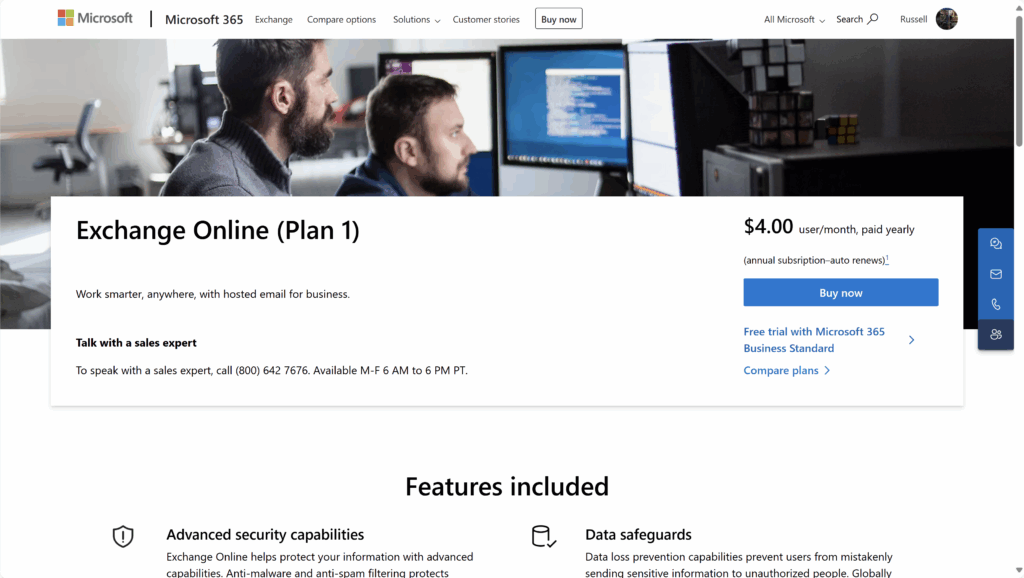
Here’s a table breaking down prices for U.S. customers. All prices are based on purchasing an annual subscription.
| Plan Name | Price (USD/user/month) | Mailbox Size | Key Features |
|---|---|---|---|
| Exchange Online Plan 1 | $4.00 | 50 GB | Outlook on the web, Focused Inbox, In-Place Archive |
| Exchange Online Plan 2 | $8.00 | 100 GB | All Plan 1 features + Data Loss Prevention (DLP), Cloud Voicemail |
| Microsoft 365 Business Basic | $6.00 | 50 GB (Exchange) | Includes Exchange Online Plan 1 + Teams, OneDrive, SharePoint |
| Microsoft 365 Business Standard | $12.50 | 50 GB (Exchange) | Includes Exchange Online Plan 1 + Desktop Office apps, Teams, OneDrive, etc. |
| Microsoft 365 Business Premium | $22.00 | 50 GB (Exchange) | Includes Business Standard + Advanced security and device management |
Features
The feature set between the two is, again, similar, if nearly identical. However, how your users utilize them will vary, sometimes substantially. Please review this table for a good comparison between them.
| Feature Category | Exchange Online | Exchange On-Premises |
|---|---|---|
| Access & Mobility | Web-based access via Outlook on the web, mobile apps, and seamless sync across devices | Requires VPN or direct access; mobile access must be configured manually |
| Storage & Archiving | Built-in archiving with auto-expanding storage (unlimited with license) | Archiving must be configured and storage provisioned manually |
| Security & Compliance | Microsoft Defender for Office 365 integration, DLP, eDiscovery, and compliance center | Requires separate tools or manual setup for equivalent capabilities |
| Collaboration Tools | Native integration with Microsoft 365 apps (Teams, OneDrive, SharePoint) | Limited integration; requires additional configuration or services |
| AI & Automation | Features like Focused Inbox, suggested replies, and intelligent search | Not available or requires third-party tools |
| Feature Updates | Continuous feature rollout and innovation | Updates tied to major release cycles; manual upgrades required |
| Voice & Voicemail | Cloud voicemail and integration with Microsoft Teams Calling | Requires on-premises Unified Messaging setup or third-party PBX |
Management
The amount of management required from on-premises Exchange is huge. You need to maintain the servers (physical or virtual), network, and storage utilized by Exchange. You are also required to dedicate time, tools, and expertise to managing the Exchange ‘software’ aspect. Upgrading your servers, patching Windows and Exchange every month…all of this is alleviated by using Exchange Online – Microsoft handles it.
Exchange Online offers streamlined, native management with less overhead, while on-premises Exchange provides more granular control. Let’s use this table to go into greater detail.
| Management Aspect | Exchange Online | Exchange On-Premises |
|---|---|---|
| Admin Tools | Managed via the Microsoft 365 Admin Center, Exchange Admin Center (EAC), and PowerShell (EXO module) | Managed through on-prem EAC, Exchange Management Shell, and System Center |
| Infrastructure Management | Microsoft handles all backend infrastructure, updates, and patching | Admins are responsible for server maintenance, patching, and backups |
| Monitoring & Alerts | Built-in service health dashboard and alerts via Microsoft 365 | Requires third-party tools or custom monitoring solutions |
| Automation & Scripting | PowerShell with modern EXO cmdlets; supports REST-based APIs | PowerShell with legacy cmdlets; limited API support |
| User Provisioning | Integrated with Azure AD; supports dynamic groups and automated provisioning | Manual or scripted provisioning; integration with on-prem AD |
| Hybrid Management | Centralized hybrid management tools available | Requires configuration of hybrid servers and connectors |
Updates and maintenance
I’ve mentioned this topic area quite a few times already. Let me use one more table to give you a concise and pertinent view of the dramatic reduction in updates and maintenance required with Exchange Online.
| Aspect | Exchange Online | Exchange On-Premises |
|---|---|---|
| Update Responsibility | Microsoft handles all updates, patches, and upgrades automatically | Admins must manually plan, test, and deploy updates and service packs |
| Frequency of Updates | Continuous updates with new features and security improvements | Periodic updates tied to release cycles; major upgrades require planning |
| Downtime Management | Updates are applied with minimal or no user-visible downtime | Updates may require scheduled downtime and user communication |
| Security Patching | Automatically applied by Microsoft across the service | Must be monitored and applied manually to avoid vulnerabilities |
| Maintenance Overhead | Minimal—Microsoft ensures service health and availability | High—requires monitoring, backups, hardware maintenance, and failover |
| Versioning | Always on the latest version; no need to track versions | Organizations must track and manage Exchange versions and compatibility |
Should I migrate to Exchange Online?
That depends on many things – migrating to Exchange Online is a strategic decision that depends on your organization’s size, financial picture, and technical maturity. While the cloud offers compelling advantages, the migration path requires thoughtful planning. If you’re a small company with a few on-premises servers and 30 users, could on-premises Exchange be satisfactory?
Below are key considerations I feel would best help guide your decision.
Common scenarios
Organizations often consider migrating to Exchange Online under the following circumstances:
- Aging Infrastructure: On-premises Exchange servers nearing end-of-life or requiring costly upgrades. You may also have a limited IT staff, not enough expertise to handle managing a complex messaging environment footprint.
- Remote and hybrid workforces: Need for secure, anywhere access to email and calendar tools.
- Security and compliance demands: Desire for robust encryption and regulatory compliance features.
- Cost Optimization: Reducing upfront costs on hardware/software and shifting to predictable subscription models. Going from CapEx (capital expenditures) to OpEx (operational expenditures).
- Mergers and acquisitions: Consolidating disparate email systems into a unified cloud platform.
- Digital Transformation: Microsoft continues this mantra, hard; moving toward a modern workplace, with Exchange Online, guarantees minimal effort to continue your productivity with the latest features from the Microsoft 365 ecosystem.
Exchange Online prerequisites
Before migrating, organizations should ensure the following prerequisites are met:
- Directory synchronization: Set up Azure AD Connect if you intend to maintain a hybrid scenario. Users and groups will be synced from your on-premises Active Directory (AD) to Entra ID (Azure AD), and eventually Exchange Online.
- Domain verification: Verify ownership of email domains in Microsoft 365.
- Licensing: Procure appropriate Exchange Online or Microsoft 365 licenses.
- Mailbox assessment: Inventory mailbox sizes, permissions, and legacy features (e.g., public folders).
- Security planning: Review authentication methods (MFA, conditional access) and compliance needs.
Best practices and challenges
There are far too many best practices to include in this article. On the flip side, there are innumerable challenges you’ll face when contemplating your move to Exchange Online. Let me go over the best, and the worst…
With regard to best practices, this is where I would focus.
Environment assessment
Inventory and document your existing users, mailboxes (sizes), distribution groups, mail-enabled security groups, and legacy applications. In addition, document your existing Exchange policies, transport rules, and third-party integrations.
Communication
Keep your users informed every step of the way. You don’t need to ‘SPAM’ them with minute details, but as long as they know what’s going to happen and when it’s going to happen, you’re more assured of a happy fanbase.
Identity and infrastructure readiness
Verify your Azure AD Connect or Entra ID Connect / Cloud sync configurations and software versions are up-to-date. Plan your MFA needs, Conditional Access policy needs/updates, and other modern authentication/security concerns.
Don’t forget throttling – you’ll want to make sure an IT Pro has access to open a support ticket to temporarily remove throttling in your Microsoft 365 / Entra ID tenant.
Post-migration cleanup
Make sure you decommission your on-premises Exchange server environment…carefully! This will need to be done only after you have verified things like mail flow, calendar sharing, and all aspects of mailbox and shared mailbox access.
Challenges
A undertaking like this would not be complete if I didn’t include common challenges you’ll face along your journey. Let me conclude my article with challenges and quick tips and tricks you can use.
- DNS record issues – Before you start, verify you have an IT Pro or admin with appropriate permissions to make changes to DNS records for your email domain(s).
- Throttling and Performance – As I’ve stated, throttling will slow migration data flow to a crawl. You can open a ticket with MS to turn this off in the short term.
- Data Complexities – Email items, calendar items, tasks, Notes, and other things in mailboxes can sometimes be corrupted and not migrate completely. Using native migration tools and performing post-migration comparison reports can ease these tribulations.
- Legacy feature gaps – There are some features in Exchange 2016/2019, as described above, that are not supported or used in Exchange Online. Again, document everything in your existing Exchange before proceeding.
- Identity and authentication access issues – User login issues will likely be your most frequent issue to overcome. If you’re moving from AD to Entra ID, there is a lot to keep in mind. Make sure your Azure Connect / Entra ID Connect sync server(s) are running smoothly, and without errors.
- User disruptions – You will run into users that can’t open Outlook, or get an error when trying to open a shared mailbox they previously had access to, among others. Providing robust and thorough communications is key here!
Thank you for reading my post on Exchange Online. I welcome any ideas, questions, or concerns about the post. Leave a comment below.

Michael has been an IT Pro since 1998. He has worked predominantly in the Windows world including client and server operating systems, on-prem systems engineering (AD, DNS, etc.), and over the last ten years or so has embraced and immersed himself in...