- Blog
- Networking
- Post
A Practical Guide to Common Ports in Networking
Learn about common network ports and their associated protocols and practical applications.

This blog post offers an overview of common ports in modern networks. Whether you’re an IT Pro, a systems administrator, a cybersecurity analyst, or a curious tech enthusiast, understanding these ports is essential for troubleshooting, securing, and optimizing network traffic.
I’ll explore key ports, their associated protocols, and practical (application) use cases across web services, email, remote access, and more.
What are network ports?
In the simplest terms, network ports are virtual, logical endpoints that handle network connections (traffic) on a device. There are many analogies – if you can envision a shipping dock with numbers assigned to each dock, only specific types of ships (network service or app) can land at each dock.
When you browse a website, stream a video, or send an email, your computer isn’t blindly sending raw network data to the Internet. It’s sending it to a specific IP address (a DNS entry – microsoft.com), and on a specific network port (443 for secure web browsing). This combination is called a socket.
TCP and UDP – What’s the difference?
There are two protocols used in network transfer – Transmission Control Protocol (TCP) and User Datagram Protocol (UDP). While both are used to send data over a network, they operate in fundamentally different ways. Each is suitable for specific types of network applications.
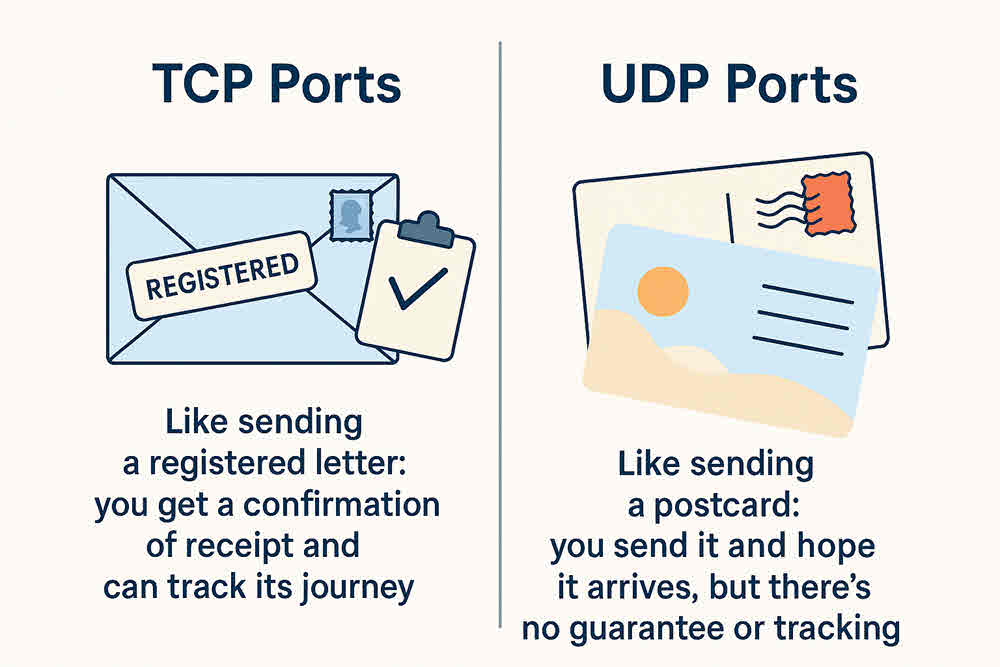
Here’s a table to help you understand the core differences between the two.
| Feature | Transmission Control Protocol (TCP) | User Datagram Protocol (UDP) |
| Connection | Connection-oriented: Establishes a connection (three-way handshake) before data transfer. | Connectionless: Sends data without establishing a connection. |
| Reliability | Reliable: Guarantees delivery of data, retransmits lost network packets, and ensures data arrives in order. | Unreliable: Does not guarantee delivery, order, or duplication. Packets may be lost or arrive out of sequence. |
| Order | Ordered: Ensures data packets arrive in the correct sequence. | Unordered: Packets may arrive out of order. |
| Error Checking | Extensive error checking, flow control, and congestion control mechanisms. | Minimal error checking (checksum only). Does not include flow or congestion control. |
| Speed | Slower: Overhead due to connection establishment, acknowledgments, and retransmissions. | Faster: Less overhead as it doesn’t bother with acknowledgments or retransmissions. |
| Overhead | Higher overhead (larger header size, more processing). | Lower overhead (smaller header size, less processing). |
| Use Cases | Web browsing (HTTP/HTTPS), email (SMTP, IMAP, POP3), file transfer (FTP, SFTP), secure shell (SSH), database connections. | Online gaming, video streaming, Voice over IP (VoIP), DNS lookups, live broadcasts. |
| Analogy | Like sending a registered letter: you get a confirmation of receipt and can track its journey. | Like sending a postcard: you send it and hope it arrives, but there’s no guarantee or tracking. |
Common port ranges
Network port numbers go from 0 to 65535 (2 ^ 16th power). They’re categorized into three main ranges:
- Well-known/System ports (0-1023)
- Registered Ports (1024-49151)
- Dynamic/Private Ports (49152-65535)
Well-known and system ports (0-1023)
These are reserved for common, widely used apps and services. Web browsing (80,443), sending email (SMTP-25), and FTP (21), etc. I’m oversimplifying examples here; I’ll get into more detail shortly.
Registered ports (1024-49151)
These are less common ports, but still used by applications that require precision with these port numbers. For instance, when you ‘Remote Desktop’ (RDP) to another computer/server, you’re (typically) using port 3389.
Dynamic private ports (49152-65535)
These are used solely for temporary or short-lived connections and are essentially a ‘free-for-all.’ There are no defined parameters for which apps can use which ports. These port connections typically last a few seconds to a few minutes. They can exist longer, but, due to their dynamic nature, they’re often very quick.
Common TCP ports and use cases
Here’s a table showing the most common TCP ports and their use cases/applications:
| Port Number | Protocol/Service | Use Case |
| 20 | FTP (Data) | Used for the actual data transfer in an active File Transfer Protocol (FTP) connection. |
| 21 | FTP (Control) | Used for establishing and controlling FTP connections (commands, authentication). |
| 22 | SSH | Secure Shell, used for secure remote administration, file transfers (SFTP/SCP), and port forwarding. |
| 23 | Telnet | Provides an unencrypted command-line interface for remote access. (Generally considered insecure due to lack of encryption). |
| 25 | SMTP | Simple Mail Transfer Protocol, used for sending outgoing email between mail servers. |
| 53 | DNS | Domain Name System, used to translate human-readable domain names (e.g., https://www.google.com/search?q=google.com) into IP addresses. (Uses both TCP and UDP). |
| 80 | HTTP | Hypertext Transfer Protocol, used for unencrypted web traffic (Browse websites). |
| 110 | POP3 | Post Office Protocol version 3, used by email clients to retrieve emails from a mail server. |
| 143 | IMAP | Internet Message Access Protocol, used for managing and retrieving emails from a mail server, allowing users to keep emails on the server. |
| 443 | HTTPS | Hypertext Transfer Protocol Secure, used for secure, encrypted web traffic via SSL/TLS (e.g., online banking, e-commerce). |
| 445 | SMB | Server Message Block, primarily used for file sharing, printer sharing, and remote procedure calls in Windows networks. |
| 3306 | MySQL | Default port for the MySQL database system. |
| 3389 | RDP | Remote Desktop Protocol, used for securely accessing and controlling Windows desktops and servers remotely. |
Common UDP ports and use cases
Here’s another table showing the most common UDP ports and their use cases.
| Port Number | Protocol/Service | Use Case |
| 53 | DNS | Domain Name System, primarily used for quick, connectionless queries to resolve domain names to IP addresses. (Also uses TCP for zone transfers and larger responses). |
| 67 | DHCP (Server) | Dynamic Host Configuration Protocol, used by DHCP servers to assign IP addresses and other network configuration parameters to client devices. |
| 68 | DHCP (Client) | Dynamic Host Configuration Protocol, used by client devices to request IP addresses and other network configuration from a DHCP server. |
| 69 | TFTP | Trivial File Transfer Protocol, a very simple file transfer protocol often used for booting diskless workstations, transferring configuration files to network devices. |
| 123 | NTP | Network Time Protocol, used for synchronizing computer clocks over a network. |
| 161 | SNMP | Simple Network Management Protocol, used for monitoring and managing network devices (routers, switches, servers). |
| 162 | SNMP Traps | Used by SNMP agents to send asynchronous “traps” or notifications to a network management station when specific events occur. |
| 500 | IKE | Internet Key Exchange, a crucial component of IPsec for establishing security associations (SAs) for VPNs. |
| 514 | Syslog | Used for sending system log messages from devices to a central logging server. |
| 3478 | STUN/TURN/ICE | Often used by protocols like STUN, TURN, and ICE for establishing peer-to-peer connections in VoIP and video conferencing, especially when dealing with NAT. |
| 4500 | IPsec NAT Traversal | Used for IPsec connections when Network Address Translation (NAT) is involved, allowing secure VPN traffic to pass through NAT devices. |
| 5060 | SIP | Session Initiation Protocol, commonly used for initiating, maintaining, and terminating real-time multimedia sessions, such as VoIP calls. |
Daily usage of common ports
Let’s look at some common ports and how they are used in practice.
Check out our guide to network monitoring tools on Petri.com
Email, web browsing, file transfer
SMTP, HTTP/S, and FTP. These are the protocols for sending email, browsing the web, and sending files via FTP. When you send an email, your email application (or email service, like Exchange Online), sends via secure email, or secure SMTP (I sure hope so). Instead of using port 25 (insecure, plain-text), Secure SMTP typically uses port 587.
Explaining HTTP, HTTPS, SMTP, FTP, etc.
Traditionally, when you browsed a website, you used HTTP (HyperText Transport Protocol) on port 80. As security has steadily become more important, browsing is almost 100% accomplished with HTTPS, on port 443.
The ‘S’ stands for ‘Secure’. All network data transferred between your device and the web server is encrypted during transmission. This started with government, financial, and security websites and has become pervasive for all types of website.
SMTP stands for Secure Mail Transfer Protocol. Port 25 is used for sending email, and port 587 is typically used for sending email securely.
FTP – File Transmission Protocol. Port 21. This protocol was there at the very beginning of the Internet. Incidentally, SFTP or Secure FTP is commonly used with port 22.
Why is ‘S’ so important (Security)?
I’ve touched on this, but it bears repeating. As often as possible, you’ll want to incorporate the ‘S’ in all your network communication designs. Using HTTPS instead of HTTP ensures no eavesdroppers can see your browsing. Microsoft Edge, for example, has a default feature to change all HTTP website connections to HTTPS. Double-check that this is enabled for you.
5 Network security best practices
When it comes to network ports, securing them is crucial since open or misconfigured ports can be gateways for attackers. Here are the top 5 best practices specifically focused on port-related security:
1. Close unused ports
- Disable any ports that aren’t actively needed for business operations.
- Reduces the attack surface and prevents unauthorized access.
- Use port scanning tools (like Nmap) to identify open ports.
2. Use firewalls to control port access
- Configure firewalls to allow only necessary traffic through specific ports.
- Block all inbound and outbound traffic by default, then whitelist as needed.
- Monitor firewall logs for suspicious port activity.
3. Implement port-based access control
- Use technologies like 802.1X to authenticate devices before granting access.
- Helps prevent rogue devices from connecting to the network.
- Can be integrated with network access control (NAC) systems.
4. Regularly audit and monitor port usage
- Continuously monitor which ports are open and what services are running using a tool like Nmap.
- Detect anomalies like unexpected port changes or unauthorized services.
- Schedule periodic reviews to ensure configurations remain secure.
5. Use secure protocols on open ports
- Replace insecure protocols (e.g., Telnet, FTP) with secure alternatives (e.g., SSH, SFTP).
- Encrypt data in transit to prevent interception or tampering.
- Ensure services running on open ports are updated and hardened.
I need a Firewall, don’t I?
Yes, you certainly do. Without an edg or perimeter firewall in your network, any network device on the Internet could access any open port on any of your internal Local Area Network (LAN) devices. Obviously, you don’t want someone spamming your on-premises Exchange Server or hacking into your file servers to steal vital files.
Securing your network with a firewall will, by default, close all inbound ports and open all outbound ports. You then slowly and carefully open specific ports on specific internal IP addresses to allow someone to use secure protocols to transfer information back and forth.
Widely used ports for IT Pros
Here’s another short list that shows the most common ports that you, as IT Pros, will come across and work with in your daily tasks and to-dos:
| Port | Protocol(s) | Service Name | Description |
|---|---|---|---|
| 21 | TCP, UDP | FTP | File Transfer Protocol |
| 22 | TCP, UDP | SSH | Secure Shell |
| 23 | TCP | Telnet | Remote text-based communication |
| 25 | TCP | SMTP | Simple Mail Transfer Protocol |
| 53 | TCP, UDP | DNS | Domain Name System |
| 80 | TCP | HTTP | Hypertext Transfer Protocol |
| 110 | TCP | POP3 | Post Office Protocol version 3 |
| 143 | TCP, UDP | IMAP | Internet Message Access Protocol |
| 443 | TCP | HTTPS | HTTP Secure |
| 445 | TCP | SMB | Server Message Block |
| 993 | TCP, UDP | IMAPS | IMAP over SSL |
| 995 | TCP, UDP | POP3S | POP3 over SSL |
| 3306 | TCP | MySQL | MySQL database system |
| 3389 | TCP | RDP | Remote Desktop Protocol |
| 8080 | TCP | HTTP (Alt) | Alternative HTTP port, often used for web proxies |
What are port scanning and port forwarding?
Port scanning
Port scanning is the act of identifying what ports are open, and on what internal IP addresses, on your network. Companies often employ regular port scanning from the Internet to be abreast of all potential security breaches in their network. Some common tools include Angry IP Scanner, Netcat, and Nmap.
Port forwarding (Network Address Translation)
Another acronym for port forwarding is NAT (or Network Address Table). If you have a web server in an on-premises server, you’ll want to map that server’s internal IP address to one of your external or Internet-accessible IP addresses. This is done securely.
When incoming traffic from the Internet arrives to one or more of your external public IP addresses, the firewall will ‘translate’ that, using your NAT table, to a specific internal IP address and port.
Private/dynamic ports, explained
Private/Dynamic ports, also known as ephemeral ports, as I mentioned earlier, refer to port numbers from 49152 to 65535.
Here are the highlights that make this range so special:
- Temporary – When a client application needs a quick connection to a server, it uses one of these dynamic ports. The port number is not important.
- Client-Side Use – These are primarily used as source ports, or from the client side, not the server side.
- Short-lived – As soon as you close your web browser tab, that dynamic port is back into the pool of available ports.
- No fixed service – Because they’re temporary and dynamic, no specific network service is tied to a specific port number.
Thank you for reading my post on Common Network Ports. Please leave a comment or question below if you have any questions.
Frequently asked questions
1. What is a common port?
A common port refers to a network port number that is widely recognized and assigned for a specific service or protocol, typically defined by the Internet Assigned Numbers Authority (IANA). These ports help computers and devices know how to handle different types of traffic. For example, when you visit a website over HTTPS, your browser knows to use port 443.
2. What are ports 135, 139, and 445 used for?
- Port 135 (RPC Endpoint Mapper): Used by Microsoft Remote Procedure Call (RPC) services to help applications locate network services.
- Port 139 (NetBIOS Session Service): Used for file and printer sharing over older Windows networks using NetBIOS over TCP/IP.
- Port 445 (SMB over TCP): Used by the Server Message Block (SMB) protocol for file sharing, printer sharing, and interprocess communication in Windows. This port often replaces 139 in modern systems.
These ports are commonly targeted in network attacks, so they’re often blocked from exposure to the public internet.
3. Is 8080 a common port?
Yes. Port 8080 is commonly used as an alternative to port 80 for HTTP web traffic. Developers often use it for testing web servers, running proxy servers, or hosting applications when port 80 is unavailable.
4. What is port 22 and 443?
- Port 22 (SSH): Used for Secure Shell (SSH) connections, enabling encrypted remote login and command execution on servers.
- Port 443 (HTTPS): Used for secure web traffic over HTTP Secure (HTTPS), encrypting communication between a browser and a website using SSL/TLS.

Michael has been an IT Pro since 1998. He has worked predominantly in the Windows world including client and server operating systems, on-prem systems engineering (AD, DNS, etc.), and over the last ten years or so has embraced and immersed himself in...

