- Blog
- PowerShell
- Post
Hyper-V Host Memory Utilization with PowerShell
Several weeks ago, I posted a PowerShell script on my blog that uses commands in the Hyper-V module to report on memory utilization per virtual machine. I rely heavily on virtualization to provide a complete domain environment since I work at home. At present, my workload is spread between a laptop running 8GB of RAM and a Gigabyte Brix with 16GB of RAM. I’m in the process of planning for something new. But in the meantime, memory utilization, especially from the Hyper-V host perspective is important to me. So I thought I’d share with you some PowerShell-related suggestions that should give you a good idea of how much memory is being used and what virtual machine is using it.
- Related: Testing Hyper-V Disk Health
I’m going to be querying my Hyper-V server from my desktop.
The first step I can take is to query WMI for the Win32_OperatingSystem. I'm using Get-CimInstance as I am trying to wean myself off of Get-WmiObject.
I've selected a few memory related properties.
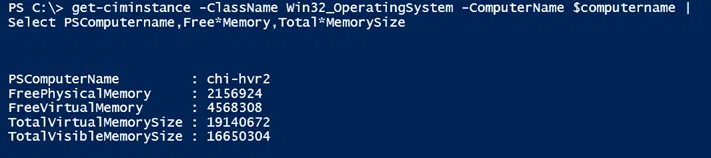
The memory values are in KB. If I divide the number by 1KB that will give me the value in MB. If I divide by 1MB, I'll get the value in GB. Here's a more complete one-line command that also calculates utilization percentages.
Get-CimInstance -ClassName Win32_OperatingSystem -ComputerName $computername |
Select PSComputername,
@{Name="OS";Expression = {$_.Caption}},
@{Name = "TotalMemoryGB";Expression={$_.totalVisibleMemorySize/1MB -as [int]}},
@{Name = "FreeMemoryGB";Expression={[Math]::Round($_.FreePhysicalMemory/1MB,2)}},
@{Name = "PctMemoryFree";Expression = {[Math]::Round(($_.FreePhysicalMemory/$_.totalVisibleMemorySize) *100,2)}},
@{Name = "TotalVirtualMemoryGB";Expression={$_.totalVirtualMemorySize/1MB -as [int]}},
@{Name = "FreeVirtualMemoryGB";Expression={[Math]::Round($_.FreeVirtualMemory/1MB,2)}},
@{Name = "PctVirtualMemoryFree";Expression = {[Math]::Round(($_.FreeVirtualMemory/$_.totalVirtualMemorySize) *100,2)}}

As you can see, memory is getting pretty tight. What virtual machines are eating this memory up? To figure that out, I need to get all the currently running VMs.
How much memory is currently assigned using PowerShell get memory usage?

But probably more important is how much memory is actually being demanded?

There is also a maximum memory, which would be a worst case scenario. Here's a one-line approach to getting the value.

If all the current running VMs needed to use their maximum memory settings, they would need 23GB. That's a problem because the server only has 16! Hopefully it won't come to that. With this, I can create a custom object to display total virtual machine memory utilization.
[pscustomobject]@{
Computername = $Computername.toUpper()
RunningVMs = $vms.count
TotalAssignedMemoryGB = ($vms | Measure-Object -Property MemoryAssigned -sum).sum/1GB
TotalDemandMemoryGB = ($vms | measure-object -Property MemoryDemand -sum).sum/1GB
PctDemand = [math]::Round(($vms.memorydemand | measure-object -sum).sum/($vms.memoryassigned | measure-object -sum).sum * 100,2)
TotalMaximumMemoryGB = ($vms | Measure-Object -Property MemoryMaximum -sum).sum/1GB
}

Notice I’m not simply writing text to the screen I am using an object. This makes it much easier if I had multiple hosts to manage, or if I wanted to export to a CSV or something.
I can take this a step further and look at each running VM. Since I can get each machine’s assigned and demand memory, I can divide those values by the host’s available memory and calculate what percentage each VM is consuming.
$vmhost = Get-CimInstance -ClassName Win32_OperatingSystem -ComputerName $computername
$usage = $vms | select Name,
@{Name="Status";Expression={$_.MemoryStatus}},
@{Name="MemAssignMB";Expression={$_.MemoryAssigned/1MB}},
@{Name="PctAssignTotal";Expression={[math]::Round(($_.memoryAssigned/($vmhost.TotalVisibleMemorySize*1KB))*100,2)}},
@{Name="MemDemandMB";Expression={$_.MemoryDemand/1MB}},
@{Name="PctDemandTotal";Expression={[math]::Round(($_.memoryDemand/($vmhost.TotalVisibleMemorySize*1KB))*100,2)}}
I saved the results to a variable, so I could do different things with it like this:

Looks like my SQL Server needs some attention, or I could shut a few things down to free up resources.
In any event, I've given you several commands you could run to get a handle on memory utilization on the Hyper-V host. But personally, I'd prefer everything in one place. So I wrote a function that combines everything I've covered.
#requires -version 4.0
#requires -module Hyper-V
Function Get-VMHostMemoryStatus {
<#
.Synopsis
Get a memory summary for a Hyper-V host
.Description
This command will get a summary of memory utilization for a Hyper-V host. Unless otherwise indicated, memory sizes are in GB.
The VMs property will be a nested collection of running virtual machines showing what percentage of total host physical memory each virtual machine is assigned and demanding. See examples.
.Parameter Computername
The name of a Hyper-V host. This parameter has an alias of CN.
.Example
PS C:> Get-VMHostMemoryStatus chi-hvr2 -outvariable h
Computername         : CHI-HVR2
OperatingSystem      : Microsoft Hyper-V Server 2012 R2
TotalMemory          : 16
FreeMemory           : 2.05
PctMemoryFree        : 12.91
TotalVirtualMemory   : 18
FreeVirtualMemory    : 4.35
PctVirtualMemoryFree : 23.8
RunningVMs           : 7
TotalAssignedMemory  : 12.845703125
TotalDemandMemory    : 8.9794921875
PctDemand            : 69.9
TotalMaximumMemory   : 23
VMs                  : {@{Name=CHI-CORE01; Status=Low; MemAssignMB=513; PctAssignTotal=3.15; MemDemandMB=492; PctDemandTotal=3.03},
                       @{Name=CHI-DC04; Status=OK; MemAssignMB=2049; PctAssignTotal=12.6; MemDemandMB=799; PctDemandTotal=4.91},
                       @{Name=CHI-FP02; Status=Warning; MemAssignMB=821; PctAssignTotal=5.05; MemDemandMB=845; PctDemandTotal=5.2},
                       @{Name=CHI-SCOM01; Status=OK; MemAssignMB=4096; PctAssignTotal=25.19; MemDemandMB=1720;
                       PctDemandTotal=10.58}...}
.Example
PS C:> $h.vms | Sort PctDemandTotal -descending | format-table
Name       Status  MemAssignMB PctAssignTotal MemDemandMB PctDemandTotal
----       ------  ----------- -------------- ----------- --------------
CHI-SQL01  Warning        2653          16.32        2732           16.8
CHI-Win81  Low            2050          12.61        1927          11.85
CHI-SCOM01 OK             4096          25.19        1679          10.33
CHI-FP02   Warning         777           4.78         808           4.97
CHI-DC04   OK             2049           12.6         799           4.91
CHI-Web02  OK             1024            6.3         655           4.03
CHI-CORE01 Low             513           3.15         492           3.03
The running virtual machines and how much memory each is using.
.Notes
Version 1.0
Learn more about PowerShell:
Essential PowerShell Learning Resources
  ****************************************************************
  * DO NOT USE IN A PRODUCTION ENVIRONMENT UNTIL YOU HAVE TESTED *
  * THOROUGHLY IN A LAB ENVIRONMENT. USE AT YOUR OWN RISK.  IF   *
  * YOU DO NOT UNDERSTAND WHAT THIS SCRIPT DOES OR HOW IT WORKS, *
  * DO NOT USE IT OUTSIDE OF A SECURE, TEST SETTING.             *
  ****************************************************************
.Link
Get-VM
Get-VMHost
Get-CimInstance
#>
[cmdletbinding()]
Param(
[Parameter(Position=0,Mandatory,HelpMessage="Enter the name of a Hyper-V host")]
[Alias("cn")]
[ValidateNotNullorEmpty()]
[string]$Computername
)
Write-Verbose "[Starting] $($MyInvocation.Mycommand)"
Try {
    Write-Verbose "[Status] Getting Operating system information from $Computername"
    $vmhost = Get-CimInstance -computername $Computername -ClassName Win32_OperatingSystem -ErrorAction Stop
    Write-Verbose "[Status] Getting running virtual machines"
    $vms = Get-VM -Computername $Computername -ErrorAction Stop | where {$_.state -eq 'running'}
}
Catch {
    Throw $_
    #bail out
    Return
}
Write-Verbose "[Status] Analyzing..."
$vmusage = $vms | select Name,
@{Name = "Status";Expression={$_.MemoryStatus}},
@{Name = "MemAssignMB";Expression={$_.MemoryAssigned/1MB}},
@{Name = "PctAssignTotal";Expression={[math]::Round(($_.memoryAssigned/($vmhost.TotalVisibleMemorySize*1KB))*100,2)}},
@{Name = "MemDemandMB";Expression={$_.MemoryDemand/1MB}},
@{Name = "PctDemandTotal";Expression={[math]::Round(($_.memoryDemand/($vmhost.TotalVisibleMemorySize*1KB))*100,2)}}
[pscustomobject]@{
    Computername         = $vmhost.CSName
    OperatingSystem      = $vmhost.Caption
    TotalMemory          = $vmhost.totalVisibleMemorySize/1MB -as [int]
    FreeMemory           = [Math]::Round($vmhost.FreePhysicalMemory/1MB,2)
    PctMemoryFree        = [Math]::Round(($vmhost.FreePhysicalMemory/$vmhost.totalVisibleMemorySize) *100,2)
    TotalVirtualMemory   = $vmhost.totalVirtualMemorySize/1MB -as [int]
    FreeVirtualMemory    = [Math]::Round($vmhost.FreeVirtualMemory/1MB,2)
    PctVirtualMemoryFree = [Math]::Round(($vmhost.FreeVirtualMemory/$vmhost.totalVirtualMemorySize) *100,2)
    RunningVMs           = $vms.count
    TotalAssignedMemory  = ($vms | Measure-Object -Property MemoryAssigned -sum).sum/1GB
    TotalDemandMemory    = ($vms | measure-object -Property MemoryDemand -sum).sum/1GB
    PctDemand            = [math]::Round(($vms.memorydemand | measure-object -sum).sum/($vms.memoryassigned | measure-object -sum).sum * 100,2)
    TotalMaximumMemory   = ($vms | Measure-Object -Property MemoryMaximum -sum).sum/1GB
    VMs                  = $vmusage
}
Write-Verbose "[Ending] $($MyInvocation.Mycommand)"
} #end function
Now, I can get everything I need with a single command.

I modified the property names, as I thought they were getting a bit long for my tastes. The memory values are in GB. Details for each running virtual machine are stored in the VMs property. Because I used the common parameter Out-Variable, I can easily get that information without having to re-run the command.

Because everything is an object I can slice and dice the data anyway, I need or use any other PowerShell cmdlet. I hope you'll let me know what you think. Now if you'll excuse me, I think I have some virtual machines that need some attention.
FAQs
How can I use PowerShell to monitor RAM usage in real-time with automatic alerts?
To monitor RAM usage in real-time using PowerShell, create a script that uses Get-Counter cmdlet with ‘\Memory\Available MBytes’ counter, set threshold values, and implement Send-MailMessage for alerts when memory usage exceeds specified limits. Schedule this script using Task Scheduler for continuous monitoring.
What PowerShell commands can check memory usage for specific processes?
Use Get-Process | Select-Object Name, WorkingSet, VirtualMemorySize | Sort-Object -Property WorkingSet -Descending to get detailed memory usage for individual processes. This helps identify memory-hungry applications and their resource consumption patterns.
How do I export PowerShell memory usage data to Excel for analysis?
Create a script using Get-Counter for memory metrics, format the data using Select-Object, and export to CSV using Export-CSV path\filename.csv. Then use Import-Excel module to create formatted Excel reports with charts and pivot tables.
Can PowerShell get memory usage history for trend analysis?
Yes, use Get-WinEvent and Get-Counter with -MaxSamples parameter to collect historical memory usage data. Store this in a custom object and analyze patterns using PowerShell’s statistical functions like Measure-Object for trending analysis.
How to use PowerShell to check memory usage across multiple remote servers?
Implement Invoke-Command with Get-Counter and Create-PSSession to gather memory usage data from multiple servers simultaneously. Use PowerShell remoting with proper credentials and store results in a hash table for comprehensive network-wide memory monitoring.

Jeffery Hicks is an IT veteran with over 30 years of experience, much of it spent as an IT infrastructure consultant specializing in Microsoft server technologies with an emphasis on automation and efficiency. He is a multi-year recipient of the Micr...