- Blog
- PowerShell
- Post
PowerShell Problem Solver: Find Script Commands
Recently I was involved in an exchange on Twitter. The discussion originally was about find a way to identify what cmdlets are available for a given version of PowerShell or operating system. But after a little back and forth, I discovered the real issue: how to identify what cmdlets or modules that are necessary to run a script. The issue for my tweet-pal centered on Desired State Configuration (DSC). He was having issues using some DSC resources and it was most likely due to missing cmdlets on the target node. A DSC resource is packaged as a module, which means it should be possible to look through the psm1 file and identify what cmdlets and modules it requires. Here are a few ways to approach this problem, and by approach I mean letting PowerShell do the work for us.
Method 1: Using regular expressions
The first approach is a simple brute-force technique using regular expressions. Most DSC resources will be getting or setting something. Assuming the module author is using full cmdlet names, I can define a regular expression pattern to search for text that looks like a cmdlet name.
[regex]$rx="b(Get|New|Set|Add|Remove|Test)-w+b"
The pattern looks for a word that starts with Get, New or any of the rest, followed by a dash and then any other word. To search, we need to identify the path to the DSC module file.
$dsc = Get-DscResource -Name xIPAddress
The path property will be to the module file. I’ll get the module contents.
$code = Get-content $dsc.Path
And then I’ll use the regex object to find all matching values.
$rx.matches($code).Value | Sort | Get-Unique
Because there will most likely be duplicates, I want a unique list. I have that found sorting works best for this. But now I can see what cmdlets are used in this resource.

I could then test for that command on my target computer.
invoke-command {get-command get-netipaddress} -computername Server01
Or perhaps test for all of them.
$cmdlets = $rx.matches($code).Value | Sort | Get-Unique | where {$_ -notmatch "-TargetResource$"}
invoke-command {get-command $using:cmdlets} -computername Server01
I filtered out the commands that are part of every DSC resource. Now I can easily see if there are any potential problems before I deploy my configuration. If you like this approach, then you can use a function that simplifies the process.
#requires -version 4.0
Function Get-DSCResourceCommands {
[cmdletbinding()]
Param([string]$Name)
Begin {
    Write-Verbose -Message "Starting $($MyInvocation.Mycommand)"
    #define a regular expression to pull out cmdlet names using some common verbs
    [regex]$rx="b(Get|New|Set|Add|Remove|Test)-w+b"
} #begin
Process {
    Write-Verbose "Getting DSC Resource $Name"
        Try {
            $resource = Get-DscResource -Name $name -ErrorAction Stop
            Write-Verbose ($resource | out-string)
        }
        Catch {
            Throw
        }
        if ($resource) {
        #get the code from the module path which will be something like this:
        #'C:Program FilesWindowsPowerShellModulesxSmbShareDSCResourcesMSFT_xSmbShareMSFT_xSmbShare.psm1'
        Write-Verbose "Processing content from $($resource.path)"
        $code = Get-Content -path $resource.path
        #find matching names
        $rx.matches($code).Value | sort | Get-Unique | Where {$_ -notmatch "-TargetResource$"}
        } #if $resource
} #process
End {
    Write-Verbose -Message "Ending $($MyInvocation.Mycommand)"
} #end
}
All you need to do is enter the name of a DSC resource.
Get-DSCResourceCommands -Name xrdremoteapp
One drawback to this approach is that you might also identify internally defined functions that match the regular expression pattern. There’s nothing wrong with functions as they are most likely calling regular PowerShell cmdlets. But another technique would be to parse the script file using PowerShell’s AST (abstract syntax tree).
Method 2: Using PowerShell AST
Without getting too deep into the technical .NET details, you can use the AST to analyze a block of PowerShell code. The AST will parse the commands and create a series of tokens. These tokens represent parts of a PowerShell command. Using the AST is not something I would expect of a typical IT pro, so I ‘ll give you a hand and offer function called Test-ScriptFile:
#requires -version 3.0
Function Test-ScriptFile {
<#
.Synopsis
Test a PowerShell script for cmdlets
.Description
This command will analyze a PowerShell script file and display a list of detected commands such as PowerShell cmdlets and functions. Commands will be compared to what is installed locally. It is recommended you run this on a Windows 8.1 client with the latest version of RSAT installed. Unknown commands could also be internally defined functions. If in doubt view the contents of the script file in the PowerShell ISE or a script editor.
You can test any .ps1, .psm1 or .txt file.
.Parameter Path
The path to the PowerShell script file. You can test any .ps1, .psm1 or .txt file.
.Parameter UnknownOnly
Only display commands that could not be resolved based on locally installed modules.
.Example
PS C:> test-scriptfile C:scriptsRemove-MyVM2.ps1
CommandType Name                                   ModuleName
----------- ----                                   ----------
    Cmdlet Disable-VMEventing                      Hyper-V
    Cmdlet ForEach-Object                          Microsoft.PowerShell.Core
    Cmdlet Get-VHD                                 Hyper-V
    Cmdlet Get-VMSnapshot                          Hyper-V
    Cmdlet Invoke-Command                          Microsoft.PowerShell.Core
    Cmdlet New-PSSession                           Microsoft.PowerShell.Core
    Cmdlet Out-Null                                Microsoft.PowerShell.Core
    Cmdlet Out-String                              Microsoft.PowerShell.Utility
    Cmdlet Remove-Item                             Microsoft.PowerShell.Management
    Cmdlet Remove-PSSession                        Microsoft.PowerShell.Core
    Cmdlet Remove-VM                               Hyper-V
    Cmdlet Remove-VMSnapshot                       Hyper-V
    Cmdlet Write-Debug                             Microsoft.PowerShell.Utility
    Cmdlet Write-Verbose                           Microsoft.PowerShell.Utility
    Cmdlet Write-Warning                           Microsoft.PowerShell.Utility
.Example
PS C:> get-dscresource xJeaToolkit | Test-ScriptFile | Sort CommandType | format-table
CommandType Name                 ModuleName
----------- ----                 ----------
     Cmdlet Join-Path            Microsoft.PowerShell.Management
     Cmdlet Import-Module        Microsoft.PowerShell.Core
     Cmdlet Write-Verbose        Microsoft.PowerShell.Utility
     Cmdlet Out-String           Microsoft.PowerShell.Utility
     Cmdlet Write-Debug          Microsoft.PowerShell.Utility
     Cmdlet Test-Path            Microsoft.PowerShell.Management
     Cmdlet Remove-Module        Microsoft.PowerShell.Core
     Cmdlet Get-Module           Microsoft.PowerShell.Core
     Cmdlet Export-ModuleMember  Microsoft.PowerShell.Core
     Cmdlet Get-Content          Microsoft.PowerShell.Management
     Cmdlet Format-List          Microsoft.PowerShell.Utility
    Unknown Assert-JeaDirectory  Unknown
    Unknown Export-JEAProxy      Unknown
    Unknown Get-JeaDir           Unknown
    Unknown New-TerminatingError Unknown
    Unknown Get-JeaToolKitDir    Unknown
.Example
PS C:> get-dscresource cvhdfile | test-scriptfile -UnknownOnly
CommandType                             Name                                    ModuleName
-----------                             ----                                    ----------
Unknown                                 EnsureVHDState                          Unknown
Unknown                                 GetItemToCopy                           Unknown
Unknown                                 SetVHDFile                              Unknown
.Notes
Last Updated: November 2, 2014
Version     : 1.0
Learn more about PowerShell:
Essential PowerShell Learning Resources
  ****************************************************************
  * DO NOT USE IN A PRODUCTION ENVIRONMENT UNTIL YOU HAVE TESTED *
  * THOROUGHLY IN A LAB ENVIRONMENT. USE AT YOUR OWN RISK.  IF   *
  * YOU DO NOT UNDERSTAND WHAT THIS SCRIPT DOES OR HOW IT WORKS, *
  * DO NOT USE IT OUTSIDE OF A SECURE, TEST SETTING.             *
  ****************************************************************
.Link
Get-Command
Get-Alias
#>
[cmdletbinding()]
Param(
[Parameter(Position = 0,Mandatory = $True,HelpMessage = "Enter the path to a PowerShell script file,",
ValueFromPipeline = $True,ValueFromPipelineByPropertyName = $True)]
[ValidatePattern( ".(ps1|psm1|txt)$")]
[ValidateScript({Test-Path $_ })]
[string]$Path,
[switch]$UnknownOnly
)
Begin {
    Write-Verbose "Starting $($MyInvocation.Mycommand)"
    Write-Verbose "Defining AST variables"
    New-Variable astTokens -force
    New-Variable astErr -force
} #begin
Process {
    Write-Verbose "Parsing $path"
    $AST = [System.Management.Automation.Language.Parser]::ParseFile($Path,[ref]$astTokens,[ref]$astErr)
    #group tokens and turn into a hashtable
    $h = $astTokens | Group-Object tokenflags -AsHashTable -AsString
    $commandData = $h.CommandName | where {$_.text -notmatch "-TargetResource$"} |
    foreach {
     Write-Verbose "Processing $($_.text)"
     Try {
        $cmd = $_.Text
        $resolved = $cmd | get-command -ErrorAction Stop
         if ($resolved.CommandType -eq 'Alias') {
            Write-Verbose "Resolving an alias"
            #manually handle "?" because Get-Command and Get-Alias won't.
            Write-Verbose "Detected the Where-Object alias '?'"
            if ($cmd -eq '?'){
              Get-Command Where-Object
            }
            else {
                $resolved.ResolvedCommandName | Get-Command
           }
         }
         else {
            $resolved
         }
     } #Try
     Catch {
        Write-Verbose "Command is not recognized"
        #create a custom object for unknown commands
        [PSCustomobject]@{
         CommandType = "Unknown"
         Name = $cmd
         ModuleName = "Unknown"
      } #custom object
     } #catch
    } #foreach
    if ($UnknownOnly) {
        Write-Verbose "Filtering for unknown commands only"
        $commandData = $commandData | where {$_.Commandtype -eq 'Unknown'}
    }
    else {
        Write-Verbose "Displaying all commands"
    }
    #display results
    $commandData | Sort-Object -property Name | Select-Object -property CommandType,Name,ModuleName -Unique
} #process
End {
    Write-Verbose -Message "Ending $($MyInvocation.Mycommand)"
} #end
} #end function
The script has comment-based help and hopefully plenty of inline comments, so I won’t repeat those here. To use, all you need to do is feed it the path to a script file. This can be any .ps1, .psm1 or even a .txt file. Fortunately, the DSC resource object’s Path property is conveniently named and I wrote Test-ScriptFile to take advantage of it.
get-dscresource xazurevm | test-scriptfile
The function not only identifies commands, it will resolve aliases and get command information, if it can be found locally. I recommend having a Windows 8.1 desktop with RSAT installed to get the most coverage. But as you can see from the screenshot, sometimes even that might not be enough.
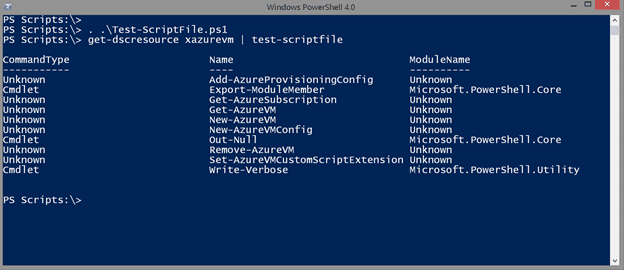
Some of these commands may be internal functions, but at least I have some command names to research before using this resource in a configuration. Let me also point out that you can use this function for any script file, not just a DSC resource. This is a handy way of identifying what commands are in that script you just downloaded.

I also added parameter to only display unknown items.

Now I at least know what to search for when I open the file in my script editor.
These are a few ways you can identify what commands will be run in a PowerShell script. But the best technique is to review the script file, DSC Resources included, in a scripting editor before you begin using it.

Jeffery Hicks is an IT veteran with over 30 years of experience, much of it spent as an IT infrastructure consultant specializing in Microsoft server technologies with an emphasis on automation and efficiency. He is a multi-year recipient of the Micr...