How to Import Group Policy Objects to Microsoft Intune (Using Group Policy Analytics)
Export a GPO, analyze MDM compatibility, and migrate supported settings into Intune with Group Policy Analytics.

Key Takeaways:
- Back up your on-premises GPO in Group Policy Management Console (GPMC) to generate the XML files needed for analysis.
- Upload the GPO backup to Intune Group Policy analytics to see which settings map to MDM/Policy CSP and which don’t.
- Review the MDM support score and drill into unsupported settings to identify what must be redesigned (Settings catalog, baselines, templates, scripts).
- Use Migrate to create an Intune profile, then deploy to a pilot group first and expand in phases after validation.
As organizations move from on-premises Active Directory to cloud management, many admins need to Import Group Policy Objects to Microsoft Intune, and GPOs often become the last big roadblock. Traditional Group Policy only applies to domain-joined Windows devices, while Microsoft Intune can manage Windows, macOS, iOS/iPadOS, and Android, making it the natural destination for modern endpoint management.
The challenge is that you can’t simply “import a GPO” into Intune; you need to assess what can be converted to MDM-based policies and then rebuild the rest. This article walks through exporting a GPO, analyzing it with Intune Group Policy Analytics, and creating an Intune policy based on the results.
Before you begin
The migration process isn’t as automatic as many admins expect. If possible, start with a lab tenant and a few non-production GPOs so you can learn the workflow end-to-end and validate results on real Windows 10/11 devices.
For production migrations, prioritize modern management settings first, especially security and compliance controls. Common starting points include security baselines, BitLocker, Microsoft Defender, and Windows Update for Business policies. Also plan for coexistence: during the transition, devices may receive settings from both Group Policy and Intune, so test for conflicts and clearly document which platform “owns” each setting.
Step 1: Export a Group Policy Object
Start by exporting (backing up) the GPO from your on-premises Active Directory environment:
- Right-click the GPO you want to migrate and select Back Up (Figure 1).
- Sign in to a domain controller (or a management workstation with RSAT installed).
- Open the Group Policy Management Console (GPMC).
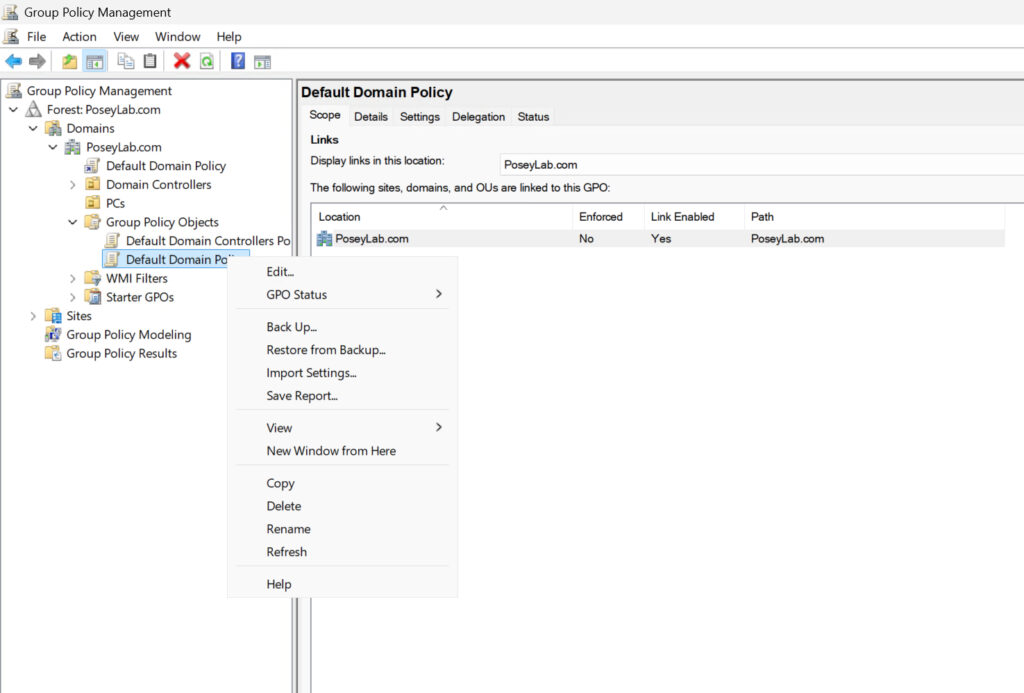
At this point, Windows will display the Back Up Group Policy Object dialog box.
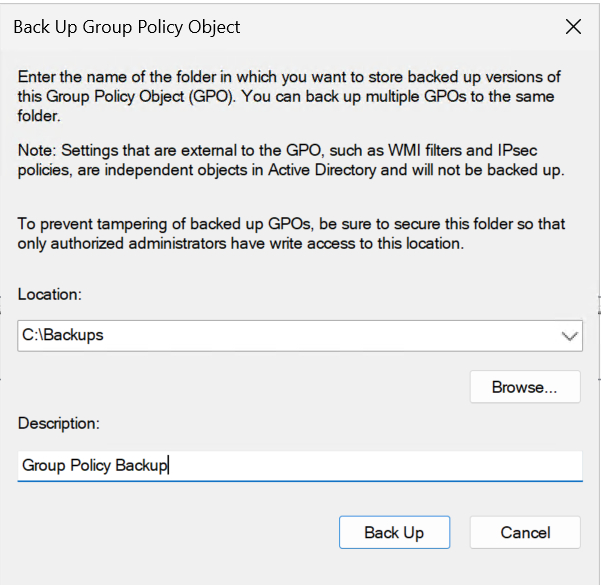
In the Back Up Group Policy Object dialog:
- Choose a folder location for the backup (local or network).
- (Optional) Add a description.
- Click Back Up.
- Confirm the status when the process completes, then click OK.
Step 2: Analyze your GPO backup with Intune Group Policy Analytics
You can’t import a traditional Group Policy Object directly into Intune because Intune deploys settings using MDM (Configuration Service Providers/Policy CSP), not the legacy Group Policy engine. Intune Group Policy analytics helps you evaluate a GPO backup and understand which settings map cleanly to MDM, which partially map, and which have no MDM equivalent.
- To open Group Policy analytics in Intune:
- Go to Devices > Group Policy analytics (Figure 3).
- Sign in to the Microsoft Intune admin center with an account that has the Intune Administrator role (or equivalent permissions).

This is the interface that is used to analyze your on-premises GPOs.
To import your GPO backup for analysis:
- Click Import.
- On Import Group Policy Object Files, click Browse and select one or more XML files from your GPO backup.
- Click Next and review/assign Scope tags (if your organization uses them).
- On Review + create, click Create to upload the files.
Step 3: Review compatibility results and identify gaps
After the upload completes, your imported GPOs appear in the Intune admin center (Figure 4). The key column to review is MDM support. A high score indicates that more settings have an MDM equivalent and are good candidates for migration. A low score (or missing support) means you’ll need to redesign those settings, often by using the Settings catalog, security baselines, administrative templates, scripts, or other Intune features.
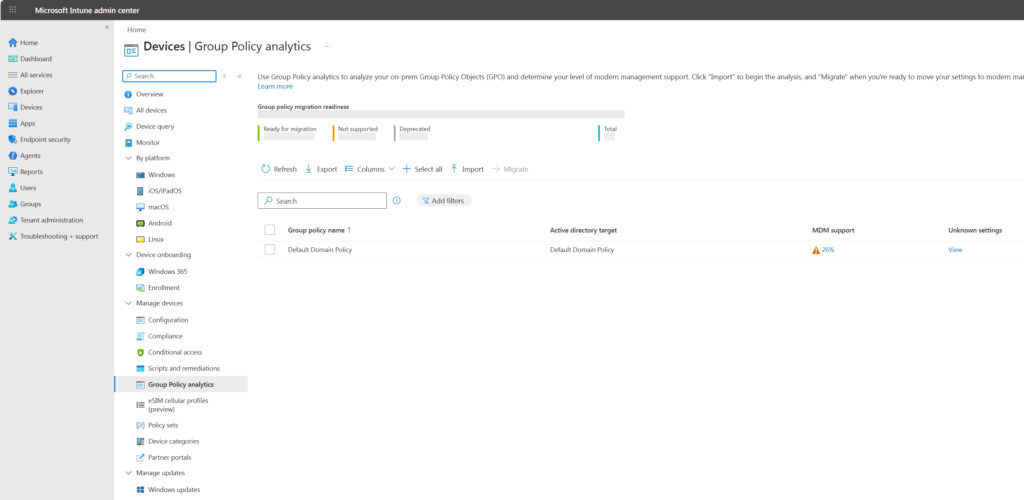
The Group Policy Analytics Tool is evaluating my policy.
Most GPOs end up with partial support. Intune displays this as a percentage rather than the word “Partial.” Select the score to drill into the results and see which individual settings are supported and which are not (Figure 5).
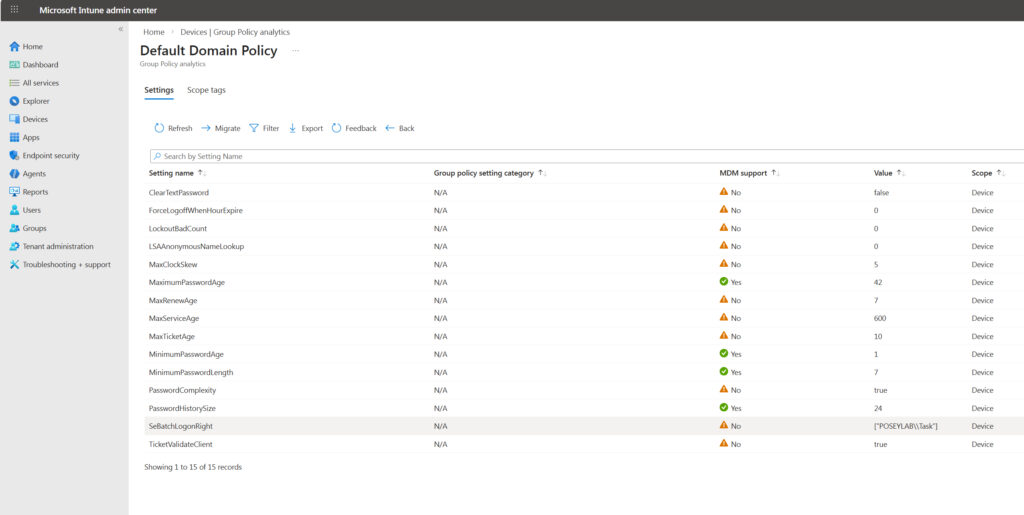
This screen allows you to assess your migration readiness.
Don’t rely on the percentage alone. A 95% score might still miss a single, business-critical setting, while a 50% score might cover every setting you actually care about. Review the unsupported items carefully so you can decide whether to replace them with an Intune equivalent, deploy them another way, or drop them entirely.
Step 4: Prioritize what to migrate
- Tier 1 (must migrate): Security and identity controls such as password policy, BitLocker, Microsoft Defender, security baselines, and Windows Update for Business.
- Tier 2 (nice to have): Non-essential configuration such as user experience tweaks, Microsoft Edge preferences, or minor hardening settings.
- Tier 3 (omit or replace): Legacy settings (for example, Internet Explorer), outdated network configurations, or anything tightly coupled to on-premises-only dependencies.
Step 5: Create and deploy the Intune policy
The next step in preparing for a group policy migration is to create a migration policy.
To create an Intune policy from the analysis:
- Select the imported GPO.
- Click Migrate.
- Select the checkboxes next to the settings you want to migrate.
- Click Next.
On the Configuration page, you’ll see the settings Intune will create in a new profile. Behind the scenes, Intune maps each supported GPO setting to an MDM policy (Policy CSP) setting with similar behavior.
On Profile info:
- Enter a name for the new Intune policy.
- (Optional) Add a description.
- Click Next.
To scope and assign the profile:
- Review Scope tags (if used) and click Next.
- On Assignments, assign the profile to one or more Microsoft Entra ID groups (device or user groups, depending on your targeting strategy).
- Click Next to continue.
On Review + deploy:
- Review the configuration summary (Figure 6).
- Click Deploy to create the profile.
- For production, start with a pilot group, validate on a few devices, then expand assignments in phases.

Next steps
Group Policy analytics is a practical way to turn a “how do we move our GPOs?” project into an actionable migration plan: export the GPO, import it for analysis, migrate what’s supported, and then redesign what isn’t. For unsupported settings, look for an equivalent in the Intune Settings catalog, Security baselines, Administrative templates, or deploy the configuration via scripts/Proactive remediations, then document ownership so you don’t end up managing the same setting in two places.
Frequently asked questions
Can you import a GPO into Intune?
Not directly—Intune uses MDM (Policy CSP) settings, not the legacy Group Policy engine. Use Intune Group Policy analytics to import and analyze a GPO backup and then migrate supported settings into a Settings catalog policy.
How do I Import Group Policy Objects to Microsoft Intune?
Export your on-premises GPO to XML, import it into Intune Group Policy analytics, and review the MDM support results. Then migrate supported settings into an Intune policy and rebuild unsupported settings using the Settings catalog, baselines, templates, or scripts.
What happens to Group Policy when a device is managed by Intune?
If a device still receives Group Policy and you also deploy Intune policies, you can end up with overlapping or conflicting settings. During a migration, test carefully and document which platform “owns” each setting.
What if Intune shows a setting is not supported?
It means there’s no direct MDM equivalent for that GPO setting in Intune. You’ll typically replace it with a different Intune feature (Settings catalog, security baselines, administrative templates) or use scripts/remediations where appropriate.

As an internationally bestselling tech author and a former 22-time Microsoft MVP, Brien Posey has written or contributed to dozens of books and created a variety of full-length video training courses on all sorts of IT and space-related topics. He’...