Enable Advanced Auditing in Windows Server
How do I enable Advanced Audit Policy Configuration in Windows Server?
With the ever-increasing need to meet industry or governmental compliance mandates, the ability to properly audit and report on what is happening in our environments is crucial. In Windows Vista, Microsoft divided the original nine auditing categories into subcategories and added some new events that weren’t previously possible to audit, such as the ability to track access to remote storage devices, which increased the total number of events that can be audited to 53. Advanced Audit Policy Configuration plays a key role in this process.
Starting in Windows Server 2008 R2 and Windows 7, Advanced Audit Policy Configuration in Group Policy allows administrators to configure the new granular audit settings without the need to use auditpol.exe at the command line.
Advanced auditing allows for more granular audit configuration, so that only events you are interested in capturing are written to the Event Log. The new settings can be found in Group Policy under Computer ConfigurationPoliciesSecurity SettingsAdvanced Audit Policy Configuration, and the original audit settings can be found here: Security SettingsLocal PoliciesAudit Policy.
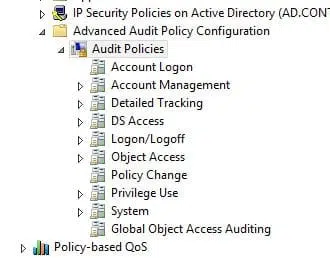
You’ll see that in the basic audit settings, it’s possible to switch account logon auditing on or off, but in the new advanced configuration there are four different account logon events that can be audited:
- Audit Credential Validation
- Audit Kerberos Authentication Service
- Audit Kerberos Service Ticket Operations
- Audit Other Account Logon Events
Enabling Advanced Audit Policy Configuration
Basic and advanced audit policy configurations should not be mixed. As such, it’s best practice to enable Audit: Force audit policy subcategory settings (Windows Vista or later) to override audit policy category settings in Group Policy to make sure that basic auditing is disabled. The setting can be found under Computer ConfigurationPoliciesSecurity SettingsLocal PoliciesSecurity Options, and sets the SCENoApplyLegacyAuditPolicy registry key to prevent basic auditing being applied using Group Policy and the Local Security Policy MMC snap-in. This ensures that Advanced Audit Policy Configuration can fully take effect.
Configuring Advanced Audit Policy settings
Now that you’ve disabled basic auditing, you can navigate to the Advanced Audit Policy Configuration node and enable auditing for any of the subcategories. Bear in mind that Group Policy can’t be used to enable advanced auditing on Windows Vista or Server 2008, but instead you can use the auditpol.exe command line tool in a logon script. This tool helps manage Advanced Audit Policy Configuration effectively.
To see which audit policies are enabled, run auditpol.exe /get /Category:* at the command line. This will list all the subcategories and show their status. In this example I’m going to set success and failure auditing for the Sensitive Privilege Use subcategory: auditpol.exe /set /subcategory:”Sensitive Privilege Use” /failure:enable /success:enable
FAQs
What are the hardware requirements for implementing Advanced Audit Policy Configuration in Windows Server?
Advanced Audit Policy Configuration requires minimum 4GB RAM, 2GHz processor, and 40GB free disk space to efficiently store and process audit logs. The exact requirements may vary depending on the size of your network and the amount of audit data being collected.
Can Advanced Audit Policy Configuration settings be exported and imported between different servers?
Yes, Advanced Audit Policy Configuration settings can be exported using auditpol.exe /backup command and imported to other servers using auditpol.exe /restore, making it easier to maintain consistent audit policies across multiple servers.
How does Advanced Audit Policy Configuration impact server performance?
The impact of Advanced Audit Policy Configuration on server performance depends on the number of audit policies enabled and event volume. It typically causes a 2-5% performance overhead, which can be managed by selecting only essential audit categories.
What is the maximum retention period for Advanced Audit Policy Configuration logs?
Advanced Audit Policy Configuration logs can be retained for up to 365 days by default, but this can be customized based on your organization’s compliance requirements and available storage space.
Can Advanced Audit Policy Configuration be integrated with third-party security information and event management (SIEM) solutions?
Yes, Advanced Audit Policy Configuration can be integrated with most SIEM solutions through Windows Event Forwarding or third-party agents, allowing centralized monitoring and analysis of audit events.

Russell Smith, the Editorial Director at Petri IT Knowledgebase, has over two decades of hands-on experience in IT, in both small business settings and government IT infrastructure projects. Russell started writing for Windows IT Pro Magazine in t...