How to Use Windows Memory Diagnostic Tool and How Much You Can Trust the Result
Windows Memory Diagnostic is worth running as a first-pass RAM check after crashes, blue screens, freezes, or instability. But a clean result should not be treated as proof that memory is healthy.

Quick answer: the Windows Memory Diagnostic Tool is a built-in Windows tool for checking RAM for possible memory errors. Run it if a PC is repeatedly crashing, freezing, restarting unexpectedly, or showing blue screen errors. If it reports memory errors, treat the result seriously. If it reports no errors, do not assume RAM is definitely healthy. Continue troubleshooting if the symptoms persist.
If a Windows PC is crashing, freezing, or producing unexplained blue screens, Windows Memory Diagnostic is a reasonable first test because it is built in, easy to run, and can catch obvious RAM faults. But it is not the final word on memory health. Treat it as a quick triage tool: useful when it finds errors, less conclusive when it does not.
Although Microsoft’s Windows operating system is normally stable and reliable, it is still possible for a system to exhibit issues such as application crashes, freezing, file corruption, random reboots, or even the Blue Screen of Death (BSOD). When these types of problems occur, it is best to begin the troubleshooting process by scanning for malware and installing any available updates. If that fails to resolve the problem however, then the issue could be related to the system’s memory.
Fortunately, Windows 10 and Windows 11 contain a native tool that can help you to test for memory problems.
Use the Windows Memory Diagnostic Tool as a first-pass RAM check
The Windows Memory Diagnostic Tool is similar to third party memory checking tools such as Memtest86, but is native to the Windows operating system. It’s designed to run various diagnostic tests against a system’s memory in order to determine whether a problem exists.
Run the Windows Memory Diagnostic Tool before replacing hardware
There are a few two main ways that you can open Windows memory diagnostic tool. The easiest option is:
- entering the mdsched.exe command at the Windows Run prompt (WIN+R).
‘mdsched’ is name of the executable file used by the tool.
Another option is to:
- enter the word Control at the Windows Command prompt to open the legacy Control Panel.
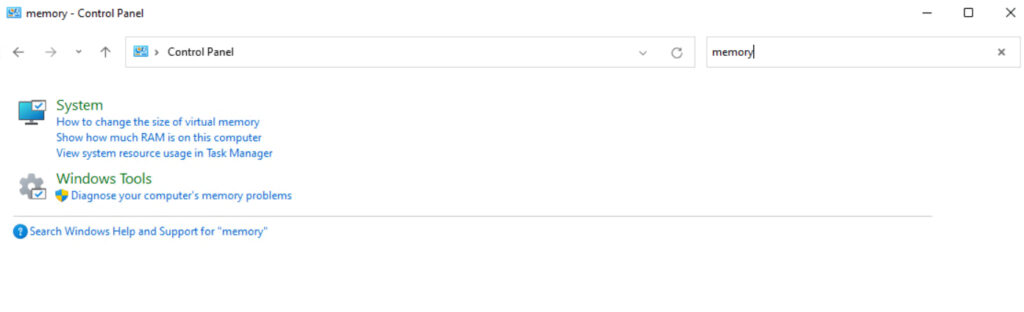
- Next, type the word “memory” into the Control Panel’s search box.
- Finally, click on the Diagnose Your Computer’s Memory Problems link, found in the Windows Tools section, shown in Figure 1.
Choose when Windows should restart and test memory
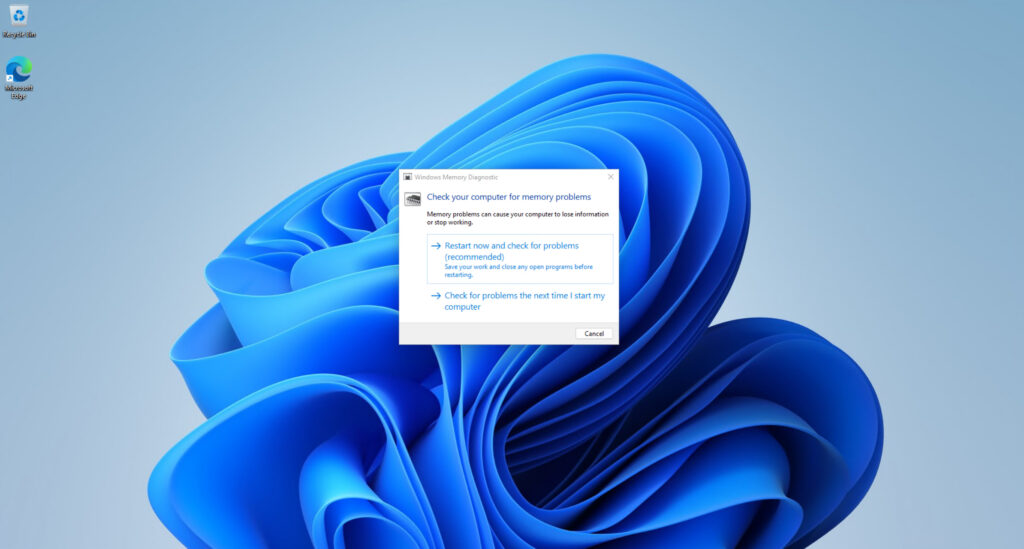
When you launch the Memory Diagnostic Tool, you will be greeted with a splash screen, similar to the one that is shown in Figure 2. This screen appears because the tool cannot perform a memory test with the Windows operating system running. As such, the system must reboot.
The startup screen gives you a choice between rebooting now and waiting to check for problems the next time that you restart the computer. If you do choose to restart now, then be sure to save your work and close any open programs prior to rebooting.
Let the memory test complete unless you launched it by mistake
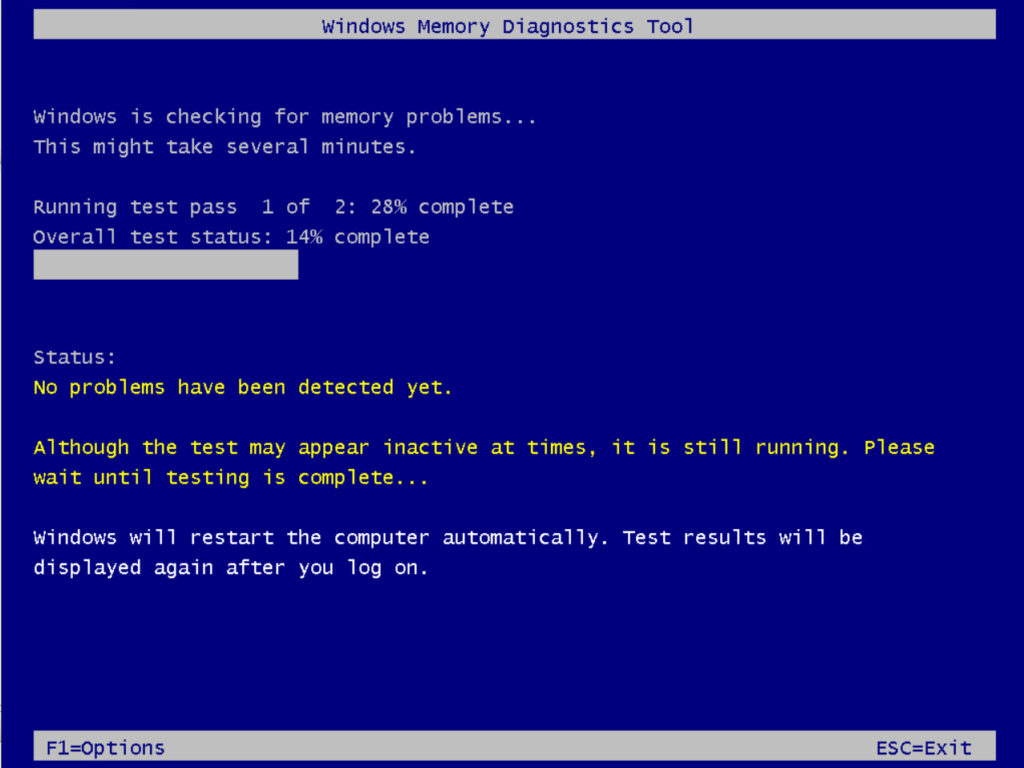
When the computer reboots, Windows will immediately begin running the memory diagnostic test, as shown in Figure 3. During the test, a progress bar will help you to track the test’s progress.
If you have initiated the test by accident, you can abort the testing process by pressing the Escape key. Generally speaking however, it is usually best to let the test complete.
Find Windows Memory Diagnostic Tool results in Event Viewer
When you run Windows Memory Diagnostics Tool, it will check your system for RAM issues and then reboot once the tests have been completed. Sometimes, the test will automatically display the test results after you login, but more often, you will have to open the Event Viewer. The results are displayed within the Windows Logs | System log. You can see an example of the Memory Diagnostics Tool results shown in Figure 3. If you want to see the results in a dedicated window, right click on the log entry and select the Event Properties command from the shortcut menu.
Check the ‘MemoryDiagnostics-Results’ event before drawing conclusions
Although the Windows Memory Diagnostic Tool generally does a good job of detecting memory problems, there may be situations in which problems exist, but are not immediately detected by the tool. In such situations, you may see a result stating, “No errors were detected”.
If you suspect that the machine contains memory issues that are not being reported, then you might consider running a more comprehensive memory test. Doing so is more time consuming than running a standard test, but it may find errors that might otherwise have been missed.
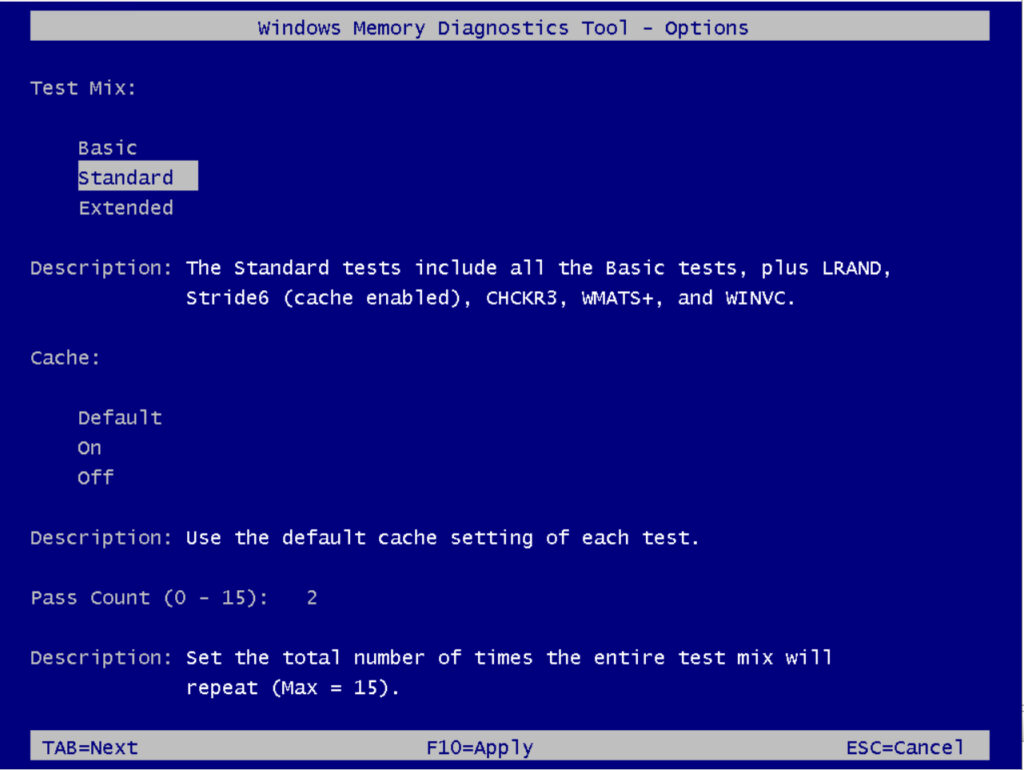
If you want to perform a different type of test, then start the diagnostic process in the usual manner. When the test begins, press the F1 key and you will be taken to the screen that is shown in Figure 4. This screen allows you to choose between running a Basic, Standard, or Extended test. You also have the ability to modify the cache settings and to increase or decrease the pass count.
Treat Windows Memory Diagnostic Tool errors as a serious signal
If the Windows Memory Diagnostic Tool reports that hardware problems were detected, then it does not automatically mean that your Random Access Memory (RAM) is physically defective. There are actually a few different possibilities that may account for the error.
Rule out bad RAM first
Although a “hardware problems were detected” message does not guarantee that there are issues with the system’s memory, bad RAM is quite common. A memory module within your system might have bad cells or failing circuitry.
Disable XMP, EXPO, or other memory overclocking
Sometimes, the tool can report that hardware problems were detected, even if the memory itself is fine. This type of error can stem from overclocking and is very common on systems that use DDR4 or DDR5 memory. If the memory has been overclocked using a tool such as Intel XMP or AMD EXPO, then a situation can occur in which the memory controller cannot reliably access the memory at the overclocked speeds, resulting in memory instability.
Consider CPU memory controller instability
Even if the memory has not been overclocked, instability tied to the CPU memory controller can mimic the symptoms of bad RAM.
Do not overlook motherboard or firmware problems
Although it is far less common than the other issues that have been discussed, a defective motherboard can cause a system to exhibit symptoms mimicking those of bad RAM. This can occur as a result of a motherboard being equipped with bad DIMM slots or a board that is experiencing voltage regulation problems. BIOS bugs can also sometimes cause a system to behave in a way that makes it appear that the memory has gone bad.
Test memory modules and DIMM slots separately
If the Windows Memory Diagnostic Tool is reporting hardware errors, then there are several steps that you can take to troubleshoot the process. First, try powering off the system and reseating the Dual In-line Memory Modules (DIMMs). It may be that the memory modules are loose, especially if the system has undergone recent upgrades.
If reseating the memory fails to resolve the issue, then try resetting the BIOS to its default values. You should also disable any overclocking tools, thereby allowing the memory to run at its native speed.
If you are still experiencing issues, you might attempt to test the memory modules one at a time. It may be that only a single module has gone bad. If however, you receive errors for each module that you test, then it may be that the DIMM slot on the motherboard has gone bad. You should retest the modules within a known good system.
Finally, if you are still having trouble diagnosing the issue, then try using a third party tool such as Memtest86 to confirm your results. A third party tool may provide you with additional information or it may be able to confirm that memory is actually good.
Use the Windows Memory Diagnostic Tool for triage, not final proof
Windows Memory Diagnostic is a good first check when a Windows PC starts crashing, freezing, or behaving unpredictably, but it should not be treated as a complete hardware validation tool. If it finds errors, act on them. If it finds nothing but the symptoms continue, keep investigating rather than assuming RAM is cleared. The safest default is to use it as triage but not a definitive answer.
Frequently asked questions
What does the Windows Memory Diagnostic Tool do?
The Windows Memory Diagnostic Tool checks a PC’s RAM for hardware-related memory errors that can cause crashes, freezes, blue screens, or file corruption. It restarts Windows into a separate test environment so it can examine memory before the normal desktop loads.
How do I run the Windows Memory Diagnostic Tool?
Press Windows key + R, type mdsched.exe, and press Enter. Then choose whether to restart immediately and check for problems or run the test the next time the computer restarts.
Where are Windows Memory Diagnostic Tool results stored?
Windows may show a notification after the test completes, but the more reliable place to check is Event Viewer. Open Windows Logs, select System, and look for an event named MemoryDiagnostics-Results.
Is the Windows Memory Diagnostic Tool reliable?
The Windows Memory Diagnostic Tool is reliable enough for a first-pass RAM check, especially if it reports errors. But a clean result does not prove memory is healthy, so persistent crashes or instability may still require longer tests, driver checks, firmware updates, or hardware troubleshooting.

As an internationally bestselling tech author and a former 22-time Microsoft MVP, Brien Posey has written or contributed to dozens of books and created a variety of full-length video training courses on all sorts of IT and space-related topics. He’...