Microsoft to Add Quality Updates Option to Windows 11 OOBE for Enterprises
New policy brings automatic quality updates to Windows 11 devices during first-time setup.

Key Takeaways:
- Windows 11 will soon support automatic quality updates during the Out-of-Box Experience (OOBE).
- The new setting can be managed through Intune and Enrollment Status Page (ESP) profiles.
- IT admins will no longer need custom scripts to apply updates during device provisioning.
Microsoft will soon introduce a new policy that will let administrators enable Windows quality updates by default during the Out-of-Box Experience (OOBE) on Windows 11 devices. Starting in September, this feature will be available on eligible Microsoft Entra-joined and hybrid-joined devices running Windows 11 version 22H2 or later.
With this update, Windows 11 devices will automatically check for and install available updates on the final screen of the Out-of-Box Experience (OOBE). This ensures that the device is up to date the first time a user signs in. Administrators can manage this feature through a policy setting, and any existing update deferrals or pause periods will continue to apply.
“You can manage this new capability with a policy setting. With Windows Autopilot and Microsoft Intune (or alternative management solutions), you can maintain seamless control over quality update behavior during provisioning, while ensuring alignment with organizational security and compliance requirements,” Microsoft explained.
This new setting will be enabled by default when creating an Enrollment Status Page (ESP) profile in Windows Autopilot. This means that the quality updates will be installed during the setup process. IT admins will be able to change this behavior within the ESP profile, but if no ESP is used, Windows updates during OOBE cannot be disabled.
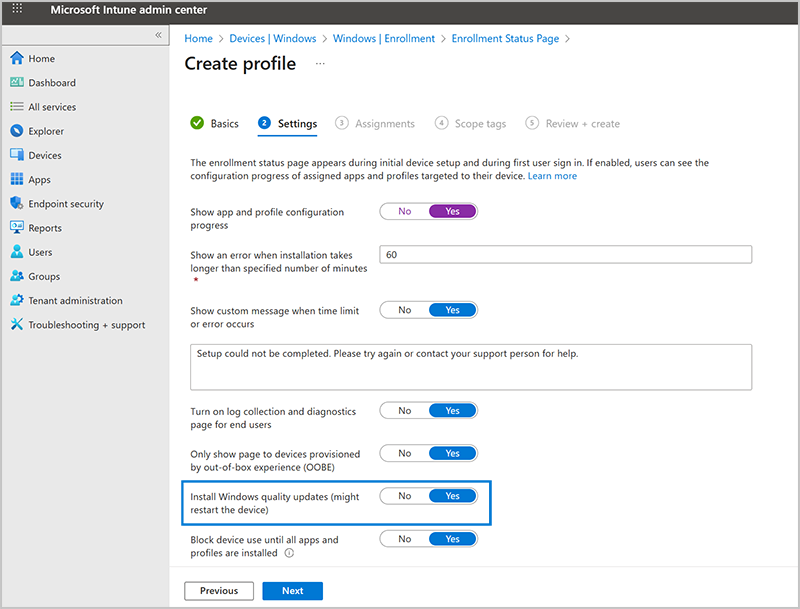
How to manage the OOBE update experience in Microsoft Intune?
To access this new setting, administrators will need to follow the steps mentioned below:
- Log in to the Microsoft Intune admin center.
- Go to Devices > Enrollment > Enrollment Status Page, and then select an existing ESP profile or create a new one.
- Click the Settings tab and find the “Install Windows quality updates (might restart the device)” option.
- If the value of this setting is set to “Yes,” the latest Windows quality updates will be installed during provisioning.
Update and configuration requirements
Microsoft notes that Windows 11 devices must be imaged with the June 2025 non-security update (or later) or have the August 2025 update installed to get this new setting. It also requires assigning an Autopilot Enrollment Status Page (ESP) profile, and Microsoft recommends using Intune to manage Windows quality updates.
Previously, administrators could install updates during OOBE, but only through manual PowerShell scripts. The new experience simplifies this process and reduces the need for custom deployment scripts. Enterprise admins have also suggested expanding the feature to include driver and firmware updates.

Rabia has a master's degree in Software Engineering and she has years of experience writing professionally about Microsoft products and other technologies. Rabia has also written for OnMSFT.com as well as Windows Report. She is always up to date on t...