Windows 10: Use a PIN Instead of a Password to Sign In
The ability to sign in with a PIN is not new to Windows 10, but Microsoft is now encouraging users during OS installation to consider using a PIN instead of a password.
This isn’t the first time that I’ve written about passwords recently on the Petri IT Knowledgebase. In Goodbye Passwords: Windows 10 Passport, I outlined a new feature in Windows 10 that works with works with Identity Providers (IDPs), such as Azure Active Directory (AAD) and Windows Server Active Directory, to authenticate users with a certificate or asymmetric public/private key pair that’s generated as part of a two-factor authentication enrollment process.
If you’ve installed Windows 10, as opposed to upgrading from Windows 7 or Windows 8.1, you may have noticed that you’re encouraged, after entering an email address and password to log in with a Microsoft account, to set a PIN code to unlock the device. Microsoft even goes as far as to state that this is preferable to using your Microsoft account password.
Are PIN codes safer than passwords?
According to Microsoft, yes. The reasoning is that if someone discovers the PIN, by looking over your shoulder as you log in for example, they only get access to the device and not complete ownership of your Microsoft account. Once logged in, the imposter would need to know your existing Microsoft account password in order to change it and take ownership, so while using a PIN doesn’t provide full protection, it does limit the amount of damage that can be done.
But there are some other reasons to use a PIN, too. Passwords are often easy to guess as people use information that is relevant to them, such as the name of their pet or favorite celebrity. PINs tend to be more obscure and harder to guess, but can also be prone to the ‘convenience’ factor if a cellphone number or date of birth is used.
Faster login
The best thing I’ve found about using a Windows security PIN instead of a password is that I’m able to log in faster. I tend to lock my desktop out of habit, even when I’m alone, and even if you’re not as fastidious as I am, the chances are your PC is configured to automatically lock after having been away for a period of time.
There are two languages installed on my notebook, and entering a password either involves having to check which language is selected before typing, entering my password and hoping for the best, or having to enter the password for a second time after having selected the correct language, which is very frustrating especially when I might need to enter my password many times every hour. The other enemy is CAPS LOCK, and while Windows will warn you if CAPS LOCK is enabled, it still requires an extra key press before entering your password.
Add a PIN
If you didn’t set up a PIN when installing Windows 10, here’s how to add a PIN to the device:
- Select Settings from the Start menu.
- Select Accounts in the Settings app.
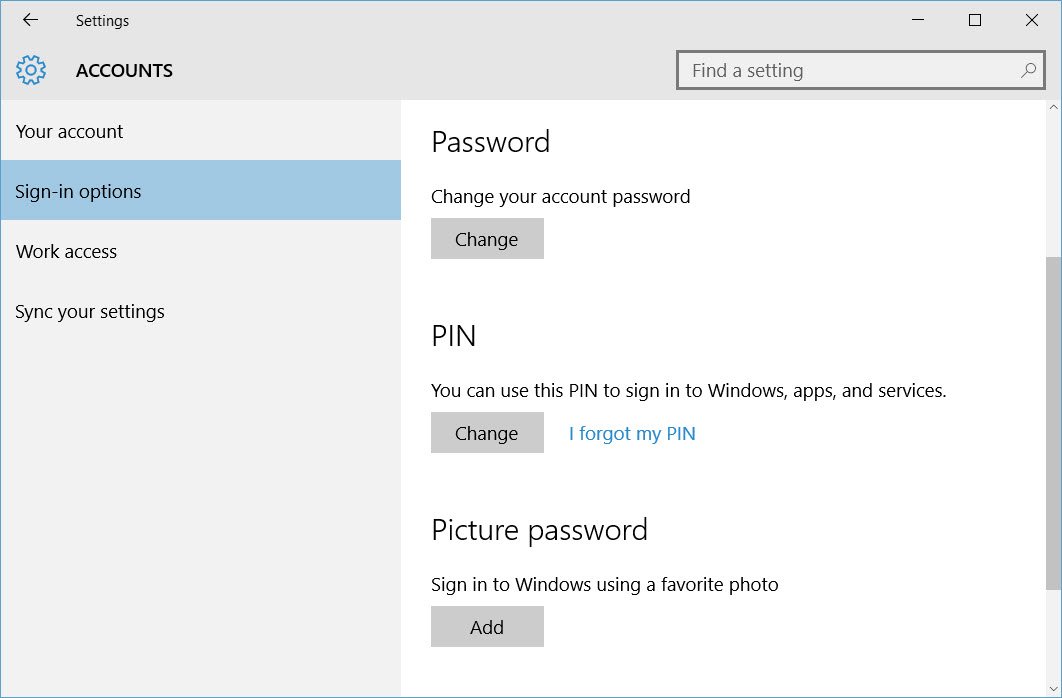
- On the ACCOUNTS page, select Sign-in options from the options on the left.
- Click Add below PIN.
- Verify your Microsoft account password and click OK.
- Now enter a PIN for the device and click Finish.
If you want to change the PIN at a later time, you can come back to the ACCOUNTS screen in the Settings app and click Change under PIN.
FAQs
Can I use both a Windows security PIN and a traditional password simultaneously?
Yes, Windows allows you to maintain both security measures simultaneously. Your Windows security PIN works for local device access, while your password remains active for Microsoft account services and remote access.
What happens if I forget my Windows security PIN?
If you forget your Windows security PIN, you can reset it using your Microsoft account password or alternative authentication methods. Windows security features include multiple recovery options to help you regain access.
Does Windows security PIN work in Safe Mode?
No, Windows security PIN authentication is not available in Safe Mode. You’ll need to use your traditional password when booting into Safe Mode or performing system recovery tasks.
Can I create a Windows security PIN longer than 4 digits?
Yes, Windows security PIN can be longer than 4 digits and can include both numbers and letters for enhanced security. Microsoft recommends using a unique combination that’s not easily guessable.
Is the Windows security PIN tied to the hardware?
Yes, your Windows security PIN is device-specific and encrypted to that particular hardware. This means if someone steals your PIN, they can’t use it to access your account on different devices.
Related Article:

Russell Smith, the Editorial Director at Petri IT Knowledgebase, has over two decades of hands-on experience in IT, in both small business settings and government IT infrastructure projects. Russell started writing for Windows IT Pro Magazine in t...