Where in Microsoft Edge Settings Can I Manage or Change Search Engines?
Microsoft defaults to using Bing for web search in their products, but you can change the default search engine used in the Microsoft Edge address bar.

Although the Microsoft Edge browser’s default search engine is set to Bing, you can configure Edge to use a different search engine such as Google, DuckDuckGo, or Yahoo.
How to change the default search engine in Microsoft Edge
To change the search engine:
- Open Microsoft Edge and then click on the More icon (the three dots in the upper right corner).
- Then click Settings.
- When the Settings screen appears, select the Privacy, Search, and Services section (located on the sidebar).
- Now, click on Search and Connected Experiences, followed by Address Bar and Search.
- As you can see in the screenshot below, the resulting page contains a drop down that allows you to choose the search engine that will be used within the address bar.
- You can choose between Bing, Yahoo, Google, DuckDuckGo, and Yandex.
It’s worth noting that the step-by-step instructions featured here apply specifically to the Edge browser in Windows 10 and Windows 11. While the Edge Browser is available on other platforms such as MacOS, iPhone, and Android, the exact location of the various options tend to vary from one platform to the next.
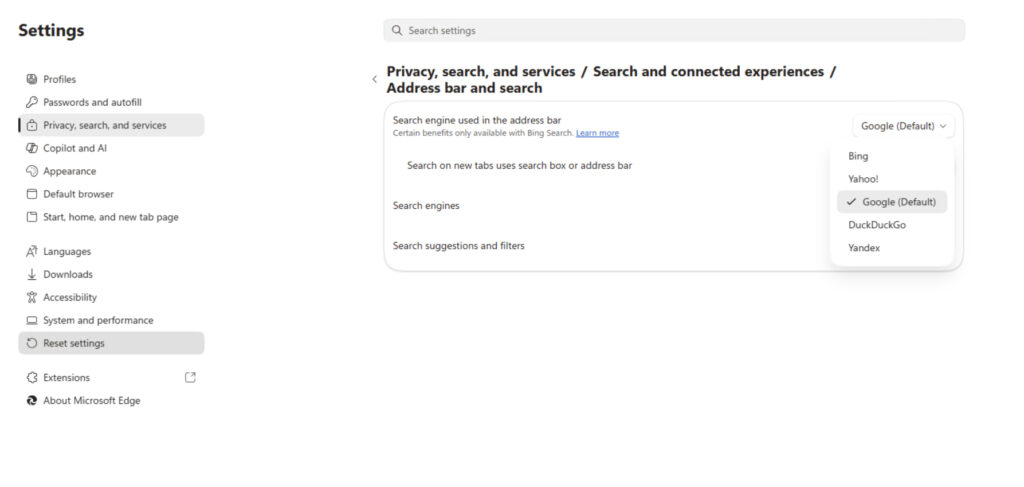
Finally, you can use the drop down to choose a new search provider.
Can I reconfigure the Edge browser to use Google search?
Yes, you can absolutely configure the Edge browser to use Google search. In fact, the Edge browser is based on Chromium, the open-source browser project that also powers Google’s Chrome browser. The easiest way to configure your browser to use Google search is to open the Edge browser and go to edge://settings/search. Upon doing so, you need only to choose Google from the dropdown list.
Why doesn’t my preferred search engine appear?
While the drop down menu shown in the previous screen capture does allow you to choose among some of the more popular search engines, the list is far from being all inclusive. If you want to use a search engine that does not appear on the list, then try going directly to the search engine’s Web site and performing a few searches. Sometimes, doing so will result in the search engine being added to the list. It is worth noting however, that the Edge browser only supports search engines that are OpenSearch compliant.
If visiting a search page does not result in the search engine being added to the list of available search engines, there is a way to manually add a search engine. To do so:
- Open Edge and go to edge://settings/search.
- Next, click on Search Engines.
You will be taken to a screen that lists all of the various address bar search engines that Edge currently knows about. In addition to the search engines that appear on the dropdown menu, you will also see entries for things like Copilot, Favorites, History, and Tabs, as shown in Figure 2.

The Search Engines page lists the various search engines that the Edge browser knows about.
If you want to add a new search engine to the list. click the Add Search Engine button.
When you do, you will be taken to the Add Search Engine page, which you can see in Figure 3. As you can see in the figure, you will need to enter the name of the search engine, the search engine shortcut, and the URL (with %s in place of the query).

You can use this box to add a custom search engine.
Why does Bing still show up on my new tab page?
When you open a new tab in Microsoft Edge, the tab features a search box that, when used, performs a Bing search. This happens even if you configure your browser to use a different search engine. You can see what the search box looks like in the figure below.

In order to fix this problem, you will need to have already configured the address bar search to use a different search engine.
- Once that is done, open your browser and go to edge://settings/privacy/services/search.
- Next, locate the setting option labeled Search on New Tabs Uses Search Box or Address Bar.
As you can see in the screenshot below, this option defaults to using the search box, which is Microsoft’s preferred option. Using the search box will always result in a Bing search. However, if you change this setting to Address Bar then any searchterms that you enter into the searchbox will automatically be directed to the address bar.

You can configure new tabs to search on the address bar.
How can I set my homepage to Google?
While there is something to be said for customizing your browser’s search settings, sometimes it’s just easier to change the browser’s home page so that it points directly to Google or another search provider. Often times, users who work from a diverse collection of devices will use this technique as a way of improving consistency across their devices. A user might for example, have Edge, Safari, FireFox, and Google Chrome all set with Google as the browser’s home page. This was also once a common practice with Internet Explorer.
To change the Edge browser’s home page:
- Open the Settings tab and then click on the Start, Home and New Tab Page tab.
- Now, locate the On Startup section and select the Open Custom Sites option.
- Click Add Site and then enter Google.com When you do, Google will be added to the list of tabs to be open on startup, as shown in Figure 6.

Why does my search engine keep changing?
If your preferred search engine keeps reverting back to Bing or changing to some other search engine, then it’s a good idea to check any browser extensions that you might have installed. Some (but not all) browser extensions are notorious for silently modifying search settings. Often times browser extensions will redirect the browser to obscure or questionable search engines.
If the cause of the reversion cannot be attributed to a browser extension, then it’s time to begin checking any apps that you might have installed recently. Some apps make changes to search preferences as a part of the installation process.
If you routinely sign into your browser using a Microsoft account, then it’s possible that your browser settings are being synchronized from another device. It may also be worth reviewing your notifications to see if there are any messages explaining the unwanted changes.
Final thoughts
While Microsoft would undoubtedly prefer that you use the Bing search engine with your Web browser, Microsoft Edge does make it relatively easy to change your default search provider. Taking the time to bring Edge more into line with your preferences will go a long way toward improving your overall browsing experience.

As an internationally bestselling tech author and a former 22-time Microsoft MVP, Brien Posey has written or contributed to dozens of books and created a variety of full-length video training courses on all sorts of IT and space-related topics. He’...